The best Just Cause 3 graphics settings for max FPS are 1080p, fullscreen, High textures, Medium shadows, Low or Medium LOD, and disabled SSAO, motion blur, bokeh, and screen-space reflections. That combination keeps Panau sharp while cutting the settings that hurt frame time most during explosions, fast driving, and large military-base assaults. If your PC still struggles, lower resolution scaling or resolution before dropping textures.
Just Cause 3 remains an unusually demanding open-world game because it is constantly streaming terrain, vehicles, destructible objects, smoke, water, and physics effects while Rico Rodriguez moves quickly across the map. A quiet beach can run smoothly, then a liberated base filled with fuel tanks and enemy vehicles can expose a serious CPU or GPU bottleneck. This guide focuses on stable performance rather than a misleading average FPS number.
Before changing anything, check the official Steam page for Just Cause 3 and update your graphics driver. For troubleshooting comparisons, our guides to performance-focused graphics settings and PC lag and crash fixes use the same useful rule: change one setting at a time, then test a repeatable scene.

Best Just Cause 3 settings for maximum FPS
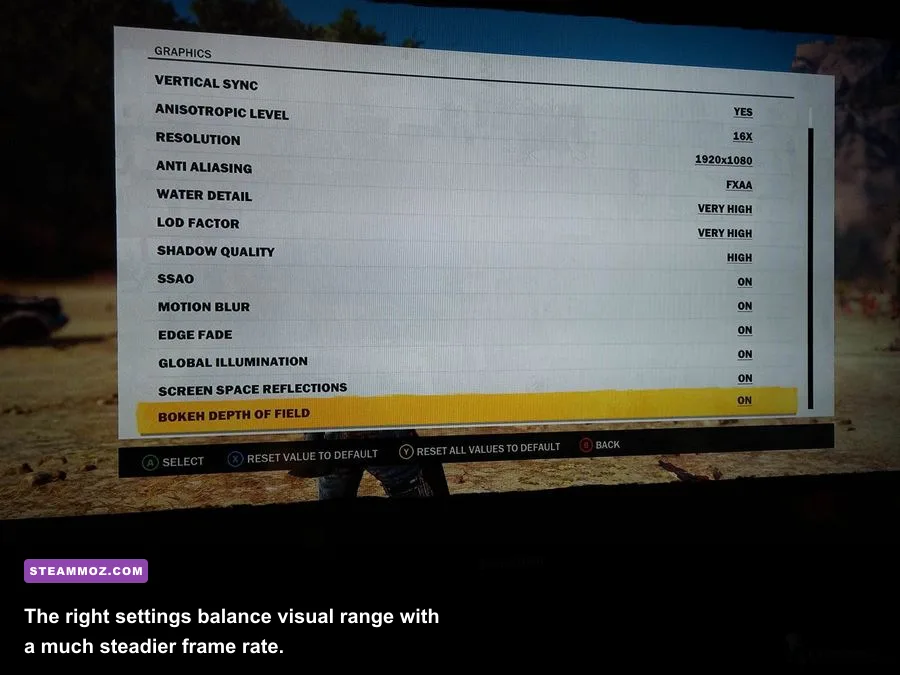
Start with the profile below. It is aimed at a 60-FPS target on a modern mid-range gaming PC, but the priorities also work for older hardware. The most important distinction is between average FPS and frame-time consistency. Just Cause 3 can report a respectable average while still feeling rough whenever the game streams a dense town or calculates a chain reaction.
| Setting | Recommended Value | FPS Impact | Visual Note |
|---|---|---|---|
| Resolution | 1920x1080 | Very high | Use native resolution first; lower only after other cuts. |
| Display Mode | Fullscreen | Low | Usually gives the cleanest presentation and input response. |
| VSync | Off, or capped externally | Low to medium | Disable for maximum responsiveness; cap near refresh rate to reduce tearing. |
| Texture Quality | High | Low on GPU, high VRAM use | High textures preserve buildings, roads, and Rico's gear details. |
| Shadow Quality | Medium | High | One of the best cuts for explosions, towns, and busy bases. |
| Level of Detail | Medium | High on CPU-heavy scenes | Reduces distant object density without making the near view blurry. |
| Water Detail | Medium | Medium | High looks good near coasts but is rarely worth the frame-time cost. |
| SSAO | Off | Medium | Removes contact shading under props and vehicles; saves GPU time. |
| Screen Space Reflections | Off | Medium | Mostly affects wet surfaces, glass, and reflective water. |
| Bokeh and Depth of Field | Off | Low | Keeps the action clearer and avoids unnecessary post-processing. |
| Motion Blur | Off | Low | Improves clarity during wingsuit dives and vehicle turns. |
| Edge Fade | Off | Low | A minor visual effect with little value during chaotic combat. |
Keep Texture Quality on High if your graphics card has roughly 4GB or more of VRAM and you are playing at 1080p. Textures generally affect memory capacity more than raw GPU speed, so lowering them will not cure a processor-limited stutter. If you see severe hitching after driving across Medici for several minutes, test Medium textures as a diagnostic, but don't assume Low is automatically faster.

🎮 FORM
Looking to experience this game? Grab your digital key directly on our store for $14.99.
View on Steammoz Store →The settings that actually control your frame time
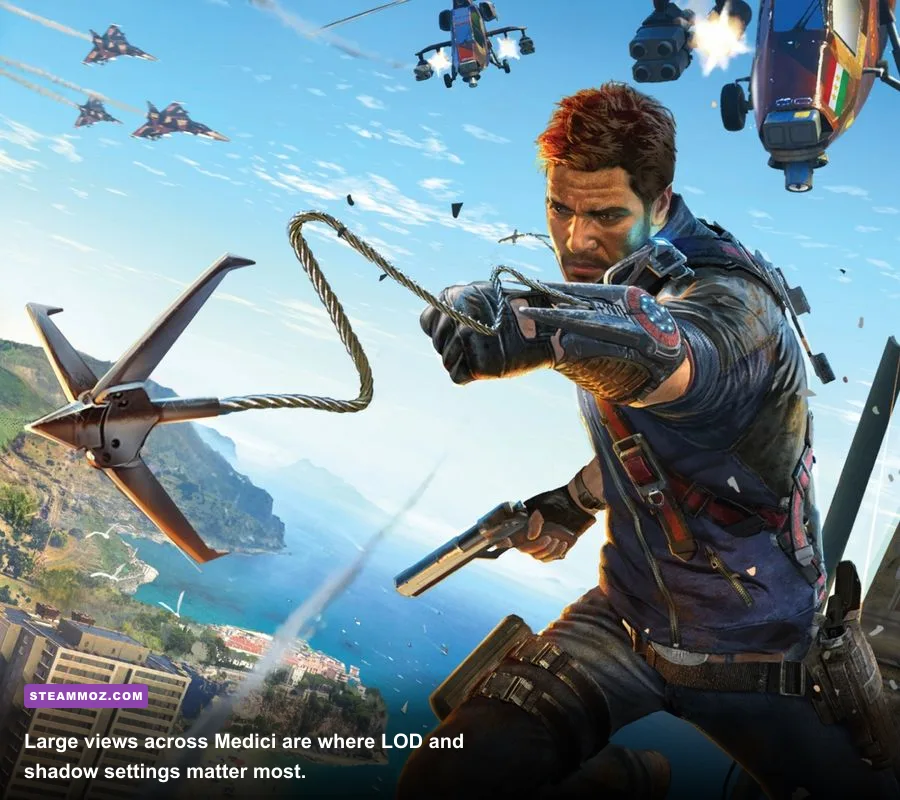
Shadow Quality is the first serious cut. High shadows add more detailed and numerous shadow calculations around structures, foliage, vehicles, and explosions. Medium keeps the world grounded while removing much of the expensive distant work. Low can help weaker GPUs, but shadows become visibly coarse around Rico and nearby buildings.
Level of Detail is more complicated. It controls how aggressively the engine swaps in distant geometry and world objects. High is attractive when wingsuiting from a mountain, yet it can increase CPU load while the game streams Panau underneath you. Medium is the sweet spot for most systems. Low is useful on older quad-core processors, but it can make distant towns and military installations pop into view during fast travel.
Water Detail matters across Medici's coastlines, especially when boating or flying low over the sea. It changes the quality of water rendering rather than the geometry of the whole world. Medium is difficult to distinguish during combat and saves more than expected in scenes containing large bodies of water.
Turn SSAO off before sacrificing resolution. Ambient occlusion adds small contact shadows beneath cars, crates, walls, and characters. Those details improve depth, but they are subtle during Rico's fast movement. Screen Space Reflections are another luxury setting: they can make wet roads and water sparkle, but their screen-space limitations are obvious, and the performance cost rises in rainy or reflective scenes.
Post-processing options are comparatively cheap, but disabling them still makes the game feel better. Motion blur hides detail during rapid camera movement, bokeh softens the background during certain cinematic moments, and Edge Fade darkens the screen edges. None improves gameplay clarity. Disable all three unless you specifically like the cinematic look.
What to lower first on different bottlenecks
On a GPU-limited system, lower resolution, shadows, water, SSAO, and reflections in that order. On a CPU-limited system, lower LOD first, then shadows, and avoid pushing view distance through unofficial tweaks. A low GPU usage reading during a busy explosion often points to the CPU, streaming, or simulation rather than a graphics-card problem.
| Symptom | Likely Bottleneck | First Change | Expected Result |
|---|---|---|---|
| GPU usage stays near 99% | Graphics card | Lower resolution or shadows | Higher average FPS and faster GPU frame times |
| FPS collapses during base destruction | CPU and physics load | Lower LOD and shadows | Fewer severe dips; explosions may still spike |
| Stutter while driving quickly | Streaming or storage | Use an SSD and reduce LOD | Less hitching as towns and roads load |
| Textures briefly look blurry | VRAM pressure | Lower textures one step | Fewer texture swaps, at the cost of surface detail |
| Screen tearing with good FPS | Sync mismatch | Use VSync or an external frame cap | Smoother presentation without changing image quality |
Best 60 FPS, low-end, and high-end profiles
There is no single perfect preset because Just Cause 3's worst moments are unusually scene-dependent. The following profiles are better starting points than simply selecting the game's global preset and hoping for consistent performance.
60-FPS balanced profile
Use 1080p fullscreen, High textures, Medium shadows, Medium LOD, Medium water, and all optional post-processing disabled. Keep VSync off if you have a variable-refresh monitor. If you don't, cap the game at 60 FPS through your driver when possible. This profile prioritizes clean textures and a stable image during ordinary traversal without making Medici look stripped down.
Low-end performance profile
Choose 1600x900 or 1280x720 only if 1080p cannot hold your target. Set textures to Medium, shadows to Low, LOD to Low, water to Low or Medium, and disable SSAO, reflections, bokeh, motion blur, and Edge Fade. The resolution cut has the largest immediate impact, but lowering LOD helps older CPUs during vehicle travel and large liberation events.
High-end visual profile
At 1440p or 4K, use High textures, High shadows, High LOD, and High water only if your GPU has enough VRAM and your processor can handle streaming. Keep motion blur off anyway. Just Cause 3's explosions can still produce dips on powerful hardware, so a locked 60 FPS often looks better than chasing an unstable 100 FPS. The game's simulation-heavy chaos is not always predictable enough for a flawless high-refresh experience.
For a broader hardware reality check, compare your machine against our PC requirements guide. Older open-world games can be deceptively demanding because their bottlenecks come from streaming and simulation, not just modern shader complexity.
How to test FPS without fooling yourself
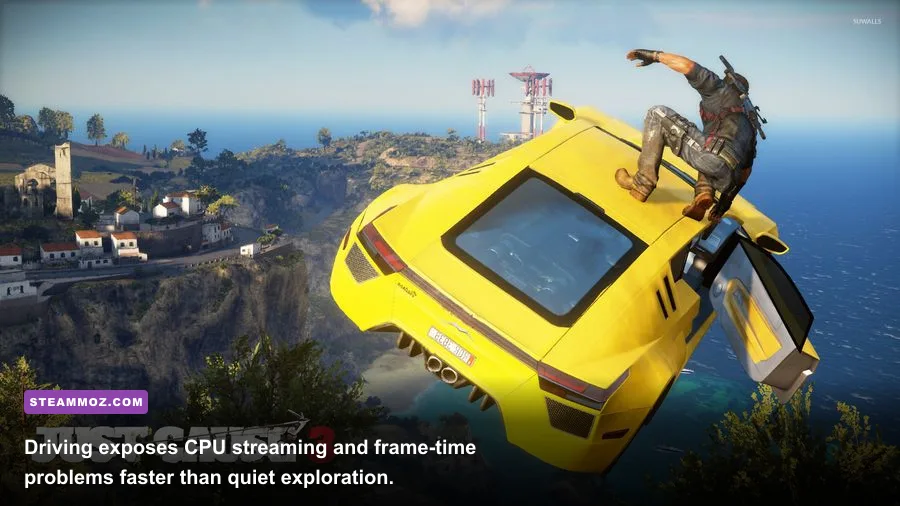
Don't test only in a quiet field. Launch a repeatable route that includes a town, a road, a military installation, and a destruction chain. A practical test begins near a liberated settlement, travels at full speed toward a hostile base, then destroys fuel tanks and nearby vehicles with the Grenade Launcher or explosives. Repeat the same route after every setting change.
Watch the one-percent lows and frame-time graph, not just the average. A drop from 60 to 45 FPS during a single explosion is less irritating than constant 55-to-40 FPS oscillation while driving. If the camera feels uneven despite a high counter, use a sensible cap such as 60 FPS or 72 FPS, depending on your display. A stable cap gives the CPU breathing room and reduces the sensation of uneven frame pacing.
Test both daylight and night scenes. Shadows and water can behave differently depending on the scene, while reflections become more expensive on wet roads. Also test wingsuit travel from a high altitude: rapid movement forces the engine to stream distant terrain and is one of the quickest ways to expose a CPU, RAM, or storage problem.
Windows and driver adjustments worth trying
Install Just Cause 3 on an SSD, close overlays you don't need, and use the latest stable GPU driver rather than a random beta release. Disable background recording if it causes spikes. Windows Game Mode is usually safe to leave enabled, but avoid aggressive “optimizer” tools that kill services or alter the game's executable without a clear reason.
If you use Nvidia or AMD software, prefer a driver-level frame cap over stacking multiple caps. Don't enable sharpening so aggressively that it exaggerates the game's foliage shimmer. VSync can hide tearing but may add latency; variable refresh plus a cap a few frames below your monitor's maximum is generally the smoothest option.
Why explosions still cause dips on powerful PCs
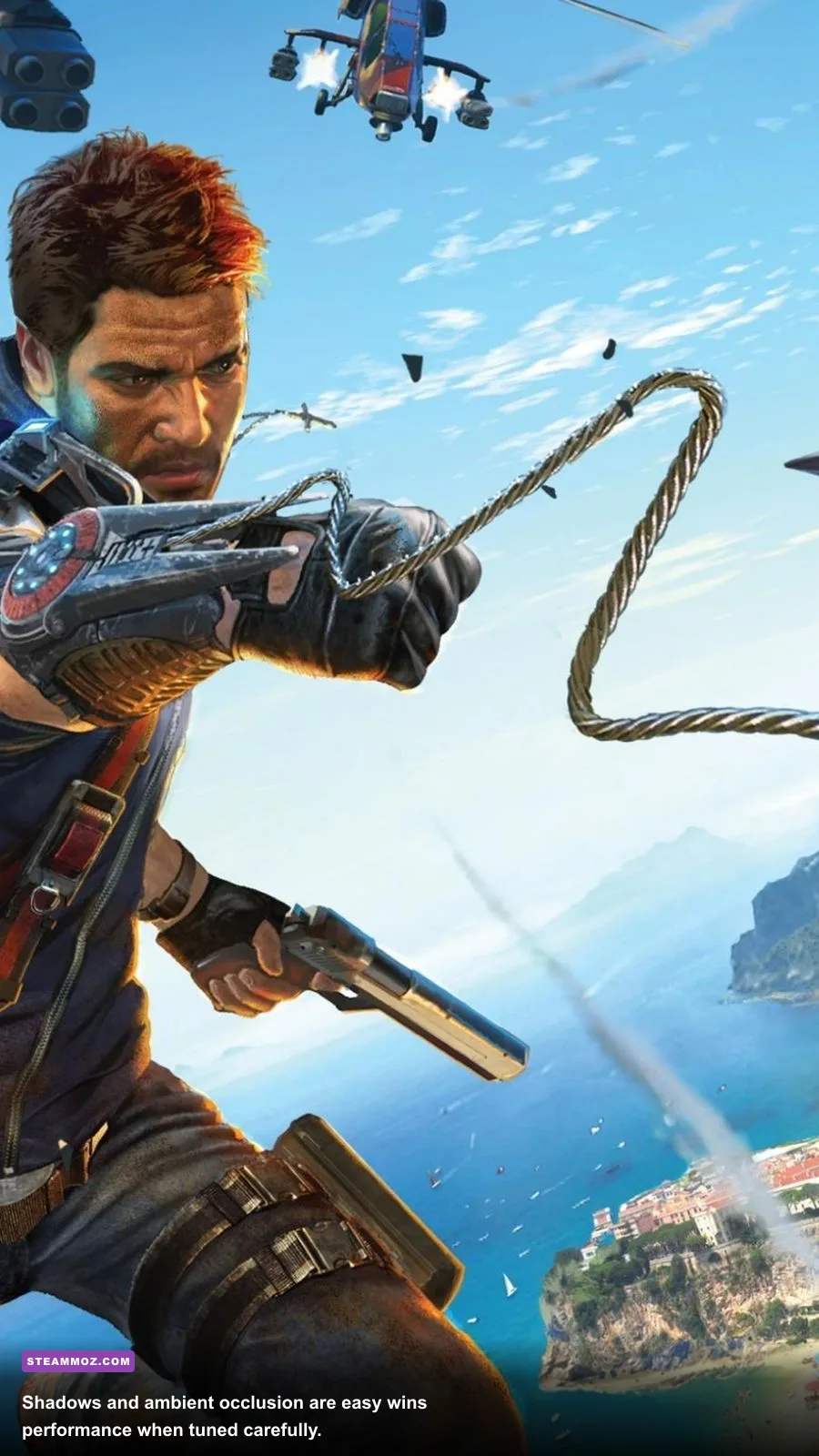
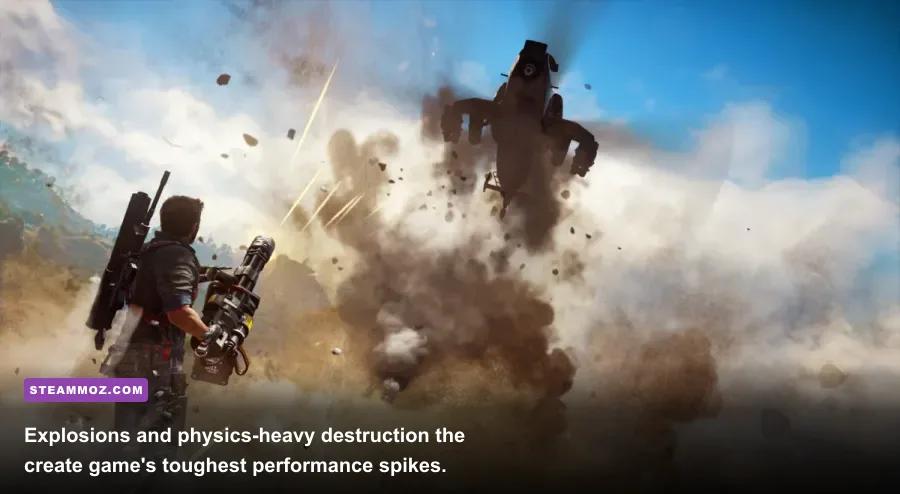
Just Cause 3's signature destruction is also its harshest benchmark. When Rico detonates a fuel tank, the game is dealing with fire, smoke, debris, vehicle damage, enemy reactions, and chained physics events at the same time. Graphics settings can reduce some of the workload, but they cannot completely remove a simulation spike. That's why lowering every option may fail to produce a perfectly flat frame rate.
The Rebel Drop system adds more objects and vehicles to active scenes, while large bases such as Citate di Ravello and Vis Electra can combine dense geometry with combat AI and destructible props. If you see dips only during these events, your settings may already be reasonable. Lower LOD and shadows, cap the frame rate, and accept that a brief dip during a spectacular chain reaction is part of the game's PC profile.
Rico's tools also influence how hard a scene hits. The Retract and Extend functions of the grappling hook can pull objects together, and the Balloon and Booster mods add more active physics objects. A base filled with tethered fuel tanks and airborne debris is a much heavier test than a normal firefight. For smoother benchmark comparisons, avoid stacking dozens of tethers before judging a setting.
Finally, keep expectations realistic. Just Cause 3 is built around huge vistas, fast traversal, and ridiculous destruction, not perfectly uniform frame times. The best performance setup is the one that keeps normal travel near your target, minimizes stutter during streaming, and preserves High texture detail. If you want another settings-focused read, our graphics performance guide covers the same practical tuning mindset in a very different game.
For official background on the game and its PC release, see Square Enix's Just Cause 3 page and Avalanche Studios' game information. Start with the balanced profile, measure the same destruction-heavy route, and only then chase extra visual quality. Panau is at its best when the explosions are spectacular without turning every liberation into a slideshow.