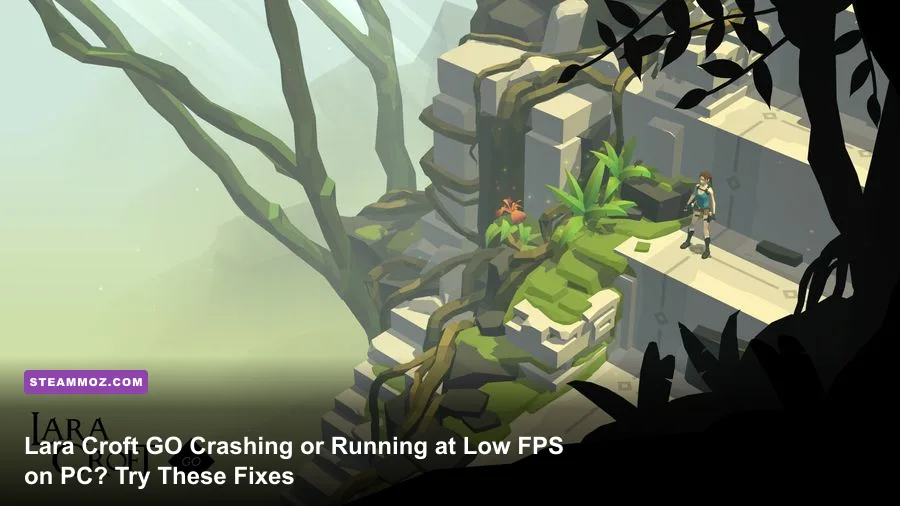
If Lara Croft GO crashes at launch or crawls below a smooth 60 fps, the quickest route is to verify the Steam installation, disable overlays, update your GPU driver, and test a lower resolution with V-Sync off. The game has modest hardware requirements, so persistent problems usually point to corrupted files, display-mode conflicts, background software, or a driver compatibility issue rather than an underpowered PC.
That distinction matters. Lara Croft GO is a compact, turn-based puzzle adventure built around fixed camera scenes, animated dioramas, and short movement steps. You aren't asking your graphics card to stream a giant open world. When performance breaks, the giveaway is often uneven frame pacing, a black screen, or a crash during startup rather than consistently low average FPS.
Start with the fixes that solve most crashes
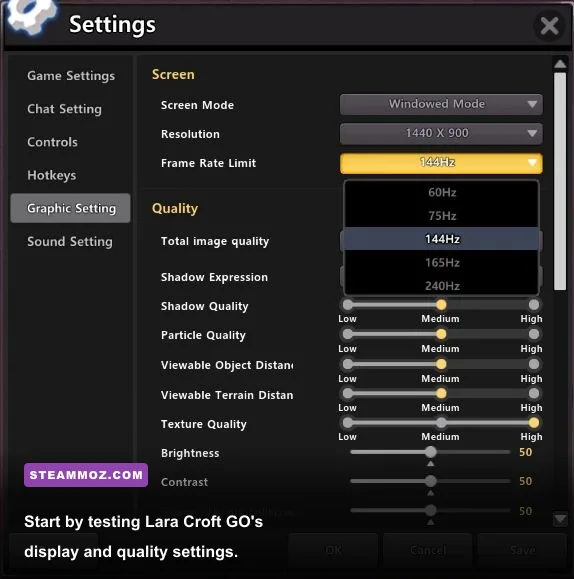
Before changing Windows settings, close Lara Croft GO and Steam completely. Reopen Steam as normal first; administrator mode should be a troubleshooting step, not your default. Then work through the following sequence. Test the game after each major change so you know which fix actually worked.
- Verify the installation. In Steam, right-click Lara Croft GO, choose Properties, open Installed Files, and select Verify integrity of game files. Steam will replace damaged or missing files without deleting your save.
- Install pending Windows updates. Reboot after the update rather than launching immediately. A half-applied graphics component can produce a crash before the first menu appears.
- Update the GPU driver. Download the current Game Ready driver from NVIDIA or the current Adrenalin package from AMD. Intel laptop users should check Intel's Driver and Support Assistant.
- Turn off overlays. Disable Steam Overlay, Discord Overlay, Xbox Game Bar, GeForce Experience overlay, AMD overlay, and MSI Afterburner/RivaTuner temporarily. Overlays hook into the rendered frame and can conflict with older PC ports.
- Run only one display path. If you use a laptop, force the executable to the dedicated NVIDIA or AMD GPU in Windows Graphics settings. Also disconnect a second monitor for the first launch if the game crashes while changing resolution.
If the crash happens after a specific resolution change, delete the game's local graphics configuration only after backing up your save data. Steam Cloud can restore saves, but cloud synchronization is not a substitute for a manual backup. Avoid downloading random replacement DLL files; they are a common source of malware and rarely fix the underlying problem.
| Symptom | Most likely cause | First action | Next step |
|---|---|---|---|
| Crash before the menu | Driver, overlay, or damaged file | Verify files | Disable every overlay and update the GPU driver |
| Black screen with audio | Fullscreen or resolution conflict | Use windowed mode | Lower resolution, then switch back to fullscreen |
| Crash during loading | Corrupt asset or background hook | Verify files | Close monitoring software and reboot |
| Stutter after an update | Shader or driver cache rebuild | Wait through one full level | Restart the game and retest the same scene |

🎮 Lara Croft GO
Looking to experience this game? Grab your digital key directly on our store for $1.99.
View on Steammoz Store →Use a stable graphics profile before chasing extra FPS
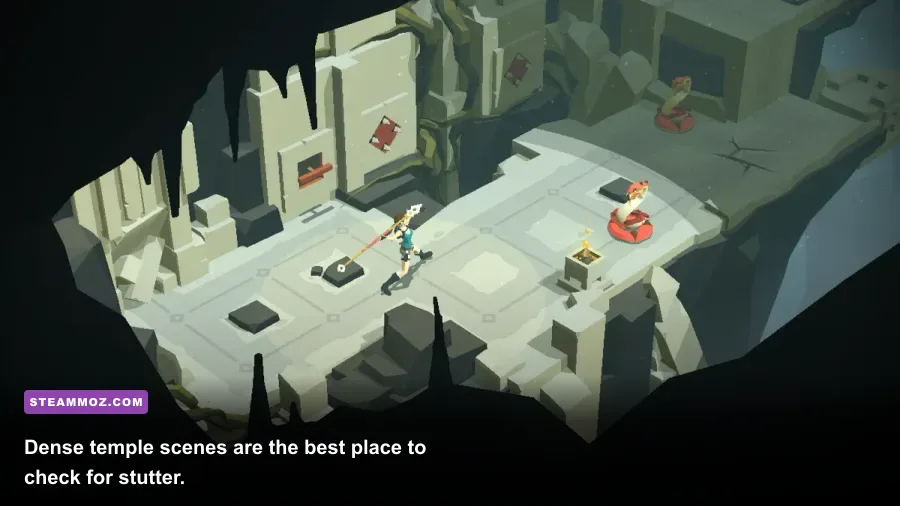
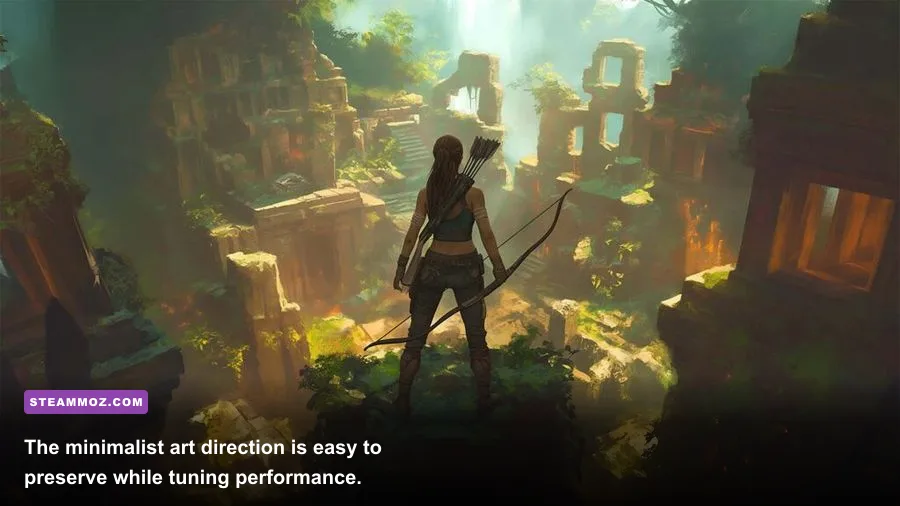
Lara Croft GO does not need an aggressive “competitive” preset. Its puzzles are deliberately paced, and the fixed camera means image clarity is more valuable than squeezing out another 15 frames. Start at your monitor's native resolution, select fullscreen, and use the game's highest quality preset. If the frame rate dips in temple scenes, change one setting at a time instead of dropping everything to Low.
V-Sync deserves special attention. With V-Sync enabled, the game may lock to 60, 30, or another divisor when your system misses its refresh deadline. A tiny rendering spike can therefore feel like a dramatic slowdown. If the counter jumps between 60 and 30, turn V-Sync off and compare frame pacing. If tearing is distracting, use your driver's frame limiter or Windows variable-refresh option where available.
| Setting | Recommended value | FPS impact | Visual trade-off |
|---|---|---|---|
| Resolution | Native; test 1600×900 or 1280×720 if needed | High | Lower resolution softens Lara and puzzle tiles |
| Display mode | Fullscreen for testing; borderless if stable | Low to medium | Fullscreen usually avoids desktop-compositor conflicts |
| V-Sync | Off while diagnosing; on if tearing is severe | Frame-pacing dependent | Off may introduce tearing but reduces forced 30 FPS drops |
| Anti-aliasing | High first; reduce one step for weak integrated graphics | Medium | Edges look slightly more jagged on stone geometry |
| Texture quality | High if VRAM allows; Medium on older integrated graphics | Low to medium | Lower settings reduce surface detail |
| Effects and shadows | Medium before lowering textures | Medium to high | Less shadow depth, especially around temple props |
| Frame limiter | 60 FPS on a 60 Hz display | Improves consistency | Caps peaks but can reduce heat and clock swings |
For a basic laptop, use 1280×720, Medium quality, V-Sync off, and a 60 FPS cap. That profile usually looks cleaner than running a native-resolution scene that constantly oscillates between frame-rate targets. On a modern desktop GPU, keep native resolution and High settings; Lara Croft GO's visual style benefits from crisp edges, and there is little reason to compromise image quality.
For comparison, the same practical approach works in other lightweight or older PC releases. Steamoz's Kholat graphics settings guide explains why resolution and frame pacing should be tuned before blindly lowering every option, while the Hakuoki: Edo Blossoms crash guide covers similar compatibility problems in an older PC port.
Fix laptop GPU selection and Windows power limits
A surprising number of “low FPS” reports come from Lara Croft GO running on an integrated GPU while the laptop is plugged into a discrete one. Open Settings > System > Display > Graphics, add the game's executable, select Options, and choose High performance. The exact executable name can vary by Steam installation, so use Browse from the game's local files rather than guessing.
Next, set Windows power mode to Best performance while plugged in. Laptop firmware can also limit clocks on battery, and some systems silently switch to a 30 FPS-friendly power profile. Don't judge performance on battery power. Test from wall power with the machine's vents clear and the manufacturer's performance mode enabled.
On desktops, check that the monitor cable is connected to the graphics card rather than the motherboard video output. This sounds basic, but it can route the display through the wrong adapter and make troubleshooting needlessly confusing. In NVIDIA Control Panel or AMD Software, create a Lara Croft GO profile, leave texture filtering at its application-controlled setting, and avoid forcing unusual anti-aliasing modes globally.
Close browser tabs playing video, RGB utilities, hardware monitors, and recording software for the first clean test. Lara Croft GO is not demanding, but tiny games can expose bad interactions more readily because an overlay or capture hook may be a large part of the total rendering workload.
| PC setup | Practical target | Recommended profile | What to watch |
|---|---|---|---|
| Older integrated graphics | Stable 30–60 FPS | 720p, Medium, V-Sync off | Thermal throttling and memory bandwidth |
| Recent integrated graphics | Stable 60 FPS | 1080p, Medium to High | Dual-channel memory and plugged-in power |
| Entry-level dedicated GPU | Stable 60 FPS | 1080p, High, 60 FPS cap | Overlay conflicts rather than raw GPU load |
| Modern gaming desktop | 60 FPS with headroom | Native resolution, High, V-Sync optional | Driver overrides and background capture tools |
Stop stutter by measuring frame time, not just FPS
A locked 60 FPS stream produces roughly 16.7 milliseconds per frame. If Lara Croft GO reports 60 FPS but still feels jerky, the average is hiding spikes: perhaps one frame takes 40 ms while the next arrives almost instantly. Use Steam's in-game FPS counter or a trusted monitoring tool, but focus on whether the number stays consistent as Lara enters a new room, triggers a lever, or starts an enemy animation.
Run the same test route after every change. The opening areas are useful because they load scenery, water, traps, and character animation without requiring combat skill. Walk through one complete puzzle room, pause for several seconds, then repeat it. If the first pass stutters and the second is smooth, caching or background loading is likely. If every pass hitches at the same visual effect, lower effects or shadows rather than textures.
Keep the frame cap sensible. A 60 FPS cap on a 60 Hz display reduces unnecessary GPU work and prevents clock fluctuations. On a 120 Hz or 144 Hz monitor, Lara Croft GO may not benefit from a very high cap if the port or V-Sync path behaves inconsistently. Test 60 FPS first, then try 120 only if frame pacing remains clean.
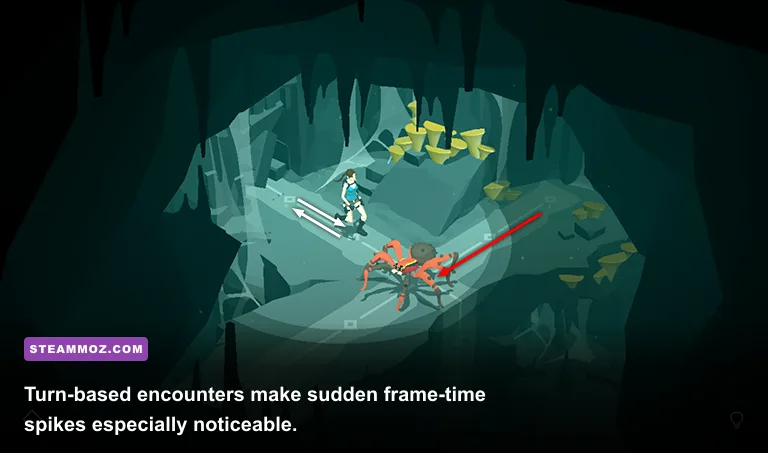
Don't confuse animation timing with a performance fault. Lara's movement is intentionally turn-based: she advances one space per input, enemies respond in a predictable sequence, and many hazards pause for a readable beat. A delayed-looking action can be game design. Genuine low FPS affects camera movement, transitions, and the smoothness of the whole scene, not just the moment Lara waits for an enemy.
Handle stubborn launch crashes and corrupted settings
If verification, drivers, and overlays fail, isolate the launch environment. Open Steam's Properties > General page and remove experimental launch options, compatibility commands, or forced resolution arguments. Third-party “FPS boost” commands copied from unrelated Unity games can make a small port less stable, not more.
Try launching with a clean Windows boot if the game crashes only on your normal desktop. A clean boot temporarily disables non-Microsoft services, making it easier to identify antivirus software, RGB utilities, capture programs, or audio enhancers that are injecting into the process. Re-enable services in batches after testing; don't leave security software disabled permanently.
Compatibility mode is worth testing only for a specific older-Windows behavior. Right-click the game's executable, open Properties > Compatibility, and test Windows 7 compatibility plus Disable fullscreen optimizations one option at a time. If either option makes the game worse, undo it. There is no universal “run as administrator” fix, and elevated permissions can create separate save-file and cloud-sync headaches.
Finally, check Windows Event Viewer after a repeatable crash. Open Event Viewer > Windows Logs > Application and look for the error around the crash time. A graphics-driver module points toward driver cleanup or a GPU selection issue; an audio or overlay DLL points toward injected software; a generic application fault after file verification suggests compatibility or corrupted local configuration. You don't need to become a crash-dump engineer—the module name alone can narrow the search.
For official news and support links, use the Lara Croft GO Steam page and Square Enix Support. Steam's system requirements list the game's modest hardware baseline, but a machine that meets it can still need a modern driver and a clean display configuration.
Know when the problem is hardware, software, or the port
After applying the fixes, compare results against a controlled baseline: native or 720p resolution, no overlays, updated driver, plugged-in power, and a 60 FPS cap. If the game is stable there, add features back individually. If it still crashes on a clean profile while other 3D games run normally, the issue is more likely specific to the Lara Croft GO installation, its configuration files, or an unusual Windows compatibility interaction.
Don't spend hours chasing a GPU upgrade for a game whose official PC requirements are low. A stable 30 FPS is preferable to an unstable 60, especially in a puzzle game where timing and visual readability matter more than competitive reaction speed. For more PC troubleshooting techniques, Steamoz's smooth 60 FPS settings guide covers frame caps and hardware targeting, while the Groove Coaster crash and lag guide has another useful checklist for overlay and driver conflicts.
The best Lara Croft GO setup is refreshingly simple: verify the files, remove hooks from overlays, select the correct GPU, use a sensible resolution, and cap the frame rate. Once those variables are controlled, the game's fixed-camera ruins should feel as deliberate and silky as its puzzle design—not like a slideshow every time Lara steps into the next ancient chamber.