
BioShock Infinite is remarkably easy to run by modern PC standards. The official minimum calls for a 2.4 GHz dual-core processor, 2GB of RAM, and a DirectX 10 graphics card such as the GeForce 8800 GT or Radeon HD 3870. For a smoother 1080p experience, aim for a quad-core CPU, 4GB of RAM, and a GeForce GTX 560 or Radeon HD 6950. Almost any entry-level gaming PC from the last decade will beat those targets, but a few settings and old-driver quirks still matter if you want stable frame pacing in Columbia.
Released in 2013, BioShock Infinite remains a demanding-looking game for its age. Columbia combines large outdoor spaces, volumetric cloud scenery, moving airships, long sightlines, reflective surfaces, and busy combat arenas. Its Unreal Engine 3 foundation is friendly to modest hardware, yet the game can still expose a weak CPU, an underpowered integrated GPU, or a laptop running in a battery-saving mode.
This guide breaks down the real BioShock Infinite system requirements, explains what each component actually does, and gives you practical graphics presets for minimum-spec machines, mainstream laptops, and modern gaming PCs.

BioShock Infinite minimum and recommended PC specs
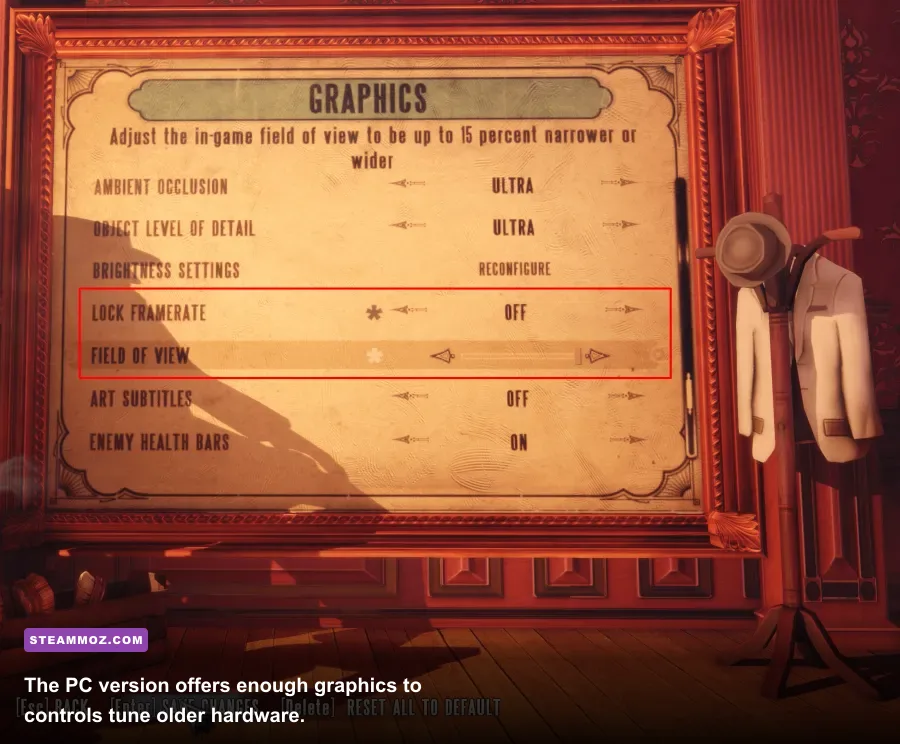
Here are the published PC requirements, with the storage figures most commonly listed for the Steam release. Treat the minimum target as a boot-and-play specification rather than a guarantee of locked 60fps. It describes hardware capable of running the game, while the recommended configuration is the more sensible baseline for consistent 1080p play.
| Component | Minimum | Recommended |
|---|---|---|
| Operating system | Windows Vista 64-bit | Windows 7 64-bit |
| Processor | Intel Core 2 Duo 2.4 GHz | Quad-core processor |
| Memory | 2GB RAM | 4GB RAM |
| Graphics card | DirectX 10 GPU; ATI Radeon HD 3870 or NVIDIA GeForce 8800 GT | DirectX 11 GPU; ATI Radeon HD 6950 or NVIDIA GeForce GTX 560 |
| DirectX | DirectX 10 | DirectX 11 |
| Storage | At least 20GB free space | 30GB free space is a safer allowance |
| Sound | DirectX-compatible sound card | DirectX-compatible sound card |
The processor requirement is ancient now, but the architecture matters more than the headline frequency. A modern dual-core Pentium or Core i3 can outperform the old Core 2 Duo by a wide margin, especially in minimum frame rate. The same goes for graphics: a current integrated GPU may technically launch Infinite, but shared memory and low bandwidth can make 1080p awkward.
The game is also listed for 64-bit Windows in its published requirements. Modern Windows 10 and Windows 11 systems generally provide a more compatible environment than Vista or Windows 7, though old games can still benefit from updated graphics drivers and a clean shader cache. Check the official Steam page before buying, since storefront requirements and support notes can change.

🎮 BioShock Infinite
Looking to experience this game? Grab your digital key directly on our store for $7.49.
View on Steammoz Store →What hardware do you really need in 2026?

You don't need a new gaming rig to enjoy Infinite. The official recommended GTX 560 is far below even today's inexpensive discrete GPUs, and a modern Radeon RX 6400, GeForce GTX 1650, or integrated Radeon 680M should have considerably more graphics headroom. The biggest practical question is whether your system has enough memory and whether the game is installed on a healthy drive.
For an old desktop
A machine with a Core 2 Quad, 4GB of RAM, and a Radeon HD 6950-class GPU matches the recommended-era profile. Expect the game to run well at 1080p with sensible settings, but don't multitask heavily. A browser with dozens of tabs can consume more memory than Infinite itself, and 4GB leaves little room for background applications.
For an office laptop
Intel HD 620-class graphics may launch the game at 720p, but the experience depends heavily on laptop cooling and memory configuration. Integrated graphics borrow system RAM, so a single-channel 8GB setup can perform noticeably worse than dual-channel memory. Plug the laptop in, select its high-performance graphics profile, and keep the vents clear.
For a modern gaming PC
Any contemporary six-core CPU and midrange GPU can target 1080p or 1440p at high settings. The limiting factor becomes the game's own engine and frame pacing rather than raw horsepower. Infinite was designed around the visual expectations of the Xbox 360 and PlayStation 3 era; pushing every slider to maximum won't transform it into a modern renderer.
| PC profile | Practical target | Suggested resolution | Expected experience |
|---|---|---|---|
| Minimum-era PC | Core 2 Duo, 2GB RAM, 8800 GT-class GPU | 1280×720 | Playable with reduced detail; avoid background apps |
| Recommended-era PC | Quad-core CPU, 4GB RAM, GTX 560-class GPU | 1920×1080 | High settings with generally smooth performance |
| Modern integrated GPU | Recent Ryzen or Core processor with 16GB dual-channel RAM | 900p to 1080p | Good results after reducing shadows and effects |
| Modern gaming PC | Six-core CPU, 16GB RAM, midrange discrete GPU | 1080p to 1440p | High or ultra-style settings with ample headroom |
Which graphics settings affect performance most?

Infinite's menu is less granular than a modern PC game, but the available options have clear priorities. Texture detail mostly affects video memory and image clarity. Shadows, dynamic lighting, and post-processing are more likely to cause dips during hectic firefights. If your frame rate collapses when a Handyman enters an arena or when several Vigors detonate at once, don't immediately lower texture quality; start with shadows and effects.
| Setting | Recommended value | Performance impact | Visual trade-off |
|---|---|---|---|
| Resolution | Native display resolution | Very high | Lowering it improves FPS quickly but softens the entire image |
| Texture detail | High if VRAM allows | Low to medium | Lower values make walls, weapons, and character surfaces blurry |
| Shadow detail | Medium on weak GPUs; high on modern GPUs | Medium to high | Lower settings reduce shadow definition around enemies and props |
| Post-processing | High, then reduce if needed | Medium | Controls much of the cinematic glow and image treatment |
| Dynamic lighting | High on recommended hardware | Medium to high | Lower values flatten interiors and combat effects |
| Ambient occlusion | On for modern GPUs | Medium | Adds contact shadows beneath objects and around corners |
| Field of view | Default, or modestly wider | Low to medium | Wider FOV shows more geometry and can cost a few frames |
| V-Sync | Off for testing; on if tearing bothers you | Variable | Can reduce tearing but may add latency or introduce stutter |
Resolution is the blunt instrument. If you're at 1920×1080 and need more speed, try 1600×900 before dropping all the way to 1280×720. The reduction is less severe, and the HUD remains easier to read. On a 1440p monitor, 1080p is usually the best compromise because the game's interface and pre-rendered elements were never built around ultra-high resolutions.
Texture detail is a surprisingly safe setting to keep high on a modern card with 4GB or more VRAM. The game’s texture streaming can look muddy when reduced, especially on Columbia's painted wood, brickwork, and mechanical machinery. Integrated GPUs with limited shared memory are the exception: if you see hitching while turning quickly, medium textures may help.
Best BioShock Infinite settings for low-end PCs
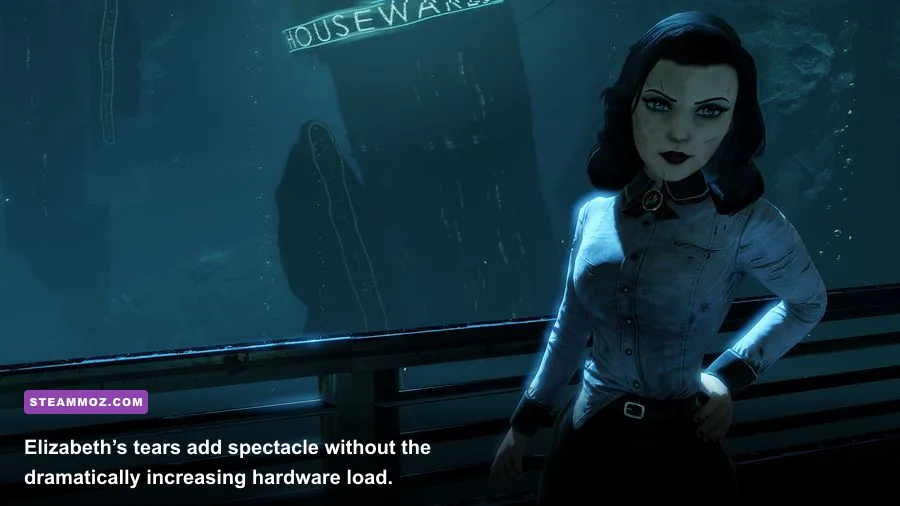
For hardware close to the minimum, prioritize stable frame pacing over pretty screenshots. Start at 1280×720, select low or medium texture detail depending on available VRAM, and reduce shadows and dynamic lighting first. A stable 30fps feels much better than a game that swings between 20 and 50fps during every firefight.
Minimum-spec profile
- Resolution: 1280×720.
- Texture detail: Medium, unless the GPU has less than 1GB of usable memory.
- Shadow detail: Low.
- Post-processing: Medium.
- Dynamic lighting: Low or medium.
- Ambient occlusion: Off if interior scenes stutter.
- V-Sync: On for a stable 30fps cap, or off when input latency matters more.
Don't chase a high refresh rate on an old dual-core processor. The CPU handles world simulation, enemy behavior, streaming, and draw-call preparation. Columbia's open vistas and Sky-Line sequences can create CPU-side spikes that lowering resolution won't fix. If GPU usage sits below 80 percent while frame rate falls, reduce background tasks and consider a 30fps cap rather than cutting image quality further.
On Windows 10 or 11, close overlays from Discord, GeForce Experience, Xbox Game Bar, and recording software when troubleshooting. These overlays rarely destroy performance, but an old game with a fragile frame-pacing profile can react badly to several hooks at once. If you’re fighting persistent stutter in other older PC games, our low-FPS troubleshooting guide covers the same useful basics: drivers, power profiles, background processes, and temperature checks.
Best 1080p and 1440p settings for modern PCs
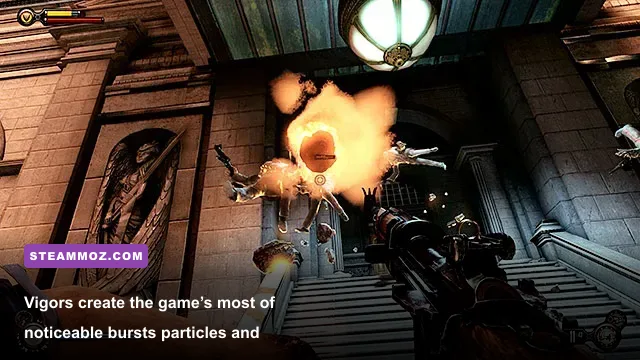
A modern gaming system should begin at 1920×1080 with high settings, native resolution, and V-Sync off for testing. If performance is comfortably above your monitor's refresh rate, enable V-Sync or use a driver-level frame limiter. Infinite doesn't need 200fps to feel good; a clean, consistent 60fps is a better target for its cinematic first-person combat.
Balanced 1080p profile
- Resolution: 1920×1080 native.
- Texture detail: High.
- Shadow detail: High.
- Post-processing: High.
- Dynamic lighting: High.
- Ambient occlusion: On.
- V-Sync: On for a 60Hz display, or off with a frame cap for adaptive-sync monitors.
1440p profile
At 2560×1440, start with high textures and medium shadows. Resolution is now the largest GPU cost, so a midrange card may benefit more from 1080p than from lowering every other setting. Ambient occlusion is a good second-stage reduction because it adds subtle depth rather than changing the identity of a scene. Keep textures and post-processing high until you have confirmed that the GPU is actually the bottleneck.
| Target | Resolution | Core settings | Best for |
|---|---|---|---|
| Locked 30fps | 720p or 900p | Medium textures, low shadows, medium lighting | Minimum-era systems and older laptops |
| Stable 60fps | 1080p | High textures, medium/high shadows, high post-processing | Recommended-era PCs and modern integrated GPUs |
| High-refresh play | 1080p | High settings, reduced AO if necessary, frame cap | Modern discrete GPUs |
| Sharper cinematic image | 1440p | High textures, medium shadows, AO optional | Midrange and high-end gaming PCs |
Storage, drivers, and common PC problems
An SSD isn't required by the BioShock Infinite system requirements, but it makes the game feel cleaner. Loading screens are shorter, and streaming into large Columbia spaces is less likely to coincide with a noticeable hitch. A hard drive can still run the game perfectly well; just leave more than the listed minimum free space so Windows and the drive have room to work.
Install the latest stable driver for your NVIDIA, AMD, or Intel GPU, then restart before judging performance. Laptop owners should verify that the executable is using the discrete GPU rather than integrated graphics. In Windows, open Settings > System > Display > Graphics, add the BioShock Infinite executable, and select High performance where that option is available.
If the game crashes at launch, check the installation through Steam and disable compatibility modes that you enabled experimentally. If it starts but looks unusually dark, broken, or flickery, reset the graphics configuration and test without overlays. The official 2K support portal is the right place to check current troubleshooting notes, while the official BioShock website provides franchise information rather than hardware fixes.
Ultrawide users should also test the field of view carefully. A wider image can be more immersive, but unofficial fixes may alter vertical framing, weapon placement, or cutscene composition. If you want a hassle-free playthrough, use a standard 16:9 resolution first, confirm that the game is stable, and only then experiment with wider aspect ratios.
How performance affects the actual combat experience
BioShock Infinite is not a competitive shooter, but frame consistency still changes how combat feels. The difference shows up when you chain a Vigor into weapon fire, sprint across a Sky-Line, or track a Handyman moving through electrical effects. A brief hitch can make a precise headshot feel late, while inconsistent frame pacing makes the game's generous aim assistance feel strangely uneven.
At 30fps, the game is completely playable if the frame time stays consistent. At 60fps, mouse aiming feels substantially more direct, especially with weapons such as the Hand Cannon and Carbine that reward controlled headshots. More than 60fps is nice on a high-refresh display, but don't sacrifice resolution or visual clarity just to reach triple-digit numbers.
For the smoothest campaign, cap the frame rate to a value your PC can hold in the busiest areas. Test the opening of Columbia, the plaza fights with multiple Founders, a Sky-Line encounter, and a Handyman arena. Those scenes are more revealing than a quiet corridor. If your system can hold 60fps there, the rest of the campaign should be comfortable.
Players who enjoy tuning older games can also browse Steamoz’s broader performance-minded PC gaming guides and our recommendations for other atmospheric games to play next. The key lesson is the same: identify the real bottleneck before lowering every setting.
Final verdict on BioShock Infinite PC requirements
BioShock Infinite has modest official requirements and an even friendlier real-world hardware profile today. The minimum specification can run the game at reduced resolution, but a quad-core processor, 8GB of RAM, and any reasonably modern GPU are a far better baseline than the old recommended list suggests. For most current PCs, 1080p high settings at a stable 60fps is an easy target.
Start with native resolution, keep textures high, and reduce shadows or ambient occlusion only when testing proves they are responsible for a slowdown. Install the game on an SSD if possible, use the dedicated GPU on laptops, and cap the frame rate to a stable value rather than chasing a number your system cannot maintain. Do that, and Columbia’s floating streets, frantic Sky-Line fights, and Elizabeth’s dimensional tears will still look excellent without demanding expensive hardware.
Before purchasing, compare your machine with the current Steam system requirements, then give yourself extra storage headroom and update your drivers. The game may be old, but its technical sweet spot is simple: a modern dual-channel system, a stable 1080p output, and settings tuned for frame pacing rather than benchmark bragging rights.