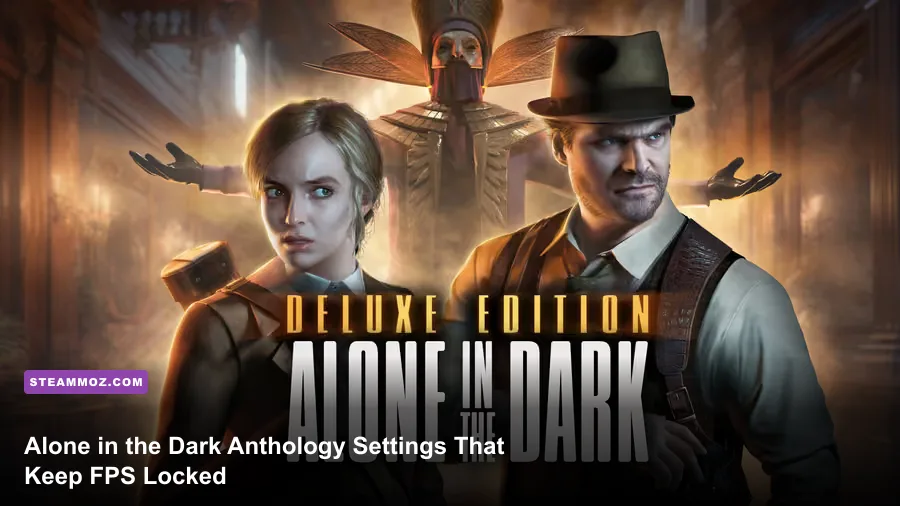
For the classic Alone in the Dark Anthology on Steam, the best performance setup is simple: use DOSBox's dynamic core, set frameskip to 0, enable OpenGL output, keep aspect correction on, and run the games at a clean 2x or 3x scale instead of chasing modern resolutions. These titles were designed around low internal resolutions and tightly timed game logic, so a stable, correctly paced image matters far more than raw 300-FPS numbers. If your package also includes The New Nightmare, treat that Windows-era game separately because its resolution and compatibility behavior are different.
There is one important naming trap before you touch a slider. The Steam Alone in the Dark Anthology is the classic collection built around the original survival-horror games, not the 2024 reboot starring Emily Hartwood and Edward Carnby. The anthology's first entries are usually delivered through DOSBox or a DOSBox-style launcher. That means your biggest performance gains come from emulator configuration, integer scaling, and frame pacing—not ray tracing, texture quality, or expensive post-processing.
This guide focuses on Alone in the Dark (1992), Alone in the Dark 2, Alone in the Dark 3: Shadow of the New World, and the anthology's Windows-era handling where applicable. You can verify which executables are included in your build on the official Steam search page. The goal is a locked, responsive presentation without breaking the original timing that makes these games playable.
The Best DOSBox Profile for Maximum Performance
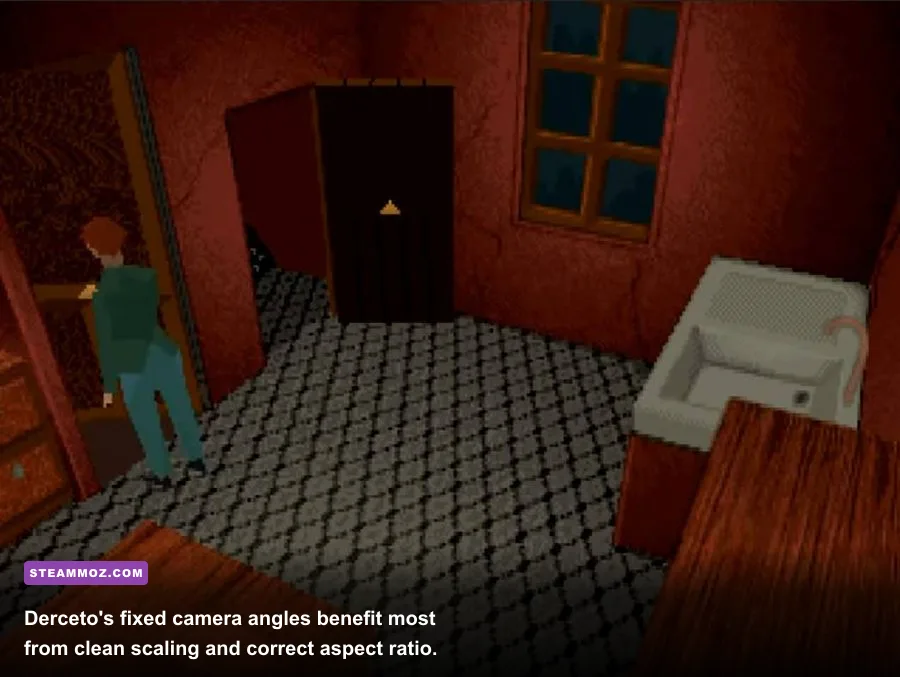
Start with the profile below. It is deliberately conservative because the classic games do not need a powerful GPU. A modern integrated graphics chip can render them effortlessly; the settings are really about getting DOSBox to emulate the correct CPU speed and display the image without uneven scrolling.
| Setting | Recommended Value | Performance Impact | Why It Works |
|---|---|---|---|
| Core | Dynamic or Auto | High positive impact | Uses faster CPU emulation than the interpreter core. |
| Cycles | Auto first; 8,000-20,000 if manual | High positive impact | Matches game speed without wasting CPU time. |
| Output | OpenGL | Low positive impact | Moves scaling to the GPU and avoids software stretching. |
| Frameskip | 0 | Best visual result | Preserves every rendered frame and avoids jerky animation. |
| Scaler | Normal2x or Normal3x | Negligible on modern GPUs | Sharpens the low-resolution image without smoothing pixels. |
| Aspect | True | Negligible | Corrects the original 4:3 image instead of horizontally squashing it. |
| Fullresolution | Desktop | Low | Prevents unnecessary desktop-mode switching and flicker. |
| VSync | True | Very low | Stops tearing during menu scrolling and rapid screen transitions. |
| Memsize | 32-63 MB | None in practice | Provides more than enough conventional memory for these games. |
In the DOSBox configuration file, the important lines look like this:
core=auto
cycles=auto
frameskip=0
output=opengl
fullresolution=desktop
windowresolution=original
aspect=true
scaler=normal2x
vsync=true
memsize=63
If core=auto still feels slow, change it to core=dynamic. Then test cycles=8000, cycles=12000, and cycles=20000. Do not assume the highest number is best. Too many cycles can make an old game run too quickly, especially during animation-heavy scenes or scripted sequences. The original executable may also use timing tricks that react badly to excessive emulation speed.
The official DOSBox website documents the core, cycles, scaler, and output options in more detail. For most Steam players, though, the practical rule is easy: raise cycles only when the game is visibly sluggish, not because your PC has unused CPU headroom.

🎮 Alone in the Dark Anthology
Looking to experience this game? Grab your digital key directly on our store for $3.74.
View on Steammoz Store →Per-Game Settings for Alone in the Dark 1, 2, and 3
The trilogy shares a technical foundation, but each game has different moments where poor emulation settings become obvious. The 1992 original relies heavily on fixed camera compositions, short animation loops, and abrupt room transitions. A bad scaler can make those scenes blurry, while an unstable cycle count can make movement feel strangely fast or slow.
| Game | Best Resolution Profile | Target Frame Rate | Key Performance Advice |
|---|---|---|---|
| Alone in the Dark | Original with Normal2x or 3x | Original game timing; avoid uncapped speed | Keep aspect correction on and cycles conservative. |
| Alone in the Dark 2 | Original or 1280x960 4:3 output | Original game timing | Use dynamic core; avoid frameskip during combat. |
| Alone in the Dark 3 | Normal3x at 4:3 | Original game timing | OpenGL output produces cleaner scrolling and transitions. |
| The New Nightmare | 640x480, 800x600, or native display option | 30 FPS target where supported | Use compatibility mode before lowering resolution. |
Alone in the Dark, the 1992 original
For the first game, image clarity beats resolution. The original uses a low-resolution 3D environment with pre-rendered character and object work, so scaling it to 1080p does not create new detail. It only makes the pixels larger. Normal2x is the cleanest choice on a 1080p monitor, while Normal3x works well if you prefer a larger window or a 1440p desktop.
Keep frameskip=0. Skipping frames can make the game appear to run faster because the animation becomes less consistent, but it also removes visual information from enemy movement and door transitions. In a survival-horror game where a zombie appearing from a blind angle is part of the tension, that is a terrible trade.
Alone in the Dark 2
Alone in the Dark 2 adds more action and more frequent combat encounters, particularly as Edward Carnby moves through the pirate and train sections. Use the dynamic core and OpenGL output here. If input feels delayed in fullscreen mode, test borderless windowed mode or disable the GPU driver's forced VSync before changing the DOSBox profile.
Do not use aggressive frameskip to solve a slow section. If the game stutters, the usual culprit is an incorrect cycle setting, an overlay, or a launcher wrapper—not a lack of GPU performance. Disable Steam Overlay, Discord overlay, Radeon recording, GeForce Instant Replay, and similar hooks one at a time if the frame pacing remains uneven.
Alone in the Dark 3
The western setting in Shadow of the New World looks noticeably better with a 3x nearest-neighbor-style scaler because its desert streets, wooden buildings, and high-contrast silhouettes benefit from harder pixel edges. Keep the output at 4:3. Stretching the game to 16:9 makes characters look wider and can distort the carefully framed scenes.
For a modern monitor, the sweet spot is usually a 1280x960 or 1440x1080 desktop mode with aspect correction. If your monitor handles integer scaling properly, you can use a larger 4:3 window instead of fullscreen. That avoids display-driver scaling artifacts and keeps the picture crisp.
These classic versions are so lightweight that a laptop's integrated Intel UHD, Iris Xe, or AMD Radeon graphics should have no trouble. If performance is poor, look outside the game: Windows power-saving mode, a background capture application, or a broken wrapper is far more likely than the GPU being overwhelmed. Our broader PC fixes for crashes and low FPS also covers the same overlay and power-plan problems.
Best Display, Scaling, and Controller Choices
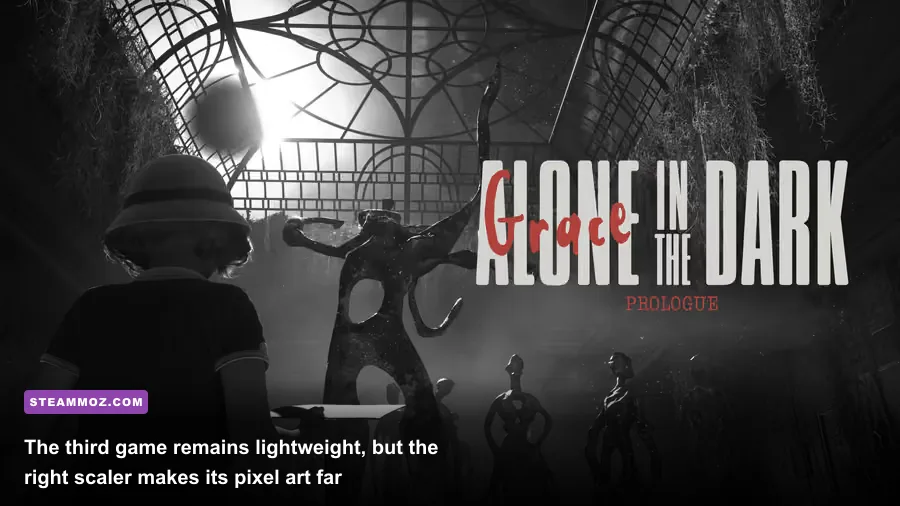
Graphics quality in this anthology is mostly about preserving the original image. There are no modern texture packs or shadow sliders to tune in the classic executables. Your display settings decide whether the game looks authentic or like a smeared video stream.
| Display Option | Best Choice | Use Another Option When | Visual Result |
|---|---|---|---|
| Aspect ratio | 4:3 with correction enabled | Never stretch unless you genuinely prefer it | Preserves character proportions and room composition. |
| Scaler | Normal2x or Normal3x | Use an HQ scaler only if you prefer softened edges | Normal scaling keeps the original pixel structure. |
| Fullscreen | Borderless or desktop fullscreen | Use exclusive fullscreen only if latency is a problem | Reduces mode-switching issues on modern Windows. |
| VSync | DOSBox VSync enabled | Disable it if it causes noticeable input delay | Removes horizontal tearing during movement. |
| Refresh rate | 60 Hz | Use 120 Hz only if pacing remains consistent | Matches the era's expected presentation more naturally. |
| Integer scaling | Enabled when supported | Disable if the image becomes too small | Creates clean pixel multiples without uneven stretching. |
There is a temptation to apply CRT filters, scanlines, or AI sharpening. Use them sparingly. Scanlines can look excellent on the original 320x200-style imagery, but sharpening filters often create halos around doors, inventory icons, and character silhouettes. If your priority is maximum FPS, these filters are usually cheap, but the cleaner competitive-style profile is still Normal2x, aspect correction, and no extra post-processing.
Audio timing deserves attention, too. Crackling sound can feel like a graphics problem because it often arrives with stutter. Keep the emulated Sound Blaster configuration at the game's default unless you have a specific compatibility issue. Avoid changing IRQ, DMA, or address values randomly; the launcher and executable may be expecting the original configuration. If sound cuts out after alt-tabbing, restart the game rather than repeatedly switching audio devices while it is running.
For controllers, map movement and inventory actions carefully instead of relying on an untested automatic layout. These games were built around keyboard commands, and a controller wrapper can introduce its own latency. Steam Input is useful, but turn off aggressive analog smoothing. A digital directional pad usually feels closer to the original design and prevents accidental diagonal movement during puzzle interaction.
How to Optimize The New Nightmare on Modern Windows
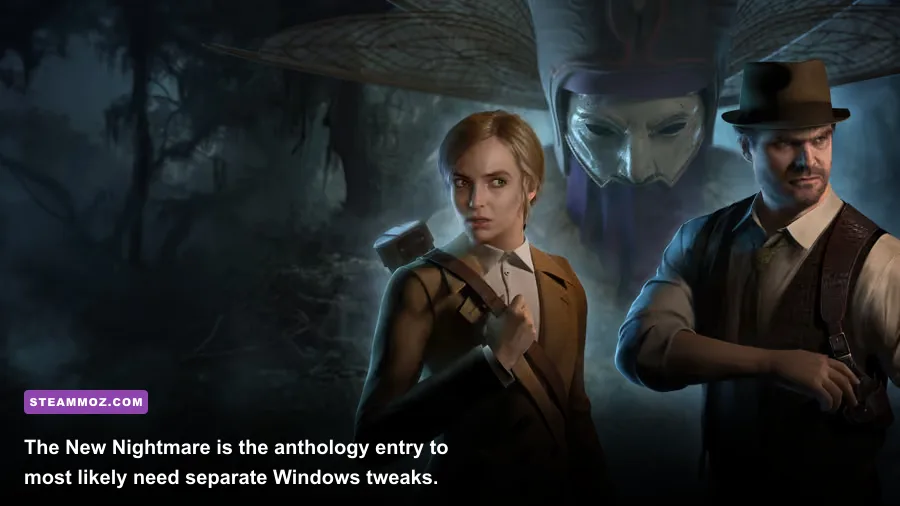
Alone in the Dark: The New Nightmare is the odd one out. It is not simply another DOSBox title, and it can react differently to fullscreen modes, compatibility layers, and modern GPU scaling. If your anthology build includes it, start with compatibility fixes before cutting visual quality.
Use this order of operations
First, launch the game once and confirm whether it offers a resolution menu. Choose 640x480 or 800x600 in a 4:3 mode if those options are available. The original PC presentation was built around that shape, and widescreen stretching can make the pre-rendered backgrounds look noticeably wrong.
Second, right-click the game's executable, open Properties, select Compatibility, and test Windows XP compatibility mode only if the game crashes or refuses to launch. Do not enable every compatibility checkbox at once. High DPI override, reduced color mode, and administrator mode can each solve one problem while creating another.
Third, use your GPU control panel to set application-specific VSync rather than forcing a global frame cap. If the game exposes a 30-FPS option, use it. If it does not, a 60-FPS cap is safer than an unlimited frame rate because older animation and camera code may behave unpredictably when rendered far beyond its intended rate.
| Problem | First Fix | Second Fix | Avoid Doing This |
|---|---|---|---|
| Black screen on launch | Try borderless windowed mode | Enable high DPI override for the executable | Forcing unsupported widescreen resolutions. |
| Game runs too fast | Apply a 30 or 60 FPS cap | Disable high-refresh enhancements | Uncapped rendering on a 144 Hz monitor. |
| Stutter during room changes | Disable overlays and capture tools | Use a compatibility mode | Dropping resolution before checking software hooks. |
| Incorrect stretched image | Choose 4:3 output | Enable GPU aspect-ratio preservation | Using full-panel scaling. |
| Crash after alt-tab | Use borderless mode | Restart after changing display options | Repeatedly switching exclusive fullscreen. |
For official background on the newer franchise entries, the Pieces Interactive website and THQ Nordic's Alone in the Dark page are useful references, but they should not be treated as technical documentation for the old anthology executables. The classic collection's behavior is closer to retro PC emulation than to a modern Unreal Engine release.
Low-End PC and High-Refresh Monitor Profiles
Because the trilogy is extremely light, even a low-end PC should comfortably exceed the rendering demands of the original games. The real distinction between profiles is not whether the GPU can hit a huge number; it is whether the presentation remains stable and faithful.
| Hardware or Display | Resolution | DOSBox Profile | Expected Result |
|---|---|---|---|
| Integrated graphics laptop | 1280x960 window or 1080p desktop | Dynamic core, OpenGL, Normal2x, VSync on | Stable original timing with negligible GPU load. |
| Older office PC | Original or 640x480 | Auto core, frameskip 0, Normal2x | Reliable performance without visual compromises. |
| Modern gaming PC | 1440x1080 or 4:3 borderless | Dynamic core, Normal3x, aspect true | Sharp image; cap refresh behavior if needed. |
| 144 Hz monitor | 4:3 desktop window | VSync on or external 60-FPS cap | Avoids excessive speed and uneven frame pacing. |
| 4K monitor | 1920x1440 or smaller 4:3 window | Normal3x; avoid forced smoothing | Sharper than native-era output without muddy scaling. |
If you want the absolute lowest overhead, use a windowed 640x480 or 800x600 profile with frameskip at zero. You will not gain meaningful gameplay performance from lowering the image further, but you may remove a display-driver scaling issue. On a 4K screen, avoid assuming that maximum desktop resolution equals maximum quality. The source image is still low resolution, and a smaller integer-scaled window often looks cleaner than a full-screen blur.
High-refresh displays create the most confusion. Seeing 144 FPS in an overlay does not mean the game is delivering 144 useful frames. DOS-era animation and logic can be tied to emulated timing, and an uncapped wrapper may make characters move too quickly or cause menus to flash. The best result is usually a stable 60-Hz presentation—or the game's original timing when the launcher controls it—rather than an impressive but misleading counter.
For comparison, the same mindset applies to modern shooters: a clean frame-time graph matters more than a giant average number. Our Hunt: Showdown PC fixes and Hunt: Showdown settings guide deal with GPU-heavy games, where resolution and shadows dominate performance. In Alone in the Dark Anthology, those levers barely exist—the emulator clock and display path are the real battlefield.
What to Change When Performance Still Looks Wrong
If the game is genuinely slow, check whether DOSBox is using the interpreter core. Pressing Ctrl+F11 reduces emulated cycles, while Ctrl+F12 increases them in many DOSBox builds. Use small adjustments and watch for changes in game speed. If Ctrl+F12 makes animation unnaturally quick, undo it and set a lower manual value in the configuration file.
If the picture tears, enable VSync in DOSBox first, then check that your GPU driver is not forcing a conflicting frame-pacing mode. If the game becomes sluggish with VSync, try borderless windowed mode and an external 60-FPS cap. Nvidia users can test “Fast” VSync, while AMD users can try an application-specific frame limit, but global driver profiles are best avoided because they can affect unrelated games.
If the image is blurry, turn off bilinear filtering and choose Normal2x or Normal3x. If it is too jagged, do not immediately switch to a heavy smoothing filter. First try a larger integer scale or a 4:3 window. The chunky edges are part of the original art direction, especially in Alone in the Dark's mansion interiors.
If the anthology refuses to launch, verify the Steam files, disable overlays, and remove compatibility settings you added during testing. Keep a backup of the original configuration before experimenting. Community fixes can help, but download patches only from sources you trust; a retro game does not need an unknown DLL injected into its executable.
You can also browse Steamoz's retro-focused Katana ZERO coverage for another example of why responsive controls and clean frame pacing matter more than inflated performance numbers in older-style games. The same principle fits the anthology perfectly: preserve timing, preserve composition, and only then chase extra sharpness.
Final Settings Checklist for a Smooth Anthology Run
Before starting a new game as Edward Carnby—or switching to Emily Hartwood in The New Nightmare—use this final checklist:
- Set DOSBox to
core=dynamicorcore=auto. - Leave
frameskip=0unless severe hardware trouble makes it unavoidable. - Use OpenGL output with VSync enabled.
- Keep the original 4:3 aspect ratio and enable aspect correction.
- Choose Normal2x or Normal3x instead of a blurry full-screen stretch.
- Start cycles on Auto, then test 8,000-20,000 manually only if the game feels slow.
- Disable Steam, Discord, recording, and GPU overlays when troubleshooting stutter.
- Cap The New Nightmare to 30 or 60 FPS if its animation runs too quickly.
- Use compatibility mode only for a specific launch or display problem.
- Restart the game after changing fullscreen, DPI, or executable compatibility settings.
That profile delivers the best balance for Alone in the Dark Anthology: maximum practical performance, clean pixel scaling, correct proportions, and frame pacing that respects the games' original design. You do not need a powerful graphics card or an elaborate reshade stack. You need DOSBox running the right core, a sensible cycle count, and a display mode that lets Derceto's shadows stay sharp instead of turning into a stretched, shimmering mess.