If Hunt: Showdown 1896 – The Last Laugh keeps crashing, stuttering, or dropping below a playable frame rate, start with a clean GPU driver, verified game files, a reset shader cache, and a lower CPU-heavy graphics profile. Then disable overlays and test DLSS or FSR at a sensible quality mode. Those steps fix most PC problems without destroying Hunt's visibility or competitive image quality.
The Last Laugh itself isn't a separate performance mode; it's DLC content used alongside the main Hunt: Showdown 1896 client. That means a crash after buying or equipping the content usually points to the game installation, shader compilation, drivers, overlays, or unstable settings rather than the hunter skin alone. Work through the fixes below in order, changing one thing at a time.
For broader troubleshooting ideas, the same clean-install logic also applies to our guide on fixing crashes and low FPS in another PC game. Hunt is more sensitive to CPU frametime spikes, though, especially when several hunters, fire effects, water reflections, and AI are active in one compound.

First, identify what is actually failing
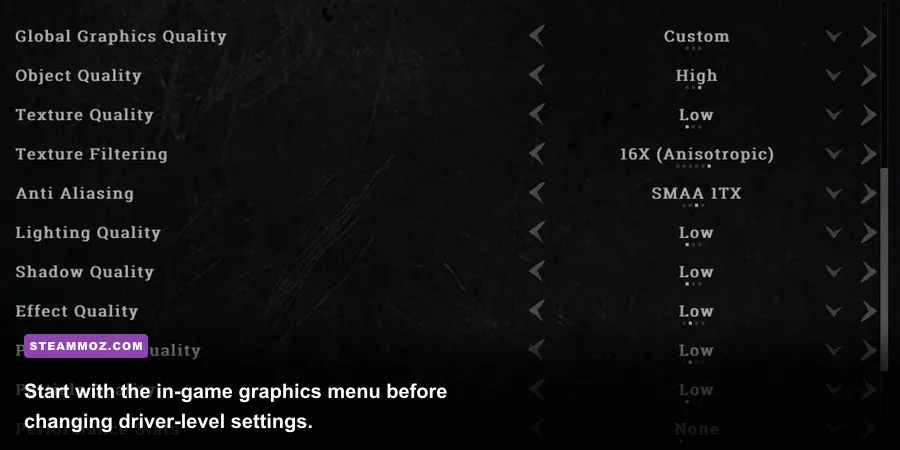
Before changing every option in the menu, identify the symptom. A crash during startup often indicates a corrupted configuration file, anti-cheat conflict, missing runtime, or driver problem. A crash after entering a match is more commonly related to shader compilation, VRAM pressure, an overlay hook, or an unstable GPU overclock. A steady low frame rate is a settings or hardware-limit issue; sudden dips are usually frametime spikes, thermal throttling, background tasks, or streaming assets.
Use the Steam overlay's FPS counter or an application such as MSI Afterburner to watch average FPS, GPU usage, CPU usage, VRAM, and frametime. If GPU usage sits around 95–99 percent, reduce resolution scale, texture quality, lighting, or upscaling quality. If GPU usage is low while one CPU core is heavily loaded, lowering resolution won't help; reduce object quality, lighting, shadows, and view-distance-related options instead.
| Symptom | Most likely cause | First test |
|---|---|---|
| Crash before the main menu | Driver, configuration, runtime, or anti-cheat conflict | Reset settings and perform a clean GPU driver install |
| Crash while loading into a match | Shader cache, corrupted files, VRAM pressure | Verify files and clear the shader cache |
| Constant low FPS | GPU or CPU hardware limit | Apply the performance profile below |
| Short freezes during fights | Shader compilation, streaming, overlays, background apps | Disable overlays and watch frametime |
🎮 Hunt: Showdown 1896 - The Last Laugh
Looking to experience this game? Grab your digital key directly on our store for $6.49.
View on Steammoz Store →Fix Hunt Showdown 1896 crashes step by step
1. Verify the installation through Steam
Close Hunt completely, open Steam, right-click Hunt: Showdown 1896, choose Properties, open Installed Files, and select Verify integrity of game files. Let the scan finish before launching anything. If Steam reacquires files, restart the PC afterward. A large update can leave a damaged archive or incomplete asset behind, and the game may crash only when that asset is requested.
Don't repeatedly verify while a download is still queued. Pause other downloads, allow Steam to finish patching, and confirm that the game is installed on a drive with free space. Keep at least 15–20GB available beyond the game's listed storage requirement so Windows, Steam, and shader caches aren't fighting for room.
2. Reset Hunt's configuration files
A bad resolution, unsupported fullscreen mode, or broken graphics preset can crash the client before the menu appears. Close Steam, then back up and remove the Hunt configuration folder in your user profile. The exact folder can vary by installation and Windows account, so use Windows search for Hunt-related game.cfg or user configuration files rather than deleting the entire Steam library. Rename the folder instead of permanently deleting it, then launch the game and let it create fresh settings.
This resets keybinds and graphics options, so copy screenshots of your controls first. If Hunt launches normally afterward, reapply settings gradually. Don't immediately restore an old config file; that can bring the original crash back.
3. Clean-install the graphics driver
Download the latest stable driver directly from NVIDIA's official driver page or AMD's official support page. During installation, choose the clean-install or factory-reset option when available. If the issue began immediately after a driver update, test the previous stable release rather than assuming newer always means better.
Remove third-party GPU overclocks while testing. Hunt can appear stable in a lightweight game and still crash under a long CryEngine session. Return core, memory, and undervolt settings to stock, then test for at least two complete matches.
4. Disable hooks and overlays
Turn off Steam Overlay, Discord Overlay, Xbox Game Bar, NVIDIA App or GeForce overlay, AMD overlay, MSI Afterburner OSD, Overwolf, ReShade, and motherboard monitoring utilities. These tools inject into the renderer or capture frames, and an update can make an otherwise harmless hook unstable. Disable them all for the first test, not just one.
Also add Hunt and its anti-cheat components to your security software's allowed list. Never download a replacement anti-cheat executable from a random website. Use Steam's installation files and the game's official support channels. Crytek's official Hunt: Showdown website is the right place to check current notices and support information.
5. Repair Windows runtimes and system files
Install or repair the current Microsoft Visual C++ Redistributable packages from Microsoft's official download page. Run Windows Update, reboot, and use an elevated Command Prompt for sfc /scannow if other games are also crashing. If the crash appears only after waking from sleep, perform a full restart rather than launching directly after resume.
Best Hunt Showdown 1896 settings for higher FPS
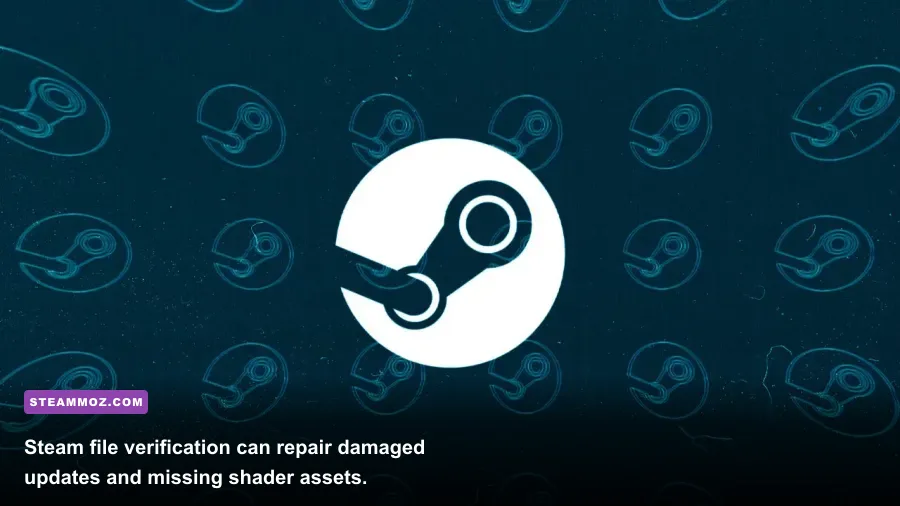
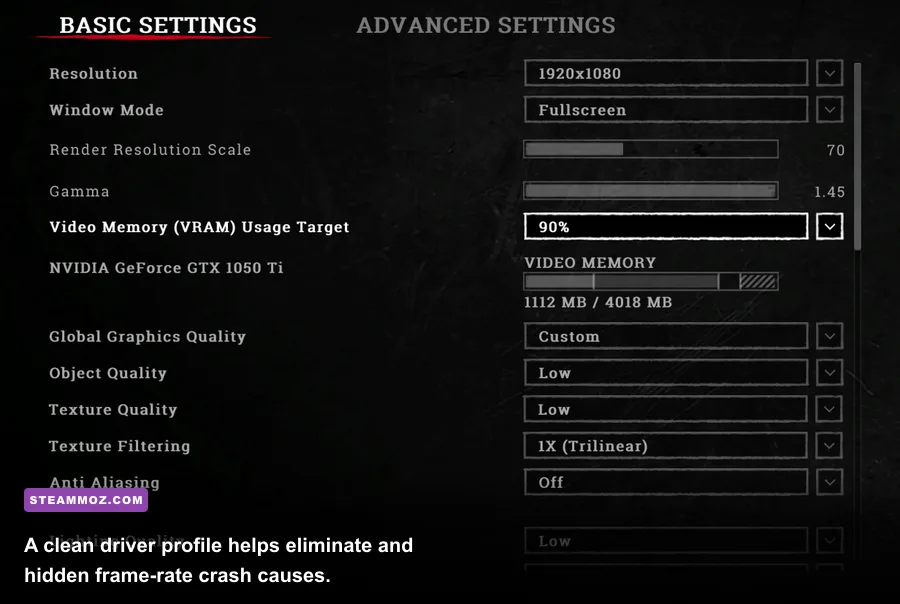
Hunt rewards clarity. A dark corner, distant hunter, or thin branch can decide a fight, so the fastest preset isn't automatically the best preset. Start at your monitor's native resolution, use exclusive fullscreen if it behaves correctly on your system, and target a stable frame rate rather than a high but erratic number.
| Setting | Recommended value | FPS impact | Visual trade-off |
|---|---|---|---|
| Resolution | Native; 1920x1080 for entry-level GPUs | Very high | Lower resolution makes distant targets softer |
| Upscaling | DLSS Quality or FSR 2 Quality | High benefit | Quality mode preserves edges better than Performance |
| Object Quality | Medium | Medium to high CPU benefit | Less distant geometry detail |
| Texture Quality | High with 8GB VRAM; Medium with 4–6GB | Low FPS impact, high VRAM impact | Lower textures make surfaces blurrier |
| Texture Filtering | 16x if available | Low | Keeps ground and wood textures sharp at angles |
| Lighting Quality | Low or Medium | High in compounds | Less lighting complexity and atmosphere |
| Global Illumination | Low | High | Dark interiors may look flatter |
| Shadow Quality | Low or Medium | Medium | Shorter and softer shadow detail |
| Effects Quality | Medium | Medium during fire and explosions | Less smoke, fire, and particle detail |
| View Distance | Medium | Medium CPU/GPU impact | Lower distant object detail |
| Motion Blur | Off | Small | Cleaner target tracking |
| Depth of Field | Off | Small | Sharper aiming image |
For a mid-range PC such as a Ryzen 5 3600 or Intel Core i7-8700 paired with an RTX 2060, RX 6600, or similar card, use 1080p native or DLSS/FSR Quality, Medium object quality, Medium textures, Low lighting, Low global illumination, and Low shadows. That profile protects visibility while cutting the settings that produce the nastiest compound dips.
On a 4GB graphics card, set textures to Medium before lowering everything else. Ultra textures can fill VRAM and cause hitching even when the average FPS looks acceptable. On an RTX 3060 or stronger card at 1440p, DLSS Quality is usually a better compromise than dropping the entire resolution. Avoid Ultra Performance upscaling; the shimmering and blur can make tracking hunters through foliage miserable.
Fix stutter, shader compilation, and frame-time spikes
After a major Hunt update, the first launch and first few matches can feel worse while shaders are rebuilt. Let the game sit at the menu for a few minutes, then play a low-stakes test match. Don't judge performance from the first ten seconds after spawning. If stutters continue every time you enter a new compound, clear the GPU shader cache and allow it to rebuild.
For NVIDIA hardware, use the NVIDIA App or Control Panel to clear the shader cache through Windows' temporary storage tools, then restart. For AMD hardware, use the driver software's reset shader cache option. Avoid setting the shader cache size to an extremely small value. A too-small cache can force repeated compilation and make the same locations hitch again.
Keep Hunt on an SSD. The official Steam listing provides the current storage and hardware requirements, so check the Hunt: Showdown 1896 Steam page after major updates. A hard drive can technically run the game, but asset streaming, map transitions, and texture requests are much more likely to produce pauses.
Cap FPS slightly below your monitor's refresh rate if frame pacing is uneven. For a 144Hz display, try 120 or framelessly stable 100 FPS rather than chasing 144 with repeated drops to 70. Use the in-game limiter first. If it feels inconsistent, test a driver-level cap such as 141 FPS, but don't run two limiters simultaneously.
Hardware checks that stop recurring crashes
Monitor temperatures while playing, not while sitting in the menu. A GPU approaching its thermal limit may downclock, while a CPU that reaches its limit can create severe one-percent-low drops. Clean dust from filters, confirm that GPU fans spin correctly, and make sure the graphics card's power cable is fully seated. Laptops should be plugged in and set to a performance power profile.
Hunt's published PC requirements are a useful baseline, but minimum hardware doesn't guarantee a locked 60 FPS in busy compounds. A system near the minimum may need 1080p, Low lighting, Low shadows, Medium textures, and Quality upscaling. If you have only 8GB of RAM, close browsers, launchers, and recording tools before starting. 12GB is a more realistic floor, while 16GB gives Windows enough breathing room.
| Component | Minimum-class target | Recommended target | Pro-tuned expectation |
|---|---|---|---|
| CPU | Core i5-6600 or Ryzen 5 2600 class | Core i7-8700 or Ryzen 5 3600 class | Modern six-core CPU with strong single-thread performance |
| Memory | 12GB RAM | 16GB RAM | 16–32GB with background apps closed |
| GPU | GTX 1650 Super or RX 5500 XT class | RTX 2060 or RX 580 class | RTX 3060/RX 6700 XT class for stronger 1440p results |
| Storage | SSD strongly preferred | SSD | NVMe SSD with free capacity for patching |
| Display target | 1080p, 60 FPS with reduced settings | 1080p high-refresh or 1440p tuned | Stable 120 FPS at 1080p on suitable hardware |
Disable XMP or EXPO temporarily if crashes began after enabling memory overclocking. Run Windows Memory Diagnostic or MemTest86 if multiple games crash, archives become corrupted, or you see blue screens. Hunt shouldn't be used as the only stability test, but long matches are excellent at exposing marginal RAM and GPU settings.
A clean performance profile for The Last Laugh
Use this profile as your baseline, then raise one setting at a time. Select the hunter or weapon you want, load into a quiet training scenario if available, and test a compound with foliage, fire, and several AI enemies. The Last Laugh content doesn't require a special graphics preset; the goal is consistent visibility whether you're using the DLC hunter or a default character.
| Profile | Resolution and upscaling | Core settings | Best for |
|---|---|---|---|
| Competitive 1080p | 1920x1080 native or DLSS/FSR Quality | Object Medium, textures Medium/High, lighting Low, shadows Low, blur Off | Stable high refresh gameplay |
| Balanced 1440p | 2560x1440 with DLSS/FSR Quality | Object Medium, textures High, lighting Medium, shadows Low, effects Medium | Modern mid-range GPUs |
| Entry-level recovery | 1080p with DLSS/FSR Balanced | Object Low, textures Medium, lighting Low, global illumination Low, effects Low | Minimum-class systems and laptops |
If these profiles still crash, stop lowering graphics settings. Crashing isn't fixed by turning textures from High to Low when the underlying problem is a bad driver, corrupted file, unstable overclock, or overlay conflict. If FPS is stable but the image flickers, reset sharpening and inspect HDR, color filters, and third-party post-processing instead.
Finally, check Crytek's official Hunt news and patch notes when a problem appears immediately after an update. A known server-side or client-side issue may need a hotfix. You can also compare general PC performance practices in Steamoz's guide to crashes and low FPS and our higher-FPS settings guide.
The reliable order is simple: verify files, reset configuration, clean-install the driver, disable overlays, clear shaders, remove overclocks, and then apply the tuned graphics profile. Test after every change. Once Hunt: Showdown 1896 can survive two complete matches without a crash or major frametime spike, raise textures or lighting carefully—never sacrifice stable aim for a prettier swamp.