If Intergalactic Fishing keeps crashing, freezing during a cast, or dropping below a playable frame rate, start with three fixes: verify the Steam files, disable overlays, and use a capped 60 FPS profile at your monitor's native resolution. Then update the GPU driver, remove aggressive launch tweaks, and lower shadows and water effects before touching texture quality. Those steps target the most common causes without making the game look like a blurry mess.
Intergalactic Fishing is not a demanding blockbuster, but its relaxed presentation can be deceptive. The game moves between alien planets, renders large bodies of water, tracks fish and collection progress, and loads new environmental data as you travel. That combination can produce shader-compilation stutter, a crash when moving between locations, or unusually high GPU usage on hardware that handles much larger games comfortably.
This guide focuses on Windows PC troubleshooting for the Steam version. It separates a true performance bottleneck from a damaged save, an overlay conflict, a bad driver profile, and ordinary one-time shader stutter. Before changing anything, close background launchers and note whether the problem happens at startup, while traveling, when opening menus, or only during fishing.
Start With the Fastest Crash Fixes
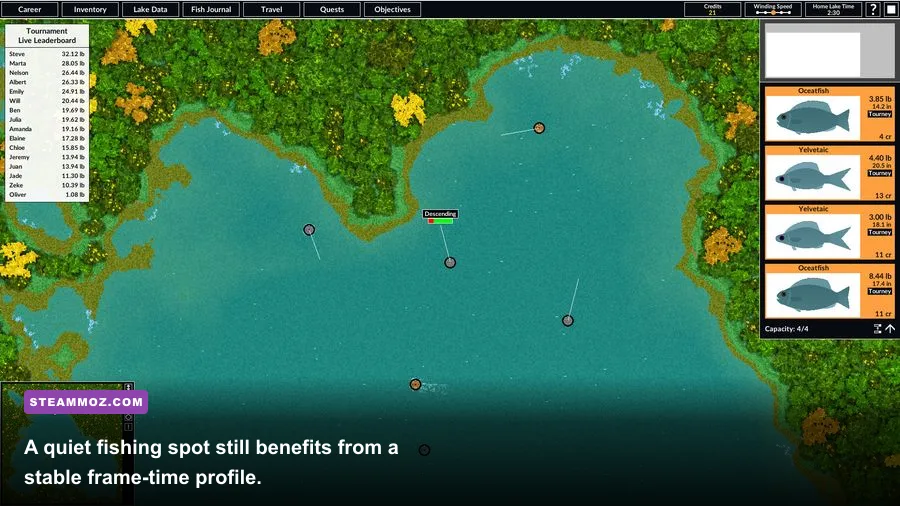
Do the basic repair pass in order. The sequence matters because reinstalling the game before checking the files wastes time, while deleting saves can turn a manageable loading problem into lost progress. Steam's official Intergalactic Fishing listing is also the right place to confirm the current build, system requirements, and recent player reports.
1. Verify the installation
In Steam, open Library, right-click Intergalactic Fishing, choose Properties, select Installed Files, and press Verify integrity of game files. Steam will replace missing or corrupted data. Do not launch another game while the scan is running. If the verification reports files were reacquired, restart Steam before testing the game again.
2. Remove overlays and injectors
Temporarily disable the Steam Overlay under the game's Properties menu. Also turn off Discord's overlay, Xbox Game Bar, NVIDIA ShadowPlay or the AMD in-game overlay, MSI Afterburner’s RivaTuner statistics overlay, and ReShade. These tools hook into the rendering pipeline; a small Unity-style game can be less tolerant of multiple hooks than a major release.
RivaTuner is especially worth testing without if the game crashes when you alt-tab, changes resolution, or opens a menu. Keep the monitoring application closed for the first clean test. If the crash disappears, re-enable tools one at a time rather than piling every overlay back in at once.
3. Test administrator and compatibility settings carefully
Do not begin by forcing Windows compatibility modes or running every game as administrator. Those settings can create permission conflicts with Steam Cloud and save files. Instead, launch normally after restarting the PC. If the game closes with no error, open Windows Security and your antivirus quarantine history; security software can block an executable or a DLL after an update.
4. Check the save before blaming the GPU
If the title screen works but one particular planet crashes during loading, the issue may be tied to a damaged local save or a corrupted location state. Back up the game's save folder before changing it. You can find the path through Steam Cloud details or by searching Windows for files modified on the day the crash began. Never delete the only copy. Turn off Steam Cloud temporarily, move the local save to a backup folder, and test with a new profile only if you can accept the risk.
| Symptom | Most Likely Cause | First Test | Do Not Do Yet |
|---|---|---|---|
| Crash before the main menu | Driver, overlay, missing file, or permissions | Verify files and disable overlays | Delete saves |
| Crash when changing planets | Asset loading, corrupted files, or unstable VRAM profile | Use default GPU settings and verify files | Overclock further |
| Freeze after casting | Shader hitch, overlay hook, or background process | Run a clean boot-style test | Force-close during save activity |
| Low FPS everywhere | Resolution scale, power mode, driver profile, or integrated GPU | Check active GPU and frame rate cap | Lower every setting blindly |

🎮 Intergalactic Fishing
Looking to experience this game? Grab your digital key directly on our store for $3.74.
View on Steammoz Store →Use a Stable Graphics Profile Before Chasing Maximum FPS
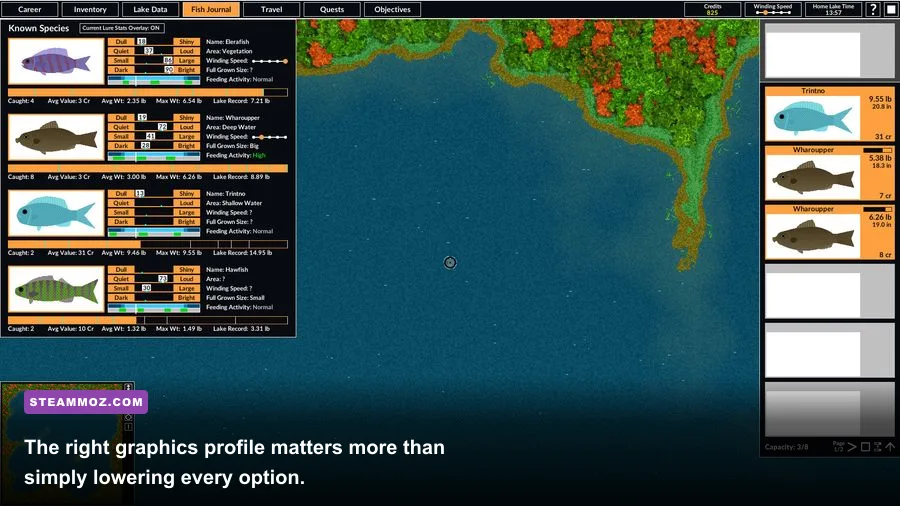
Intergalactic Fishing rewards consistency more than a huge peak number. A stable 60 FPS cap feels better than a graph that jumps between 48 and 100 FPS whenever you pan across water or load a new fishing area. Start at 1920x1080 or your display's native resolution, use exclusive fullscreen if available, and cap the frame rate to 60 through the game or your GPU control panel.
If the game has fewer graphics controls than the menu shown in a guide or video, that is normal across different builds and display modes. Use the options that are present; do not assume a missing anti-aliasing or resolution-scale slider is hidden somewhere else. The key settings are resolution, shadows, water or reflection quality, effects, view distance, and vertical sync.
| Setting | Recommended Starting Value | Typical FPS Impact | Visual Trade-Off |
|---|---|---|---|
| Display resolution | Native 1080p or native 1440p | Very high at 1440p and above | Lowering it improves GPU load but softens the image |
| Shadows | Medium | Medium to high near scenery and water | Lower values reduce shadow detail, not object detail |
| Water and reflections | Medium or Low | High on integrated GPUs | Less shimmer and reflection accuracy |
| Effects and particles | Medium | Medium during catches and environmental effects | Fewer splash and lighting details |
| View distance | Medium | Medium in open planetary areas | Distant scenery may appear later |
| Texture quality | High if VRAM allows | Low to medium on most dedicated GPUs | Lower settings make surfaces look muddy |
| VSync | On for tearing, off for testing latency | Usually negligible, but can add pacing delay | On removes tearing; off may reveal uneven delivery |
Why shadows and water come first
Texture quality mostly consumes video memory. Once the required textures fit, raising or lowering it often has little effect on raw frame rate. Shadows and reflections are different: they can require extra scene passes every frame. Water is particularly revealing because a broad surface can combine transparency, reflections, particles, and lighting. If the frame rate collapses when you turn toward a lake, reduce water, reflections, and shadows before texture quality.
Choose the right target for your hardware
For an entry-level laptop or integrated graphics, use 1280x720 or 1600x900 only if native 1080p cannot hold 30 FPS. Set shadows, water, effects, and view distance to Low, then cap at 30 FPS. A locked 30 is perfectly usable for a calm fishing game and reduces heat on thin laptops.
For a mainstream GTX 1650, RX 570, RTX 3050, or similar system, 1080p Medium is the sensible target. Cap at 60 FPS and keep textures at Medium or High depending on available VRAM. Systems with an RTX 3060, RX 6600, or better should begin at 1080p High or 1440p Medium, but still test a 60 FPS cap before chasing a higher refresh rate.
Fix Stuttering, Frame Pacing, and One-Time Hitches
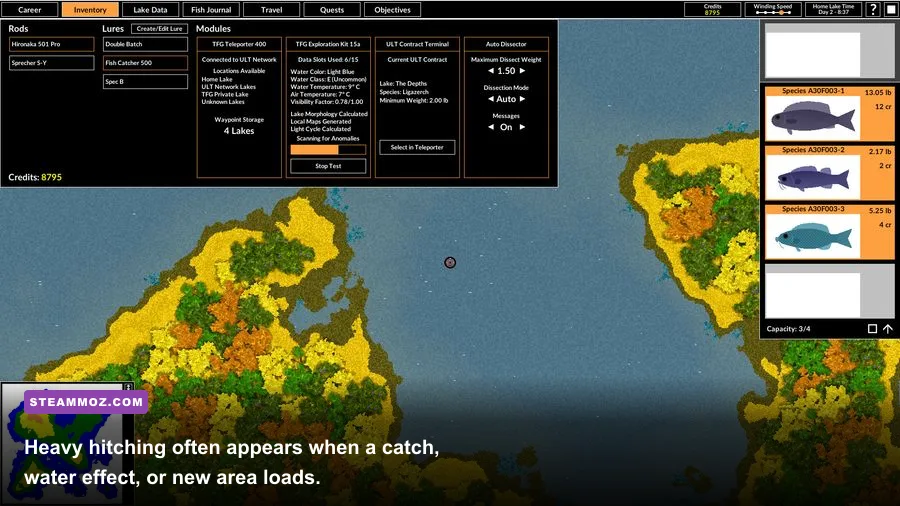
Low average FPS and stutter are different problems. If the counter says 60 but the game visibly pauses for a fraction of a second, watch frame time rather than only the FPS number. A 16.7-millisecond frame is the target for 60 FPS; sudden spikes to 100 milliseconds create the hitch you feel while moving the camera or loading a catch animation.
Let the first shader pass finish
After a driver update, game update, or deleted shader cache, the first visit to a planet or the first use of a visual effect can stutter. Do one calm test run and revisit the same locations. If the second pass is smoother, the problem was likely shader compilation rather than insufficient hardware. Repeated stutter every few seconds is different and points toward overlays, storage delays, thermal throttling, or background CPU activity.
Cap below the unstable ceiling
If your system swings between 72 and 110 FPS, a 60 FPS cap can eliminate the oscillation. If it cannot sustain 60, try 45 or 30 rather than leaving the frame rate unlimited. Use the in-game limiter first. If it behaves poorly, use NVIDIA Control Panel or AMD Software to set a per-game maximum. Avoid stacking an in-game cap, driver cap, VSync, and third-party limiter until you know which one is producing the cleanest frame pacing.
Check the active GPU and power plan
Laptops sometimes launch a game on the Intel or AMD integrated GPU even when a discrete NVIDIA or AMD chip is installed. Open Windows Settings, System, Display, Graphics, add the game's executable, choose High performance, and restart the game. Keep the laptop plugged in, set Windows power mode to Best performance, and make sure the manufacturer's silent or battery-saving profile is disabled.
Monitor temperatures during a longer session. If FPS starts normally and falls after ten or fifteen minutes, heat is more suspicious than graphics quality. Clean blocked vents, avoid soft surfaces, and test with a more aggressive fan profile. Do not overclock while troubleshooting. A factory-default GPU that is stable is more useful than an unstable overclock that adds a few frames.
Storage and background activity still matter
Install the game on an SSD if possible. A hard drive can handle a small title, but asset streaming and antivirus scans may cause visible pauses when the game loads a new planet or environmental set. Leave several gigabytes free on the drive, pause cloud-sync utilities temporarily, and exclude the game's folder from real-time antivirus scanning only if you understand the security trade-off and trust the installation.
For broader PC stutter advice, the fixes in Steamoz's Everspace stutter settings guide apply especially well to frame caps, overlays, laptop power modes, and frame-time testing.
Driver, Windows, and Launch-Option Repairs
Once the in-game profile is stable, move to the driver layer. Download drivers from the official NVIDIA driver page or AMD support page, not from a random driver archive. Choose a clean installation when the installer offers it, then reboot. Intel users should use Intel's official graphics support rather than forcing a desktop NVIDIA package onto an integrated chip.
If crashing began immediately after a driver update, rolling back to the previous stable driver is reasonable. If it began after a Windows update, install pending cumulative updates and reboot twice before judging the result. Windows sometimes completes graphics-component changes only after a second restart.
Use launch options sparingly
Remove old commands from Steam's Launch Options box while testing. Random DirectX flags, forced resolutions, and copied commands from another game can make startup worse. Test with the box empty first. If the game is definitely using the wrong display mode, use only a simple resolution or windowed option that the game's own documentation or Steam community moderators confirm for your build.
Do not force DirectX 11, DirectX 12, Vulkan, or OpenGL unless Intergalactic Fishing specifically exposes that renderer or the developer recommends it. A launch command that works for one Unity game is not automatically valid for another. Unsupported flags can be ignored, but they can also create a black screen or an immediate crash.
Repair common runtime components
Install or repair the current Microsoft Visual C++ Redistributable packages, then run Windows Update. A missing runtime usually causes a startup error rather than low FPS, but it is an easy dependency to repair when the game will not open. If Windows reports a DLL error, record the exact filename; never download a single DLL from an unofficial site and drop it into System32.
For a methodical checklist, compare your results with Steamoz's Dungeons 3 PC crash and FPS fixes. The games are different, but the file verification, driver, overlay, and power-mode workflow is the same.
Find the Real Cause With a Clean Test Plan
Changing six settings at once makes troubleshooting impossible. Use a repeatable route: launch from a cold start, load the same profile, travel to the same planet, rotate the camera across the same waterline, cast several times, and return to the menu. Write down the resolution, preset, FPS cap, GPU temperature, and whether the issue was a crash, a freeze, a hitch, or a sustained drop.
| Test Pass | Change Only This | What the Result Means | Next Move |
|---|---|---|---|
| Pass 1 | Verify files and restart Steam | Crash disappears | Keep the repaired installation and retest overlays later |
| Pass 2 | Disable every overlay | Menus and alt-tab stop crashing | Re-enable overlays individually |
| Pass 3 | Set 1080p Medium, 60 FPS cap | Frame pacing improves | Raise one visual setting at a time |
| Pass 4 | Use the correct high-performance GPU | FPS rises sharply | Keep the Windows per-app GPU assignment |
| Pass 5 | Clean-install or roll back driver | Crashes follow a driver change | Stay on the stable driver and report the issue |
| Pass 6 | Test a new save profile | Only the old save crashes | Restore a backup and contact the developer |
When to stop tweaking
If Intergalactic Fishing remains unstable after file verification, a clean overlay-free launch, default GPU settings, a current driver, and a new save test, collect evidence instead of endlessly lowering graphics. Include your Windows version, CPU, GPU, RAM, whether the game is on an SSD, driver version, exact crash location, and the last action before failure. A screenshot of the error and the game's log file are far more useful than saying the game is broken.
Use the developer's official channels linked from the Steam store page for bug reports. Mention whether Steam Cloud is enabled and whether the crash happens on a new save. That distinction can quickly separate a system-wide rendering issue from a single damaged progression file.
The best final profile
For most PCs, the dependable setup is native 1080p, Medium shadows, Medium water or reflections, Medium effects, Medium view distance, High textures when VRAM allows, VSync enabled if you see tearing, and a 60 FPS cap. Integrated graphics should use Low water and shadows with a 30 FPS cap. High-end systems can raise textures and view distance first; leave water and shadows at Medium if those are the settings that trigger frame-time spikes.
That profile preserves the important part of Intergalactic Fishing—the alien scenery, readable fish activity, and calm exploration—without turning every planet transition into a stress test. If you want another performance-focused reference, Steamoz's Cricket Through the Ages FPS settings guide covers the same principle: identify the expensive settings, cap the frame rate, and change one variable at a time.
Most players should see the biggest improvement from verified files, disabled overlays, the correct GPU assignment, and a sensible frame cap. Only after those are confirmed should you chase higher presets. In a fishing game, smooth frame delivery beats a flashy benchmark number every time.