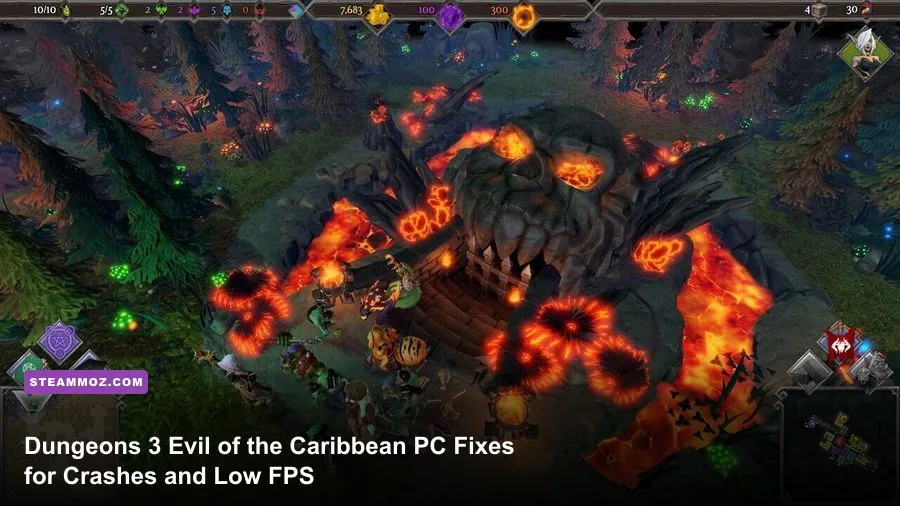
If Dungeons 3: Evil of the Caribbean crashes on startup, freezes during a mission, or crawls below 30 FPS, the fastest route is to verify the installation, reset the game's configuration, disable overlays, and lower shadows and post-processing before touching Windows or driver settings. The DLC uses the same engine and PC requirements as Dungeons 3, so most problems come from old DirectX components, corrupted config files, overlay conflicts, or demanding lighting and effects settings rather than the pirate campaign itself.
This guide covers the fixes that matter for the Steam version, including clean launch troubleshooting, save protection, a sensible 60-FPS profile, and targeted adjustments for older laptops. Evil of the Caribbean is a content expansion for Realmforge Studios' dungeon strategy game, not a separately optimized executable, which is why the base game's remedies apply here too.
Start with the five-minute crash checklist
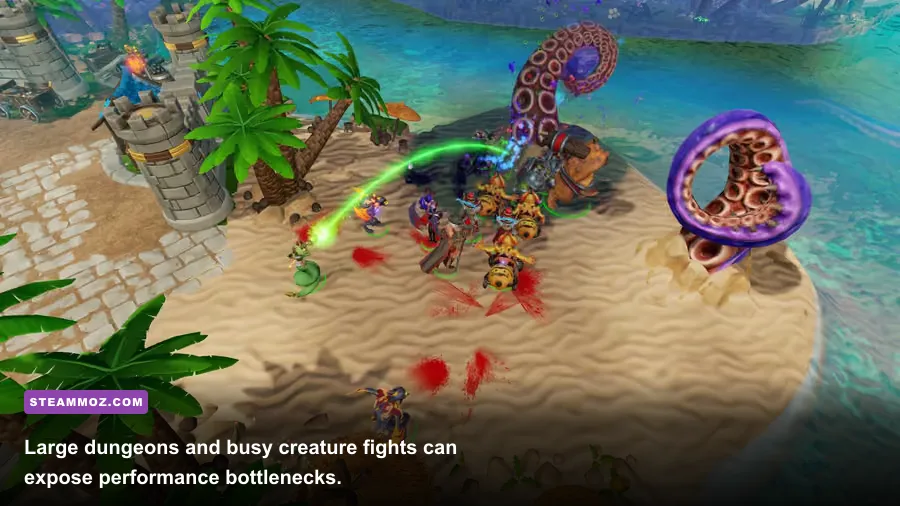
Before changing drivers or editing files, close Dungeons 3 and Steam completely. Reopen Steam, right-click Dungeons 3 in your Library, choose Properties, open Installed Files, and select Verify integrity of game files. This replaces missing or damaged files without deleting your campaign progress.
Next, launch the base game rather than opening the DLC through a desktop shortcut. From the campaign menu, select Evil of the Caribbean after Dungeons 3 reaches the main screen. If the game crashes before the menu appears, temporarily disable Steam Overlay under Properties and turn off overlays from Discord, NVIDIA App or GeForce Experience, AMD Software, MSI Afterburner, RivaTuner Statistics Server, and Xbox Game Bar. Multiple overlays hooking the same older DirectX 11 title are a surprisingly common cause of instant crashes.
Also install the latest graphics driver using the normal clean-install option, then restart Windows. Don't begin with a third-party “FPS booster”; those utilities often add another overlay or background service. If you're using Windows 11, run Steam and the game normally first. Compatibility mode should be a fallback, not the opening move, because forcing an old Windows profile can create fullscreen and permission problems.
| Symptom | Most likely cause | First fix to try |
|---|---|---|
| Crash before the main menu | Broken config, overlay hook, missing runtime | Disable overlays, reset config, install DirectX components |
| Crash when loading Evil of the Caribbean | Damaged DLC or game file | Verify Steam files and restart Steam |
| Crash after changing resolution | Invalid fullscreen configuration | Delete or rename the graphics config and relaunch |
| Freeze during a large battle | Driver timeout, heat, or unstable overclock | Return GPU/CPU to stock settings and lower effects |
For official product information, compare your installation against the Dungeons 3 Steam page and the publisher's Kalypso Media game page. Those are safer references than random “fix pack” downloads.

🎮 Dungeons 3: Evil of the Caribbean
Looking to experience this game? Grab your digital key directly on our store for $2.24.
View on Steammoz Store →Reset Dungeons 3's graphics configuration safely

A bad resolution, fullscreen state, or unsupported refresh rate can make Dungeons 3 crash before it draws the menu. The clean fix is to reset the configuration rather than repeatedly forcing the same broken launch state.
First, back up your saves. Press Win + R, enter %USERPROFILE%, and look for the Dungeons 3 save or configuration folder created by the game. The exact folder name can vary by Windows installation and game build, so use File Explorer search for Dungeons 3 and sort by recently modified files. Copy any save folder to your desktop. Do not delete your backup.
Now rename the configuration folder to something like Dungeons 3_config_old, leaving the save backup untouched. Start the game so it generates fresh settings. If it launches, set the display to your monitor's native resolution, use borderless windowed mode if exclusive fullscreen keeps failing, and restart once more to test the new profile.
If the game still crashes, check whether Windows Security or antivirus software quarantined an executable or blocked write access. Avoid running the game permanently as administrator. Instead, make sure Steam's library folder is writable and that cloud synchronization is not repeatedly restoring a broken configuration. You can temporarily disable Steam Cloud for Dungeons 3, launch with a fresh local config, then re-enable it after confirming the menu and campaign load correctly.
Never download a replacement DLL from an unofficial site. Dungeons 3 relies on standard Microsoft components, and the safe route is Microsoft's DirectX End-User Runtime Web Installer. This can restore legacy DirectX 9-era files that newer Windows installations may not include, even though the game renders through DirectX 11-era technology. Installing the package doesn't downgrade your GPU driver or Windows.
Use this graphics profile for a stable 60 FPS
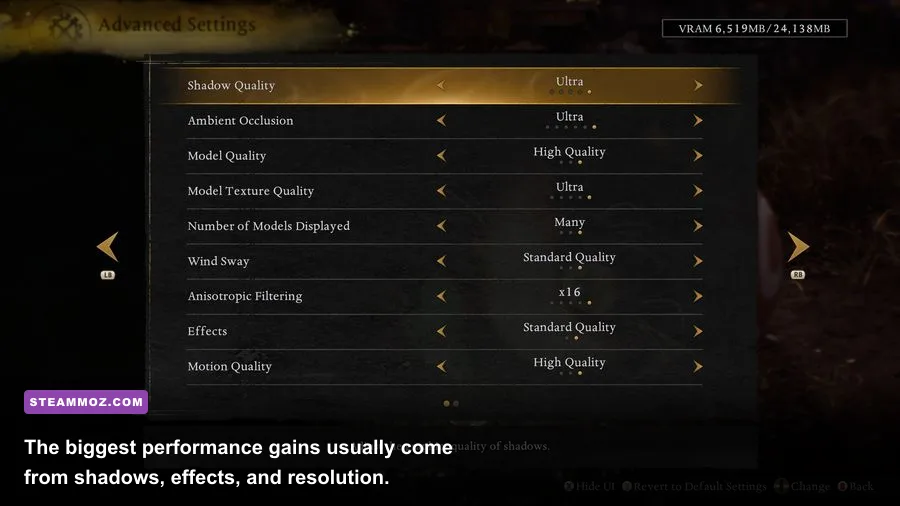
Dungeons 3 is not a twitch shooter, but low FPS still hurts when you are dragging rooms, selecting creatures, and issuing orders while a surface assault unfolds. The underground dungeon can become especially expensive when many rooms, minions, traps, lights, particle effects, and enemies are visible at once. Aim for a locked 60 FPS rather than chasing a fluctuating 100 FPS counter.
Start at 1920×1080 with VSync enabled if your monitor is 60 Hz. If you have a variable-refresh display, use FreeSync or G-SYNC and cap the game near your panel's refresh rate through the driver. A cap prevents the GPU from running flat out in quiet scenes and can reduce heat-related stutter.
| Setting | Recommended value | FPS impact | Visual trade-off |
|---|---|---|---|
| Resolution | Native 1080p | High if reduced | Keep native resolution; use 1600×900 on weak GPUs |
| Display mode | Borderless or fullscreen | Low | Borderless is usually more reliable when alt-tabbing |
| VSync | On at 60 Hz | Small | Removes tearing; use driver VRR instead on compatible monitors |
| Shadows | Medium | High | Reduces dynamic shadow detail around rooms and units |
| Anti-aliasing | Medium or FXAA | Medium | Edges are softer, but the scene remains readable |
| Post-processing | Medium | Medium to high | Less bloom and screen-space polish |
| Effects and particles | Medium | High in battles | Spells and environmental effects lose density |
| Texture quality | High with 4 GB VRAM; Medium below that | Low to medium | Lower surface and creature texture sharpness |
| Ambient occlusion | Low or off | Medium | Less contact shading between rooms and objects |
Lower shadows first, then effects and post-processing. Texture quality usually affects VRAM more than raw frame rate, so dropping textures will not rescue a GPU that is overloaded by lighting. If your frame rate is stable in an empty dungeon but falls during combat, effects and shadows are the correct targets.
Find the real source of stutter and low FPS

Watch GPU usage, CPU usage, VRAM, system RAM, and temperatures with one tool at a time. If GPU usage sits close to 99 percent while the frame rate is low, reduce resolution, shadows, or effects. If GPU usage is low but one CPU thread is heavily loaded, the scene is likely limited by simulation and draw calls. That can happen when a dungeon grows wide, multiple creatures pathfind simultaneously, or a surface fight fills the screen with units.
Don't confuse a loading hitch with permanent low FPS. Evil of the Caribbean may briefly pause when a new area, voice line, or effect is streamed from storage. Installing the game on an SSD can shorten those pauses, but it won't magically double your average frame rate. Keep at least 15 percent free space on the drive and close browsers, launchers, recording tools, and RGB utilities before testing.
On laptops, plug in the charger and select the dedicated NVIDIA or AMD GPU for Steam and Dungeons 3 in Windows Graphics settings. Set the power profile to a balanced or high-performance mode, but monitor temperatures. A hot laptop can drop clocks after several minutes, creating the classic pattern of “60 FPS at the start, 25 FPS after one mission.” Cleaning vents and raising the rear of the laptop may help more than another graphics tweak.
Remove CPU and GPU overclocks while diagnosing crashes. Even if another game appears stable, an older DirectX title can expose marginal memory or core-clock settings. Likewise, disable recording, reshade injectors, and frame-generation tools during testing. Once the game is stable, re-enable one utility at a time so you know which change caused trouble.
For a useful comparison, Steamoz's Back 4 Blood FPS settings guide explains the same GPU-bound versus CPU-bound testing method, while the Call of Juarez PC scan is handy when an older system is near a game's minimum requirements.
System requirements and a sensible performance target
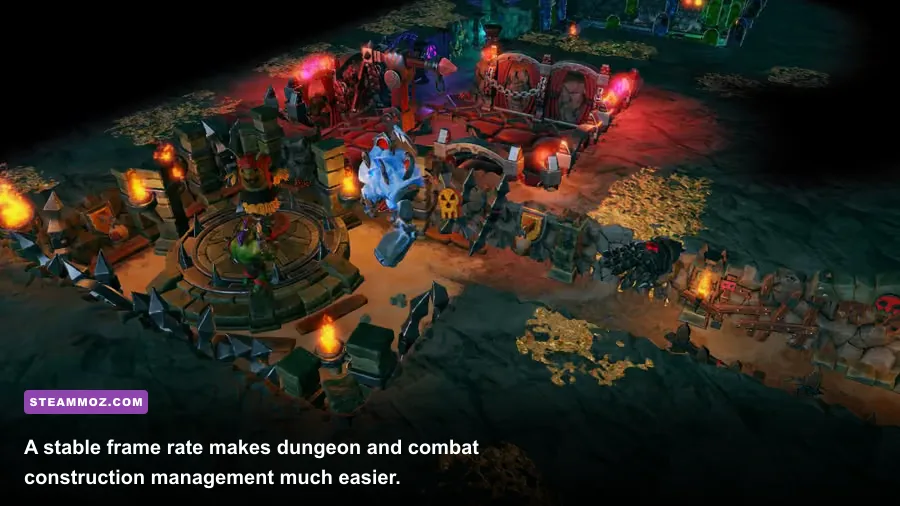
The Steam listing places Dungeons 3 in the older-PC category, but minimum requirements are a launch floor, not a promise of 1080p/60 in a crowded dungeon. A machine near minimum specifications should prioritize 900p or 720p, medium effects, and a 30-FPS cap. A modern four-core CPU, 8 GB of RAM, and a dedicated GPU with around 4 GB of VRAM should have a much easier time at 1080p.
| PC profile | Practical target | Recommended profile | Expected behavior |
|---|---|---|---|
| Older integrated graphics laptop | 720p, 30 FPS | Low settings, effects low, shadows off | Playable in small scenes; large fights may dip |
| Minimum-class dedicated GPU | 900p, 30 to 45 FPS | Medium textures, low shadows, reduced effects | Acceptable with a frame cap and closed background apps |
| Mainstream 1080p gaming PC | 1080p, locked 60 FPS | High textures, medium shadows, medium effects | Good general performance with occasional simulation dips |
| Modern mid-range gaming PC | 1080p or 1440p, 60 FPS | High settings, test shadows and post-processing | Usually GPU-limited only at higher resolution |
RAM matters when the system is also running a browser, voice chat, and capture software. If Windows starts paging to disk, the symptom can look like a graphics problem: camera movement hitches, menus respond late, and area transitions stall. Close unnecessary programs before blaming the DLC.
For more older-game troubleshooting, see Steamoz's Advent Rising PC specs guide and Deathtrap Dungeon settings guide. The principle is the same: compare the actual bottleneck instead of blindly lowering every option.
Last-resort fixes that protect your campaign
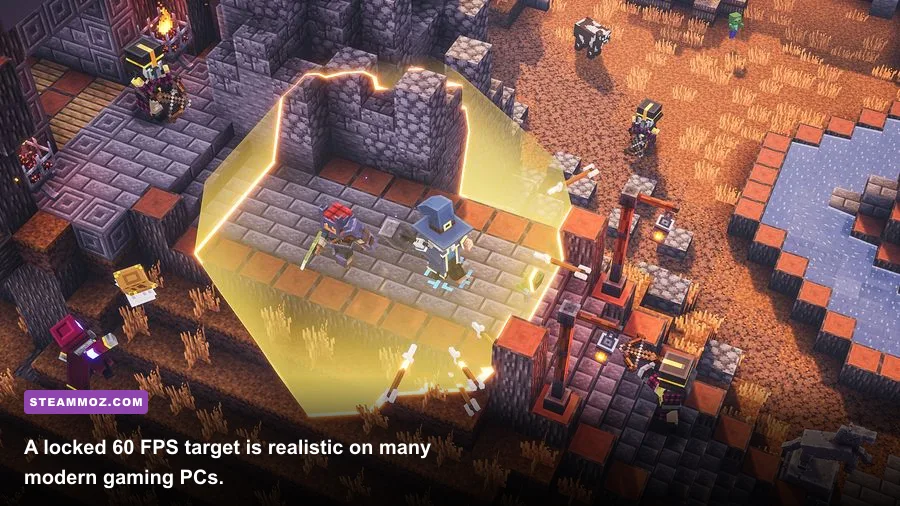
If verification, a fresh config, runtime repair, and overlay removal haven't solved the crash, test a new campaign. A single damaged save can crash during loading while the rest of the game works normally. Keep your backup, load an earlier save if available, and avoid overwriting every save slot. Rotating three or more manual saves is especially valuable in a strategy game where a corrupted autosave can otherwise trap a mission.
Check Windows Event Viewer under Windows Logs and Application after a crash. A faulting module associated with a GPU driver points toward driver cleanup or a stock-clock test; a game executable points more toward configuration, files, or a reproducible save. Record the mission, map, unit count, and action that triggers the failure before reporting it. The Realmforge Studios site is the appropriate developer reference, while the Steam community hub can help identify build-specific reports.
Finally, reinstall only after backing up saves and confirming the problem isn't an overlay or config file. Uninstall through Steam, restart Windows, reinstall to an SSD if possible, and launch once with overlays disabled. Add your normal software back gradually. That sounds slower than deleting everything immediately, but it gives you a clean diagnosis instead of recreating the same crash.
The reliable Evil of the Caribbean setup is straightforward: verify the DLC, generate a fresh configuration, use legacy DirectX components from Microsoft, disable injection-based overlays, cap the frame rate, and lower shadows and effects before textures. With those changes, most PCs that can already run Dungeons 3 should deliver a stable campaign without sacrificing the clarity that makes dungeon management fun.