For the best Back 4 Blood graphics settings for max FPS, use fullscreen, disable V-Sync and motion blur, enable DLSS or FSR, keep textures at High, and cut shadows, effects, foliage, and post-processing to Medium or Low. That combination protects clarity while removing the settings that hammer your GPU during a horde. At 1080p, start with the Competitive profile below; at 1440p, keep High textures but use Quality upscaling before lowering resolution.
Back 4 Blood is built on Unreal Engine 4, and its performance swings hardest when the game throws dozens of Ridden, particle effects, decals, and dynamic shadows onto the screen. A quiet Fort Hope view can look perfectly smooth while a Tallboy rush or Ogre fight reveals a nasty frame-time spike. The goal isn't simply the highest average FPS. You want stable frame pacing when your team is trapped in a doorway and every bullet matters.
Before tuning, check the game's official Steam page for current requirements and patches. Turtle Rock's official Back 4 Blood site and developer page are also worth checking if an update changes performance behavior.

Use these Back 4 Blood FPS profiles first
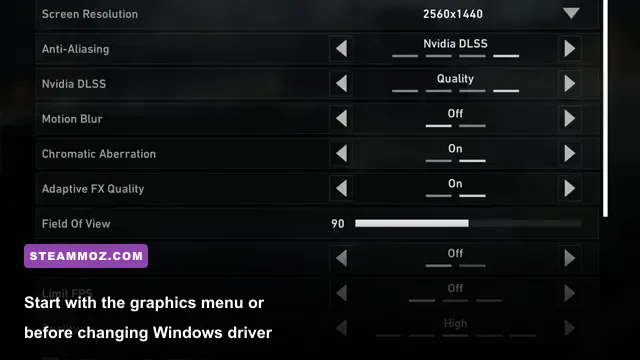
Don't begin by throwing every slider to Low. Back 4 Blood's weapon models, environmental texture detail, and readable weak spots survive surprisingly well at High, while shadow quality and effects can cost much more in combat. Apply a profile, restart the game if prompted, then test it in a real campaign mission rather than staring at the menu.
Competitive 1080p profile
Choose 1920x1080, exclusive fullscreen if available, a frame cap slightly below your monitor's refresh rate, and V-Sync Off. Set textures to High, texture filtering to 8x or 16x, anti-aliasing to Low or Medium, and upscaling to DLSS Quality on an RTX card or FSR Quality on a Radeon card. Use Low shadows, Low post-processing, Medium effects, Low foliage, and Medium view distance.
1440p quality-performance profile
At 2560x1440, begin with native resolution only if your GPU has plenty of headroom. Otherwise, DLSS Quality or FSR Quality is the smart first move. Keep textures High, effects High if explosions remain smooth, and shadows Medium. This profile usually preserves the game's gritty lighting far better than dropping every setting to Low.
Entry-level GPU profile
For cards around the GTX 960, GTX 970, Radeon R9 380, or similar hardware, target 1080p with FSR Balanced or Performance when necessary. Textures should stay Medium unless VRAM warnings or hitching appear. Set shadows, foliage, post-processing, and effects to Low, view distance to Medium, and anti-aliasing to Low. A locked 60 FPS is better than an unstable 80 FPS that collapses during a horde.
| Profile | Resolution and Upscaling | Key Settings | Practical Target |
|---|---|---|---|
| Competitive 1080p | 1080p, DLSS/FSR Quality | Textures High; shadows Low; effects Medium | Stable 60-144 FPS depending on GPU |
| Balanced 1440p | 1440p, native or Quality upscaling | Textures High; shadows Medium; foliage Medium | Stable 60-100 FPS |
| Entry-level | 1080p, FSR Balanced or Performance | Textures Medium; most lighting settings Low | Locked 60 FPS or stable 30 FPS |
| Steam Deck-style | 1280x800, FSR Performance | Textures Medium; shadows Low; effects Low | Locked 30 FPS with fewer spikes |
🎮 Back 4 Blood
Looking to experience this game? Grab your digital key directly on our store for $5.99.
View on Steammoz Store →The settings that actually move your frame rate
Back 4 Blood's menu doesn't explain the cost of each option, so use this order: upscaling and resolution first, then shadows and effects, then post-processing and foliage. Texture quality mostly affects VRAM and hitching rather than raw GPU FPS. If you have enough VRAM, dropping textures from High to Low can make the game uglier without fixing the real bottleneck.
| Setting | Recommended Value | FPS Impact | Visual Trade-Off |
|---|---|---|---|
| Resolution Scale / Upscaling | DLSS Quality or FSR Quality | Very high gain | Slight softness; Balanced is blurrier |
| V-Sync | Off | No direct FPS gain, lower latency | Possible tearing |
| Frame Rate Limit | Refresh rate minus 2-3 FPS | Improves consistency | Lower peak FPS by design |
| Textures | High, Medium under VRAM pressure | Low to medium | Surface detail and weapon clarity |
| Shadows | Low or Medium | High impact in hordes | Less contact shadow depth |
| Effects | Medium | High during explosions | Less smoke, sparks, and gore detail |
| Post Processing | Low or Medium | Medium | Reduced bloom and screen effects |
| Foliage | Low or Medium | Medium outdoors | Sparser grass and vegetation |
| View Distance | Medium or High | Medium CPU/GPU cost | More distant objects remain visible |
| Anti-Aliasing | Low or Medium | Low to medium | More shimmer on cables and foliage |
| Motion Blur | Off | Small performance gain | Sharper camera movement |
| Chromatic Aberration | Off | Negligible | No colored edge distortion |
Shadows are the sneaky killer. They calculate constantly across buildings, props, Ridden bodies, and muzzle flashes. If your average FPS looks fine but the 1% lows collapse during a Breaker encounter, lower shadows before textures. Effects are next: a grenade, propane tank, burning doorway, and multiple Exploders can turn a comfortable GPU load into a sudden stutter.
View distance is more complicated. Low can help older CPUs and GPUs, but pushing it to the minimum may make distant Ridden or environmental geometry pop into view. Medium is the sweet spot for most systems. Keep texture filtering high if the option is available; it makes floors and road surfaces readable at an oblique angle for a relatively small cost.
DLSS, FSR, resolution, and image quality
Upscaling is the biggest performance lever in Back 4 Blood because it renders the scene below your output resolution and reconstructs it. On RTX hardware, use NVIDIA DLSS Quality first. It generally keeps weapon edges and distant detail cleaner than a comparable aggressive resolution scale. On AMD, Intel, or older NVIDIA cards, AMD FSR Quality is the starting point; switch to Balanced only when the GPU remains saturated after reducing shadows and effects.
Don't confuse a higher FPS counter with a better result if the image turns to mush. FSR Performance at 1080p renders from a much lower internal resolution, and thin geometry such as wires, railings, and foliage can shimmer. That matters in missions such as The Crossing, where distant shapes and dark interiors already challenge visibility. If the image looks soft, use Quality upscaling and lower shadows instead of immediately dropping to Performance.
Players with a 60 Hz display should cap at 60 FPS, provided the system can hold it. For 144 Hz, a 141 FPS cap can reduce the GPU's frantic oscillation and improve latency consistency when paired with a suitable VRR display. If your machine bounces between 45 and 80 FPS, cap at 60 only if it can actually sustain 60; otherwise, a stable 45 or 50 is less distracting than constant hitching.
V-Sync Off gives the lowest input latency, but tearing can appear during fast turns. With G-Sync or FreeSync, enable VRR in the driver, disable in-game V-Sync if latency is your priority, and cap a few frames below refresh. Test both approaches in a horde. Aim responsiveness is more important than a technically perfect screenshot.
CPU, GPU, and VRAM fixes beyond the menu
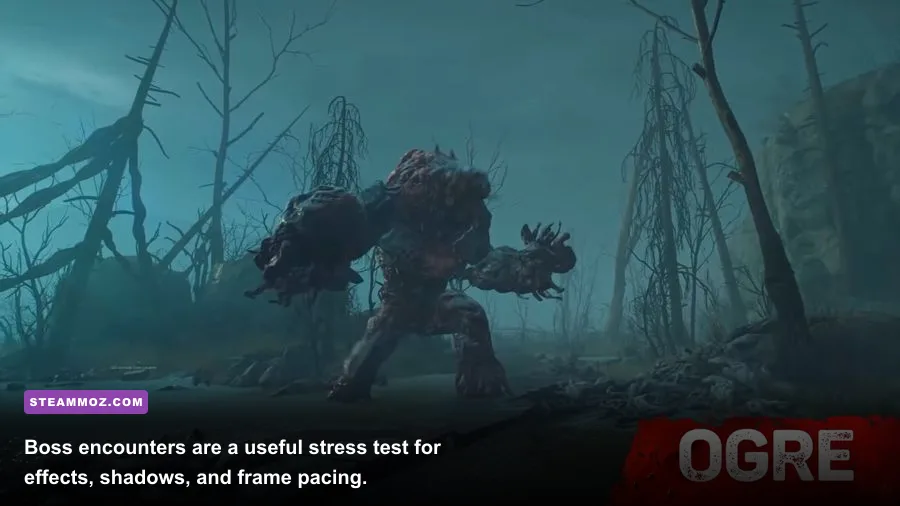
Not every stutter is a graphics-setting problem. Back 4 Blood can become CPU-limited when the director spawns a dense wave, especially in four-player sessions. Watch GPU utilization with an overlay: 95-99% GPU usage means lower resolution, upscaling, shadows, or effects. GPU usage well below that while FPS falls points toward a CPU limit, background software, shader compilation, or a frame cap.
Close browsers with video tabs, launchers, RGB utilities, and recording tools you don't need. Install the game on an SSD, keep your graphics driver current, and use Windows Game Mode. A clean driver install can help after a major GPU upgrade. Avoid random Unreal Engine configuration tweaks copied from old forums; they can disable useful rendering behavior or create worse hitching after a patch.
VRAM pressure usually shows up as texture pop-in, hitching when turning, or delayed asset streaming. If your card has 4GB, use Medium textures and close other GPU-heavy applications. An 8GB card can normally handle High textures at 1080p or 1440p, but resolution, upscaling mode, and other games running in the background still matter. Don't lower textures first unless monitoring confirms memory pressure.
Use the Soul Orb FPS settings guide for the same method of separating GPU load from frame-time problems, and see our PC crash and low-FPS fixes if the issue extends beyond Back 4 Blood.
How to test settings without fooling yourself
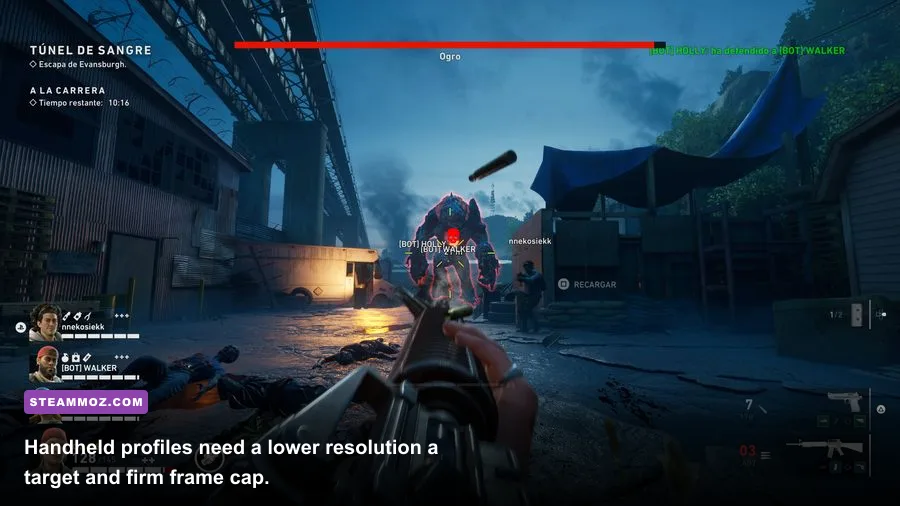
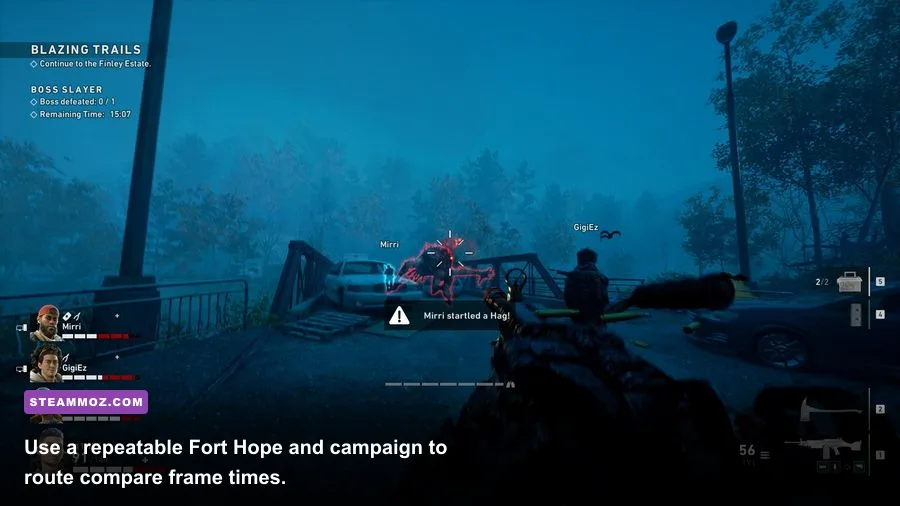
Use a repeatable route instead of judging performance from the first thirty seconds after loading. Start a solo campaign run on a demanding mission, move through an outdoor area, trigger a horde event, and deliberately fight near fire, smoke, and multiple Special Ridden. The opening section of The Devil's Return can show outdoor foliage and combat load, while a Breaker or Ogre encounter tests effects and shadows far better than Fort Hope.
A practical five-minute benchmark
- Restart the game after changing major upscaling or resolution options.
- Record your average FPS and 1% low with the same route and weapon.
- Test while aiming down sights, sprinting through foliage, and fighting a horde.
- Lower one setting at a time, starting with shadows, then effects and post-processing.
- Stop when the 1% low improves without making enemy silhouettes or weak spots hard to read.
Watch frame time rather than chasing a headline number. At 60 FPS, each frame has 16.67 milliseconds. A sudden 30 ms spike feels like a hitch even if the counter still reports 60 most of the time. Cap the game after tuning, then check whether the cap holds during a full Ridden wave. The best profile is the one that stays calm when the team is reviving someone under pressure.
| Test Scene | What It Exposes | First Setting to Lower | Success Indicator |
|---|---|---|---|
| Outdoor sprint | Foliage and view-distance load | Foliage | No large drops while turning quickly |
| Horde event | CPU, shadows, and effects | Shadows | Stable 1% lows during spawns |
| Ogre or Breaker fight | Particles, fire, decals | Effects | Fewer combat frame-time spikes |
| Aiming through darkness | Upscaling and anti-aliasing clarity | Use Quality upscaling | Weak spots remain crisp |
Best final settings for smooth campaign runs
For most modern gaming PCs, this is the profile I'd actually use: exclusive fullscreen, native monitor resolution, DLSS Quality or FSR Quality, V-Sync Off, a cap just below refresh, textures High, texture filtering 16x, anti-aliasing Medium, shadows Low, effects Medium, post-processing Low, foliage Medium, and view distance Medium or High. Turn motion blur and chromatic aberration off. It keeps character and weapon detail intact while targeting the settings that produce ugly combat dips.
If your GPU is older, shift to 1080p, FSR Balanced, Medium textures, Low shadows, Low effects, Low post-processing, Low foliage, and Medium view distance. Don't be embarrassed by a 60 FPS cap. In a cooperative shooter with heavy horde events, consistent camera movement and dependable hit registration feel better than an unstable 100 FPS.
For Steam Deck or similar handheld hardware, use 1280x800, FSR Performance, a 30 FPS cap, Medium textures, Low shadows, Low effects, and Low foliage. Battery-saving frame limits can help more than chasing 40 FPS, because the game becomes easier to play when frame pacing stays even. If menus or the launcher behave strangely, check the crash and low-FPS troubleshooting guide for broader PC checks.
Finally, remember that Back 4 Blood's best graphics settings are hardware-specific. Change one variable, test a genuine horde, and keep the visual settings that help you read the fight. High textures and Quality upscaling are usually worth protecting; shadows, effects, and motion blur are the easy sacrifices. When the next Tallboy charges through smoke, a stable frame-time graph will save you more often than an extra layer of pavement detail.
For more performance-focused recommendations, pair this guide with Steamoz's higher-FPS settings breakdown and our Gundam Breaker 4 performance and gameplay coverage.