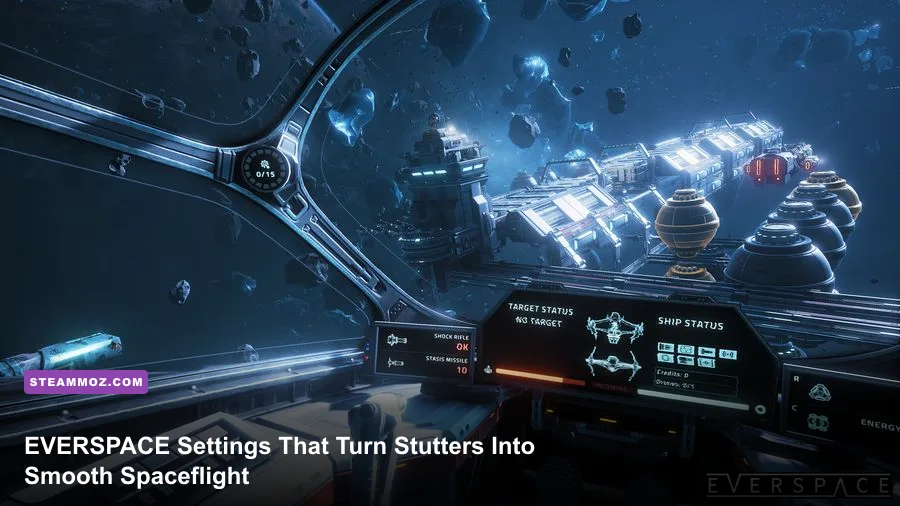
For the best EVERSPACE performance, start with Fullscreen, V-Sync Off, a sensible frame-rate cap, Resolution Scale at 100%, and Shadows, Post Processing, Effects, and Anti-Aliasing lowered before touching Textures. That combination protects image clarity while cutting the settings that cause the biggest frame-time spikes during asteroid-heavy sectors, missile barrages, and station approaches. On most gaming PCs, a tuned 60 FPS profile is a much better target than chasing unstable 100-plus FPS.
These recommendations are for the original EVERSPACE on Steam, not EVERSPACE 2. The two games share a name but use different technology, menus, and performance behavior. Before changing anything, update your GPU driver, close overlays you do not need, and let the game finish compiling or loading its shaders after a fresh driver install. The first run can feel rougher than later sessions.
Start With the Right EVERSPACE FPS Profile
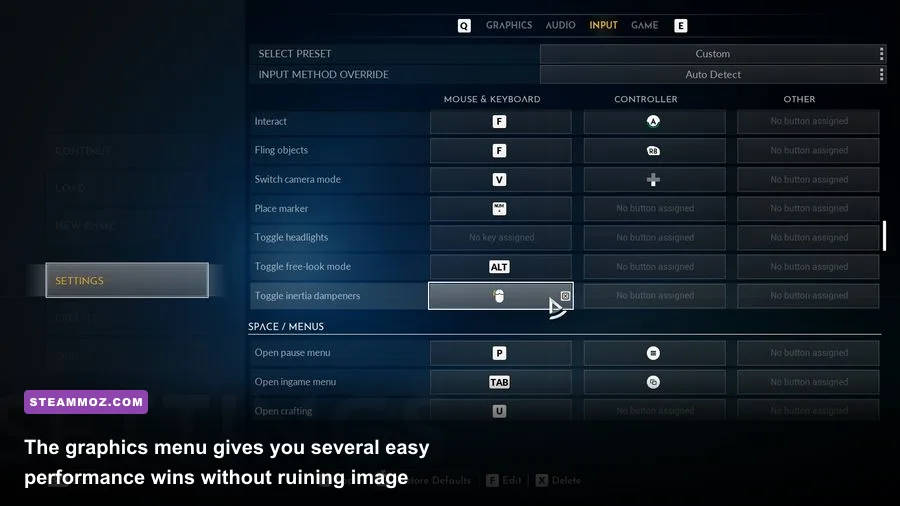
EVERSPACE is built around repeated runs through procedurally arranged sectors. That matters because your frame rate can look perfect in an empty tunnel, then dip when a Gunship, drones, explosions, weapon trails, and floating debris all appear together. The goal is not simply a high average FPS number. You want consistent frame times while rolling, boosting, and aiming at fast targets.
Recommended 60 FPS profile
Set the game to your monitor's native resolution first. Use Fullscreen rather than Windowed if exclusive fullscreen behaves correctly on your system, then disable V-Sync while testing. Set the frame-rate limit to 60 FPS if your monitor is 60 Hz, or use 72, 90, or 120 only when your GPU can hold that number in the busiest sectors. An unlocked frame rate can make menus and quiet space feel fast while hiding severe dips in combat.
Keep Resolution Scale at 100% to preserve the sharp cockpit, ship silhouettes, and distant targets. If your GPU remains overloaded, drop it to 90% before lowering Textures. A 90% scale is often hard to notice during motion, while a low texture preset can make ships and station surfaces look needlessly muddy.
| Setting | Recommended Value | Approximate FPS Impact | Visual Trade-Off |
|---|---|---|---|
| Display Mode | Fullscreen | Low to medium | Usually lowers presentation overhead and improves consistency |
| Resolution Scale | 100%; 90% for GPU limits | High | Lower values soften the entire image |
| V-Sync | Off for testing; On for tearing | Low | Off may show tearing but reduces synchronization delay |
| Frame Rate Limit | 60 FPS or stable monitor refresh target | Indirect | A cap reduces heat, fan noise, and uneven frame pacing |
| Anti-Aliasing | Medium | Medium | Lower settings produce more shimmer on ship edges |
| Post Processing | Low or Medium | Medium to high | Less glow, blur, and cinematic treatment |
| Shadows | Low or Medium | High | Station and ship shadows become less detailed |
| Textures | High if VRAM allows | Low to medium | Lower values visibly reduce surface detail |
| Effects | Medium | Medium to high | Explosions, particles, and weapon visuals become simpler |
| View Distance | Medium or High | Medium | Lower values reduce distant geometry and clutter |
High-refresh profile
If you have a 120 Hz or 144 Hz display, do not automatically chase 144 FPS. EVERSPACE's mouse aim and flight controls feel better with lower latency, but a stable 90 or 120 FPS is preferable to a 144 FPS average that repeatedly collapses during combat. Start at 1080p with Medium Anti-Aliasing, Low Post Processing, Low Shadows, Medium Effects, High Textures, and Medium View Distance. Raise one option at a time only after recording a busy-sector test.

🎮 EVERSPACE
Looking to experience this game? Grab your digital key directly on our store for $1.99.
View on Steammoz Store →Which Settings Cost the Most Frames?
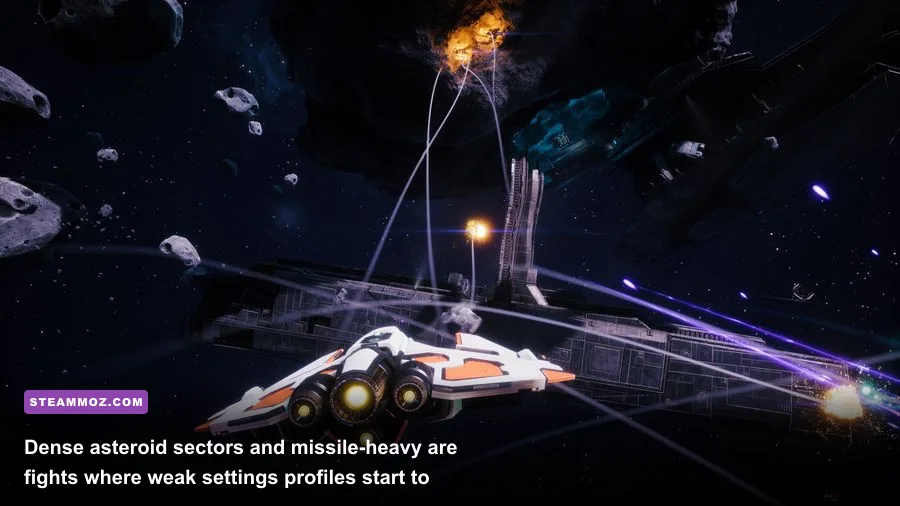
Shadows and Post Processing are the first places to look when your GPU usage sits near 99 percent. Shadows affect the lighting calculations around ships, stations, and large environmental structures. Post Processing controls screen-space effects, glow, blur, and other finishing passes that become expensive when the screen fills with weapon impacts. Neither setting improves your ability to read a target as much as a clean resolution image does.
Effects deserve special attention in EVERSPACE because the game frequently stacks plasma fire, missiles, explosions, debris, and engine trails. The difference between High and Medium can be obvious during a chaotic encounter even when a quiet-sector benchmark suggests almost no change. If your average FPS is fine but the game hitches whenever a missile detonates, reduce Effects before lowering Textures.
GPU-limited versus CPU-limited performance
Watch GPU utilization with an overlay while flying through a dense sector. At 95 to 100 percent GPU usage, reduce Resolution Scale, Shadows, Post Processing, or Effects. If GPU usage is much lower but FPS still drops when several ships spawn, the limitation may be CPU-side simulation, draw calls, or background applications. Lowering Textures will not fix that kind of dip.
View Distance can help in sectors with broad sightlines and large structures, but it is not always the biggest win. Keep it at High if you have headroom because distant enemies, stations, and geometry are useful for navigation. Medium is the practical compromise for older processors or entry-level GPUs. Low can make objects appear abruptly and is rarely worth using unless you are fighting for every frame.
Anti-Aliasing is a quality-versus-clarity decision. At 1080p, Low AA can leave thin ship silhouettes and station rails shimmering as you rotate. Medium is usually the sweet spot. At 1440p, you may be able to use High AA without a painful hit, but test it during combat rather than while staring at a static hangar-like scene.
Best Settings for Low-End and Mid-Range PCs
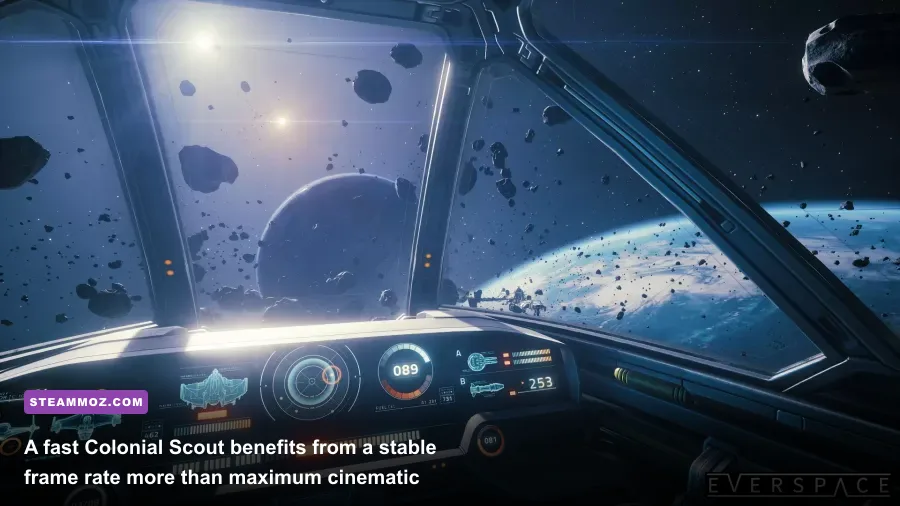
Older hardware can still run the original EVERSPACE well if you avoid stacking expensive options. A sensible low-end profile is 1080p or 900p, 90% Resolution Scale, Low Anti-Aliasing, Low Post Processing, Low Shadows, Medium Textures, Low Effects, and Medium View Distance. Cap the game at 30 or 45 FPS if 60 cannot stay stable. A locked 30 FPS feels far better than constant swings between 38 and 60.
Do not assume every Low setting is automatically best. Textures mostly consume video memory and can have a smaller immediate frame-rate cost than shadows or effects. If your graphics card has enough VRAM, keep Textures at Medium or High while cutting Shadows. If you see texture pop-in, severe hitching when entering sectors, or delayed surface detail, the card may be running short on VRAM; then lower Textures and close browsers or recording software.
| Hardware Situation | Resolution and Scale | Quality Profile | Target |
|---|---|---|---|
| Integrated graphics or very old GPU | 900p, 80-90% | Low AA, Low Shadows, Low Effects, Low Post Processing, Medium View Distance | 30 FPS locked |
| Entry-level 1080p GPU | 1080p, 90-100% | Medium Textures, Low Shadows, Medium Effects, Low Post Processing | 45-60 FPS |
| Mainstream 1080p gaming PC | 1080p, 100% | High Textures, Medium AA, Low-Medium Shadows, Medium Effects | 60-90 FPS |
| Modern 1440p GPU | 1440p, 100% | High Textures, Medium-High AA, Medium Shadows, Medium-High Effects | 60-120 FPS |
On a laptop, plug in the charger and select the high-performance power profile before benchmarking. Battery mode can cap clocks and create misleading results. Also check the manufacturer's control panel for a forced integrated-GPU selection. EVERSPACE should run on the dedicated GPU, but hybrid graphics systems occasionally launch older games on the wrong adapter.
For more PC troubleshooting habits, see Steamoz's guide to crashes and low FPS in Dungeons 3 and the practical FPS settings breakdown for Cricket Through the Ages. The games differ, but the same disciplined testing process applies.
Controller, Mouse, and Frame-Pacing Tweaks
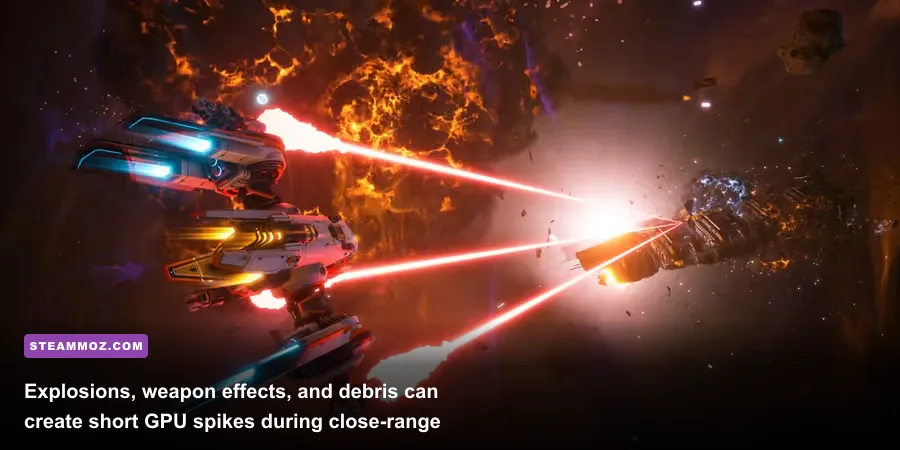
A high frame rate cannot rescue a game that feels uneven. Start by turning off V-Sync while testing and use a frame cap that your system can maintain in combat. If you use a variable-refresh monitor, enable FreeSync or G-SYNC at the driver level, cap a few frames below the display's maximum refresh rate, and avoid running the game completely uncapped. The ideal cap depends on your display: 58 for 60 Hz, frames below the ceiling for higher refresh panels.
Mouse users should disable unnecessary desktop acceleration and check whether the game offers a raw-input option in its control settings. Keep sensitivity low enough for accurate turret tracking, then use the ship's roll and pitch controls for larger turns. At a stable 60 FPS, aiming at small drones is noticeably easier than at an unstable 90 FPS that drops into the 40s whenever particles fill the screen.
Controller players should test dead zones in a quiet sector before adjusting graphics. A drifting stick can feel like frame stutter, especially while the Colonial Scout is boosting through an asteroid field. Do not use a performance profile as an excuse to ignore input problems: clean frame pacing and a properly calibrated controller work together.
Why a cap helps more than an unlocked counter
EVERSPACE constantly streams new sector content, spawns enemies, and processes combat effects. An uncapped GPU may run flat out in empty space, leaving no thermal or power headroom for the next encounter. A 60 FPS cap can reduce heat and keep clocks steadier, which often improves the exact moments that matter: turning into a Gunship, dodging a missile, or lining up a Plasma Cannon shot.
How to Test Your EVERSPACE Settings Properly
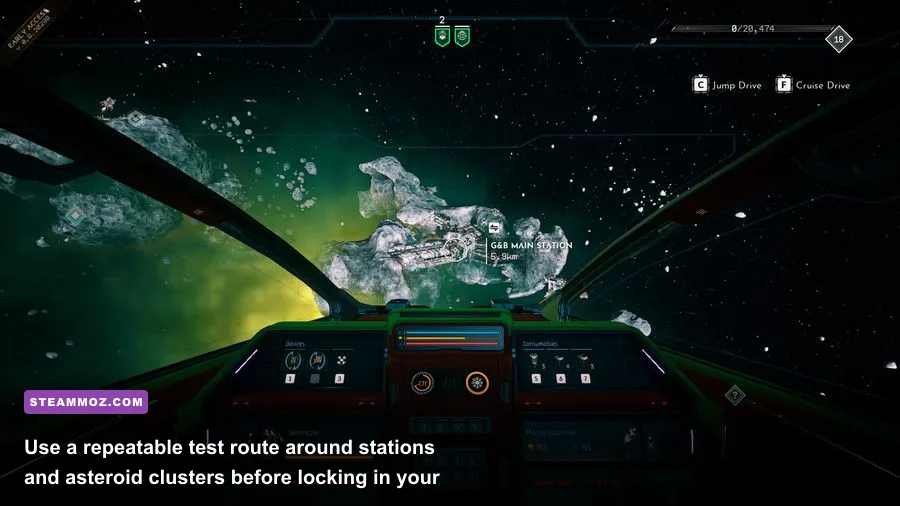
Use the same route for every change. Start a run, enter a sector with multiple hostile ships, boost through an asteroid cluster, rotate around a station or large structure, and trigger a fight that includes missiles and explosions. Record the average FPS, the lowest one-percent behavior if your overlay supports it, and how the controls feel. A static menu or empty sector tells you almost nothing about real combat performance.
Change only one setting at a time. First set the native resolution, then choose a frame cap. Next reduce Shadows, Post Processing, and Effects in that order. If the result is still below target, test Resolution Scale at 90%. Only after those changes should you reduce View Distance or Textures. This order preserves the crisp ship detail that makes enemy recognition easier.
Give each change a full sector transition. Streaming can cause a brief hitch that disappears after assets are cached, so judging a setting after ten seconds can send you in the wrong direction. If stutters continue across several runs, close overlays from Steam, Discord, browser capture tools, and GPU recording software one by one. Keep the official ROCKFISH Games site and the game's official Steam community hub bookmarked for patches and known issues.
| Symptom | Likely Cause | First Change to Try | What to Keep |
|---|---|---|---|
| Low FPS everywhere | Resolution or GPU load is too high | Set Resolution Scale to 90% | Textures at Medium or High if VRAM allows |
| Dips during explosions | Effects or Post Processing | Lower Effects to Medium, then Post Processing | Native resolution |
| Station approaches stutter | View Distance, streaming, or CPU load | Lower View Distance one step and test transitions | Medium Effects for readable combat |
| Shimmering ship edges | Anti-Aliasing is too low | Raise AA to Medium | 90-100% Resolution Scale |
| Uneven motion at high FPS | Uncapped frame pacing or V-Sync conflict | Apply a stable frame cap | One synchronization method, not several |
The Final EVERSPACE Performance Preset
For most players, the profile I would actually use is native 1080p or 1440p, Fullscreen, V-Sync Off during testing, a stable 60 or 90 FPS cap, 100% Resolution Scale, Medium Anti-Aliasing, Low Post Processing, Low-Medium Shadows, High Textures, Medium Effects, and Medium-High View Distance. It keeps the starfields, ship surfaces, and distant landmarks intact while cutting the costly visual noise that causes combat dips.
If you fly the Colonial Scout and prefer fast dogfights, prioritize stable frame pacing and Medium Effects. If you favor the bulky Gunship or Bomber, you may spend more time tracking targets at range, making View Distance and Anti-Aliasing more valuable. Either way, don't sacrifice resolution first unless the GPU is clearly the bottleneck. A sharp 60 FPS cockpit is more enjoyable than a blurry 90 FPS screenshot with hitching.
EVERSPACE rewards quick reactions, especially when missiles, drones, and elite ships converge in a crowded sector. Your best performance upgrade is therefore not the profile with the prettiest empty-space screenshot. It's the one that remains predictable when the screen erupts. Save that configuration, test it through several runs, and only then raise individual settings for extra polish. If you enjoy this kind of practical tuning, Steamoz also covers another max-FPS settings guide and PC stutter fixes worth keeping nearby.