Hacknet already runs on extremely modest hardware, so the best max-FPS setup is simple: use native resolution, enable fullscreen, keep VSync enabled if you notice tearing, and disable overlays and background capture tools. The game has no modern texture, shadow, anti-aliasing, or ray-tracing menu to tune. On most PCs, smoothness depends less on the GPU than on Windows scaling, display mode, driver behavior, and software competing with Hacknet for frame time.
That distinction matters. Hacknet is a terminal-driven hacking simulator built around commands such as probe, scan, PortHack, SSHCrack, FTPBounce, and TraceKill. Its interface looks lightweight, but the game still has to draw animated text, node diagrams, file windows, sound cues, and mission effects. If the cursor feels sluggish during a trace or the screen tears while you open a filesystem, changing random quality sliders won't help. The fix is a clean display profile and stable frame pacing.
This guide focuses on the PC version available through the official Hacknet Steam page, with practical recommendations for low-end laptops, desktop PCs, high-refresh monitors, and Steam Deck-style handhelds.
The Best Hacknet Settings for Maximum FPS
Start with the profile below. It prioritizes a stable presentation without making the terminal unpleasant to read. Hacknet's text is the game, so aggressively lowering resolution is usually a bad trade. A blurry command prompt makes filenames, IP addresses, and mission instructions harder to parse, while the performance gain is often negligible.
| Setting | Recommended Value | FPS Impact | Visual Note |
|---|---|---|---|
| Display mode | Fullscreen | Low to medium benefit | Reduces desktop compositor interference and keeps frame pacing cleaner. |
| Resolution | Native monitor resolution | Low impact | Produces the sharpest terminal text and file labels. |
| VSync | On for 60Hz displays; test Off for latency | Low impact | On removes tearing; Off can feel more immediate on fast monitors. |
| Refresh rate | Highest stable desktop rate | Low impact | Use 60Hz for consistency or 120/144Hz if the display is stable. |
| Windows display scaling | 100% where practical | Low to medium benefit | Avoids unusual scaling behavior and keeps interface proportions predictable. |
| Steam Overlay | Off if troubleshooting | Small but measurable | Removes overlay hooks that can cause stutter or input delay. |
| Recording and overlay apps | Disabled | Medium on older CPUs | Capture tools can interrupt text animation and audio playback. |
There is no reason to lower Hacknet to 720p on a modern 1080p machine unless you're testing a specific scaling problem. The game is not rendering a 3D world with expensive geometry. At 1920×1080, the terminal remains crisp and the GPU load should be tiny. If you use a 4K monitor, native 3840×2160 is still a sensible starting point, but 2560×1440 can be useful if your laptop is driving an external display through a weak integrated GPU.

🎮 FORM
Looking to experience this game? Grab your digital key directly on our store for $14.99.
View on Steammoz Store →Why Hacknet Can Stutter on Powerful PCs
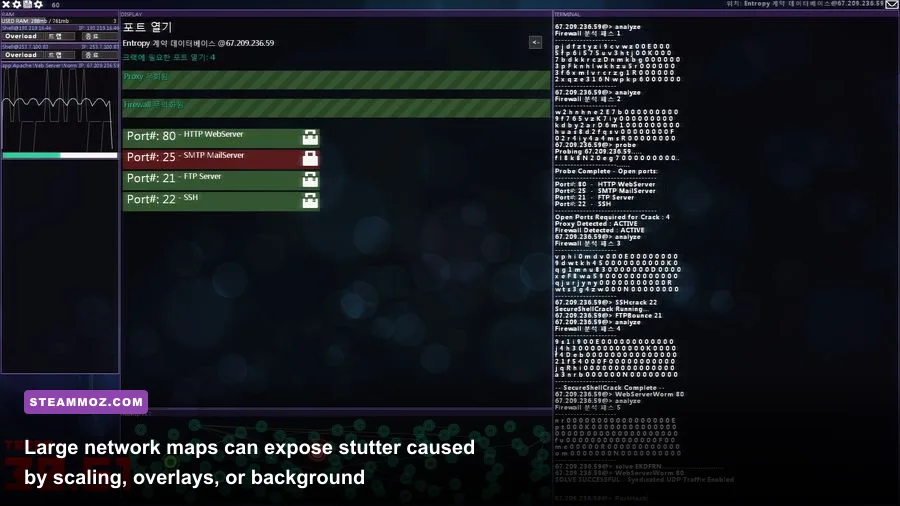
Hacknet's low system requirements can make performance problems confusing. The official store listing describes a game that needs only a modest processor and graphics card, but minimum specifications don't account for modern desktop behavior. Windows may be compositing the game, Steam may be drawing an overlay, and a browser may be consuming CPU time while you play. The result is a game that reports a high average frame rate but still feels uneven.
The biggest culprit is usually frame pacing. A terminal game spends much of its time idle, then suddenly animates a burst of command output, a trace warning, or a network map update. If another application steals a few milliseconds at exactly that moment, the hitch is obvious because the rest of the screen is static. This is why closing a browser with several video tabs can feel more effective than dropping resolution.
Start by disabling the Steam Overlay for Hacknet: open the game's Properties in Steam, choose General, and switch off the in-game overlay. Also close Xbox Game Bar, Discord overlay, GeForce Experience overlay, AMD Adrenalin recording, MSI Afterburner statistics, and OBS unless you're actively using them. These tools are convenient, but Hacknet gains nothing from an on-screen performance counter and can lose consistency from the extra hooks.
On Windows, set the game executable to use the dedicated GPU if your laptop has integrated and discrete graphics. In Settings, open System, Display, Graphics, add Hacknet's executable if it isn't listed, and choose High performance. This won't magically increase FPS on a desktop, but it prevents a hybrid laptop from launching the game on an inefficient integrated adapter.
If fullscreen feels worse than windowed mode, don't force it. Borderless or windowed presentation can behave better with certain monitors, HDR configurations, and multi-display setups. Test the same mission in each mode while watching frame pacing, not just the FPS counter. The moment-to-moment test should include opening a node, running scan, navigating files, and triggering a trace sequence.
Best Profiles for Low-End PCs, Laptops, and Steam Deck
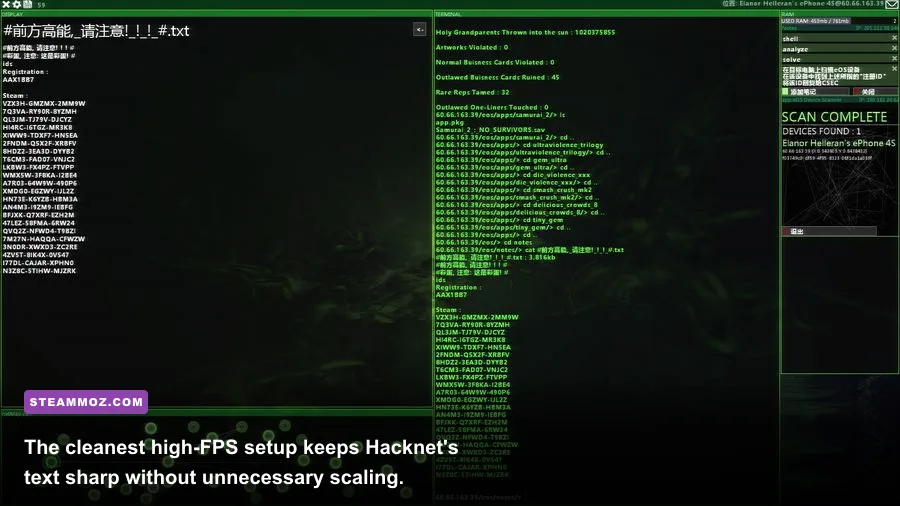
Hacknet is a great low-end PC game, but the right profile depends on the problem you're solving. A basic office laptop should preserve native text clarity. An old dual-core machine benefits more from removing background tasks than from lowering resolution. A handheld needs readable scaling and battery-friendly limits rather than an unnecessarily high frame rate.
| Hardware Profile | Resolution | Display Mode | Frame Strategy |
|---|---|---|---|
| Modern desktop with dedicated GPU | Native | Fullscreen | VSync On, highest stable refresh rate |
| Older dual-core laptop | Native or one step below | Fullscreen first | Close all overlays and background browser tabs |
| Integrated graphics laptop | 1080p native; 900p if needed | Fullscreen or borderless test | Use the High Performance GPU profile in Windows |
| 4K desktop or laptop | 1440p if native mode stutters | Fullscreen | Prefer clear text over extreme resolution scaling |
| Steam Deck or handheld PC | Native panel resolution | Fullscreen | Cap to 60 FPS for battery life and stable pacing |
On handheld hardware, don't chase 120 FPS in Hacknet. A 60 FPS cap is already more than enough for a terminal interface and reduces power draw, fan noise, and sudden clock changes. If the text looks too small at the panel's native resolution, use the device's system scaling rather than forcing an unusually low in-game resolution. Readability is a gameplay advantage: missions frequently ask you to identify a particular server, file, or security daemon under pressure.
For integrated graphics, 900p is the first resolution reduction worth testing on a 1080p screen. Dropping to 720p can make the interface soft, especially if the display applies its own scaling. Keep audio enabled unless you are troubleshooting crackling or long pauses; Hacknet's sound cues help signal command completion, incoming mission events, and trace pressure.
How to Fix Low FPS, Tearing, and Input Delay
Before changing drivers, reproduce the issue in a controlled way. Load a mission, connect to a node, run probe and scan, open the filesystem, and watch the screen while a trace countdown is active. This is a better test than sitting at the menu because it exercises the parts of Hacknet that can produce short bursts of animation.
If the game tears
Enable VSync in the game's available display options or through your graphics driver. Tearing is especially distracting in Hacknet because horizontal splits cut straight through lines of command output. If VSync introduces noticeable delay, use a driver-level adaptive option or a frame cap matching your monitor's refresh rate. On a 60Hz screen, a stable 60 is preferable to a fluctuating 200 FPS with visible tearing.
If the game feels sluggish
Test VSync Off, then compare fullscreen against borderless or windowed mode. Disable HDR temporarily, disconnect unusual virtual displays, and turn off Windows Game Bar capture. Input delay can also come from a television running in a non-game picture mode. Use the display's game mode and connect through a direct digital output when possible.
If FPS drops during command output
Reduce background CPU activity first. Pause cloud-sync clients, browser video, game launchers, and scheduled scans. Then try lowering resolution by one step. Don't start by lowering every option in a graphics driver panel; forced anti-aliasing, sharpening, or scaling features can make a 2D game behave less predictably. For broader troubleshooting, Steamoz's guide to PC crashes and low FPS fixes and its stutter-focused settings guide cover useful Windows-side checks.
If the game crashes after changing display settings, verify the installation through Steam's Properties menu. A clean reinstall is rarely the first answer, but it can help when configuration data or an interrupted update has become corrupted. Keep your GPU driver current, while remembering that Hacknet doesn't need a brand-new driver to run well.
The Best Visual Setup for Long Hacknet Sessions

Maximum FPS isn't the only goal. Hacknet asks you to read dense text, compare ports, remember IP addresses, and react to warnings. A setup that technically produces more frames but makes the text blurry is worse for both comfort and mission performance.
Use native resolution whenever possible, choose a neutral display color mode, and avoid aggressive monitor sharpening. If your monitor has a response-time setting, use its normal or medium mode rather than the strongest overdrive preset; extreme overdrive can create bright trails around white terminal text. Lower brightness if the black background looks washed out, but don't crush shadow detail so far that interface panels disappear.
For a 60Hz display, VSync On is my default recommendation. It turns Hacknet into a quiet, consistent experience and eliminates tearing across long lines of text. For a 120Hz or 144Hz monitor, test VSync Off if you value immediate cursor movement, but keep it on if the screen feels uneven. Hacknet's gameplay does not require esports-level latency, so clean presentation wins.
| Priority | Setting Choice | Why It Matters | Trade-Off |
|---|---|---|---|
| 1 | Native resolution | Keeps IP addresses, filenames, and command output sharp. | Higher GPU load on 4K displays. |
| 2 | Fullscreen or stable borderless | Improves consistency and avoids awkward desktop scaling. | Alt-tabbing may be less convenient. |
| 3 | VSync matched to display | Removes tearing during scrolling and animated events. | Can add a small amount of input latency. |
| 4 | Overlays disabled | Reduces hooks, capture overhead, and frame-time spikes. | You lose quick chat and performance widgets. |
| 5 | Stable 60 FPS cap on handhelds | Improves battery life without affecting gameplay. | Doesn't exploit a high-refresh panel. |
For more PC optimization ideas, compare these recommendations with Steamoz's Eiyuden Chronicle performance settings and higher-FPS troubleshooting guide. The games have very different engines, but the same principle applies: measure the actual problem before sacrificing image quality.
Final Hacknet Performance Checklist
Use this order when tuning the game:
- Set the game to your monitor's native resolution.
- Test fullscreen, then borderless or windowed if fullscreen stutters.
- Enable VSync on 60Hz displays and compare it against Off on high-refresh monitors.
- Disable Steam Overlay, Discord overlay, recording tools, and Windows Game Bar.
- Close browser tabs and background applications that consume CPU or disk access.
- Assign Hacknet to the dedicated GPU on hybrid laptops.
- Lower resolution one step only if command-output animation still stutters.
- Verify the game files if crashes began after an update or configuration change.
Hacknet doesn't need an expensive graphics card or a long list of secret quality tweaks. Its best-performance setup is about removing interference while protecting text clarity. Native resolution, stable fullscreen presentation, sensible VSync, and a clean desktop will deliver a smoother experience than blindly reducing every setting. Once the frame pacing is consistent, the only thing left to worry about is whether you can finish a trace before the system locks you out.
For the game's background, updates, and developer information, visit the official Hacknet website and the Steam store listing. If you're exploring more games with demanding technical interfaces, the official Hacknet Steam community hub is also a useful place to check current player reports.