Food Truck Simulator crashing or running at an unpleasantly low frame rate on PC usually comes down to three things: outdated GPU drivers, corrupted Unreal Engine files, or settings that push shadows, view distance, and post-processing too hard. Start by verifying the Steam installation, update your graphics driver with a clean install, then use a 60-FPS-friendly profile at 1080p. If the game still crashes, disable overlays and reset its local configuration before touching more advanced Windows fixes.
That order matters. Randomly deleting folders or stacking launch commands can make diagnosis harder, especially when the game works in the cooking area but hitches badly while driving through the city. The fixes below are arranged from safest to most invasive, with settings tuned around the PC requirements listed on the official Food Truck Simulator Steam page.
Check Your PC Before Changing Settings
First, compare your hardware with the developer’s target. The Steam listing gives 8 GB of RAM and a GeForce GTX 960 or Radeon RX 570 as the minimum graphics tier, while the recommended configuration moves to 16 GB of RAM and a GeForce GTX 1070 or Radeon RX Vega 56. Those figures are a starting point, not a promise of locked 60 FPS in every location. A minimum-spec machine may need 900p or 720p, especially when the game streams city assets and handles traffic, customers, lighting, and vehicle physics together.
You should also install the game on an SSD if possible. An SSD won’t magically raise average FPS, but it can reduce the long pauses and texture-streaming hitches that feel like crashes. Keep at least 15 GB of free space on the drive beyond the game’s installation size, close browsers with many tabs, and let Windows finish pending updates before testing.
| Component | Listed Minimum | Recommended Target | Practical Performance Goal |
|---|---|---|---|
| CPU | Intel Core i5-4460 or AMD Ryzen 5 1600 | Intel Core i7-8700 or AMD Ryzen 7 2700 | Four to six modern cores for steadier city frame times |
| Memory | 8 GB RAM | 16 GB RAM | 16 GB helps prevent background-app and streaming pressure |
| GPU | GeForce GTX 960 or Radeon RX 570 | GeForce GTX 1070 or Radeon RX Vega 56 | 1080p medium-to-high settings, depending on the scene |
| Storage | 35 GB available space | SSD with additional free space | Fewer asset-streaming pauses and faster loading |
If your system is close to minimum, don’t chase a high refresh-rate target. A consistent 30 or 45 FPS with sensible frame pacing feels much better than a fluctuating 70 FPS that collapses whenever you enter a busy market.

🎮 Food Truck Simulator
Looking to experience this game? Grab your digital key directly on our store for $7.99.
View on Steammoz Store →Use a Stable 1080p Graphics Profile
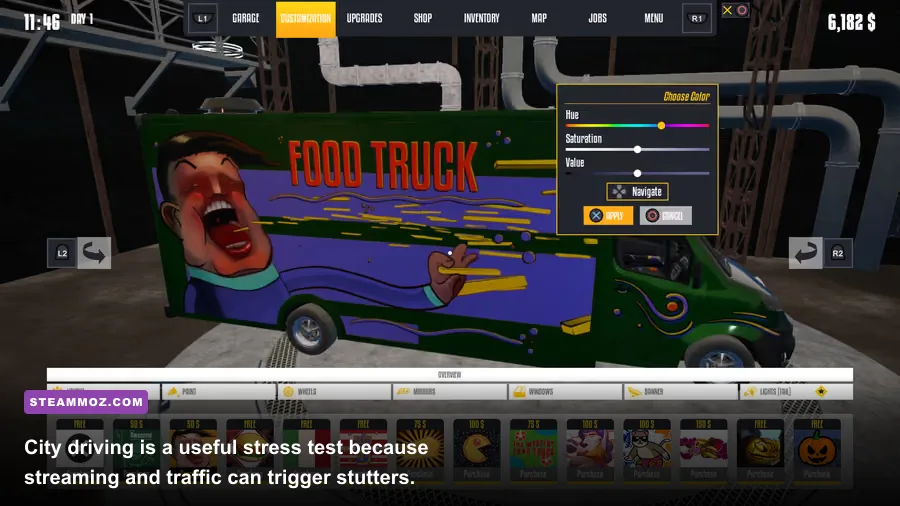
Food Truck Simulator’s biggest performance offenders are usually shadows, view distance, ambient effects, and post-processing. Texture quality is less dangerous when your GPU has enough VRAM, so lower the expensive lighting and visibility options before making the whole game look blurry.
Begin at 1920x1080 with fullscreen enabled, then turn V-Sync on if you see tearing. If your monitor is 60 Hz, cap the game at 60 FPS through the graphics menu or your GPU control panel. A cap prevents the GPU from rendering unnecessary frames in quiet areas, leaving more headroom for sudden city loads. On a 144-Hz display, try a 60 or 72 FPS cap first rather than leaving the frame rate unlimited.
| Setting | Recommended Value | FPS Impact | Visual Trade-Off |
|---|---|---|---|
| Resolution | 1920x1080; 1600x900 on entry-level GPUs | Very high | Lower resolution is the fastest way to recover GPU headroom |
| Texture Quality | Medium or High if VRAM allows | Low to medium | Lower values make surfaces look softer |
| Shadow Quality | Medium | High | Shadows lose definition, but city scenes become much steadier |
| View Distance | Medium | High | Far scenery and objects appear at shorter distances |
| Post Processing | Low or Medium | Medium to high | Less glow, blur, and cinematic filtering |
| Effects Quality | Medium | Medium | Reduced intensity in smoke, lighting, and environmental effects |
| Motion Blur | Off | Small | Sharper driving and easier visual troubleshooting |
| V-Sync | On for 60-Hz displays | Small | Removes tearing but may add slight input latency |
Test after each major change in the same situation: drive from the truck’s starting area into a busy customer zone, then begin a cooking order. Don’t judge performance only from the opening menu. If the game has a resolution scale option, leave it at 100 percent until the rest of the profile is stable. Dropping it to 80 or 90 percent is a good final step for a GTX 960-class card, but it should not be your first reaction to a crash.
Fix Food Truck Simulator Crashes Through Steam
For crashes at startup, during loading, or immediately after selecting a save, begin with Steam’s file check. Open your Library, right-click Food Truck Simulator, choose Properties, open Installed Files, and select Verify integrity of game files. Steam will replace missing or damaged files, which is particularly useful after an interrupted update or a failed shader compilation.
Next, update the driver for your NVIDIA, AMD, or Intel GPU. Choose the clean-install option where the installer offers it. A driver update matters more than a small Windows power tweak because shader compilation and Unreal Engine rendering can break after a driver or game patch mismatch. Restart the PC after installation instead of launching straight back into Steam.
Disable every overlay for one test session. Turn off Steam Overlay, Discord Overlay, Xbox Game Bar, NVIDIA App or GeForce Experience overlay, AMD Adrenalin recording tools, and MSI Afterburner’s on-screen display. Overlays hook into the render pipeline; they can cause an instant desktop crash even when the game itself is installed correctly. The same principle explains why a supposedly harmless FPS counter is worth removing during diagnosis.
If verification and overlays don’t help, reset the game’s local configuration. Close Steam, press Win + R, enter %LOCALAPPDATA%, and look for a folder named FoodTruckSimulator or a similarly named DRAGO Entertainment folder. Rename it to something like FoodTruckSimulator_backup rather than deleting it. Relaunch the game so it creates fresh settings. This can clear a broken resolution, corrupted graphics preset, or invalid display mode. Back up saves first if that folder contains save data.
For additional developer guidance, check DRAGO Entertainment’s official website and the game’s official Steam Community discussions. When reporting a crash, include your GPU model, driver version, Windows version, crash timing, and the contents of the game’s log folder. “It crashes” is difficult to reproduce; “it crashes when loading the second city route after changing View Distance to Ultra” is useful evidence.
Stop Stuttering During Driving and Busy Orders
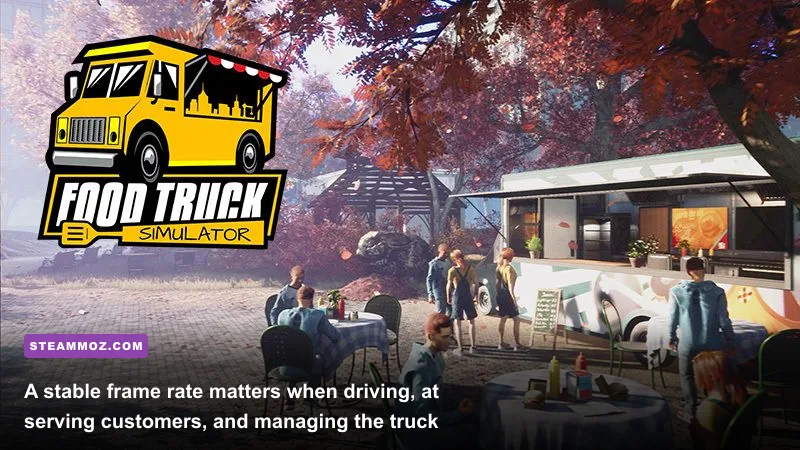
A low average FPS and bad stutter are different problems. If the counter says 55 FPS but the image freezes every few seconds, watch frame time with MSI Afterburner or another monitoring tool. GPU usage near 99 percent points toward graphics settings. GPU usage dropping while one CPU core spikes suggests a CPU, streaming, or background-task limit. That distinction tells you whether to lower resolution or reduce view distance and effects.
Food Truck Simulator can become more demanding when you’re driving through areas with many objects and customers. Keep View Distance at Medium before lowering textures. Then reduce Shadows and Effects Quality. These settings cut the number of objects and lighting calculations the CPU and GPU must process while preserving the truck’s interior detail.
Use Windows Game Mode, but avoid aggressive “optimizer” software that terminates services or changes process priority automatically. In Windows Settings, set the game to High performance under Graphics settings if you have both integrated and dedicated graphics. On a laptop, plug in the charger and select a performance power mode. Battery modes often clamp CPU and GPU clocks, creating stutter that looks like a broken game.
Shader compilation can also cause short hitches after a driver update or fresh installation. Let the game sit at the menu for a minute, load the same route twice, and avoid judging the first pass. If the stutter gets worse over time, watch temperatures. A GPU or CPU that starts fast and then drops clocks after several minutes is probably thermal throttling, not suffering from a graphics-setting problem. Clean dust from the intake and exhaust, but don’t block the laptop’s vents.
For a useful comparison, our A Rogue Escape stutter guide covers the same process of separating frame-time spikes from ordinary low FPS. The broader lesson is simple: measure the problem before throwing every setting onto Low.
Advanced Fixes for Persistent PC Problems
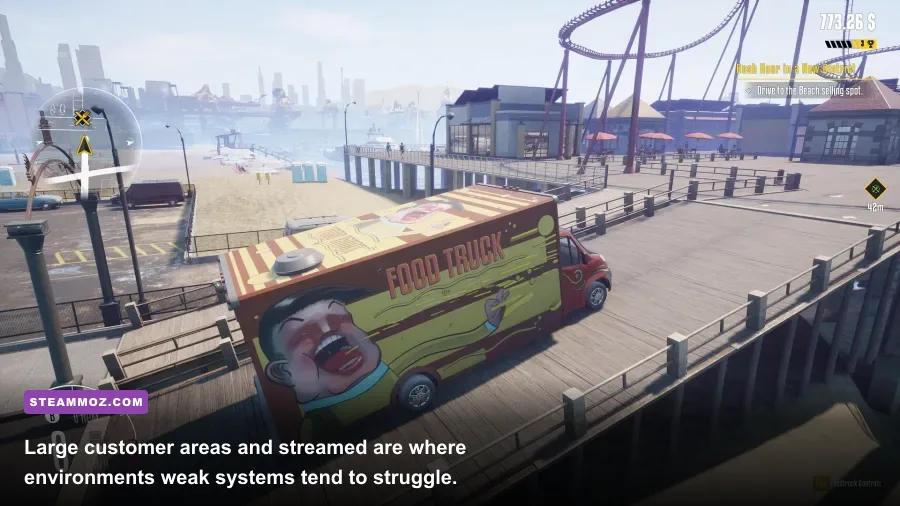
If crashes continue after a clean driver and configuration reset, check Windows Event Viewer. Right-click the Start button, open Event Viewer, choose Windows Logs, then Application, and inspect the error at the crash time. A faulting module belonging to a GPU driver points toward the driver installation or an overlay. A memory-related error may indicate unstable RAM, an overclock, or a damaged page file. Don’t treat every Event Viewer entry as the cause; match its timestamp to the actual crash.
Return all overclocks to stock, including GPU undervolts, XMP or EXPO memory profiles, and CPU tuning. Many games appear stable until a particular shader or streaming workload exposes an unstable setting. If Food Truck Simulator is the only game crashing, that doesn’t prove the overclock is safe; it only means its workload is different.
Also remove compatibility experiments unless you have a specific reason to use them. Right-click the game executable, open Properties, choose Compatibility, and make sure compatibility mode is off. Avoid forcing administrator mode, disabling fullscreen optimizations, or adding random Unreal Engine commands from old forum posts. Those tweaks can change behavior without fixing the underlying fault.
If Windows reports damaged system files, open Command Prompt as administrator and run sfc /scannow. After it finishes, reboot and test again. Keep the game out of antivirus real-time scanning only as a temporary diagnostic step, and restore protection afterward. Never download replacement DLL files from unofficial “fix” sites.
The Fastest Troubleshooting Order
Use this sequence so you know which change actually solved the problem:
- Restart the PC and close overlays, recording tools, browsers, and hardware monitors.
- Verify Food Truck Simulator’s files in Steam.
- Install the latest GPU driver with a clean installation and reboot.
- Set 1080p, Medium shadows, Medium view distance, Low or Medium post-processing, and Motion Blur Off.
- Cap the game at 60 FPS, or 30/45 FPS on minimum-spec hardware.
- Test the same driving route and cooking order twice to account for shader stutter.
- Rename the local configuration folder if startup or save-loading crashes remain.
- Return all overclocks to stock and check temperatures, RAM usage, and GPU usage.
That workflow fixes most Food Truck Simulator crashing and low-FPS cases without sacrificing the game’s best visual details. Keep textures at Medium or High when VRAM allows, spend your performance budget on stable frame pacing, and lower shadows and distance before making the entire image look muddy. If you’re tuning other demanding PC games, our guides to Back 4 Blood FPS settings, Cricket Through the Ages performance settings, and PC spec checks use the same practical, test-first approach.