If A Rogue Escape is crashing, freezing, or running at an uncomfortable frame rate on PC, start with SteamVR render resolution rather than blindly lowering every in-game option. Set SteamVR to 80% or 70% per-application resolution, disable supersampling overrides in OpenXR or Oculus software, update your GPU driver with a clean install, and launch the game with only one active VR runtime. For low FPS, target a stable 72 or 80 Hz before chasing 90 Hz. In VR, consistent frame pacing matters much more than a high but erratic average.
A Rogue Escape is a cockpit-heavy VR puzzle game, so its performance problems feel unusually harsh. You spend long stretches reading panels, turning switches, and scanning a dense mech interior at close range. A normal flatscreen game can hide a brief hitch in a camera pan; a VR game cannot. A dropped frame becomes a judder in your head movement, while a runtime crash can leave SteamVR stuck in a black loading space.
This guide focuses on the PC version running through SteamVR, Windows Mixed Reality, Oculus Link, Air Link, or another OpenXR-compatible setup. Before changing anything, check the current A Rogue Escape Steam listing for patches, headset notes, and the developer's latest system requirements.
Start Here When A Rogue Escape Keeps Crashing
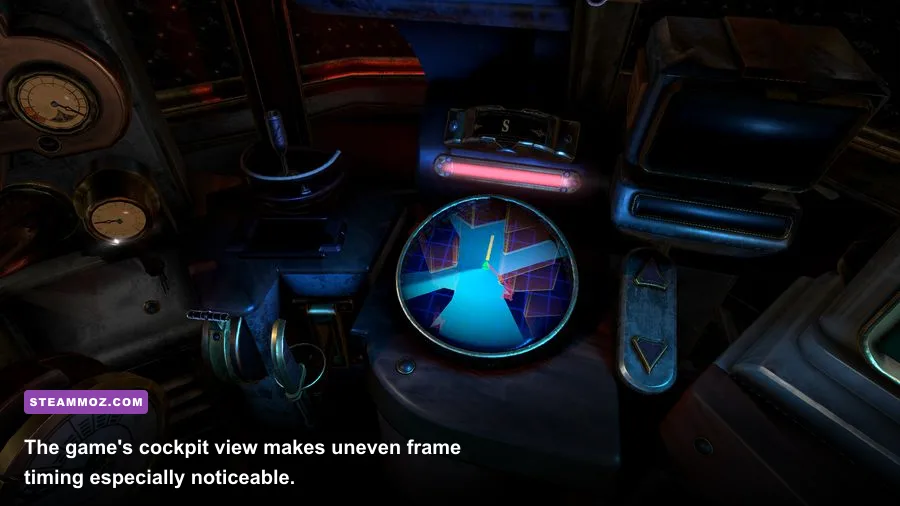
Crashes usually fall into four buckets: a damaged game file, a broken VR runtime, an outdated driver, or an unstable overlay. A Rogue Escape also has a particularly sensitive launch chain because the game, Steam, SteamVR, your headset software, and the graphics driver all need to agree about which runtime owns the headset.
1. Verify the installation
Open Steam, right-click A Rogue Escape, choose Properties, select Installed Files, and click Verify integrity of game files. Let the scan finish instead of launching while it is still working. This replaces missing or altered files, but it normally does not remove saved settings. If the crash began immediately after a patch, this should be your first move.
2. Reset the local configuration
If verification reports no problem, close the game and SteamVR. Back up your saves if you can, then look in %USERPROFILE%\AppData\LocalLow, %APPDATA%, and %LOCALAPPDATA% for an A Rogue Escape or developer-named folder. Rename the configuration folder rather than deleting it. A name such as A Rogue Escape_backup lets you restore it if needed. This forces fresh graphics and headset settings, which is useful when the game crashes before reaching its menu.
Do not randomly delete every folder in AppData. Only rename a folder clearly associated with the game, and keep the backup until you have confirmed that your progress is intact. If the title has cloud saves enabled, Steam may restore older configuration data after the next launch, so disable Steam Cloud temporarily if the same bad setting keeps returning.
3. Remove launch conflicts
Close MSI Afterburner and RivaTuner Statistics Server for the first test. Also disable Discord overlay, Xbox Game Bar, GeForce Experience or NVIDIA App overlay, AMD overlay, OBS game capture, Overwolf, and RGB utilities that hook into games. These tools are not automatically bad, but VR titles are less tolerant of multiple overlays competing for the compositor.
Launch SteamVR first, wait until the headset and controllers are fully recognized, and only then start A Rogue Escape. If you use Oculus Link or Air Link, open the Meta Quest PC application first and confirm that the headset is connected before SteamVR starts. For Windows Mixed Reality, open the Mixed Reality Portal before launching the game. A mismatch between the active OpenXR runtime and the runtime selected by SteamVR can produce a flat image, an immediate crash, or a game that launches on the monitor but never enters the headset.
4. Test the graphics driver properly
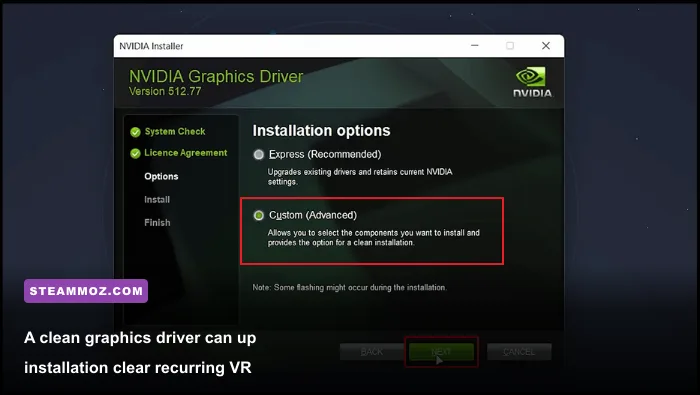
Install the current WHQL driver from NVIDIA's official driver page or AMD's official support page. Choose a clean installation when the installer offers one. If the crashes began directly after a driver update, roll back to the previous stable driver instead. Laptop owners should use the driver supplied for their exact laptop model when the generic package causes headset detection problems.
Windows also deserves a quick check. Install pending Windows updates, reboot, and make sure the game is using the dedicated GPU rather than integrated graphics. Go to Settings > System > Display > Graphics, add the game's executable if it is not listed, and select High performance. On a laptop, play while plugged in and select a performance power profile. Battery-saving modes can throttle the GPU halfway through a cockpit sequence, which looks like a random low-FPS bug.
| Crash symptom | Most likely cause | Best first fix | What not to do |
|---|---|---|---|
| Crash before the headset view appears | Runtime or configuration conflict | Start SteamVR first and rename the local config folder | Do not stack SteamVR, Oculus, and OpenXR launch overrides |
| Crash after loading a save | Corrupt save, asset, or shader cache | Verify files and test a new game | Do not overwrite the only backup |
| Black screen with game audio | Wrong OpenXR runtime or compositor failure | Set one active runtime and restart the headset software | Do not keep relaunching with several overlays active |
| Crash after several minutes | Thermal throttling, driver timeout, or unstable overclock | Return GPU and CPU to stock settings | Do not increase voltage to chase performance |

🎮 A Rogue Escape
Looking to experience this game? Grab your digital key directly on our store for $3.99.
View on Steammoz Store →Best A Rogue Escape Settings for Stable VR FPS
VR performance has two separate targets. The game must render its frames quickly enough, and the headset compositor must deliver them at the selected refresh rate. At 90 Hz, a frame has about 11.1 milliseconds to finish. At 80 Hz, the budget is 12.5 ms. At 72 Hz, it is roughly 13.9 ms. Missing that window triggers reprojection or motion smoothing, and repeated reprojection feels worse than a locked lower refresh rate.
For a mid-range card such as a GTX 1660 Super, RTX 2060, RX 5600 XT, or better, begin at 72 or 80 Hz. A modern RTX 3060, RX 6600 XT, or stronger GPU can usually test 90 Hz, but headset resolution, USB or wireless streaming overhead, and CPU frametime still matter. These are practical starting points, not promises of a fixed result on every headset.
| Setting | Recommended value | FPS impact | Visual trade-off |
|---|---|---|---|
| Headset refresh rate | 72 Hz or 80 Hz first | Very high | Lower target gives the GPU more time per frame |
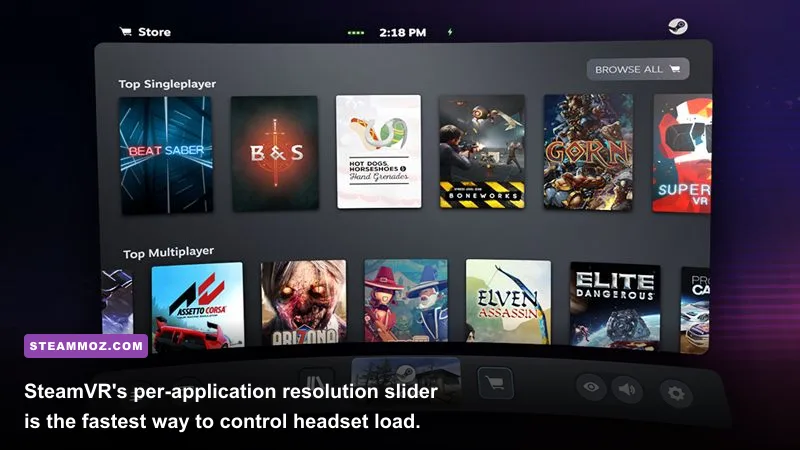
| SteamVR per-app resolution | 70% to 80% | Very high | Small text softens, but cockpit geometry remains readable |
| Global SteamVR resolution | 100% or automatic | High if reduced globally | Changing every VR game is unnecessary |
| Texture quality | Medium or High | Low to medium | Keep this higher than shadows when VRAM allows |
| Shadow quality | Low or Medium | Medium to high | Shadows lose detail, but panel readability barely changes |
| Anti-aliasing | Medium or the default option | Medium | Lower values create shimmer around controls |
| Post-processing and bloom | Low if available | Low to medium | Lighting looks flatter, with little gameplay cost |
| VSync | Off when SteamVR controls timing | Variable | Prevents a second frame-pacing system from interfering |
| Motion smoothing | Auto, then test Off | Does not create real FPS | Can hide drops but may produce ghosting around moving hands |
Change one setting at a time. Start with SteamVR's per-application video panel: open the SteamVR dashboard, choose Settings > Video, select Per-Application Video Settings, pick A Rogue Escape, and lower resolution in 10% steps. If the SteamVR performance graph shows the GPU line spiking, resolution, shadows, and anti-aliasing are your main suspects. If the CPU line spikes while the GPU sits comfortably below its limit, lowering resolution will not solve the hitch.
Keep textures higher than shadows whenever possible. The game is built around close-up interfaces and mechanical surfaces, so overly low texture settings make switches and labels muddy. Shadows are a better sacrifice. Disable motion smoothing temporarily while testing because synthetic frames can make a stable 72 FPS look like inconsistent animation. Once the game holds its native target, turn it back on only if you prefer its softer fallback during occasional heavy moments.
Fix SteamVR Stutter, Headset Judder, and Long Loads
Low average FPS and bad frame pacing are different problems. If the counter says 72 FPS but turning your head still feels jerky, the compositor may be missing delivery deadlines, the headset cable may be struggling, or background software may be interrupting the CPU. Treat the SteamVR frame-time graph as more useful than a desktop FPS counter.
Use the performance graph to find the bottleneck
In SteamVR, open the dashboard and enable the performance display or frame timing view. GPU frametime above the refresh-rate budget means the graphics card is overloaded. CPU frametime spikes point toward background tasks, USB polling, antivirus scans, or a CPU-limited scene. A flat red bar during wireless play can indicate network or encoding trouble rather than the game itself.
Wired headsets and Air Link need different fixes
For Oculus Link, try a different USB 3 port directly on the motherboard. Avoid front-panel hubs, passive extensions, and overloaded docking stations. In the Meta Quest PC application, test the recommended cable and reduce the encode resolution or bitrate if the headset view freezes while the PC game remains responsive.
For Air Link, use a 5 GHz or Wi-Fi 6 router in the same room, connect the PC to that router with Ethernet, and avoid repeaters. Keep the bitrate conservative while diagnosing stutter. A wireless stream can look like low FPS when the real problem is packet loss or encoder delay. Virtual Desktop users should likewise test a lower streaming quality before changing every in-game option.
Clear shader and SteamVR caches
Shader compilation can create one-time hitches after a driver update, but endless stutter is not normal. Restart Steam after the first launch and allow shader processing to finish. If the problem began after changing drivers, clear the relevant Steam shader cache from Steam's storage settings and reboot. Avoid repeatedly clearing it every day; the cache exists to prevent the game from rebuilding shaders during play.
Disable Windows background recording, pause cloud-sync applications, and leave at least 15 percent free space on the drive hosting Steam and the game. An almost-full SSD can turn loading and shader work into long stalls. If you use a hard drive, moving the installation to an SSD is one of the few upgrades that can improve asset streaming without reducing image quality.
For broader PC troubleshooting, Steamoz's PC crash and low-FPS checklist covers driver, overlay, and Windows fixes that also apply to VR games. Our guide to settings that unlock higher FPS is useful for the same one-change-at-a-time tuning approach.
A Rogue Escape PC Profiles by Hardware
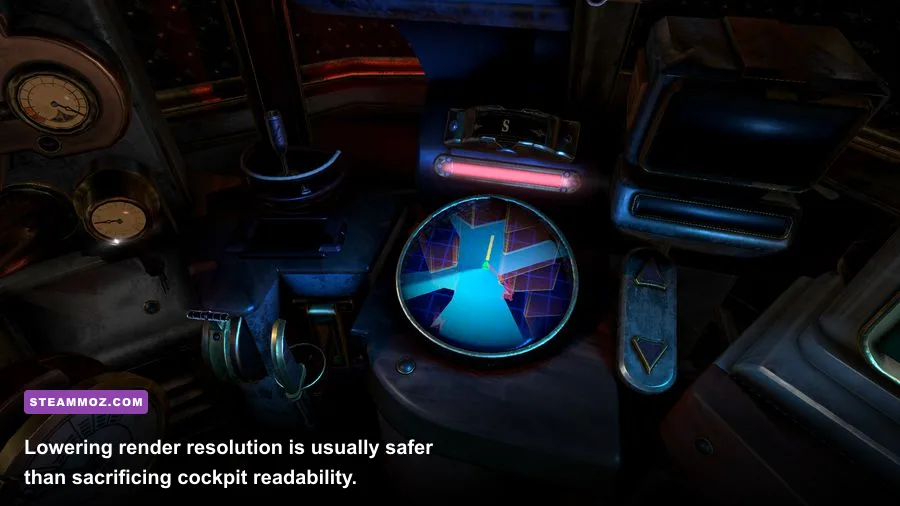
Use the profiles below as a controlled starting point. The important number is not the GPU model alone; it is whether the system can hold the headset's frame-time budget in the busiest cockpit view. Laptop versions of the same GPU can perform substantially slower, and wireless headsets need additional headroom for video encoding.
| Hardware class | Refresh target | SteamVR resolution | In-game profile |
|---|---|---|---|
| GTX 1650, GTX 1060, RX 580 class | 72 Hz | 50% to 70% | Low shadows, medium textures, low post-processing |
| GTX 1660 Super, RTX 2060, RX 5600 XT class | 72 or 80 Hz | 70% to 80% | Medium shadows, high textures, default anti-aliasing |
| RTX 3060, RTX 2070 Super, RX 6600 XT class | 80 Hz | 80% to 100% | Medium or high textures, medium shadows, low bloom |
| RTX 4070, RX 7800 XT class and above | 90 Hz | 100% first | High textures and shadows, then raise resolution carefully |
The entry profile is not an insult to older hardware. VR renders two views at a high internal resolution, and a GTX 1060 that feels fine in a 1080p game may struggle at a headset's native render target. Start low, confirm smooth head movement, and increase resolution until the GPU frame-time graph consistently stays under budget. Sharper imagery is valuable, but a stable cockpit is the foundation.
On a powerful PC, don't immediately max everything. Leave roughly 20 percent GPU headroom if you are using Air Link or another streaming method. Encoding, compositor work, and the game share the same system. A profile that is perfect over DisplayPort can stutter wirelessly because it leaves no room for video compression.
Last-Resort Fixes and How to Report the Crash
If A Rogue Escape still crashes after file verification, a clean configuration, driver testing, and overlay removal, isolate the headset path. Try another supported headset or run the game through a different runtime if your hardware allows it. If the game works there, the problem is likely the original headset software, USB connection, OpenXR selection, or a device-specific driver rather than the game installation.
Also return every overclock and undervolt to stock, including GPU memory tuning. VR workloads can expose instability that ordinary games never trigger. Check temperatures while playing: a sudden clock-speed drop alongside rising GPU temperature points to thermal throttling, while a driver reset in Windows Event Viewer suggests a timeout or unstable driver. Do not use registry hacks or random launch commands copied from unrelated VR games; they can make runtime conflicts harder to diagnose.
When contacting the developer through the support route listed on the official Steam page, include your headset, connection method, GPU, CPU, Windows version, SteamVR version, refresh rate, per-app resolution, and the exact point of failure. Attach the crash log and a short description such as “crashes when loading the cockpit after selecting Continue,” not simply “the game crashes.” Steam's official game troubleshooting guidance can help you locate basic installation and launch information.
The quickest winning combination for most players is refresh rate first, per-game resolution second, then shadows and overlays. Keep textures readable, run one VR runtime, and test with stock hardware settings. If you can hold a clean 72 or 80 Hz in A Rogue Escape's busiest control panels, the game will feel dramatically better than it does at an unstable 90 Hz. For more focused troubleshooting habits, see Steamoz's VR gameplay tips for Human Fall Flat and our PC performance perspective on Gundam Breaker 4.