The best Cricket Through the Ages settings for maximum FPS are surprisingly simple: use fullscreen, select your monitor’s native resolution, disable V-Sync if you want the highest possible frame rate, and leave quality effects at their default unless your PC is struggling. This is a lightweight, physics-driven game, so most players won’t gain much from turning every option to Low. The bigger wins come from fixing frame pacing, stopping overlays, and choosing a stable cap instead of chasing a number your display can’t show.
That distinction matters because Cricket Through the Ages isn’t a demanding 3D sports simulator. Its comedy comes from exaggerated physics, one-button timing, compact arenas, and rapid-fire scenes rather than enormous crowds or detailed stadium rendering. On a reasonably modern laptop, the game should run comfortably at 1080p. If it stutters, dips during local multiplayer, or feels delayed when you swing, the culprit is more likely synchronization, an overlay, a power profile, or an unstable frame-time curve than raw graphical quality.
This guide focuses on the PC version available through the official Steam page. Menu wording can differ slightly between updates, displays, and operating systems, so treat the profiles below as practical targets rather than promises that every build exposes identical toggles.
The Best Overall Profile for Maximum FPS

Start with the balanced profile below. It gives you the highest practical performance without making the game look needlessly rough. Native resolution is important: lowering resolution may raise the FPS counter, but Cricket Through the Ages has clean, graphic-style artwork that can look soft when scaled below your panel’s native mode.
| Setting | Recommended Value | FPS Impact | Visual Note |
|---|---|---|---|
| Display Mode | Fullscreen | Low to medium benefit | Usually reduces desktop compositor interference |
| Resolution | Native monitor resolution | Baseline | Best image clarity and cleanest text |
| V-Sync | Off for maximum FPS | High for responsiveness | May introduce tearing on fixed-refresh displays |
| Frame Rate Limit | Match refresh rate, or unlimited for testing | Medium | A cap often improves frame pacing |
| Quality Preset | High or default | Minimal on most systems | The game’s art style remains intact |
| Anti-Aliasing | High/default if available | Low | Useful for clean edges around characters and props |
| Shadows and Effects | Medium or default | Low to medium | Lower these only after testing actual gameplay |
For a 60Hz monitor, a locked 60 FPS is the sensible target. If your display runs at 120Hz or 144Hz, test a cap at 120 or 144, then compare it with an unlimited setting. Unlimited FPS can make the game feel responsive, but it also allows the GPU to render frames the screen cannot display. That creates extra heat and power use for no visible benefit.
There’s another reason not to blindly choose Low. Cricket Through the Ages uses visual cues to sell the timing of a delivery, collision, or ridiculous ragdoll moment. Lowering effects may not transform performance, but it can reduce the clarity of those cues. Keep the default profile first, then change one option at a time while replaying the same scene.

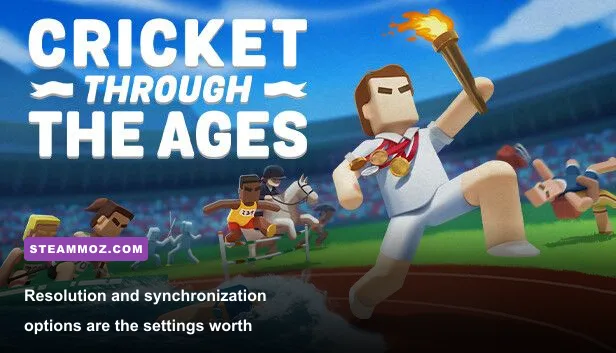
🎮 Cricket Through the Ages
Looking to experience this game? Grab your digital key directly on our store for $3.99.
View on Steammoz Store →Low-End PC and Laptop Settings That Actually Help
If you’re using integrated graphics, an older dual-core laptop, or a system that shares memory with the GPU, use a controlled low-end profile rather than randomly dropping every setting. The goal is stable frame delivery. A steady 60 FPS feels much better than a counter that jumps between 110 and 45 whenever the game switches scenes.
| Component | Minimum Target | Recommended Target | Pro-Tuned Profile |
|---|---|---|---|
| Resolution | 1280x720 | 1600x900 | Native resolution |
| Display Mode | Fullscreen | Fullscreen | Fullscreen or borderless if alt-tabbing |
| V-Sync | On if tearing is severe | Off for latency testing | Off with an external FPS cap |
| Quality | Low | Medium/default | High/default |
| Effects | Low | Medium | Default unless frame times spike |
| Background Apps | Close browsers and launchers | Close overlays | Keep only essential utilities active |
720p is the first resolution reduction worth trying on a genuinely weak machine. If that fixes the drops, move up to 900p or 1080p and test again. Don’t lower the resolution before checking whether the laptop is in battery mode. Windows power saving can restrict CPU clocks so aggressively that a tiny game still feels sluggish.
Plug the laptop in, select a performance-oriented Windows power mode, and make sure the game is using the correct GPU if the system has both integrated and dedicated graphics. On Nvidia hardware, check Windows Graphics settings or the Nvidia app rather than assuming the executable picked the dedicated chip. AMD laptops have a similar per-application graphics selection.
Also watch temperatures. The game itself is light, but a laptop with a clogged fan can throttle during a longer session. If the first match feels smooth and the tenth starts hitching, that’s a heat or background-process clue, not a reason to keep reducing texture quality.
V-Sync, Frame Caps, and Input Delay Explained
For Cricket Through the Ages, synchronization is often more important than visual quality. The game’s one-button design makes timing unusually exposed: a small delay between a key press and the on-screen action can make a delivery feel inconsistent even when the FPS counter looks healthy.
V-Sync waits for the monitor’s refresh cycle before presenting a frame. That removes visible tearing, but traditional V-Sync can add a little input latency and may cause a noticeable fall from 60 to 30 FPS when the system misses a refresh window. If you’re chasing the fastest response, turn it off and test a short batting sequence. If tearing bothers you, try a stable frame cap first.
A good cap sits just below the display refresh rate when using variable-refresh technology. For a 144Hz monitor, 141 FPS is a common starting point; for 120Hz, try 117 FPS. With a 60Hz screen, 60 FPS is fine, although a 58 or 59 FPS cap can sometimes improve consistency when the game and desktop compositor fight over timing. The exact number isn’t magic. What matters is that the frame time stays even.
If you use FreeSync or G-Sync, enable it at the display and driver level, then keep V-Sync enabled in the driver while using an in-game cap below the refresh rate if the game exposes one. If it doesn’t, use the driver’s frame limiter. This approach can eliminate tearing without forcing the old hard-sync behavior that causes the most obvious latency.
Don’t judge performance from the title screen. Test an actual round in History mode, then try local multiplayer if that’s how you play. The game’s official Steam Community discussions are also useful for checking whether a reported stutter is specific to a recent build, controller setup, or operating system.
Why a Lightweight Game Can Still Stutter
When a game this small stutters, the investigation should move beyond graphics presets. Start with overlays. Steam Overlay, Discord, Xbox Game Bar, Nvidia recording tools, AMD metrics, and browser hardware acceleration can all add hooks to a game. Most systems handle them perfectly, but a frame-time problem is easier to diagnose with them disabled.
Turn off one overlay at a time and retest. Don’t disable everything permanently before you know what helped. If Steam Input is required for your controller, leave it enabled and test the other overlays first. Local multiplayer can also make controllers appear or disappear when another device wakes up, so reconnect pads before blaming the renderer.
Windows notifications and alt-tabbing are another common source of weirdness. Borderless mode is convenient, but fullscreen can give the game more direct control over presentation. On the other hand, some laptops and multi-monitor setups handle borderless mode more smoothly. Test both modes for thirty seconds rather than treating one as universally superior.
Verify the installation through Steam if textures fail to load, the game hangs between scenes, or a configuration change appears not to save. The publisher’s official game page is the best place to confirm the current release information, while Free Lives’ official site provides developer context.
Finally, check whether a recording application is using hardware encoding. A 1080p capture stream can be trivial for a desktop GPU but costly on integrated graphics, especially when system RAM is shared. Disable instant replay and background capture before lowering the game’s resolution. That change often fixes intermittent hitching immediately.
Best Settings by Hardware Class
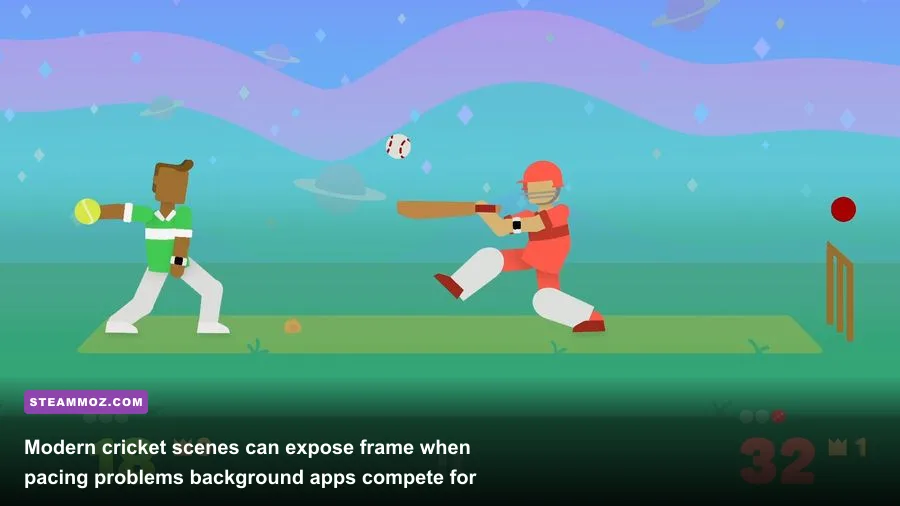
These profiles are designed around the actual workload of Cricket Through the Ages: simple scenes, physics interactions, local play, and quick transitions. They’re not benchmark guarantees, but they provide a useful starting point for choosing stability over meaningless headroom.
| Hardware Class | Resolution | Quality Profile | Sync Strategy | Expected Goal |
|---|---|---|---|---|
| Modern gaming desktop | 1080p or higher | High/default | VRR with cap below refresh | Stable high-refresh gameplay |
| Mid-range desktop | 1080p | High/default | 60 FPS cap or VRR | Locked 60 FPS |
| Older dedicated GPU | 900p or 1080p | Medium | V-Sync off, cap to stable rate | Consistent frame times |
| Modern integrated graphics | 1080p, reduce if needed | Medium/default | 60 FPS cap | Smooth everyday play |
| Older integrated graphics | 720p | Low | V-Sync on if tearing dominates | Stable 30 or 60 FPS |
| Battery-powered laptop | 720p or native | Low/medium | 60 FPS cap | Lower heat and longer battery life |
If your system cannot hold 60 FPS, a stable 30 FPS is the better fallback than an erratic 40-to-60 range. That may sound excessive for a cartoon cricket game, but inconsistent frame pacing is exactly what makes timing games feel broken. Lock the game to a rate your machine can sustain through every chapter and multiplayer scene.
Players on high-refresh monitors should resist the urge to chase 240 FPS. The benefit is limited here, while the extra GPU workload can raise temperatures and create unnecessary fan noise. A clean 120 FPS cap on a 120Hz display is already an excellent target, provided the system can sustain it without spikes.
A Practical Testing Routine for Better Performance
Use a repeatable test instead of changing five settings and guessing which one worked. First, restart the game and record a baseline in a normal History mode segment. Note the average FPS, the lowest apparent dip, and whether the problem feels like a visual hitch or delayed input. If possible, use a frame-time graph from your GPU software rather than relying only on the FPS number.
- Set the display mode. Try fullscreen first, then borderless if fullscreen causes flicker or poor alt-tab behavior.
- Choose native resolution. Only drop to 900p or 720p if the GPU is clearly the limiting factor.
- Test synchronization. Compare V-Sync off with a stable cap. Keep the option that gives cleaner input and frame pacing.
- Disable overlays. Turn off recording, chat, metrics, and browser overlays before changing quality settings.
- Play a real match. Test both solo History mode and local multiplayer, because controller and overlay behavior can differ.
- Change one visual option. Lower effects or shadows only if the frame-time graph shows a meaningful improvement.
After every change, replay the same type of scene for at least a few minutes. Menu FPS is not useful, and a single smooth delivery doesn’t prove the whole game is stable. If multiplayer is your priority, test with every controller connected and your usual display setup. That catches the problems that benchmarks miss.
Keep drivers current, but don’t install a beta graphics driver solely for this game. If performance changed after an update, compare the driver version, Windows power mode, and overlay state before rolling anything back. For broader troubleshooting, Steamoz’s guides on PC crashes and low FPS and game performance fixes cover the same diagnostic habits in more demanding titles.
The short version is reassuring: Cricket Through the Ages rarely needs aggressive visual sacrifices. Fullscreen, a sensible cap, clean background processes, and the right power profile will usually do more than turning every quality slider down. Keep the art at its default when your PC can handle it, prioritize even frame times over inflated FPS numbers, and the game’s chaotic batting, bizarre eras, and local matches should feel exactly as responsive as its one-button design intends.
If you’re still seeing crashes alongside stutter, check the game’s Steam support information and report reproducible issues with your GPU, Windows version, display mode, resolution, and controller setup. Those details are far more useful than simply saying the game runs slowly.