For the best Freshly Frosted performance, use fullscreen mode at your monitor’s native resolution, disable VSync if you want the highest possible frame rate, and lower resolution only when your system still dips below 60 FPS. The game is a lightweight 2D puzzle title, so GPU power rarely becomes the problem; inconsistent frame pacing, laptop power limits, background apps, and late-stage conveyor simulations matter more. Start with the Balanced 60 FPS profile below, then adjust one setting at a time.
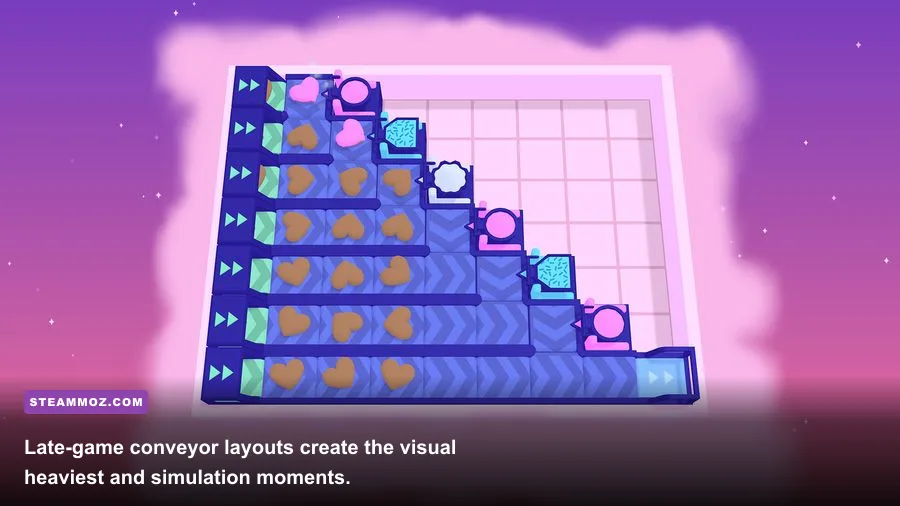
That distinction is important. Freshly Frosted does not throw ray tracing, huge open-world streaming, or cinematic post-processing at your hardware. Its busiest scenes are packed with moving donuts, conveyor belts, frosting stations, splitters, teleporters, and animated factory decorations. A stable frame rate makes those layouts easier to read, especially when you’re tracing a route through several machines at once.
Before changing anything, update your graphics driver, close browser tabs playing video, and let Steam finish downloads. If you’re on a laptop, plug it in and select the manufacturer’s Performance mode. The game’s official Steam page is also the right place to confirm current platform and controller support details.
The Best Freshly Frosted Settings to Use First
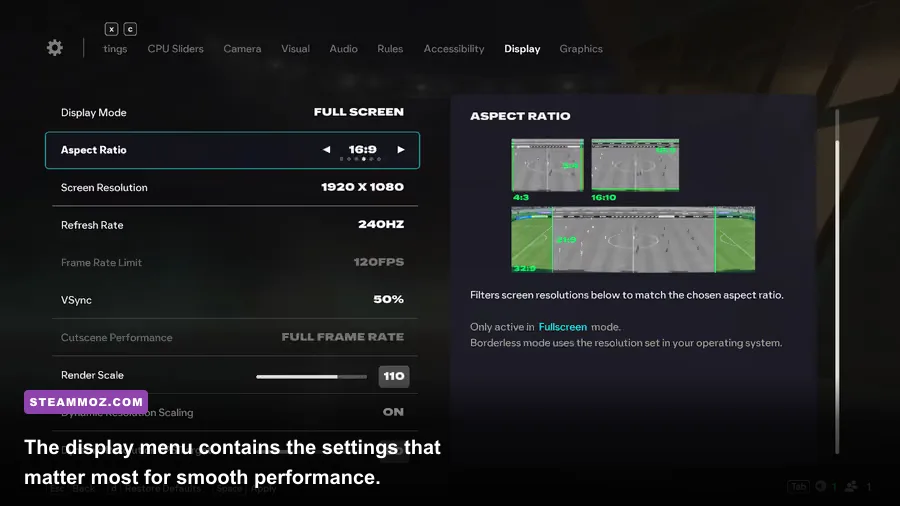
Begin with a clean baseline rather than immediately dropping every option. Native resolution keeps the game’s small conveyor arrows, frosting icons, and route markers crisp. Because Freshly Frosted uses a bright, stylized presentation, aggressive resolution scaling can make thin belts and machine outlines look soft before it delivers a meaningful performance gain.
| Setting | Recommended Value | FPS Impact | Visual Note |
|---|---|---|---|
| Display Mode | Fullscreen | Low to medium | Usually gives the cleanest frame pacing and avoids desktop compositor interference. |
| Resolution | Native monitor resolution | Medium to high | Best clarity for small conveyor details; lower it only when sustained FPS is poor. |
| VSync | Off for maximum FPS; On for a locked 60 | Medium | Off can introduce tearing, while On may cap output to your display refresh rate. |
| Frame Rate Limit | 60 FPS, or your display refresh rate | Low | A cap reduces power use, heat, and unnecessary frame-time spikes. |
| Quality Preset | High or native default | Low to medium | Freshly Frosted is visually simple; lowering quality is rarely the first fix. |
| Window Scale | 100% | Low to high | Reduce this only after testing fullscreen and native resolution. |
For a typical desktop, the strongest starting point is fullscreen, native resolution, VSync off, and a 60 FPS cap through the game or your GPU control panel. If your monitor runs at 120 Hz or higher, don’t assume you need 120 FPS. The puzzle logic feels perfectly responsive at 60, and a stable cap is often smoother than a fluctuating 90–140 FPS.
There’s also a useful troubleshooting order. First switch from borderless or windowed mode to fullscreen. Next test VSync. Then lower resolution by one step, such as 1440p to 1080p or 1080p to 720p. Only after those checks should you reduce quality-related options. This prevents you from sacrificing image clarity to solve a problem caused by a background process or power profile.

🎮 FORM
Looking to experience this game? Grab your digital key directly on our store for $14.99.
View on Steammoz Store →How Each Setting Affects Frame Rate and Frame Time
Freshly Frosted’s frame-rate behavior is less complicated than a 3D game, but the settings still have different jobs. Resolution affects how many pixels your GPU draws. VSync affects presentation timing. A frame cap controls workload. Quality options, when available in your build, mostly affect decorative effects rather than the underlying puzzle simulation.
Resolution is the biggest lever on weaker integrated graphics. Moving from 1920×1080 to 1280×720 cuts the pixel workload by roughly 56 percent, though the real FPS gain depends on whether your system is GPU-bound. On a modern desktop, that change may do almost nothing because the processor or game logic is already the limiting factor. On Intel UHD, older Radeon integrated graphics, or an entry-level laptop running on battery, it can turn a stuttery presentation into a consistent 60.
VSync is a presentation choice, not a raw-performance upgrade. With it enabled, the game waits for the display’s refresh cycle, which removes tearing but can make a dip from 60 to 30 feel dramatic on some systems. With it disabled, you may see a horizontal tear while dragging through a complicated factory, but input can feel a touch more immediate. For most players, VSync on plus a stable 60 FPS is the better-looking option; competitive reaction time simply isn’t a concern in this puzzle game.
| Hardware Situation | Resolution | Sync and Cap | Expected Target |
|---|---|---|---|
| Modern gaming PC | Native | VSync off, 60–120 FPS cap | Stable 60 or higher with generous headroom. |
| Older quad-core PC with dedicated GPU | Native, then one step lower | VSync on, 60 FPS cap | Consistent 60 in most factories. |
| Integrated graphics laptop | 1080p if stable; 720p if not | VSync on, 60 FPS cap | Prioritize steady frame pacing over sharpness. |
| Steam Deck | 1280×800 | 60 FPS cap, VSync according to preference | Stable 60 with lower heat and battery drain. |
| Battery-powered laptop | Native or 720p | 30 or 60 FPS cap | Use 30 only if power-saving mode causes repeated dips. |
If your frame counter looks high but the game still feels uneven, watch frame time rather than average FPS. A consistent 16.7 ms frame time equals 60 FPS. Sudden jumps to 30–50 ms are the stutters you feel when a busy factory updates or another application wakes up. Windows Game Mode, a plugged-in power profile, and closing overlays can help more than lowering a visual preset.
Best Low-End PC Profile for Freshly Frosted
For older laptops and integrated graphics, use 1280×720 or 1600×900 in fullscreen, enable VSync, and cap the game at 60 FPS. Keep the quality preset at its default first. If the game exposes shadow, effects, animation, or post-processing controls, lower those before touching interface scale. Freshly Frosted’s readability is part of its design; turning down UI or display scaling can make route planning needlessly uncomfortable.
Test the profile on a late puzzle rather than the opening tutorial. Early stages contain fewer belts and machines, so they can hide a performance issue. A packed layout with several donut colors moving simultaneously is a better stress test. Let the stage run for at least 30 seconds, then pan around the entire factory. If the frame rate stays stable while the busiest section is visible, your profile is ready.
Don’t use a forced 30 FPS cap unless 60 genuinely refuses to hold. The game doesn’t need high refresh rates, but 60 FPS makes scrolling across a large factory feel cleaner and keeps animated objects easy to track. If 60 produces constant oscillation, a locked 30 is preferable to an unstable 45–55, although that should be the fallback rather than the target.
Players troubleshooting other compact PC games may also find our Filament specs and best settings guide useful. Like Freshly Frosted, it rewards a stable, readable presentation more than flashy graphics settings.
Steam Deck Settings for Smooth Factory Puzzles
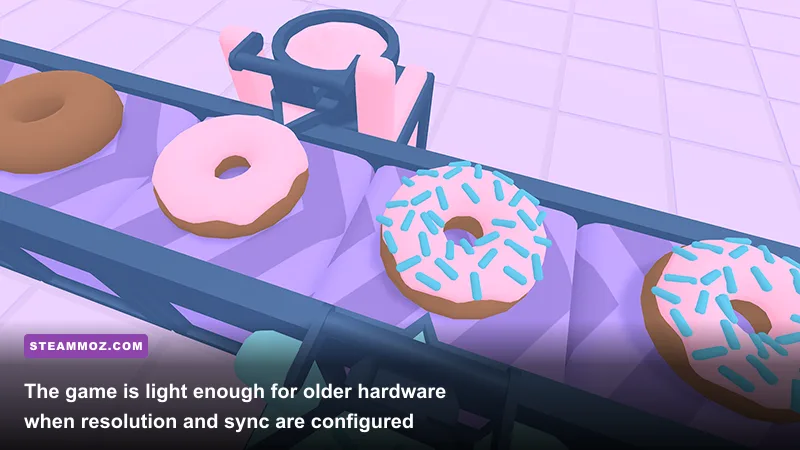
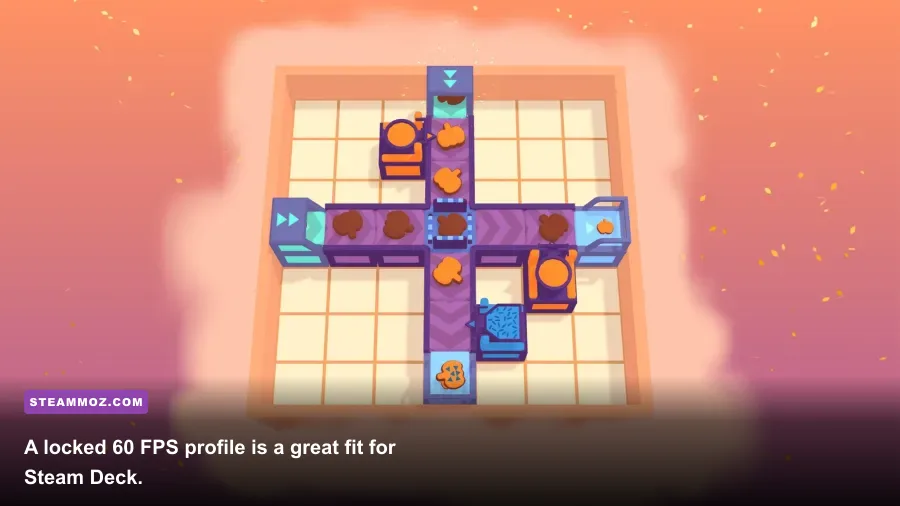
Steam Deck is a particularly good match for Freshly Frosted. Run the game at the Deck’s native 1280×800 resolution, set a 60 FPS limit, and leave the refresh rate at 60 Hz. There’s no reason to chase a higher refresh target for conveyor-belt puzzles, and a 60 FPS cap keeps the APU from spending extra power on frames you won’t meaningfully use.
Use the SteamOS performance overlay to check whether the Deck is holding 60 FPS in the busiest factory you’ve unlocked. If it is, leave the game’s quality settings alone. If you notice occasional hitching, try disabling VSync in-game while keeping the SteamOS frame cap active, then compare the result. The better choice is the one with steadier frame pacing and less visible tearing on your display.
For battery life, a 40 FPS cap at 40 Hz can be a sensible middle ground if you’re playing away from a charger. It won’t look quite as fluid as 60, but it reduces power consumption while keeping the interface responsive. Don’t stack several conflicting caps, though. Use either the in-game limit or SteamOS’s limiter as your primary control, then verify the actual result with the overlay.
Freshly Frosted is also a good candidate for a handheld-friendly control layout because the challenge comes from observation and planning, not twitch combat. That means a consistent 40 or 60 FPS matters more than squeezing out every possible frame. You can find more examples of compact games that run well on modest hardware in Steamoz’s CHUCHEL performance guide.
How to Diagnose Stutters, Tearing, and Input Lag

Start by identifying the symptom. Tearing appears as a horizontal break during scrolling and usually points to VSync being disabled. Input lag feels like a delayed response after clicking or pressing a direction; VSync, heavy overlays, and a display running through an unusual refresh mode can contribute. Stutter feels like irregular pauses even when the FPS counter reports a respectable average, which usually points to frame-time spikes, background activity, or a cap conflict.
- Restart the game after changing display mode. Some Unity-based titles apply resolution and fullscreen changes more reliably after a restart.
- Use one frame limiter. Disable extra caps in third-party tools while testing the game’s own limiter, then reverse the experiment if needed.
- Check power mode. Windows laptops can silently switch to a low-power GPU profile when unplugged.
- Close overlays. Browser video, recording software, Discord overlays, and GPU capture tools can create intermittent frame-time spikes.
- Test a busy factory. Don’t judge performance from the title screen or first tutorial puzzle.
- Change one option at a time. Otherwise you won’t know whether resolution, sync, or a background process fixed the issue.
If the game feels sharp but your mouse or controller seems delayed, try VSync off and a 60 FPS cap first. If that removes the delay but introduces tearing, use a driver-level adaptive sync option when your monitor supports it. For a controller problem, test Steam Input separately from graphics changes; a control-layer issue can masquerade as poor performance.
Finally, keep expectations realistic. Freshly Frosted is not a game where lowering every option produces a dramatic visual transformation or a huge competitive advantage. The best profile is the one that keeps the factory readable, the camera movement consistent, and the frame time calm. For most PCs, that means native resolution, fullscreen, a 60 FPS cap, and VSync chosen according to whether you prefer tear-free output or the lowest possible latency.
That approach also protects the game’s strongest feature: its visual clarity. Conveyor belts, color-coded donuts, frosting machines, and branching routes are all information. Sacrificing that clarity for an unnecessary 144 FPS target is a poor trade. Set up the Balanced profile, stress-test a late-stage factory, and only lower resolution if the frame rate actually proves it necessary. For more practical PC tuning, see Steamoz’s PC performance coverage and first-playthrough tips.
For official information about the game and its creators, visit Freshly Frosted on Steam, the developer’s official website, and the Steam community discussions.