
Filament is exceptionally easy to run by modern PC standards. The minimum target is a Windows 7-era dual-core system with 4GB of RAM and a GeForce 450 GTS or Radeon HD 5750, while the recommended configuration asks for a 2.4GHz dual-core CPU, 8GB of memory, and a GeForce GTX 760 or Radeon R9 280. You’ll need DirectX 11 and roughly 3GB of storage in either case. If your computer can handle most games released in the last decade, it should have no trouble with this atmospheric cable-puzzle adventure.
The interesting part is not whether Filament can launch. Almost any reasonably maintained desktop or laptop can do that. The real question is whether your system can deliver a stable, comfortable image while you spend long stretches studying tiny route details inside the Ark. This guide breaks down the official Filament system requirements, explains what those old GPU recommendations mean today, and gives you practical settings profiles for 720p, 1080p, and higher-resolution play.
Filament system requirements at a glance
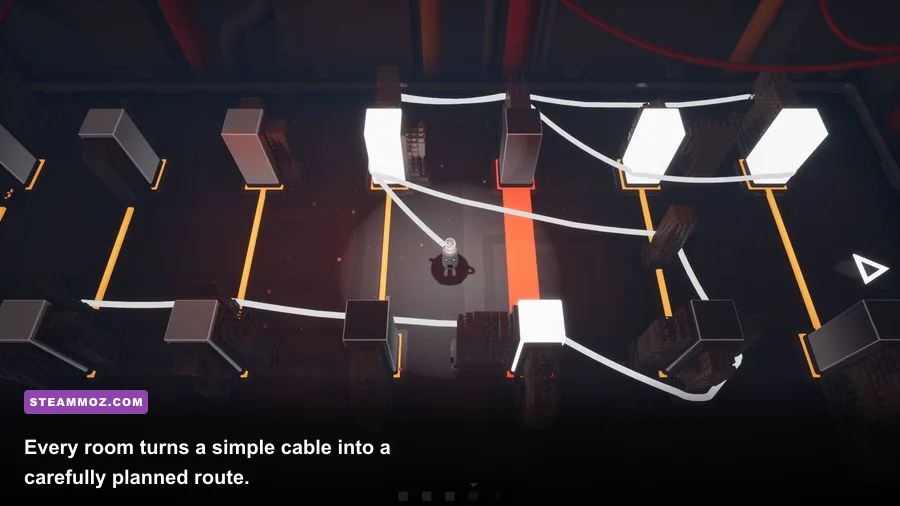
Filament comes from Beard Envy and was published by Kasedo Games. It is built around exploration, environmental observation, and hundreds of cable-routing puzzles rather than physics-heavy action or a large open world. That design keeps the technical workload modest: there are no crowded multiplayer maps, huge combat arenas, or CPU-intensive simulation systems constantly running in the background.
The minimum specification is best understood as a launch-and-play baseline. It should be enough for the game’s relatively restrained environments, but an old dual-core processor paired with a slow mechanical hard drive may produce longer loading pauses than the listed parts suggest. The recommended specification is a more comfortable target for 1080p play, especially if you multitask, stream, or use a high-refresh monitor.
| Component | Minimum | Recommended | What it means today |
|---|---|---|---|
| Operating system | Windows 7 | Windows 10 | Windows 10 or Windows 11 is the sensible modern choice |
| Processor | 2.0GHz dual-core CPU | 2.4GHz dual-core CPU | Almost any recent Core i3, Ryzen 3, or laptop equivalent is faster |
| Memory | 4GB RAM | 8GB RAM | 8GB is preferable when Windows and other apps are open |
| Graphics | GeForce 450 GTS or Radeon HD 5750 | GeForce GTX 760 or Radeon R9 280 | Integrated graphics may work, but dedicated graphics are safer |
| DirectX | Version 11 | Version 11 | Supported by virtually every gaming GPU from the last decade |
| Storage | 3GB available space | 3GB available space | An SSD is recommended for smoother loading, not higher image quality |
For the official listing, check the Filament Steam page. It is also worth comparing the game’s modest baseline with our guide to Eiyuden Chronicle: Hundred Heroes PC requirements, which shows how much more demanding a modern RPG can be.

🎮 Filament
Looking to experience this game? Grab your digital key directly on our store for $3.39.
View on Steammoz Store →What the minimum PC really needs
The GeForce 450 GTS and Radeon HD 5750 are very old entry-level graphics cards, both dating back to the early DirectX 11 era. Filament does not need anywhere near the shader throughput of a contemporary AAA release, so the minimum GPU is not a disguised recommendation. It is genuinely aimed at older hardware. Still, age brings practical concerns: old cards may have limited driver support, noisy fans, and very little video memory.
A modern Intel UHD, Iris Xe, or AMD Radeon integrated GPU is often a better bet than those ancient dedicated cards, particularly in a newer laptop with dual-channel memory. Integrated graphics share system RAM, though, so performance can change dramatically between one 8GB memory stick and two 4GB sticks. If your laptop has only 4GB total, Windows itself can become the bigger problem once browsers, launchers, and background utilities are open.
CPU requirements are similarly forgiving. Filament’s puzzles do not demand fast reaction-time simulation, complex enemy AI, or hundreds of independently animated characters. A 2.0GHz dual-core processor is listed as the floor, but clock speed alone does not tell the whole story. A newer low-power Core i3 or Ryzen 3 with four threads can comfortably outperform an old 2.0GHz desktop chip, even if its advertised frequency looks less dramatic.
That is why you should not judge your computer solely by the number printed beside “GHz.” Check the processor generation, available RAM, and GPU model together. If you are unsure, the official Steam hardware listing is the final reference, while a tool such as Windows Task Manager can identify your current parts in seconds.
| Hardware situation | Likely Filament experience | Main limitation | Best move |
|---|---|---|---|
| Old dual-core plus minimum GPU | Playable at conservative settings | Frame pacing and loading | Use 720p or 1080p with effects reduced |
| Modern integrated graphics with 8GB RAM | Generally comfortable | Shared memory bandwidth | Plug in the laptop and use the performance power plan |
| GTX 760, R9 280, or similar | Comfortable 1080p target | Old drivers or thermals | Install current compatible drivers and cap FPS |
| Recent gaming laptop or desktop GPU | Far beyond the recommended target | Display scaling, not horsepower | Increase resolution or supersampling if available |
Recommended specs for smooth 1080p play
The recommended GeForce GTX 760 and Radeon R9 280 are substantially faster than the minimum cards. They are not modern by enthusiast standards, but they provide the headroom needed for a stable 1080p presentation and higher-quality effects. A current GTX 1650, RX 6400, Arc A380, or virtually any mainstream card released after 2020 should sit comfortably above that recommendation.
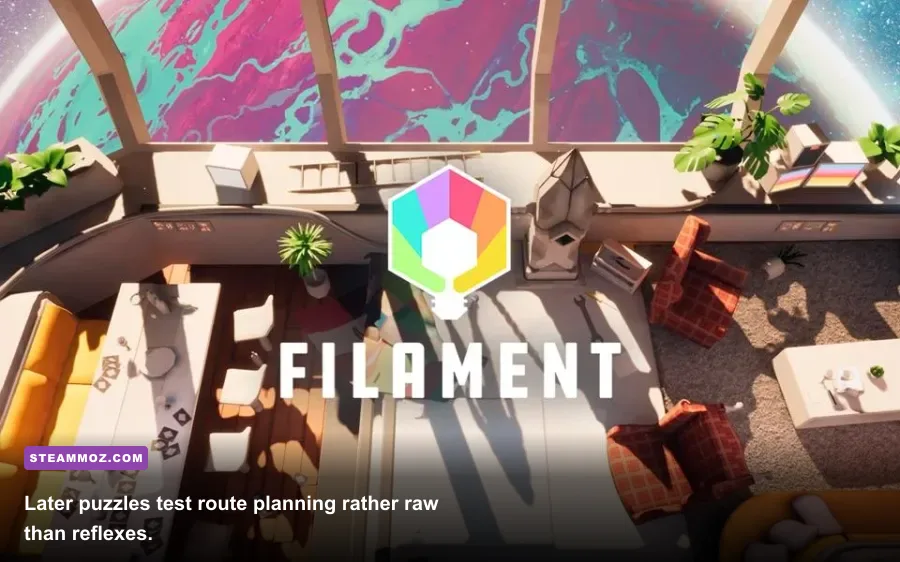
Filament’s visual identity depends on clean geometry, glowing cable endpoints, colored panels, and readable room layouts. A high frame rate will not make a puzzle solution appear magically, but inconsistent frame pacing can make camera movement feel unpleasant while you inspect a room. For this type of game, a locked 60 frames per second is more valuable than chasing an unstable 144fps.
At 1080p, a recent integrated GPU should be tested first at medium settings rather than immediately buying hardware. The game’s static and semi-static environments are considerably easier to render than a modern open-world scene. If you see hitching, lower resolution or background load before assuming the GPU is too weak. Recording software, browser video, RGB control panels, and cloud synchronization can all create interruptions on a low-memory machine.
For 1440p and ultrawide monitors, the recommended GPU should still be treated as a 1080p-class target. Filament may remain playable at higher resolutions, but the pixel count rises by about 78 percent from 1080p to 1440p and by more than 130 percent at 4K. Because the puzzle boards contain fine visual cues, lowering internal resolution too aggressively can hurt clarity. A balanced 1080p image is preferable to a blurry 4K-like output.
If you regularly play demanding games, our guide to Borderlands 4 PC settings covers the opposite optimization problem: extracting every frame from a much heavier game. Filament needs far less intervention, but the same principle applies—change one setting at a time and measure the result.
Best Filament graphics settings by PC tier
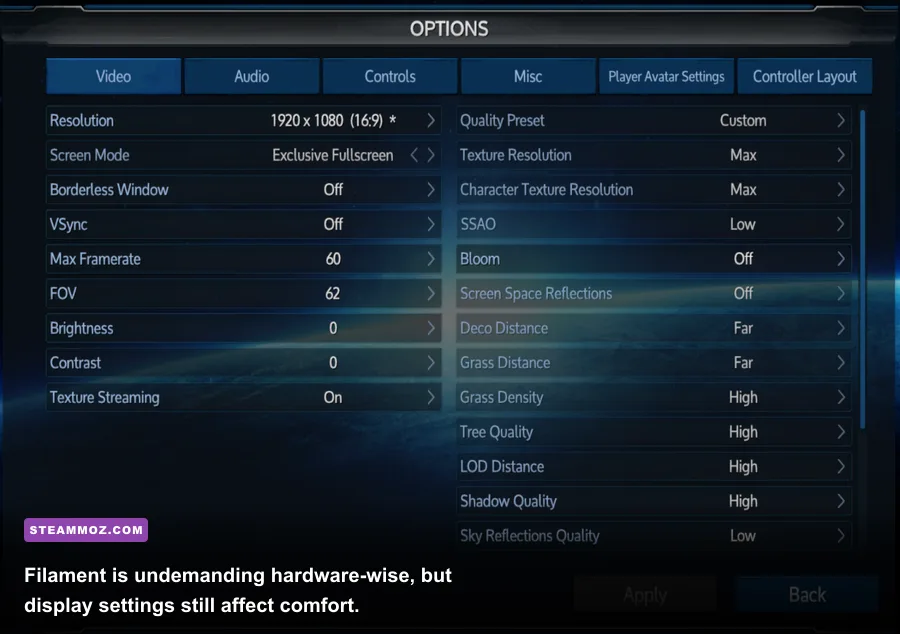
Filament does not have the same enormous menu of options found in a major shooter, and that is good news. You do not need to spend an hour balancing ten forms of ray tracing. Prioritize native resolution, readable contrast, and consistent frame pacing. If the game offers resolution, quality, shadow, effect, anti-aliasing, and frame-rate controls on your build, use the profiles below as a starting point.
| Setting | Minimum PC profile | Recommended 1080p profile | Higher-resolution profile |
|---|---|---|---|
| Resolution | 1280x720, or native laptop resolution | 1920x1080 | 2560x1440 if performance remains locked |
| Texture quality | Medium | High | High |
| Shadow quality | Low | Medium or High | High if GPU headroom allows |
| Effects and lighting | Low or Medium | High | High |
| Anti-aliasing | Low or Medium | High enough to remove cable shimmer | High, provided image remains sharp |
| Frame-rate cap | 30 or 60fps | 60fps | 60fps or your monitor refresh rate |
| V-Sync | On if tearing appears | On for a fixed 60Hz display | Use adaptive sync when supported |
Shadows are usually the first quality option worth reducing because they affect multiple surfaces without changing the core puzzle information. Texture quality tends to matter less if your GPU has enough video memory, although extremely old cards can stutter when assets are loaded. Effects and lighting deserve more attention: Filament’s illuminated panels and cable endpoints are part of its visual language, so dropping them too far can make rooms harder to read.
If you experience screen tearing, enable V-Sync or use your monitor’s adaptive-sync mode. If your display is 60Hz, cap the game at 60fps rather than allowing the GPU to render hundreds of unnecessary frames. That reduces heat, fan noise, and power draw without making the puzzle-solving experience slower. On a 120Hz or 144Hz display, a stable 60fps is still perfectly valid; this is a contemplative game, not a competitive arena.
How Filament’s puzzle design affects performance

Filament’s technical simplicity can be misleading because its mental difficulty rises sharply. You explore the Ark, communicate with the AI Juniper, and enter rooms built around a cable that must be carried through a sequence of posts or puzzle stations. The challenge is not twitch accuracy. It is planning a route, understanding which panels respond to the cable, and recognizing when a seemingly correct path has created an unsolvable state.
That design has an important performance implication: clarity beats spectacle. A higher frame rate helps camera movement feel smooth, but a clean 1080p image helps you identify the exact state of a board. When a cable crosses a narrow space or a panel changes color after activation, blur and aggressive upscaling can be more distracting than a modestly lower frame rate.
Filament also rewards patience in a way that exposes input and display problems. You may stand in one room for several minutes, rotate the camera, walk away, and return with a different idea. A brief hitch during exploration will not kill your character, but it can interrupt the visual pattern you were tracking. This is why closing background applications is worthwhile even though the game’s average GPU usage is low.
Use the pause menu whenever you need to study a puzzle, and do not confuse a performance issue with a puzzle reset. If movement feels jerky only when entering a new section, storage speed or background activity may be responsible. If the entire game feels uneven, check whether your laptop is running on battery, whether Windows has selected a power-saving profile, and whether a frame-rate limiter is fighting V-Sync.
For players who enjoy methodical games, our Clone Drone in the Danger Zone tips and Crimzon Clover starter advice show how different genres benefit from deliberate settings and input habits. Filament’s puzzles are quieter, but the lesson is identical: a reliable setup lets you focus on the game’s actual decisions.
Troubleshooting Filament on older PCs
If Filament refuses to start, begin with the boring fixes because they solve most cases. Verify the installation through Steam, update your graphics driver, restart the PC, and confirm that the game is using the dedicated GPU instead of an integrated chip. On a laptop, connect the charger before testing. Windows can throttle both CPU and GPU performance heavily on battery power.
Crashes or sudden exits can point to outdated DirectX components, damaged files, unstable overclocks, or insufficient available memory. The listed requirement is 4GB RAM, but that does not mean 4GB is free for the game. A browser with multiple tabs can consume several gigabytes before Filament even loads. Close unnecessary programs and leave a few gigabytes of free storage on the system drive for temporary files.
For stuttering, lower shadows and effects first, then test a fixed 60fps cap. If that fails, try 720p briefly to separate GPU limitations from CPU or storage problems. A large improvement at 720p suggests the graphics card is the bottleneck; little or no improvement points toward background processes, memory pressure, thermal throttling, or a driver issue.
| Problem | Most likely cause | First fix | Second test |
|---|---|---|---|
| Game will not launch | Damaged files or driver issue | Verify files and update the GPU driver | Run Steam and the game after a restart |
| Low average FPS | Resolution or effects too high | Lower resolution and shadows | Compare 1080p with 720p |
| Periodic hitching | Background apps or slow storage | Close browsers and overlays | Move the install to an SSD |
| Screen tearing | Frame output exceeds display timing | Enable V-Sync or adaptive sync | Cap the frame rate at 60fps |
| Laptop running poorly | Battery or thermal power limits | Plug in and select performance mode | Check temperatures and fan vents |
The publisher’s Filament page and the developer’s official site are useful places to check for current support information. Steam’s Filament community discussions can also help identify version-specific issues, but treat unofficial launch fixes carefully and avoid downloading random DLL files.
One final practical recommendation: install Filament on an SSD if you have one, even though the game needs only about 3GB. The SSD will not transform visual quality or puzzle logic, but it can shorten loading and reduce the irritation of testing a solution, restarting a room, and returning to exploration. If your PC meets the recommended specification, use 1080p, high visual quality, and a locked 60fps. If it only meets minimum, start at 720p or native laptop resolution, reduce shadows and effects, and preserve image sharpness wherever possible.
Bottom line: Filament is one of the safer PC purchases for players with older hardware. The minimum requirements are genuinely approachable, the recommended GTX 760/R9 280 tier is easy to exceed, and the game’s slow-burn puzzle structure does not demand extreme frame rates. The best setup is not the one with the biggest number in a benchmark—it is the one that keeps Juniper’s Ark clear, stable, and comfortable while you untangle its nastiest cable routes.