
Yes, your PC can almost certainly run CHUCHEL. The official Windows requirements are just 1 GB of RAM, roughly 1 GB of free storage, and a 1.7 GHz Intel Pentium 4 or AMD Athlon 64 processor with DirectX 9c-compatible graphics. There’s no demanding recommended tier listed by the developer, and that tells you exactly what kind of game this is: a compact, hand-animated point-and-click adventure designed to run on aging laptops as easily as modern gaming desktops.
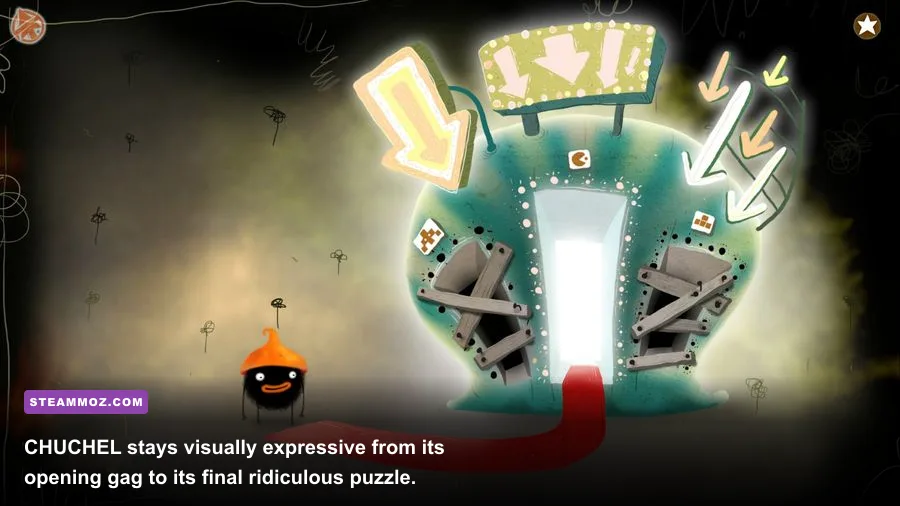
That doesn’t mean the PC version is an afterthought. CHUCHEL is packed with expressive animation, fast visual gags, oddball creatures, and tightly timed interactions. Its artwork can look deceptively simple, but the game’s actual technical load is tiny compared with a modern 3D release. If your machine can run a web browser, stream video, and launch a basic Steam game, it’s probably already ahead of CHUCHEL’s requirements.
This guide breaks down the exact CHUCHEL system requirements, explains what the old hardware references mean in 2026, and shows how to avoid the handful of compatibility problems that can still affect older Windows PCs. For comparison, our guides to Filament’s PC specs and Eiyuden Chronicle: Hundred Heroes cover games with much heavier hardware demands.
CHUCHEL system requirements at a glance

The official Steam listing keeps CHUCHEL’s requirements refreshingly short. The minimum configuration is the practical target for the entire game rather than a barely playable emergency profile. You don’t need a discrete graphics card, a large SSD, or a recent multi-core processor.
| Component | Minimum requirement | Recommended interpretation | Why it matters |
|---|---|---|---|
| Operating system | Windows 7 / 8 / 10 | Windows 10 or Windows 11 with current updates | Modern Windows versions generally provide better driver and compatibility support |
| Processor | 1.7 GHz Intel Pentium 4 or AMD Athlon 64 | Any modern dual-core CPU | CHUCHEL’s 2D scenes place almost no meaningful load on a current processor |
| Memory | 1 GB RAM | 4 GB RAM or more for the whole system | The game itself needs very little memory; background apps are the bigger concern |
| Graphics | DirectX 9c-compatible graphics | Integrated Intel, AMD, or NVIDIA graphics from the last decade | The game uses stylized 2D visuals rather than demanding 3D rendering |
| Storage | 1 GB available space | Keep 2 GB free on the installation drive | Extra room helps Steam updates and temporary files complete cleanly |
| DirectX | DirectX 9c | Current DirectX runtime plus legacy components if prompted | Older libraries can matter even when your graphics hardware is much newer |
There is an important detail here: the Steam page does not publish a separate, higher “recommended” configuration for CHUCHEL. That doesn’t mean the game needs secret hardware to run well. It means the minimum specification is already close to the practical ceiling of what the game asks from a PC.
On modern systems, the limiting factor is more likely to be software compatibility than raw performance. A new gaming laptop with a GeForce RTX GPU won’t render CHUCHEL meaningfully better than a ten-year-old integrated graphics chip. The game’s look comes from its art direction, animation, sound, and timing—not from advanced shadows, ray tracing, texture streaming, or high-end post-processing.

🎮 CHUCHEL
Looking to experience this game? Grab your digital key directly on our store for $2.99.
View on Steammoz Store →What the minimum PC specs really mean today

Seeing “Pentium 4” on a system-requirements page can make CHUCHEL look ancient, but it’s useful context rather than a warning. Intel’s Pentium 4 and AMD’s Athlon 64 belong to an era when single-core and early dual-core processors were common. Any desktop or laptop bought in the last decade should comfortably exceed that CPU requirement.
The same applies to RAM. CHUCHEL officially asks for only 1 GB, but a modern Windows installation can consume several gigabytes before Steam and the game even launch. That’s why I’d treat 4 GB as the sensible floor for the complete computer, even though the game itself doesn’t need it. With 8 GB, you can leave a browser, music player, chat client, and Steam overlay running without worrying about memory pressure.
DirectX 9c-compatible graphics is also much less intimidating than it sounds. CHUCHEL is not asking for a Radeon or GeForce card built specifically for old 3D games. Integrated graphics from Intel HD Graphics, Intel UHD Graphics, AMD Radeon Vega, or newer laptop platforms should have more than enough headroom. The visual workload consists primarily of animated 2D artwork and lightweight effects.
There’s no benefit to buying hardware specifically for this game. If you’re deciding whether an older office laptop can handle it, check the CPU model, installed memory, Windows version, and available disk space. You can do that in Windows through Settings > System > About, then compare the processor and RAM against the table above. For graphics details, open Task Manager > Performance > GPU.
CHUCHEL’s design also explains why storage matters so little. It’s a compact, chapter-based adventure rather than a giant open world. You aren’t loading hundreds of high-resolution textures, massive voice archives, or detailed 3D environments. A 1 GB installation requirement leaves plenty of room for the game on a small SSD, older hard drive, or modest laptop drive.
Will CHUCHEL run smoothly on an old laptop?

In most cases, yes. CHUCHEL is one of those PC games where “can it run?” is less interesting than “does Windows still like the way it launches?” The game’s 2D presentation is lightweight enough that an old laptop should maintain smooth animation without reducing quality. A machine that barely handles a modern 3D game can still be an excellent CHUCHEL system.
On an older hard drive, the main difference may be loading speed. You could see a short pause when moving between scenes, especially if the drive is busy with Windows updates or antivirus scanning. That isn’t a frame-rate problem, and it won’t affect puzzle timing once the scene is loaded. Installing the game on an SSD makes transitions snappier, but it isn’t necessary.
Battery life is another small consideration. CHUCHEL doesn’t need the discrete GPU in a gaming laptop, so Windows should be able to run it on integrated graphics. If you’re playing on the move, use your laptop’s balanced or battery-saving mode. There’s no reason to force maximum performance for a game with such a low graphics workload.
The biggest practical threat to smooth play is background software. Older laptops may have limited RAM, and a browser with several video-heavy tabs can consume far more memory than CHUCHEL. Close unnecessary launchers, pause large downloads, and give Steam a clean restart if the game behaves strangely after an update.
| PC profile | Expected result | Best approach | Likely limitation |
|---|---|---|---|
| 2000s-era PC meeting the minimum | Playable, assuming Windows and drivers cooperate | Close background applications and install DirectX legacy components if prompted | Slow loading, outdated operating-system support |
| Older office laptop with 4 GB RAM | Smooth gameplay on integrated graphics | Use balanced power mode and keep the installation drive healthy | Memory pressure from browsers and Windows services |
| Modern ultrabook | Excellent performance with minimal power use | Integrated graphics is completely sufficient | None in normal play |
| Modern gaming desktop | Overqualified by a huge margin | Leave default settings enabled | No meaningful visual benefit from high-end hardware |
If you want a broader look at squeezing performance from less powerful machines, our PC settings guide for Borderlands 4 covers the opposite end of the spectrum. CHUCHEL doesn’t need that level of tuning, but the same principle applies: identify the actual bottleneck before changing settings at random.
Best CHUCHEL graphics settings for stable performance

CHUCHEL doesn’t offer the kind of extensive graphics menu you’ll find in a modern PC release. You shouldn’t expect separate controls for texture quality, ambient occlusion, shadow resolution, foliage density, or ray tracing. That’s good news: there are fewer settings to fight with, and the default configuration is already close to optimal.
Think of the display options as compatibility tools rather than performance sliders. Resolution affects how sharp the game looks on your monitor. Fullscreen, borderless, or windowed mode affects how the game interacts with Windows. V-sync can help prevent visible tearing, while a frame-rate option—if exposed by your version or display setup—can keep animation consistent.
| Setting | Recommended value | Performance impact | Visual or compatibility note |
|---|---|---|---|
| Display mode | Fullscreen or borderless | Very low | Fullscreen may behave better on especially old systems; borderless is easier for multitasking |
| Resolution | Native monitor resolution | Low | Use 1080p or your panel’s native setting for the cleanest artwork |
| V-sync | On if tearing appears | Negligible on modern hardware | Can make scrolling and animated scenes look steadier |
| Scaling | Default or automatic | Very low | Changing scaling can make hand-drawn edges look softer or blurrier |
| Steam overlay | Optional | Negligible on modern PCs | Disable it temporarily if the game launches to a black screen |
| Power profile | Balanced | None for most systems | CHUCHEL rarely benefits from a high-performance laptop mode |
For a sharp image, native resolution is the first choice. If you’re playing on a 1440p or 4K monitor, the game may still look perfectly fine at a lower internal resolution depending on how its scaling is handled, but expect some softness. On a small 1080p laptop panel, native resolution should be the cleanest option.
Don’t chase a higher refresh rate as if CHUCHEL were a competitive shooter. A 144 Hz display won’t give the game a tactical advantage. What matters is consistent animation and correct input response. If you see tearing, turn on V-sync before experimenting with drivers or third-party frame limiters.
For general Windows optimization advice, our guide to Just Cause 3’s PC requirements explains how to separate storage, CPU, memory, and GPU problems. With CHUCHEL, nearly every modern computer skips the hardware bottleneck entirely.
CHUCHEL compatibility fixes for Windows PCs
Most players will install CHUCHEL from Steam and play immediately. If you do hit a problem, start with the boring fixes—they’re also the ones most likely to work. First, verify the installation by opening the game’s Steam properties, selecting Installed Files, and choosing Verify integrity of game files. A damaged download can cause crashes, missing audio, or a failure to launch.
Next, update your graphics driver through Intel, AMD, NVIDIA, or your laptop manufacturer. Even though CHUCHEL is lightweight, driver bugs can affect old 2D rendering paths. If you’re using a very old Windows installation, Steam itself may be the bigger compatibility issue, since current client support can change independently of the game’s original requirements.
If the game opens with a black screen, try switching between fullscreen and windowed mode. You can also temporarily disable the Steam overlay and other overlays from Discord, GeForce Experience, Radeon Software, or recording tools. Overlay hooks are usually harmless, but older games can react badly when several of them attach at once.
High-DPI scaling may affect how the game appears on modern laptops. If the window looks blurry or the interface seems incorrectly sized, right-click the game executable, open Properties > Compatibility, and test the high-DPI scaling override options. Change one setting at a time, launch the game, and keep the option only if it improves the result.
Audio problems deserve their own quick check. Confirm that Windows is using the correct output device, then restart the game after switching headphones or Bluetooth speakers. Older titles can select the wrong device if hardware is connected after launch. Keep Windows volume and the game’s volume at sensible levels before assuming the installation is broken.
For official details, compare your setup with the CHUCHEL Steam page and the official Amanita Design game page. Steam’s game-file verification support page is also useful if the installation check finds corrupted files.
Should you buy CHUCHEL for a low-end PC?
Absolutely—provided you want a short, playful point-and-click adventure rather than a hardware showcase. CHUCHEL’s minimum requirements are genuinely low, not marketing shorthand for “you need a mid-range gaming PC.” The 1 GB RAM target, 1.7 GHz Pentium 4 or Athlon 64 processor, DirectX 9c graphics, and 1 GB storage requirement are all that the official listing asks for.
The game is also a strong choice for older family computers, compact office laptops, handheld Windows devices, and machines used primarily for school or travel. Its click-based controls are easy to learn, the colorful scenes are readable, and there’s no punishing combat system demanding split-second input. The challenge comes from noticing patterns and testing interactions, not from keeping a powerful graphics card fed.
What you should consider is the experience itself. CHUCHEL is built around comedic timing, expressive animation, and puzzles that often reward curiosity over conventional logic. It follows the titular orange creature’s obsessive attempt to steal a cherry, with the action repeatedly derailed by spiders, monsters, musical distractions, and bizarre environmental reactions. If you enjoy Amanita Design’s strange sense of humor, the low system requirements are just an added bonus.
Players looking for more practical game guidance can also browse Steamoz’s Children of Silentown tips and Byte Driver performance advice. They cover very different games, but both reinforce the same useful habit: check the actual requirements, then tailor your setup to the game instead of over-upgrading blindly.
Bottom line: if your Windows PC is newer than the mid-2000s and has at least 1 GB of free storage, CHUCHEL should run. A modern 4 GB or 8 GB system with integrated graphics is already more than enough for smooth play. Install it on your preferred drive, keep the default display settings, and let CHUCHEL’s wonderfully weird animation—not your hardware—do the heavy lifting.