If Dungeon Tycoon keeps crashing, freezing during a loading screen, or dropping into a slideshow on PC, start with a clean baseline: verify the Steam files, update your graphics driver, disable overlays, use exclusive fullscreen or borderless at your monitor’s native resolution, and lower shadows, effects, view distance, and anti-aliasing first. Those steps solve the most common launch and low-FPS problems without wrecking the game’s readable dungeon-management visuals.
The important detail is that Dungeon Tycoon does not stress your computer in one consistent way. An empty room is easy to render. A late-game complex filled with monsters, traps, torches, decorations, pathfinding calculations, and visitors can hammer both the graphics card and processor. That is why a game that runs at 60 frames per second in the tutorial may stutter badly after several hours of building.
This guide separates crash fixes from performance tuning, then gives you a sensible settings profile for weaker, mid-range, and high-end PCs. Make one change at a time, test the same busy section of your dungeon, and keep notes. Randomly dropping every option to Low makes troubleshooting harder and often delivers an ugly image without fixing a CPU bottleneck.
Start with a clean Dungeon Tycoon baseline
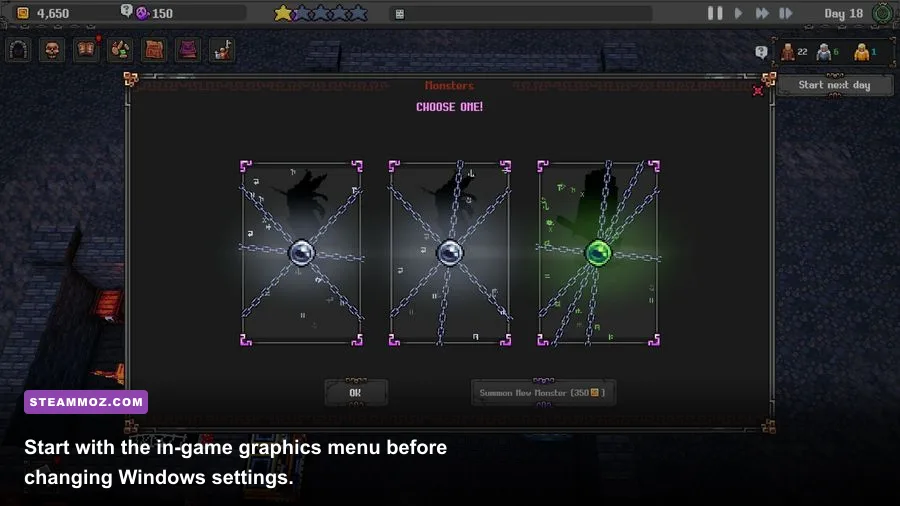
Before changing graphics settings, close Dungeon Tycoon and remove variables that can interfere with its startup. Restart Windows, launch Steam normally, and run the game without an FPS overlay, reshade preset, recording hook, or RGB utility. Overlays from Steam, Discord, Xbox Game Bar, NVIDIA, AMD, and MSI Afterburner can all inject into a game; most work fine, but a single outdated hook can cause an immediate crash after the splash screen.
Next, confirm that Windows is using your dedicated GPU. On a laptop, connect the charger, set Windows power mode to Best performance, and go to Settings > System > Display > Graphics. Add the Dungeon Tycoon executable if it is not listed, choose Options, and select High performance. A game accidentally running on integrated graphics will usually show low GPU usage, poor frame rates, and severe drops when the dungeon fills up.
Also check available storage. Keep at least 15–20 GB free on the drive holding the game and Windows page file. A nearly full SSD can make shader compilation, save creation, and asset streaming less reliable. If the game only crashes when loading one particular save, copy that save somewhere safe before experimenting with reinstallations or cloud-sync changes.
Use Steam’s file check before reinstalling
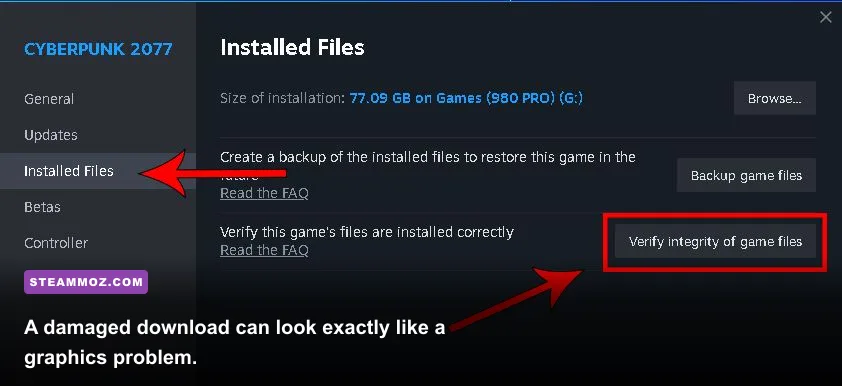
In Steam, right-click Dungeon Tycoon, select Properties, open Installed Files, and choose Verify integrity of game files. Let the process finish completely. Steam may report that it replaced one or more files; that is useful evidence, not a failure. Launch again after the download completes rather than immediately changing five other settings.
Steam Cloud can restore a problematic configuration or save after a reinstall. If the game crashes only when loading a single profile, temporarily back up the local save, disable Cloud synchronization for the test, and try a new game. Never delete your saves before making a copy. For more PC troubleshooting habits, our guides to Just Cause 4 crash fixes and Hunt: Showdown crash troubleshooting cover the same clean-testing principles.

🎮 Dungeon Tycoon
Looking to experience this game? Grab your digital key directly on our store for $7.49.
View on Steammoz Store →The graphics settings that matter most for low FPS
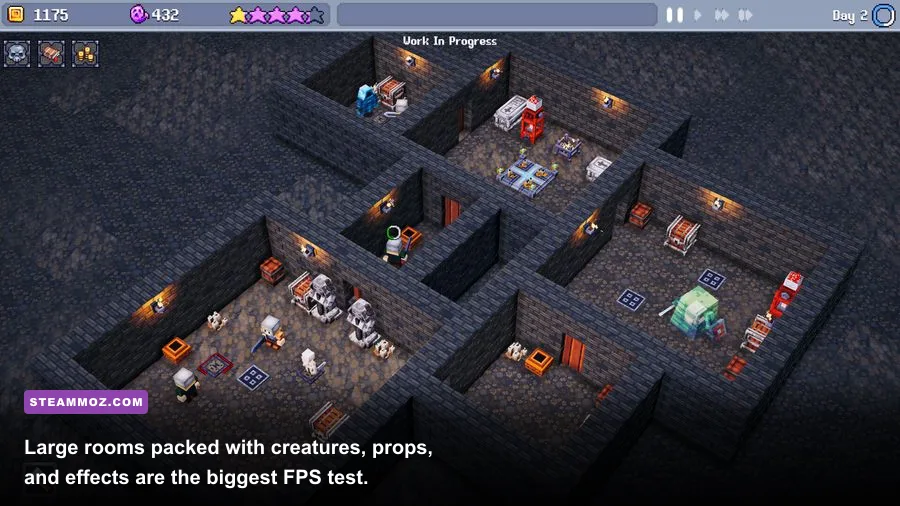
Do not judge performance from the first room. Load a save with your largest population and busiest production area, then watch the frame rate while panning across the full dungeon. If the camera movement causes the biggest drop, view distance, shadows, and object density are likely involved. If the game slows when many creatures and workers are active, the processor may be the limit, and lowering textures will barely help.
| Setting | Recommended value | Typical FPS impact | Visual trade-off |
|---|---|---|---|
| Resolution | Native first; 90% scale if available | High | Lower resolution improves GPU load but softens text and room edges |
| Shadows | Medium | Medium to high | Less contact depth around walls, props, and creatures |
| Effects | Medium | Medium | Torches, magic, smoke, and impact effects become simpler |
| View distance | Medium | Medium to high | Distant rooms and decorations appear later |
| Anti-aliasing | Medium or TAA | Low to medium | Lower values create jagged diagonal walls |
| Textures | High if VRAM allows | Low FPS impact | Lower settings make floors, walls, and props look blurry |
| V-Sync | Off for testing; on for tearing | Variable | Can add latency or cap output to the display refresh rate |
Start by lowering shadows from Ultra or High to Medium, then reduce effects and view distance. Shadows are expensive because every torch, creature, wall, and moving object may contribute to the scene. Effects can become surprisingly costly in rooms with fire, particles, or repeated combat animations. Textures are different: they mainly consume video memory. If your GPU has enough VRAM, keeping textures on High often preserves image quality with little frame-rate loss.
Resolution is the biggest lever when the graphics card is fully loaded. A 1920×1080 image contains 2,073,600 pixels per frame; 2560×1440 contains 3,686,400, roughly 78 percent more work. If Dungeon Tycoon runs well at 1080p but struggles at 1440p, that is normal scaling rather than a broken installation. Try a 90 percent resolution scale before dropping all the texture and shadow settings.
Three practical profiles for different PCs
For an older gaming laptop or integrated-graphics system, use 1280×720 or 1600×900, Medium or Low shadows, Low effects, Low-to-Medium view distance, and Medium textures if available memory allows it. Cap the frame rate at 30 if the game cannot hold 60. A consistent 30 feels far better than a swing between 22 and 60 during every camera sweep.
A mainstream 1080p PC should begin at native 1920×1080, Medium shadows, Medium effects, Medium view distance, High textures, and medium anti-aliasing. This is the profile most likely to produce a stable 60 FPS in ordinary rooms while retaining sharp walls and readable management text. If late-game dips remain, lower view distance before textures.
For a high-end PC, native resolution, High textures, High shadows, and High effects are reasonable starting points. Still, do not assume a powerful GPU guarantees perfect late-game performance. If GPU usage falls below roughly 70 percent while frame time spikes as many units move, the processor or simulation thread is probably limiting performance. Lowering resolution in that situation will do almost nothing.
Our Freshly Frosted settings guide and Gearshifters PC optimization guide explain the same GPU-versus-CPU test in more detail.
Fix Dungeon Tycoon crashes at launch and during loading
Launch crashes usually fall into four groups: damaged files, driver conflicts, permissions, and corrupted configuration data. Work through them in that order. The first two are reversible and low-risk; registry cleaners and random DLL downloads are not.
1. Update or clean-install the GPU driver
Install the current driver directly from the official NVIDIA driver page or AMD support page. Choose a clean installation when the installer offers one. If the crash began immediately after a driver update, try the previous stable driver instead. Laptop owners should also check the manufacturer’s support page because some systems require a customized driver package.
Disable experimental GPU features while testing. NVIDIA’s overlay, AMD Radeon recording, frame-generation tools, sharpening filters, and third-party frame limiters can conflict with a game’s own renderer. Keep one limiter only. If you use MSI Afterburner, test with it fully closed rather than merely hiding the overlay.
2. Reset the game’s configuration
A bad resolution, unsupported refresh mode, or damaged graphics preset can crash before the menu appears. In Steam’s Properties > General section, use Browse local files. Look for a configuration folder in the game directory or in Windows’ %LOCALAPPDATA% and %APPDATA% folders. Rename the Dungeon Tycoon configuration folder rather than deleting it. The next launch should create fresh settings.
If the game opens after the reset, set 1920×1080, borderless windowed, Medium preset, and V-Sync off first. Then change resolution and quality one at a time. A configuration reset will not fix a genuinely corrupt save, but it quickly identifies whether the renderer was failing before it reached gameplay.
3. Check Windows runtime and permissions
Install pending Windows updates, reboot, and make sure Microsoft Visual C++ Redistributables are current through Microsoft’s official Visual C++ Redistributable documentation. Do not download individual DLL files from unofficial sites. Also test the game without running Steam or the executable as administrator; mismatched permissions can prevent a game from reading its own save and shader folders.
Security software can quarantine a file or block write access. Check Windows Security’s protection history and add a narrow exception only if you trust the installation. Avoid disabling antivirus protection globally. If the crash happens when saving, verify that Controlled folder access is not blocking the game’s user-data directory.
Stop stuttering caused by crowded dungeon simulation
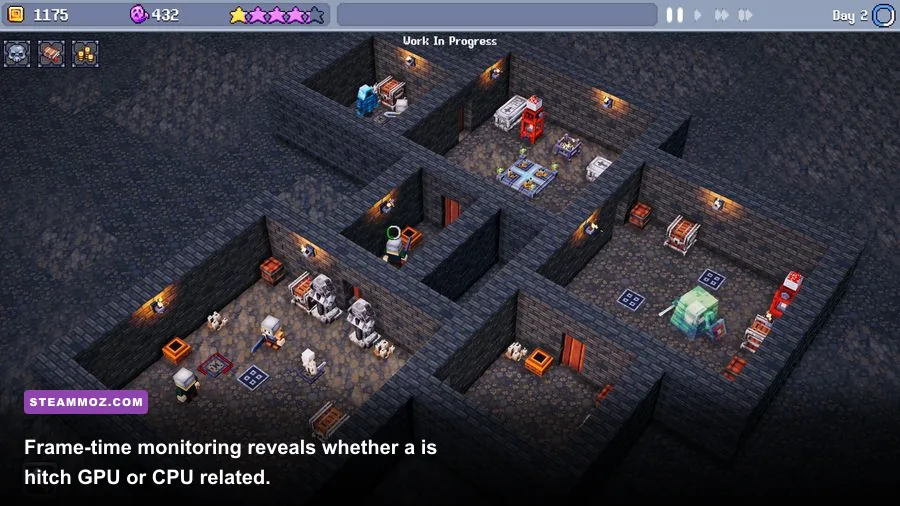
Dungeon Tycoon’s most demanding moments are usually self-inflicted: huge rooms, excessive decoration, long sightlines, and too many active agents recalculating routes at once. That does not mean you should build a boring dungeon. It means you should design it so the game has fewer expensive decisions to make every frame.
Break sprawling halls into smaller rooms with doors, corridors, and deliberate sightlines. A giant open chamber lets the camera see more props and forces more units to consider more possible paths. Separate work areas from visitor routes, avoid creating one enormous loop, and keep high-traffic entrances away from production bottlenecks. These changes can improve simulation frame time even when the GPU is not close to full usage.
Decorations are not all equal from a performance perspective. Repeated lights, animated props, particle emitters, and objects with shadows are more expensive than static floor pieces. If your dungeon is beautiful but suddenly stutters after adding a torch-heavy attraction, remove half the lights as a test. If performance returns, keep the visual theme and reduce only the animated or shadow-casting objects.
| Symptom | Likely bottleneck | Test | Best fix |
|---|---|---|---|
| GPU usage stays near 99 percent | Graphics workload | Lower resolution scale | Reduce resolution, shadows, and effects |
| GPU usage is low during drops | CPU or simulation thread | Watch frame time while units move | Reduce crowding, sightlines, and active effects |
| Stutter appears while panning | Streaming or shader compilation | Repeat the same camera route | Keep the game on an SSD and let shaders finish |
| Only one save crashes | Save or object-state issue | Start a new dungeon | Restore an older save and remove recent additions |
| Crash occurs after alt-tab | Display mode or overlay hook | Use borderless windowed | Disable overlays and avoid exclusive-mode switching |
Use an overlay only after the game is stable. MSI Afterburner, NVIDIA Performance Overlay, and AMD Adrenalin can show FPS, GPU usage, CPU usage, VRAM, and frame time. Frame time is the crucial number: 16.7 ms equals a stable 60 FPS, 33.3 ms equals 30 FPS, and sudden jumps well above those values are the stutters you feel. Average FPS can look healthy while frame time is awful.
Fix freezes, black screens, and alt-tab crashes
Black screens often come from a display-mode handshake rather than insufficient hardware. If you can hear the game behind a black image, press Alt+Enter to switch window modes. Once visible, choose borderless windowed at the monitor’s native resolution. This mode is usually less dramatic when you alt-tab, stream, or move between a high-refresh monitor and a second display.
Turn off HDR temporarily, especially if Windows HDR and the game’s HDR setting disagree. Test with one monitor, disable variable refresh rate for the game, and avoid forcing a refresh rate through launch parameters. Re-enable those features individually after the crash disappears. The aim is to discover which layer is failing, not to permanently sacrifice your preferred display setup.
For freezes after several minutes, check temperatures and memory use. A CPU or GPU that reaches its thermal limit can reduce clocks, while unstable overclocks and undervolts may crash only under specific workloads. Return the processor, graphics card, and RAM to stock settings. If you enabled XMP or EXPO recently, test with the motherboard’s default memory profile as well.
Windows Event Viewer can provide a useful clue. Open Event Viewer > Windows Logs > Application and inspect the error at the crash time. A display-driver reset points toward the GPU driver or unstable hardware; an application error with no driver reset points more toward files, configuration, or the game itself. Treat the log as a direction, not proof.
A reliable testing routine for every graphics change
Use one repeatable benchmark instead of wandering around randomly. Load the same save, stand at the same dungeon entrance, pan across the busiest room for 30 seconds, and then zoom to the area with the most creatures and effects. Record average FPS and, more importantly, the worst frame-time spikes. This makes a Medium-to-Low change meaningful rather than anecdotal.
- Verify the files and restart Windows.
- Disable every overlay, recording hook, reshade filter, and third-party limiter.
- Set native resolution, borderless windowed mode, Medium preset, and V-Sync off.
- Test the same crowded save for 30 seconds.
- Lower shadows, effects, and view distance one at a time.
- Only then test texture quality, resolution scale, and frame caps.
- Re-enable overlays individually after the game proves stable.
If your PC cannot hold 60 FPS in the busiest area, cap the game to the highest stable target. A locked 45 or 30 FPS is better than an uncapped range with constant frame pacing problems. If your monitor supports VRR, set the cap a few frames below its maximum refresh rate and avoid stacking caps from the game, driver, and overlay simultaneously.
Keep your saves backed up before major updates, driver changes, or configuration resets. Follow the official Dungeon Tycoon Steam listings for patches and community reports, and check the developer’s own announcement channels before assuming a widespread crash is unique to your PC. Steam’s official troubleshooting support is also worth using when file verification and driver updates fail.
Finally, remember that optimization is partly dungeon design. Reduce unnecessary lights, divide enormous rooms, control traffic routes, and keep animated effects concentrated in areas that matter. Combine that smarter layout with Medium shadows, sensible effects, current drivers, verified files, and a stable frame cap, and Dungeon Tycoon should stop feeling like a crash lottery once your underground empire gets genuinely busy.
If you are comparing other management games, Steamoz’s Dungeons 3 PC requirements guide is a useful companion read. For broader simulation-performance advice, our Indoorlands performance coverage also shows why crowded, highly animated builds can become the real benchmark.