If Hunt: Showdown 1896 crashes or runs badly after installing The Prodigal Daughter, start with a clean GPU-driver install, verify the game files, delete the shader cache, and switch to a conservative DirectX 12 graphics profile. Then cap the frame rate below your monitor's refresh rate and lower Object Quality, Lighting Quality, and Global Illumination first. Those steps solve most update-related crashes, shader stutter, and low-FPS spikes without making the bayou look like a blurry console port.
The Prodigal Daughter itself is not a separate executable or a special performance mode; it is premium Hunt content built into the same CryEngine client. That distinction matters. If the game began crashing after the DLC, an event patch, or a driver update, the likely culprit is corrupted compiled shaders, mismatched configuration data, an overlay conflict, or a GPU that is running out of memory during shader compilation. Treat this as a client-repair problem before blaming Vera Hobbs or the new content.
Before changing anything, check the official Steam page for Hunt: Showdown 1896 and the latest Crytek Hunt news posts. Major patches can temporarily produce shader rebuilding, server-side instability, or known crashes that no local setting can fix.

Start with the fixes that remove update damage
Do these in order, launching a short practice session after each major change. Hunt's crashes often appear only when a map, hunter model, or compound effect is loaded, so reaching the main menu is not proof that the problem is gone.
- Restart Steam and the PC. This sounds basic, but it clears a driver process left hanging after an overnight patch and releases locked files in the Hunt installation.
- Verify the installation. In Steam, right-click Hunt: Showdown 1896, choose Properties, Installed Files, then Verify integrity of game files. Let Steam redownload anything missing. Do not launch the game while verification is running.
- Clear the DirectX shader cache. In Windows, search Disk Cleanup, select the system drive, tick DirectX Shader Cache, and remove it. Windows will rebuild shaders on the next launch. The first match may stutter more than usual; that is expected.
- Reset Hunt's local configuration. Close the game and Steam. Back up your settings, then rename the Hunt configuration folder under your Windows user profile rather than deleting it immediately. Crytek's official Hunt site and support channels are the safest references if your installation uses a nonstandard path. A reset removes a bad resolution, corrupted renderer option, or obsolete configuration value.
- Disable every overlay temporarily. Turn off Steam Overlay, Discord Overlay, Xbox Game Bar, GeForce Experience or NVIDIA App overlay, AMD Adrenalin overlay, MSI Afterburner OSD, and RivaTuner Statistics Server. Re-enable them one at a time once Hunt is stable.
- Run the game normally. Avoid Compatibility Mode and avoid forcing an administrator launch unless support specifically recommends it. Those shortcuts can create permission or anti-cheat problems.
If the crash happens during startup, add Easy Anti-Cheat to your troubleshooting list. Use Steam's installed-files verification first, then repair the Easy Anti-Cheat service from its setup utility inside the Hunt installation if the launcher reports an anti-cheat error. Do not download replacement DLL files from random fix websites. That is a security risk and can make the game fail validation.
For GPU drivers, use the current WHQL driver from the official NVIDIA driver page or official AMD support page. If the problem began immediately after a driver update, roll back to the previous stable driver instead of endlessly changing in-game settings. A clean installation is worthwhile when crashes mention nvlddmkm, amdkmdag, or a display-driver timeout.
🎮 Hunt: Showdown 1896 - The Prodigal Daughter
Looking to experience this game? Grab your digital key directly on our store for $4.54.
View on Steammoz Store →The best Hunt: Showdown 1896 FPS profile
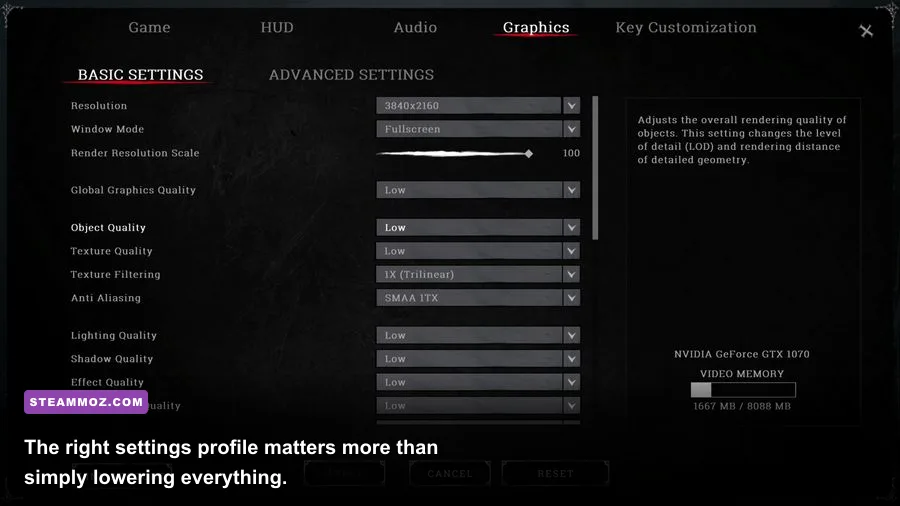
Hunt is unusually sensitive to frame pacing. A system showing 100 FPS can still feel awful if it swings between 100 and 45 while entering a compound. The biggest mistake is lowering every option to Low. Texture quality has a modest frame-rate cost on a card with enough VRAM, while object detail, lighting, shadows, and global illumination can hit the GPU and CPU during a busy fight.
| Setting | Recommended Value | FPS Impact | Visual Trade-Off |
|---|---|---|---|
| Resolution | Native first; 90% render scale if needed | Very high | Lower scale softens distant hunters and iron sights |
| Object Quality | Medium | High | Reduces distant geometry detail and CPU load |
| Texture Quality | High with adequate VRAM; Medium below 6GB | Low to medium | Lower textures make weapons and walls visibly muddy |
| Lighting Quality | Low or Medium | High | Less dramatic shadows and interior contrast |
| Global Illumination | Low | High | Less bounce lighting in buildings and foliage |
| Shadow Quality | Low or Medium | Medium to high | Shadow edges become simpler and less stable |
| Effects Quality | Medium | Medium | Smoke, fire, and explosions lose some detail |
| Anti-Aliasing | SMAA 1X or the game's balanced option | Low to medium | More shimmer, but clearer motion than heavy blur |
| Motion Blur | Off | Small | Sharper target tracking during turns |
| Depth of Field | Off | Small | Removes cinematic background blur |
| V-Sync | Off with VRR; test On without VRR | Variable | Can add latency or prevent tearing |
Start with the game's native resolution and use a frame cap. For a 144Hz monitor, try 120 or 117 FPS; for 120Hz, try 100 or Dani? 90 FPS; for 60Hz, cap at 60 or 58 if your display supports variable refresh. The goal is a ceiling your PC can hold in compounds, not a number it reaches while staring at the sky.
On NVIDIA hardware, test DLSS Quality at native resolution if the option is available, then Balanced only if GPU usage remains near 99 percent and you need more headroom. On AMD cards, FSR 2 Quality is the sensible starting point. Avoid stacking aggressive in-game sharpening with driver-level sharpening; foliage and barbed wire can turn into crawling noise, making enemy movement harder to read. If the image looks smeared, raise render scale before jumping to a heavier anti-aliasing mode.
Players with a CPU bottleneck should lower Object Quality and keep resolution intact. Players with a GPU bottleneck should lower render scale, lighting, global illumination, and shadows. Watch GPU utilization and per-core CPU usage in a controlled match. Lowering resolution will not fix a CPU-limited 45 FPS, and lowering textures will not rescue a GPU struggling with volumetric effects.
Stop stutter and shader-compilation crashes
After a Hunt update, the first launch can rebuild shaders for maps, weapons, weather, and lighting combinations. That process can produce temporary hitching, but repeated hard crashes or freezes every time a specific compound loads point to something more serious. Clear the DirectX cache, verify files, and then let the game sit in the menu for several minutes before entering a live match.
Do not judge the repaired installation from the first five minutes. Load a Training match and visit a dense area such as Lawson Delta's compounds or a large Stillwater Bayou settlement. Fire several weapons, throw a dynamite bundle, ignite an oil puddle, and move between indoor and outdoor lighting. This forces the renderer to encounter effects that a quiet menu never tests.
Keep Windows' page file enabled on an SSD with system-managed size. Hunt can behave badly when physical memory is tight, particularly if browsers, recording software, and launchers remain open. Close Chrome tabs, game capture previews, RGB utilities, and hardware monitoring suites while testing. Do not use aggressive memory cleaners; they often create more hitching by evicting data the game immediately needs again.
Install Hunt on an SSD rather than a nearly full mechanical drive. Leave at least 15 percent free space on the drive, because Windows and the game both need room for temporary shader and streaming data. If stutters happen only when crossing the map, drive throughput or asset streaming is more likely than raw GPU power.
Use the Windows Event Viewer only as a clue, not a diagnosis. A Display driver stopped responding message points toward driver timeout, heat, undervolting, or unstable overclocks. A generic application error after a patch still makes file verification and configuration reset the better first move. Remove GPU and CPU overclocks, including factory-undervolt profiles, before testing stability.
Fix black screens, launch crashes, and closing to desktop
A black screen with sound still playing usually indicates a renderer or display-mode problem. Press Alt+Enter to toggle windowed mode, then set a normal resolution from the menu. If that works, avoid exclusive fullscreen temporarily and use borderless windowed mode while you isolate the cause. Disconnect extra monitors and disable HDR for one test session; mixed refresh rates and HDR transitions can expose driver bugs.
For a crash immediately after pressing Play, reset launch conditions. Remove custom Steam launch options, especially undocumented commands copied from old Hunt guides. Disable third-party injectors, ReShade, frame-generation tools, and aggressive overlay software. Some tools hook the rendering pipeline before anti-cheat finishes initializing, which can look like a random crash even when the underlying game files are healthy.
Check Windows Security if Hunt starts and then silently disappears. Controlled Folder Access or antivirus quarantine can block a freshly updated executable or shader component. Add the official Hunt installation folder as an exclusion only if you trust the files and have verified the installation through Steam. Never disable antivirus protection permanently.
Reinstalling should be the final software step, not the first. Before doing it, back up screenshots and note your sensitivity, field of view, keybinds, and graphics settings. Uninstall Hunt, restart Windows, remove only leftover configuration data you intentionally backed up, then install to an SSD. A reinstall cannot fix an overheating GPU, unstable RAM, or an obsolete driver, so use hardware monitoring if the same crash returns on a clean client.
For laptops, force Hunt to use the discrete GPU in Windows Graphics settings and connect the charger. Set the power plan to Balanced or High Performance while testing, but don't expect a power mode to create performance that the mobile GPU doesn't have. Also check temperatures: sustained GPU temperatures in the upper 80s Celsius or CPU thermal throttling can explain crashes that appear only during long Bounty Hunt sessions.
Hardware targets and a sensible upgrade path
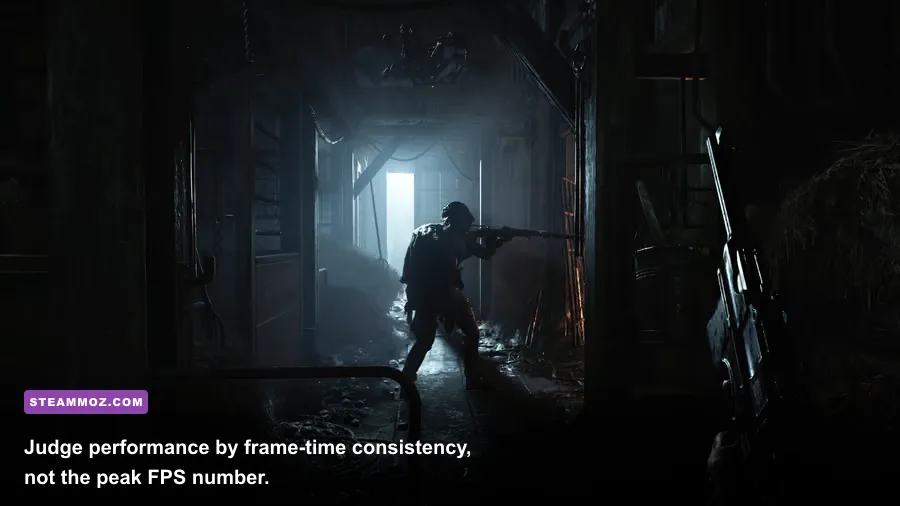
Hunt: Showdown 1896 is much less forgiving than the older Hunt client because its newer renderer and visual systems ask more from both CPU and GPU. Match your upgrade to the bottleneck. A stronger graphics card helps at native 1440p, but it will not fix a weak four-core processor that collapses when a compound fills with AI, effects, and multiple hunters.
| Component | Playable Baseline | Recommended for Stable 60 FPS | Pro-Tuned 120 FPS Target |
|---|---|---|---|
| CPU | Modern six-thread processor | Six-core Ryzen 5 or Core i5 class CPU | Recent six-core or eight-core CPU with strong single-thread speed |
| GPU | GTX 1650 Super or RX 5500 XT class | RTX 2060 or RX 6600 class | RTX 3060 Ti, RTX 4060 Ti, RX 6700 XT class or better |
| Memory | 12GB RAM | 16GB dual-channel RAM | 16GB to 32GB dual-channel RAM |
| Storage | SSD strongly preferred | NVMe SSD with free space | NVMe SSD and clean background workload |
| Operating System | 64-bit Windows 10 | Updated 64-bit Windows 10 or 11 | Updated Windows with current chipset and GPU drivers |
These are practical tiers, not guarantees. Hunt's real performance depends on resolution, map conditions, weather, background applications, driver version, and whether the processor is thermal throttling. The official Steam listing remains the authority for published requirements, while real-world frame-rate targets should be treated as a tuning goal.
Dual-channel memory is an underrated fix. One 16GB stick can leave a capable GPU waiting on memory bandwidth, producing ugly one-percent lows. Enable the motherboard's XMP or EXPO profile only after confirming that the system is stable. If crashes began after enabling a memory profile, return to default settings before blaming The Prodigal Daughter.
Use an FPS and frame-time overlay for diagnosis, but turn it off for the final competitive test if it distracts you. A stable 75 FPS with clean frame times feels better than an unstable 110 FPS that drops during a gunfight. Hunt is a sound-and-sight game; consistent camera movement helps you read footsteps, muzzle flashes, and silhouette movement far more than a flashy peak number.
Final checklist for The Prodigal Daughter
Here is the short version to keep beside your PC. Verify Hunt's files, clear the DirectX shader cache, update or clean-install the GPU driver, reset the local configuration, and disable all overlays. Use DirectX 12 with a native or modestly reduced resolution, Object Quality on Medium, Lighting and Global Illumination on Low, Motion Blur and Depth of Field off, and a frame cap your system can actually sustain.
Then test in Training mode before risking a hunter. Walk through a dense compound, trigger fire and explosive effects, swap between weapons, and play for at least 15 minutes. If the game stays stable there but crashes in live matches, record the map, weather, compound, weapon, and whether the crash happened during a kill, banish, extraction, or menu transition. That detail is much more useful to Crytek support than simply reporting low FPS.
If you're troubleshooting another demanding PC release, Steamoz's Dungeons 3 crash and low-FPS fixes, Food Truck Simulator stutter guide, and Everspace performance settings cover the same useful diagnostic principles. For graphics tuning, the Hacknet FPS settings guide is also a handy reference for separating image quality from frame-time problems.
The Prodigal Daughter deserves to be experienced in a stable client, not through a slideshow of hitching and crash reports. Repair the data first, tune the settings around your actual bottleneck, and measure one change at a time. Once Hunt holds its frame-time floor through a crowded compound, the bayou's tension comes back instantly—and that is the performance win that matters.