If Just Cause 4: Reloaded is crashing or crawling below playable frame rates on PC, start with a clean driver install, verify the Steam files, disable overlays, and use a performance-focused graphics profile. The biggest wins usually come from lowering screen-space reflections, shadows, water quality, and level of detail—not texture quality. After that, cap the game to a frame rate your system can hold consistently, because a locked 60 fps feels far better than swings between 45 and 90.
Reloaded is essentially the complete PC package: the base game plus its extra content, including the Danger Rising, Dare Devils of Destruction, and Golden Gear packs. That means the troubleshooting is the same as standard Just Cause 4, but a fresh installation can still inherit broken files, old shader caches, or aggressive overlay hooks. Work through the fixes below in order instead of changing ten settings at once.

Check your PC before changing settings
Just Cause 4 is unusually sensitive to busy scenes. Rico Rodriguez can be flying over a settlement while physics objects, vehicles, weather effects, explosions, and enemy AI all load at once. A PC that handles an empty hillside at 80 fps may dip hard during a military-base assault. Before blaming the game, compare your machine with the published requirements on the official Steam listing.
| Component | Minimum target | Recommended target | Practical 2026 advice |
|---|---|---|---|
| Processor | Intel Core i5-2400 or AMD FX-6300 | Intel Core i7-4770 or AMD Ryzen 5 1600 | A modern six-core CPU helps during explosions and dense settlements |
| Memory | 8 GB RAM | 16 GB RAM | 16 GB reduces streaming pressure and background-app stutter |
| Graphics card | GeForce GTX 760 or Radeon R9 270 | GeForce GTX 1070 or Radeon RX Vega 56 | Use a current card with updated drivers and adequate VRAM |
| Storage | DirectX-compatible hard drive | SSD recommended | An SSD improves asset streaming and reduces traversal hitching |
| Operating system | 64-bit Windows | 64-bit Windows | Install pending Windows and chipset updates before testing |
Keep at least 15–20 GB free on the game drive, close browser tabs and recording tools, and check whether the game is installed on a nearly full hard drive. If your GPU has 4 GB of VRAM or less, avoid maxing textures and terrain-related settings at 1440p or 4K. Texture quality is not usually the first frame-rate killer, but exceeding available VRAM can cause hitching that looks like a crash.
For laptop players, force the game to use the dedicated GPU in Windows Settings under System > Display > Graphics. Select the Just Cause 4 executable, choose High performance, and play while plugged in. This simple step fixes the classic “the game runs, but performance is awful” problem on hybrid Intel/Nvidia and Intel/AMD systems.
🎮 Just Cause 4: Reloaded
Looking to experience this game? Grab your digital key directly on our store for $5.99.
View on Steammoz Store →Fix crashes before chasing higher FPS

First, open Steam, right-click Just Cause 4, choose Properties, open Installed Files, and select Verify integrity of game files. Let the process finish completely. Reloaded includes additional content, so a damaged archive or interrupted update can crash when the game tries to load a specific mission, vehicle, or DLC asset.
Next, update your graphics driver from Nvidia or AMD. Choose the clean-install option if your driver installer offers it. Avoid testing with an overclock at this stage: Just Cause 4’s large streaming loads can reveal instability that smaller games never trigger.
Remove the common overlay conflicts
Disable Steam Overlay, Discord Overlay, Xbox Game Bar, Nvidia ShadowPlay or AMD recording, MSI Afterburner’s on-screen display, and any third-party reshade injector. You don’t need to uninstall them; turn them off temporarily and launch again. If the crash disappears, re-enable one service at a time until you find the offender.
Also turn off experimental features such as Nvidia Freestyle, Radeon Enhanced Sync, forced sharpening, and driver-level anti-aliasing. Use the game’s own settings first. If the game crashes immediately after changing resolution or fullscreen mode, reset the graphics configuration through Steam’s launch or local configuration tools rather than repeatedly launching into the same broken state. Don’t download random “fix” DLL files from unofficial sites.
For repeat crashes after an update, let Steam redownload the game’s latest files, reboot Windows, and test with a fresh graphics driver shader cache. On Nvidia hardware, the cache can be cleared from the Nvidia Control Panel’s shader-cache controls; AMD users can use the Radeon software reset option. The first launch after clearing may stutter while shaders rebuild, so give it a few minutes before judging the result.
If you see a crash only when using frame-generation, injectors, or custom reshade presets, remove those tools entirely. Just Cause 4 does not need unofficial enhancements to run well, and extra layers make it harder to tell whether the original executable or the mod stack is failing. Our related PC crashing checklist covers the same clean-testing logic for other Steam games.
Use this graphics profile for stable FPS
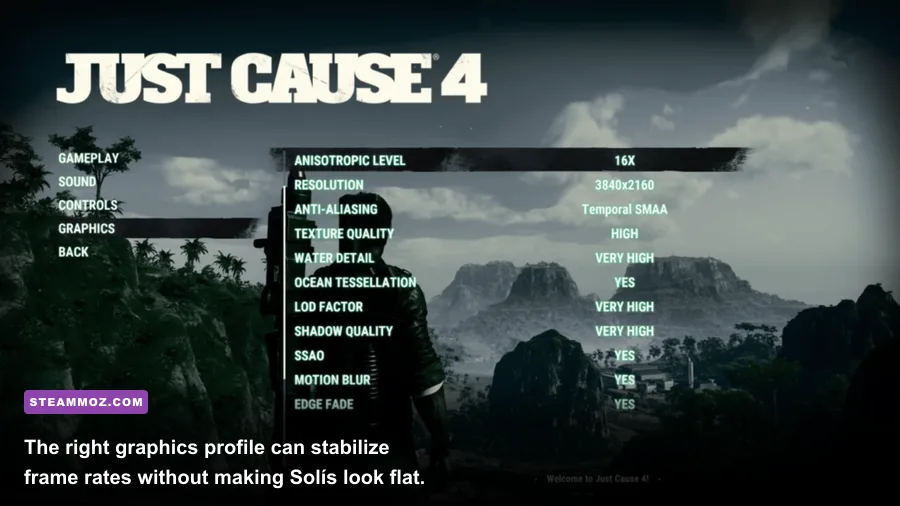
Start at 1920x1080, select exclusive fullscreen if available, and set a cap of 60 fps. If your PC cannot hold 60 during combat, try a locked 45 or 30 rather than leaving the frame rate unlimited. A consistent frame time matters more here than a high number on an empty road.
| Setting | Recommended value | FPS impact | Visual trade-off |
|---|---|---|---|
| Resolution | Native 1080p | Very high | Lower only after reducing heavy effects |
| Texture quality | High, or Medium with 4 GB VRAM | Low to medium | Mostly affects surface detail and VRAM use |
| Shadow quality | Medium | High | Less contact-shadow detail around buildings and vehicles |
| Water quality | Medium | Medium to high | Reflections and ocean detail become simpler |
| Screen-space reflections | Low or Medium | High | Wet roads and shiny surfaces lose some reflections |
| Level of detail | Medium | High on CPU-limited systems | Objects and foliage simplify sooner at distance |
| Anti-aliasing | Medium | Medium | Some distant shimmer, but much cheaper than max settings |
| Ambient occlusion | Medium | Medium | Reduced depth in corners and under vehicles |
| Motion blur | Off | Small | Sharper camera movement and easier performance testing |
| Anisotropic filtering | 8x or 16x | Low | Keeps roads and ground textures sharp at angles |
Shadow quality and level of detail are the first switches to test when the GPU usage is low but the frame rate still collapses. That usually points to a CPU or streaming bottleneck rather than a lack of shader power. If GPU usage sits near 99% and lowering resolution immediately helps, reduce screen-space reflections, water, anti-aliasing, and shadows.
Keep anisotropic filtering relatively high because it costs little on modern graphics cards. Conversely, don’t assume textures are the culprit just because they are the most visible option. Dropping textures from Ultra to Medium may make Solís look worse while barely changing the average FPS. For more setting-by-setting tuning ideas, see Steamoz’s graphics settings performance guide and stutter reduction advice.
Stop stutters in cities, storms, and explosions
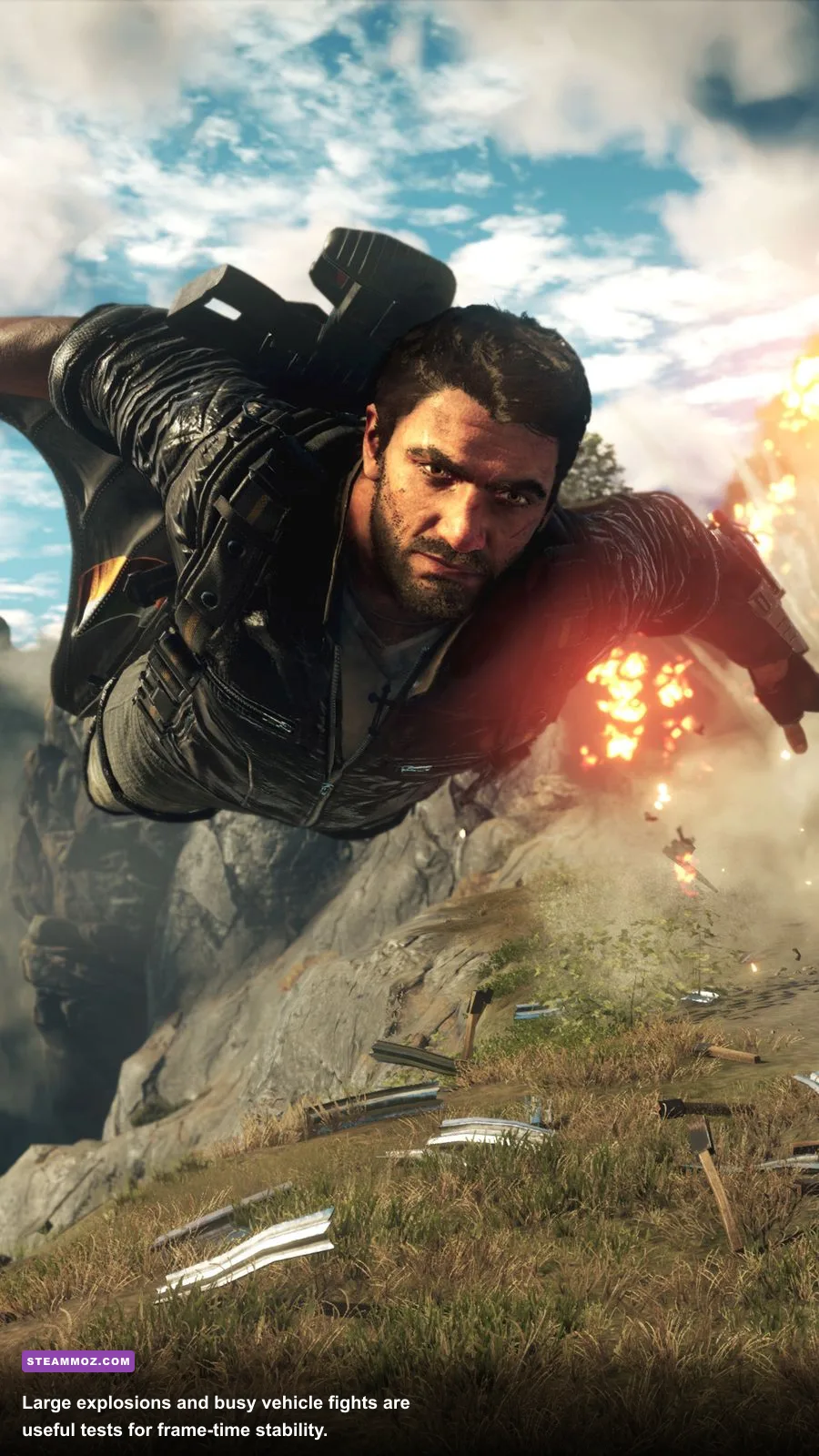
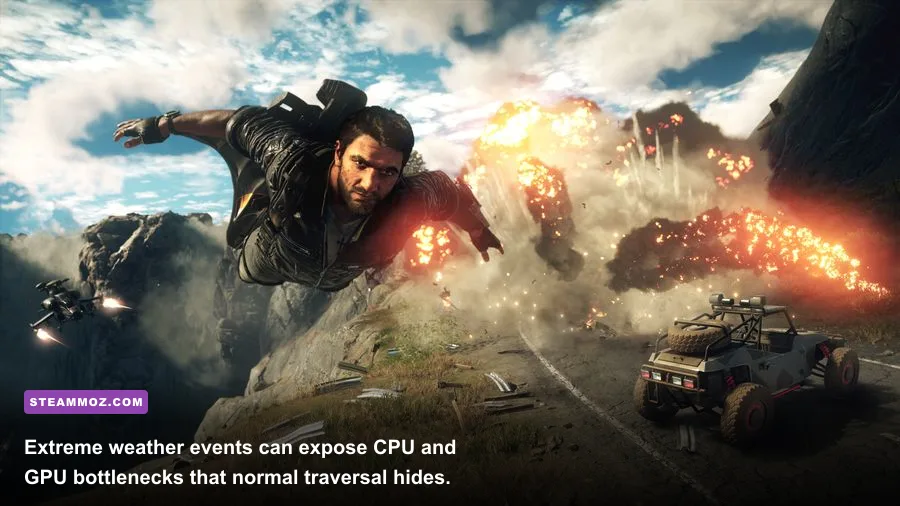
Just Cause 4’s worst dips happen during streaming-heavy traversal, not quiet firefights. Flying with the wingsuit over Panau-like open terrain in Solís, crossing a dense settlement, or triggering a tornado forces the engine to stream geometry while simulating physics and effects. That’s why a benchmark run in an empty field can look perfect while a base assault feels rough.
Test performance in the same repeatable situation: drive through a settlement, attack a military checkpoint, then trigger a few explosions. Watch frame time rather than average FPS with a tool such as MSI Afterburner, but disable its overlay afterward if it causes instability. A 16.6 ms frame time equals 60 fps; spikes to 33 ms or higher are the hitch you feel.
If stutter happens every time you enter a new area, move the game to an SSD, close disk-heavy applications, and leave the Windows page file system-managed. Don’t disable the page file to chase a tiny memory gain. Just Cause 4 can stream assets aggressively, and a restricted virtual-memory setup can turn a hitch into an outright crash.
Use Windows power mode set to Best performance while plugged in. On desktop Nvidia systems, leave Power management mode at its default first; if clocks repeatedly drop during gameplay, test Prefer maximum performance for the game profile. AMD users should avoid stacking Chill, frame caps, Enhanced Sync, and third-party limiters. Pick one limiter and keep the rest neutral.
Find the right cap for your hardware
Once crashes are gone, tune for consistency. A 60 Hz display pairs naturally with a 60 fps cap, while a 120 or 144 Hz monitor may benefit from a stable 72 or 90 if your system can sustain it. If the GPU is working at full load, lower visual settings. If the GPU is underused during big explosions, lower level of detail and shadows, close background tasks, and check CPU temperatures and clock speeds.
| Target profile | Resolution | Key settings | Best use |
|---|---|---|---|
| Entry-level | 1080p, 30 fps cap | Medium textures, Low shadows, Low reflections, Medium LOD | GTX 760/R9 270-class hardware or older quad-core CPUs |
| Balanced | 1080p, 60 fps cap | High textures, Medium shadows, Medium reflections, Medium LOD | Modern six-core CPU with a GTX 1060/RX 580-class GPU or better |
| High-refresh | 1080p or 1440p, 72–90 fps target | High textures, Medium effects, reduced shadows and LOD | Modern midrange GPU with strong single-thread performance |
| Visual-first | 1440p, 30–60 fps | High textures, High water, Medium reflections, capped frame rate | 8 GB-plus VRAM and a fast six-core or eight-core CPU |
Finally, change one setting at a time and replay the same route. If the problem returns after a new driver, update, or DLC installation, verify files again and remove overlays before making deeper changes. The goal isn’t a benchmark screenshot; it’s a stable frame time while Rico is grappling between vehicles, storms are tearing across Solís, and half a military base is coming apart.
For a broader comparison of how PC games behave under stress, Steamoz’s Hunt: Showdown PC fixes and Intergalactic Fishing performance guide are useful follow-ups. With verified files, clean drivers, disabled overlays, and the balanced profile above, Just Cause 4: Reloaded should stop crashing and deliver a much steadier ride through Solís.