To fix King's Bounty II - Lord's Edition crashing and low FPS on PC, start by verifying the Steam installation, clean-installing a current GPU driver, disabling overlays, and lowering shadows, foliage, effects, and post-processing before touching texture quality. The Lord's Edition uses the same core PC build as the standard release, so these fixes target the game executable, Unreal Engine 4 shader stutter, driver conflicts, and settings that punish mid-range GPUs.
There is an important distinction here: a game that crashes to desktop needs a stability fix, while a game that feels sluggish during a large army encounter needs a frame-time fix. King's Bounty II can suffer from both. Exploration streams a surprisingly large 3D world, while turn-based battles suddenly fill the screen with units, particles, shadows, and animation effects. Treating every problem as simply a graphics-setting issue wastes time.
Before changing anything, make a manual save in a quiet outdoor area and note your average FPS, GPU usage, CPU usage, and whether the problem appears during loading, exploration, dialogue, or combat. If your GPU is at 98-100 percent, reduce rendering load. If the GPU sits below 80 percent while FPS collapses, investigate CPU limits, shader compilation, background software, or a frame cap.
Check Your PC Before Chasing Advanced Fixes
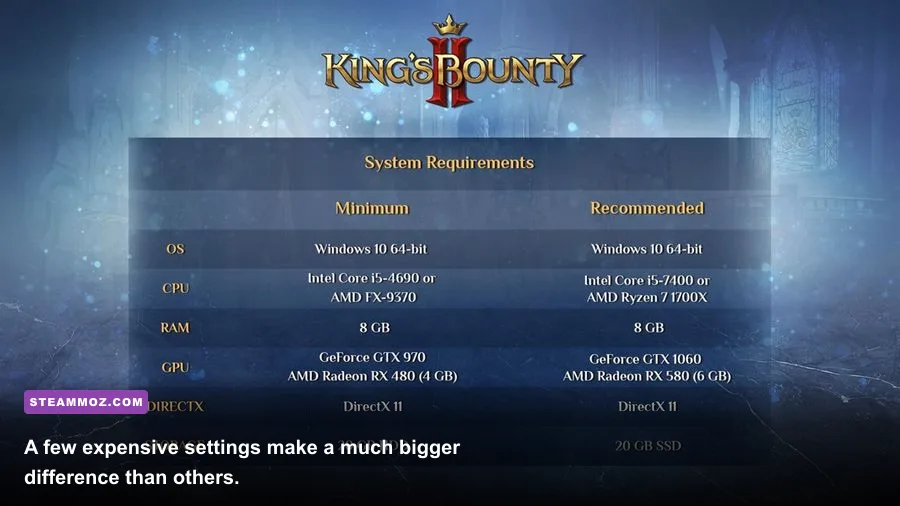
King's Bounty II is not a lightweight strategy game. It looks like an RPG during exploration, but its open environments and dense battle scenes behave more like a conventional Unreal Engine adventure game. The official Steam listing provides the baseline requirements, and the practical recommendation is to aim above the minimum if you want a locked 60 FPS at 1080p.
| Component | Minimum listed target | Recommended practical target | What it means |
|---|---|---|---|
| Operating system | 64-bit Windows 10 | Updated 64-bit Windows 10 or 11 | Keep Windows and DirectX components current. |
| Processor | Intel Core i5-4690 or AMD Ryzen 5 1500X | Intel Core i5-8400 or AMD Ryzen 5 2600 | CPU speed matters during battles and world streaming. |
| Memory | 8 GB RAM | 16 GB RAM | 16 GB reduces paging and background-load hitching. |
| Graphics card | GeForce GTX 970 or Radeon R9 380 | GeForce GTX 1060 or Radeon RX 580 | Use 1080p medium settings on the minimum class. |
| Storage | At least the free space shown by Steam | SSD with comfortable free space | An SSD will not double FPS, but it improves streaming and load consistency. |
The minimum GPU specification is a floor, not a promise of a steady 60 FPS. A GTX 970-class card can run the game, but large encounters may require medium shadows and a 30 or 45 FPS cap. A GTX 1060 6GB or RX 580 is a more sensible 1080p starting point, though modern cards still benefit from reducing foliage and post-processing.
Rule out common hardware traps
Install the game on an SSD if possible, especially if stuttering occurs while moving between regions. Leave at least 10-15 percent free space on the drive so Windows and the shader cache are not fighting for room. On laptops, connect the charger and select the dedicated NVIDIA or AMD GPU in Windows Graphics settings. A surprisingly common “low FPS” report comes from the game launching on integrated graphics.
Monitor temperatures with MSI Afterburner or your preferred tool. If the GPU or CPU repeatedly reaches its thermal limit, clocks can drop mid-battle even when the average temperature looks acceptable. Close browsers, RGB utilities, recording tools, and aggressive antivirus scans for the first test. For broader PC troubleshooting, the workflow in our Ghost Recon Breakpoint performance guide is also useful.

🎮 King's Bounty II - Lord's Edition
Looking to experience this game? Grab your digital key directly on our store for $4.49.
View on Steammoz Store →Stop Crashes With a Clean Steam and Driver Pass
Do these steps in order, restarting the game after each major change. That matters because piling on ten fixes at once makes it impossible to identify the real culprit.
1. Verify the Lord's Edition installation
In Steam, right-click King's Bounty II, choose Properties, open Installed Files, and select Verify integrity of game files. Steam will replace damaged or incomplete files. This is particularly worthwhile after a failed update, a forced shutdown, or moving the game between drives. Do not launch the game until Steam reports that the check has completed.
2. Update the game and use a clean GPU driver install
Install the current stable driver for your GeForce or Radeon card. If the game began crashing immediately after a driver update, use the installer’s clean-install option or remove the driver with Display Driver Uninstaller in Windows Safe Mode, then install a known-stable package. Avoid beta drivers while diagnosing crashes.
Afterward, open the GPU control panel and create a profile for the game. Keep global overrides off at first. Forced sharpening, unusual anti-aliasing modes, frame-generation tools, and third-party color injectors can create conflicts that the game cannot report clearly. If you use ReShade, Special K, or an FPS overlay, remove it temporarily rather than merely toggling it off.
3. Disable overlays and hook-based utilities
Turn off the Steam Overlay from the game's Properties page for one test session. Also disable Discord Overlay, Xbox Game Bar, NVIDIA App or GeForce Experience overlay, AMD overlay, MSI Afterburner’s on-screen display, and motherboard monitoring utilities. These tools inject themselves into the rendering process, and a crash during a loading transition often points to an overlay conflict rather than broken save data.
4. Reset damaged configuration files
If the game crashes before reaching the main menu or crashes every time you change a particular option, back up your saves first. Look in the game's local Windows user data folders for its configuration and saved-game directory, then rename the configuration folder rather than deleting it. Steam Cloud can restore saves, but configuration files are best rebuilt cleanly. If you cannot identify the folder, use Windows search for files modified at the time of the crash and back up anything containing save data before testing.
5. Test permissions and compatibility without overusing them
Run Steam normally first. If the game fails to write settings, test the executable with Run as administrator. Do not permanently enable random compatibility modes; Windows 8 compatibility settings and forced fullscreen optimizations can make modern rendering behavior worse. Only keep a compatibility change if it fixes a repeatable problem.
For official updates and support links, check the King's Bounty II Steam page and the publisher information on the 1C Publishing website. If crashes remain after verification and a clean driver, check Windows Event Viewer for the faulting module. A display-driver DLL suggests the graphics stack; an unrelated application DLL points toward background software or corrupted Windows components.
Use This Graphics Profile for Higher, Smoother FPS
Do not begin by dropping every option to Low. Textures usually have a modest FPS cost but a huge effect on visual clarity, while shadows and foliage can hammer both GPU time and frame-time consistency. Change one setting at a time, then test the same outdoor route and a busy battle. A single average benchmark is not enough because the worst drops happen during streaming and army animations.
| Setting | Recommended value | FPS impact | Visual trade-off |
|---|---|---|---|
| Resolution | Native 1080p; 900p or 720p for weak GPUs | Very high | Lowering resolution is the fastest GPU fix, but it softens the entire image. |
| Resolution scale | 100%; test 85-90% if available | Very high | Often cleaner than dropping the desktop resolution. |
| Textures | High with 6-8 GB VRAM; Medium with 4 GB | Low to medium | Lower only when VRAM use causes hitching or texture pop-in. |
| Shadows | Medium | High | One of the best cuts for crowded combat scenes. |
| Foliage and vegetation | Medium | High | Reduces grass and distant plant density in open areas. |
| Effects | Medium | Medium to high | Controls spell particles and battle visual clutter. |
| Post-processing | Low or Medium | Medium | Reduces blur and image-processing cost; Low is often sharper. |
| Anti-aliasing | Medium or the lowest acceptable option | Medium | Lower values may show shimmering on foliage and armor edges. |
| Motion blur | Off | Small | Improves clarity while turning and removes a distracting smear. |
| VSync | Off for testing; cap externally if needed | Variable | Prevents tearing but can add latency or worsen uneven frame pacing. |
Three useful profiles
1080p balanced: use High textures, Medium shadows, Medium foliage, Medium effects, Low or Medium post-processing, motion blur off, and VSync off while testing. This is the right starting point for a GTX 1060, RX 580, or newer mainstream card. Cap at 60 FPS only after confirming that the system can hold close to 60 in a large battle.
1080p performance: keep textures at Medium or High depending on VRAM, set shadows and foliage to Low, effects to Medium, post-processing to Low, and resolution scale to 90 percent. A stable 45 FPS can feel better than an unstable 60 that repeatedly falls into the 30s during combat. On a 60 Hz display, try a 30 FPS cap if frametime spikes remain severe.
1440p quality: use High textures, Medium shadows and foliage, Medium effects, and native resolution only if the GPU has enough headroom. A GTX 1060-class card is not a comfortable 1440p target here. Reduce resolution scale before sacrificing texture quality, then watch VRAM usage for stutter.
For more examples of prioritizing image quality over meaningless slider chasing, compare our Deadfall Adventures graphics settings guide. The same principle applies: preserve textures, cut expensive lighting and shadows first, and judge performance by frame-time consistency.
Fix Stutter During Exploration and Army Battles
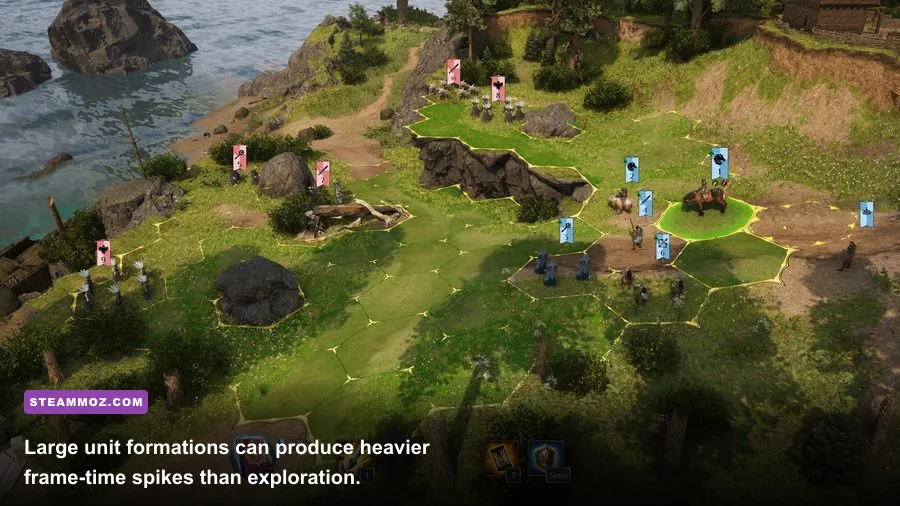
Low FPS in King's Bounty II is often really inconsistent frame pacing. The counter may show 50 FPS, but a series of 100-millisecond spikes will feel worse than a steady 40. Exploration can trigger asset streaming as you cross the Nostria map, while combat adds unit animations, spell effects, shadows, and camera movement. Test both scenarios separately.
Use a sensible frame cap
First test uncapped performance. If the GPU runs at full load and the frame rate jumps between 45 and 75, cap it below the lowest sustained value: 45, 40, or 30 FPS are reasonable targets. RTSS usually delivers a steadier cap than an in-game limiter. With G-Sync or FreeSync, set the cap a few frames below the monitor refresh rate and keep VSync configured consistently rather than mixing several limiters.
Let shader compilation finish
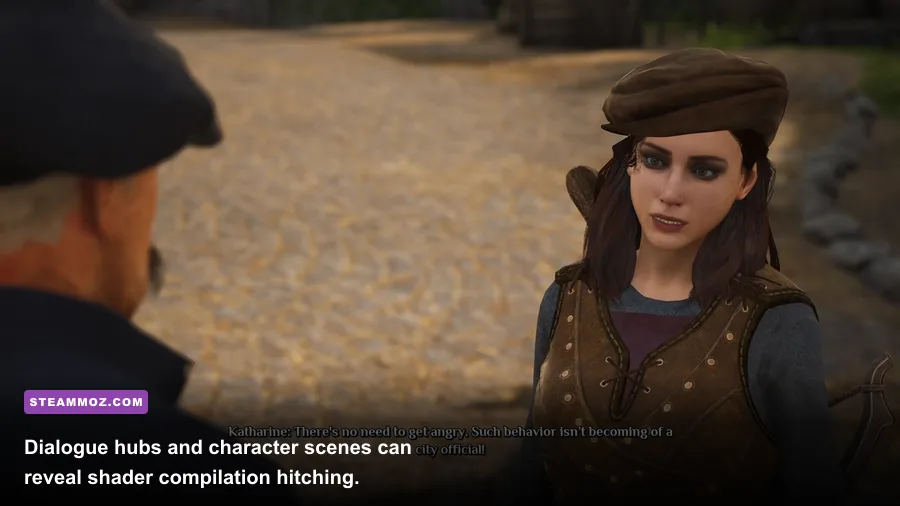
After a driver change, a game update, or a configuration reset, the first visit to a new area or the first use of certain effects may hitch while shaders compile. Do not repeatedly Alt-Tab, restart, or judge performance from the first minute. Load a save, walk through the same route twice, and fight a short battle. If the second pass is dramatically smoother, shader warming was part of the problem.
Separate CPU and GPU limits
If lowering resolution barely changes FPS, you are probably CPU-limited or blocked by streaming. Lower effects and shadows, close background tasks, select the Windows High performance power mode, and avoid recording at a high bitrate. If lowering resolution creates a major improvement and GPU usage remains near 100 percent, keep the lower scale or reduce shadows and foliage.
Do not expect an SSD to repair a CPU bottleneck, and do not expect a faster processor to solve VRAM overflow. Texture quality that exceeds available VRAM can cause ugly hitching even when average FPS looks acceptable. On a 4 GB card, Medium textures are usually safer. On a 6 GB or 8 GB card, High textures are reasonable unless another application is consuming GPU memory.
Also disable Windows background capture, Steam recording, and instant replay while testing. Those features can be perfectly harmless on a powerful desktop, but they add encoding and memory pressure to a game already streaming a large world. Our Dungeon Tycoon stutter troubleshooting guide covers the same useful distinction between average FPS and frame-time spikes.
Last-Resort Fixes for Persistent Lord’s Edition Problems
If the game still crashes after the standard pass, stop changing random graphics options and isolate the failure. Reproduce it with overlays disabled, a clean driver, default GPU clocks, and a fresh configuration. Record the exact trigger: launching a save, entering a named region, opening the map, starting a battle, or changing resolution. Reproducible reports are far more useful than a general claim that the game is unstable.
Return hardware to stock
Disable GPU overclocks, undervolts, CPU boost experiments, and aggressive RAM profiles temporarily. A system can pass a synthetic benchmark while crashing in an Unreal Engine game because shader compilation and asset streaming create a different workload. If stock settings fix the crash, restore changes one at a time and keep the stable profile.
Repair Windows dependencies
Install current Microsoft Visual C++ Redistributable packages from Microsoft’s official download page and run Windows Update. Use sfc /scannow from an elevated Command Prompt, followed by DISM /Online /Cleanup-Image /RestoreHealth if Windows reports corruption. These commands are not magic FPS boosters, but they can repair missing system components behind unexplained launch failures.
For official platform guidance, use Steam Support rather than downloading mystery DLL files from third-party sites. Never replace a missing DLL with a file from an unofficial download page; that can introduce malware and make the original problem harder to diagnose.
Check saves without sacrificing them
If only one save crashes while a new game works, the save may be damaged or the crash may be tied to a specific streamed location. Back up the entire save folder, disable Steam Cloud temporarily, and test an earlier manual save. Keep multiple rotating saves instead of overwriting one slot, particularly before entering a new story region or major battle.
Finally, reinstall only after verification, driver cleanup, configuration reset, and overlay testing have failed. Uninstalling without removing broken configuration data simply recreates the same problem. After reinstalling, launch once with default settings, complete a short test route, then apply the balanced profile above. That clean baseline is the fastest way to tell whether King's Bounty II - Lord's Edition is finally stable on your PC.