If Ghost Recon Breakpoint is crashing or crawling at low FPS on your PC, start with three fixes: verify the game files, disable Ubisoft Connect and third-party overlays, then test Vulkan with a sensible performance preset. After that, update your GPU driver, remove corrupted shader caches, and cap the frame rate below your monitor’s refresh rate. These steps solve most repeat crashes and make Breakpoint’s demanding open world far steadier without turning it into a blurry mess.
Check Your PC Before Chasing Settings
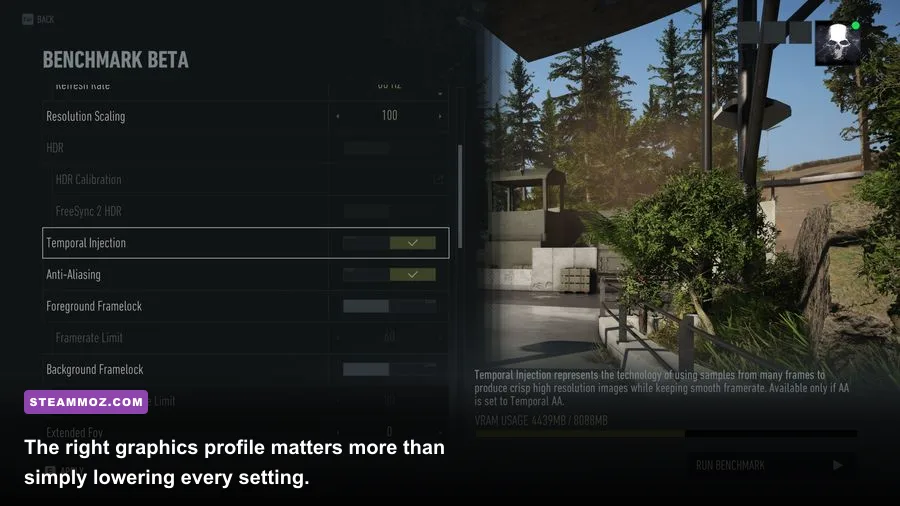
Breakpoint is heavier than its tactical-shooter presentation suggests. Aurora streams large terrain sections, vegetation, AI patrols, vehicles, volumetric effects, and base interiors while you move quickly across the map. That combination can hammer both the GPU and CPU, especially around Erewhon, Skell Technology facilities, and crowded enemy outposts.
Ubisoft lists an Intel Core i5-4460 or AMD Ryzen 5 1400, 8GB of RAM, and a GeForce GTX 960 4GB or Radeon R9 280X as the minimum class of hardware. The recommended target is closer to an Intel Core i7-6700 or Ryzen 5 1600, 8GB of RAM, and a GTX 1060 6GB or RX 480 8GB. Those specifications are aimed at roughly 1080p play, not a guaranteed locked 60 FPS at Ultra.
| Target | CPU and RAM | GPU | Practical Breakpoint Result |
|---|---|---|---|
| Minimum | i5-4460 / Ryzen 5 1400, 8GB | GTX 960 4GB / R9 280X | 1080p Low, usually near 30 FPS |
| Recommended | i7-6700 / Ryzen 5 1600, 8GB | GTX 1060 6GB / RX 480 8GB | 1080p Medium to High, around 45-60 FPS |
| Comfortable 60 FPS | Modern six-core CPU, 16GB | RTX 2060 / RX 5600 XT or better | 1080p High with a stable cap |
| 1440p target | Modern six-core CPU, 16GB | RTX 3060 Ti / RX 6700 XT or better | 1440p High, usually 60 FPS with tuning |
Eight gigabytes of RAM is technically enough, but 16GB is the safer choice today. If memory usage sits above 90 percent while Breakpoint is running, Windows may start paging to disk. That feels like random hitching, delayed texture loading, or a crash when you fast-travel and the game loads another region.
For more PC performance context, compare the hardware demands in our Hunt: Showdown PC specs guide and the sharper-settings advice in our Deadfall Adventures settings guide.

🎮 Breakpoint
Looking to experience this game? Grab your digital key directly on our store for $0.99.
View on Steammoz Store →Fix Breakpoint Crashes Before Changing Graphics
1. Verify the installation
Open Ubisoft Connect, select Games, right-click Ghost Recon Breakpoint, choose Properties, and select Verify files. If you own the Steam version, use Steam’s Properties, Installed Files, and Verify integrity of game files first. A damaged .exe, missing texture archive, or broken BattlEye file can cause crashes before the main menu or during loading.
Restart Ubisoft Connect after the scan finishes. Don’t launch the game through an old desktop shortcut if the launcher has just repaired files; start it from the current Ubisoft Connect entry so the authentication and BattlEye services initialize correctly.
2. Disable overlays and monitoring hooks
Turn off Ubisoft Connect’s in-game overlay, Steam Overlay, Discord Overlay, Xbox Game Bar, NVIDIA ShadowPlay, AMD ReLive, and MSI Afterburner’s RivaTuner overlay for one test session. Breakpoint is particularly sensitive to multiple programs hooking the renderer at once. If the crashes disappear, re-enable those tools individually until you find the offender.
3. Repair BattlEye
Navigate to the Breakpoint installation folder, open the BattlEye folder, and run the BattlEye launcher or install script as administrator. Security software can quarantine the service, producing a launch failure or a crash immediately after connecting to an online session. Add the game folder, Ubisoft Connect, and BattlEye to your security software’s allowed list rather than permanently disabling protection.
4. Clear configuration and shader leftovers
Back up your saves, then close the game and Ubisoft Connect. Corrupted local configuration files can preserve a bad resolution, API choice, or graphics setting even after a driver update. Rename the Breakpoint configuration folder in your Documents directory instead of deleting it outright. The game will create a fresh profile on the next launch.
Also clear your GPU shader cache through NVIDIA App or AMD Software. The first launch afterward may stutter while shaders rebuild, but repeated crashes caused by an incompatible cache should stop. If the game crashes only when loading a specific save, test a different save or a new game to separate profile corruption from system instability.
The official Ghost Recon Breakpoint support page is worth checking for current launcher, BattlEye, and known-issue updates. You can also compare these steps with our BloodRayne 2 PC settings troubleshooting guide.
The Best Breakpoint Settings for Higher FPS
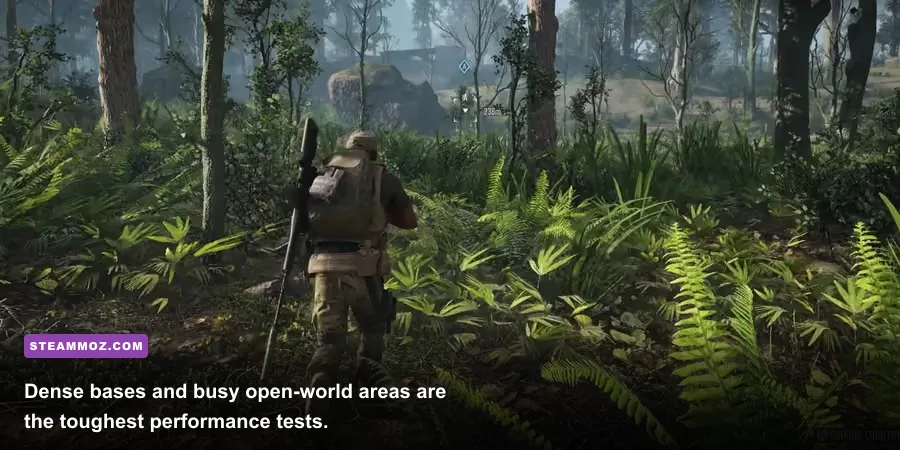
Don’t immediately set every option to Low. Breakpoint’s biggest visual sacrifices come from texture quality, terrain detail, and resolution scaling, while several expensive options can be reduced with barely noticeable image-quality loss. Start at 1080p, use exclusive fullscreen, and test the same route through a busy base for at least two minutes after each change.
| Setting | Recommended Value | FPS Impact | Visual Trade-Off |
|---|---|---|---|
| Resolution | Native 1080p or 1440p | Very high | Lowering it softens the entire image |
| Resolution Scale | 90-100% | High | 90% is a useful emergency boost |
| Temporal Injection | On | Low | Improves reconstruction at reduced scale |
| Volumetric Fog | Medium | High | Less dense mist and god rays |
| Vegetation Quality | Medium | Medium to high | Fewer distant plants and grass details |
| Terrain Quality | Medium | Medium | Less distant ground detail |
| Ambient Occlusion | SSAO or Low | Medium | Shallower contact shadows |
| Screen Space Reflections | Low | Medium | Less accurate water and wet-surface reflection |
| Long Range Shadows | Low | Medium | Fewer far-distance shadows |
| Motion Blur | Off | Small | Cleaner aiming and camera movement |
| Anti-Aliasing | High or medium | Low to medium | Lower values produce more shimmer |
Volumetric Fog is one of the first options to reduce because it affects large screen areas, particularly during storms, dawn, and night missions. Vegetation Quality also matters in Aurora’s forests: dropping it from Very High to Medium can improve minimum FPS without destroying enemy visibility.
Keep textures High if your GPU has 6GB or more of VRAM. Lower textures only when the VRAM meter is full or you see texture pop-in and hitching. Texture quality mostly affects memory capacity rather than raw GPU compute, so lowering it on a card with plenty of VRAM may gain almost nothing.
For NVIDIA cards, test both Vulkan and DirectX 11. Vulkan can deliver smoother frame pacing and better CPU utilization on some systems, while DX11 may be more stable with older drivers, overlays, or certain overclocking tools. There’s no universal winner. Use the API that produces the better 1% lows on your machine, not the higher number in an empty field.
Stop Stutter, Drops, and Unstable Frame Times
A high average FPS can still feel awful if Breakpoint repeatedly falls from 70 to 35 FPS. That usually points to CPU limits, shader compilation, streaming, or background software. Enable the game’s benchmark and use a repeatable test: drive from Erewhon toward a populated enemy camp, then repeat the run after every major change.
Cap the frame rate
If your system jumps between 48 and 75 FPS, a 60 FPS cap may feel smoother than an uncapped average of 62. Use the in-game limiter first. For a 144Hz display, try 72 or 60 FPS if the frame-time graph is erratic. With G-SYNC or FreeSync, cap a few frames below the refresh rate, such as 141 FPS on a 144Hz panel, but only if your PC can actually sustain that number.
Fix CPU-side drops
Watch CPU and GPU utilization with a temporary monitor. If the GPU sits below 90 percent while one or two CPU threads are pinned, lowering resolution won’t help. Reduce terrain, vegetation, shadows, and crowd-heavy settings, close browsers and launchers, and use Windows Game Mode. Avoid aggressive process-priority tweaks; they can make audio, input, or anti-cheat behavior worse.
Remove unstable overclocks
Breakpoint can expose an overclock that appears stable in lighter games. Return the GPU and CPU to stock settings, disable undervolting temporarily, and test again. Also check temperatures: sustained GPU temperatures near its thermal limit can trigger clock reductions that look like unexplained low FPS rather than a clean crash.
Windows 11 users should test Hardware-accelerated GPU scheduling both on and off, restarting after each change. It helps some modern systems but can worsen frame pacing on others. Treat it as a controlled experiment, not a guaranteed boost.
Use a Stable Profile Instead of Chasing Ultra
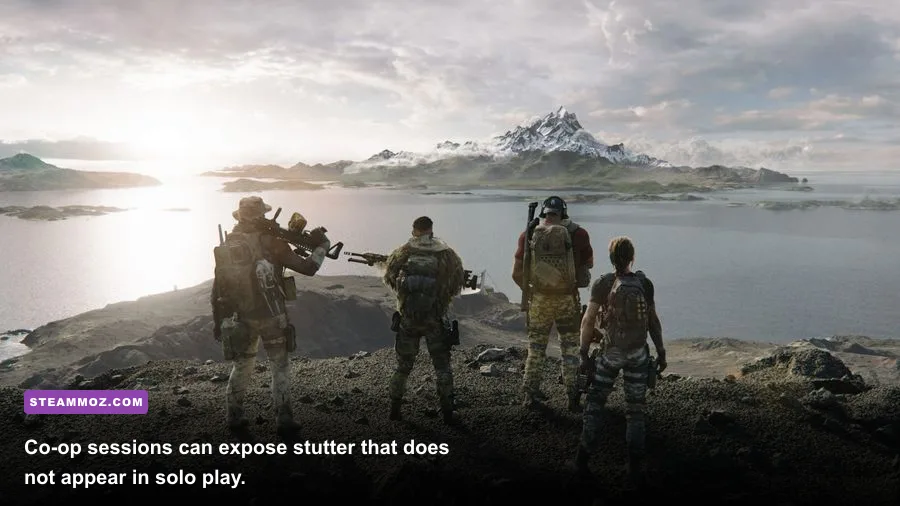
Here are three practical profiles. The Balanced setup is the sweet spot for most GTX 1060, RX 580, RTX 2060, and similarly equipped PCs. The Competitive profile prioritizes consistent aiming, while the Quality profile keeps Aurora looking rich on faster hardware.
| Profile | Resolution and API | Main Settings | Best Use |
|---|---|---|---|
| Competitive | 1080p, Vulkan or DX11 | Medium preset, fog Low, vegetation Medium, scale 90% | Stable 60 FPS and clearer target tracking |
| Balanced | 1080p, API with better 1% lows | High textures, medium terrain, fog Medium, shadows Medium | Most mid-range gaming PCs |
| Quality | 1440p, Vulkan preferred if stable | High textures, terrain High, fog Medium, reflections Medium | RTX 3060 Ti-class hardware and above |
After applying a profile, fully quit and relaunch Breakpoint. Some renderer changes don’t behave consistently until the next boot. Then test solo and co-op separately. Network activity doesn’t directly determine your local FPS, but co-op adds streaming, player animations, and extra AI situations that can expose CPU or memory limits.
Finally, install the latest driver directly from the NVIDIA driver page or AMD driver page, and keep Ubisoft Connect updated. If nothing changes after verification, a clean GPU-driver installation and a fresh Breakpoint configuration folder are the final high-value steps before considering a full reinstall.
Breakpoint doesn’t need to look bad to run well. Keep textures high when VRAM allows it, cut volumetric fog and distant detail first, cap the FPS for clean frame times, and treat Vulkan versus DX11 as a hardware-specific choice. That combination usually turns crashes and choppy patrols into a far more reliable tactical sandbox.