
For the best Everdream Valley graphics settings, start at 1080p with exclusive fullscreen, textures on High, shadows and foliage on Medium, effects on Medium, post-processing on Low, motion blur off, and a capped 60 FPS target. That profile keeps the valley sharp without letting busy farms, forests, and animal-heavy areas turn into a stuttery slideshow. If your PC has a GTX 1060-class GPU or better, it is the sweet spot; weaker hardware should use 900p or 720p before gutting texture quality.
Everdream Valley looks gentle, but its open outdoor spaces are not especially light on a PC. The game constantly draws grass, trees, fences, crops, animals, shadows, and distant scenery. That makes the right settings more important than simply selecting a preset and hoping for the best. The official Everdream Valley Steam page lists 8GB of RAM and a GTX 1060 or Radeon RX 580 as the minimum target, while recommended hardware moves to 16GB RAM and a significantly faster graphics card.
The best baseline profile for maximum FPS
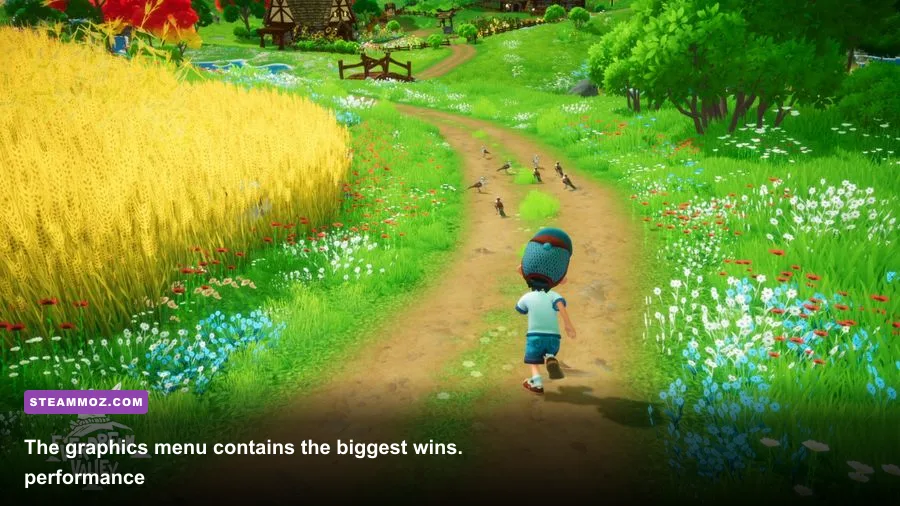
Begin with a clean baseline rather than changing every option at once. Set the display to your monitor’s native resolution, choose fullscreen, disable VSync if you are using a variable-refresh monitor, and cap the frame rate to a number your PC can actually hold. A stable 60 FPS feels much better than an unlocked counter bouncing between 47 and 78.
| Setting | Recommended Value | FPS Impact | Visual Trade-Off |
|---|---|---|---|
| Display Mode | Fullscreen | Low | Usually improves frame consistency and input response |
| Resolution | 1920×1080 | Very High | Drop to 1600×900 or 1280×720 only when GPU-limited |
| VSync | Off with VRR; On without VRR | Low | Off reduces latency, On prevents tearing |
| Textures | High with 6GB VRAM; Medium with 4GB | Low to Medium | High keeps barns, animals, and terrain sharper |
| Shadows | Medium | High | Softens shadow detail but preserves the scene’s depth |
| Foliage | Medium | High | Reduces grass and vegetation density at distance |
| Effects | Medium | Medium | Less expensive lighting and environmental effects |
| Post Processing | Low | Medium | Cleaner image with less bloom and cinematic processing |
| Anti-Aliasing | Medium or High | Medium | Lower values can make fences and grass shimmer |
| Motion Blur | Off | Minimal | Sharper camera movement and clearer exploration |
Textures are the setting to protect first. They mostly consume VRAM rather than raw GPU compute, so a 6GB card can normally keep them on High while you lower shadows and foliage. If you see sudden hitching when entering the farm, opening the inventory, or turning toward the barn, test Medium textures. That symptom can indicate VRAM pressure rather than an average-FPS problem.
Resolution is the bluntest performance lever. Lowering 1080p to 900p reduces the number of pixels by roughly 30 percent; moving to 720p cuts the workload dramatically, but the image becomes noticeably soft. Use resolution scaling only after reducing shadows, foliage, and post-processing. For more PC optimization reading, compare our PC fixes for crashes and low FPS.

🎮 Dream
Looking to experience this game? Grab your digital key directly on our store for $14.99.
View on Steammoz Store →Which settings actually cost the most frames?
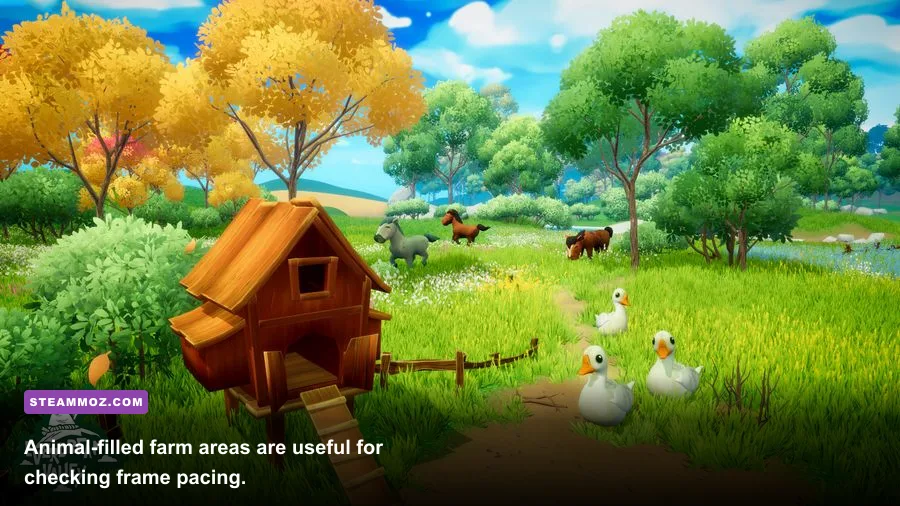
Not every slider deserves equal attention. In Everdream Valley, shadows and foliage are usually the first suspects because they affect a large outdoor area at once. Shadows add extra rendering work around buildings, trees, animals, and the player. Foliage increases the number of visible objects and can also push CPU workload higher when you look across a dense field.
| Setting | What It Changes | Typical Performance Cost | Best Adjustment |
|---|---|---|---|
| Shadows | Shadow resolution, distance, and softness | High, especially outdoors | Use Medium first; Low is a last resort |
| Foliage | Grass density and vegetation visibility | High in fields and forests | Medium gives the best balance |
| View Distance | How far terrain and objects remain detailed | Medium to High | Lower one step if the CPU is struggling |
| Effects | Particles, lighting effects, and environmental visuals | Medium | Medium avoids a flat-looking valley |
| Post Processing | Bloom, depth effects, color processing | Low to Medium | Low is an easy performance win |
| Anti-Aliasing | Edge smoothing on fences, foliage, and geometry | Medium | Keep Medium unless GPU-limited |
| Textures | Surface detail on buildings, animals, and terrain | VRAM-dependent | Lower only when VRAM hitching appears |
View distance deserves a special warning. If the frame rate falls while you are looking across the valley but recovers when facing a wall or entering a small building, the game is likely limited by scene complexity. Lowering the resolution may help, but reducing view distance or foliage will attack the cause more directly. If frame rate remains low even while staring at the ground, you are more likely GPU-limited and should reduce resolution, anti-aliasing, or effects.
Anti-aliasing is a quality-versus-clarity choice. Fences, crop rows, and thin branches can shimmer at Low, particularly during camera movement. Medium is the sensible target. Turn it down only if your GPU cannot maintain the desired frame rate after shadows and foliage are already reduced.
Best profiles for low-end, mid-range, and high-end PCs
The Steam minimum specification is a useful floor, not a guarantee of a locked 60 FPS in every farm scene. Everdream Valley’s busiest moments combine animals, crops, vegetation, and long sightlines, so a sensible profile should target consistency rather than a flattering benchmark in an empty corner of the map.
| Hardware Class | Resolution | Key Settings | Realistic Target |
|---|---|---|---|
| Minimum-class: GTX 1060 / RX 580, 8GB RAM | 1600×900 or 1080p | Textures Medium, shadows Low, foliage Low, effects Low, post-processing Low | 30–60 FPS depending on scene |
| Balanced: GTX 1660 Super / RTX 2060, 16GB RAM | 1920×1080 | Textures High, shadows Medium, foliage Medium, effects Medium, post-processing Low | Locked 60 FPS in most play |
| Strong 1080p: RTX 3060 / RX 6600 XT, 16GB RAM | 1920×1080 | Textures High, shadows High, foliage Medium-High, effects High, post-processing Medium | 60 FPS with headroom |
| High-end: RTX 4070 / RX 7800 XT, 16GB RAM | 2560×1440 | Textures High, shadows High, foliage High, effects High, post-processing Medium | 60 FPS target; test busy farms |
For a low-end laptop, do not immediately select the lowest possible resolution. Try 1600×900 with textures Medium and everything else Low first. That combination often looks considerably better than 720p while retaining a playable target. Cap at 30 FPS if the machine cannot sustain 60; a steady 30 is perfectly workable for farming, animal care, fishing, and exploration.
Mid-range desktop owners should use the balanced profile as their starting point. High textures make the colorful art style pop, while Medium shadows prevent the farm from becoming a major GPU drain. If your processor is older than the recommended class, keep foliage at Medium even when your graphics card has room to spare. The CPU can become the limiter when many objects and animals are visible.
High-end hardware can raise shadows and effects, but there is little reason to max every option blindly. The visual difference between Medium and High foliage is modest while the performance cost can be obvious in forests and open fields. Spend the extra headroom on 1440p resolution instead. Our guide to maximum-FPS settings covers the same resolution-first logic in another demanding PC game.
Fix stutter, frame pacing, and blurry image quality
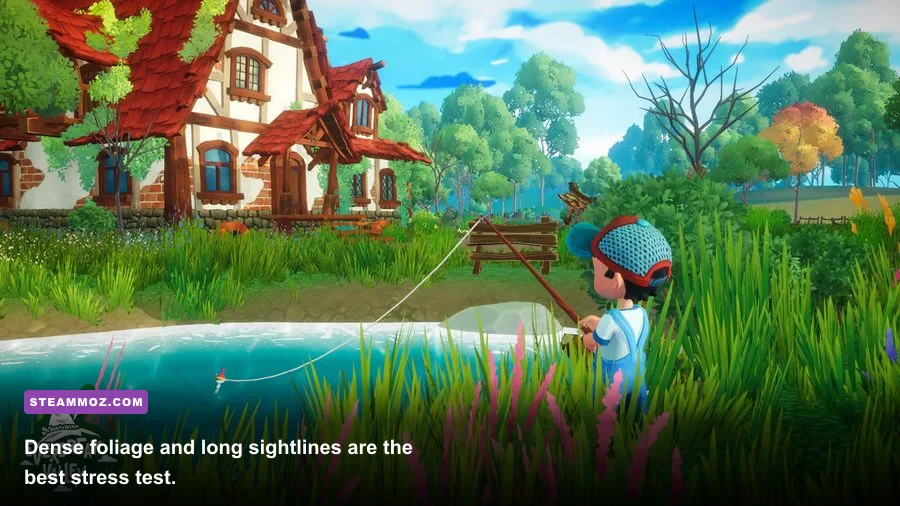
A high average FPS number does not guarantee smooth play. Everdream Valley can feel uneven when the camera swings across the farm, new areas stream in, or the game rapidly displays animals and foliage. Diagnose the problem before changing settings randomly.
Use a sensible frame cap
With a 60Hz screen, cap at 60 FPS if the game holds that number, or 30 FPS if it does not. With a 120Hz or 144Hz monitor, a 60 FPS cap is still a good starting point. Variable-refresh users should cap a few frames below refresh rate when targeting a higher ceiling, but consistency matters more than chasing 100 FPS in a cozy farming game.
Check the GPU driver and power mode
Install the current driver for your Nvidia or AMD card, then set Windows to a performance-oriented power mode while playing. On laptops, connect the charger and confirm Everdream Valley is using the dedicated GPU rather than integrated graphics. Close browsers, recording tools, and launchers that consume memory if you are on the 8GB minimum configuration.
Separate GPU limits from CPU limits
Use an overlay such as MSI Afterburner to watch GPU utilization, VRAM, system RAM, and frametime. GPU utilization near 95–99 percent means lower resolution, anti-aliasing, or effects. Low GPU utilization paired with poor FPS points toward CPU load, background processes, or a scene-complexity limit; lower foliage and view distance instead.
Do not confuse shader or asset streaming with permanent poor performance. A brief hitch when entering a new area may not disappear through lower settings. Give the game a minute after loading, avoid judging performance during the first camera sweep, and test the same route through the farm each time. This is the same disciplined approach we recommend in our PC specification checks.
My final Everdream Valley performance setup
For most players, the winning setup is 1080p fullscreen, High textures, Medium shadows, Medium foliage, Medium effects, Low post-processing, Medium anti-aliasing, motion blur off, and a 60 FPS cap. It preserves the game’s warm colors, readable animals, and detailed farm buildings while cutting the settings that punish outdoor performance most aggressively.
If you still dip below your target, lower shadows to Low, then foliage to Low or Medium, before touching textures. If the image is blurry, restore the native resolution and reduce effects instead. If you see hitching rather than a consistently low frame rate, test Medium textures and close background applications. Those choices solve different problems, and treating them as the same will waste time.
Keep an eye on official patches through the Mooneye Studios website, the developer behind Everdream Valley, and the game’s official Steam news feed. For publisher updates, the Untold Tales site is also worth checking. Settings can change after engine or streaming improvements, but this profile remains the strongest place to begin: protect resolution and textures, cut shadows and foliage first, and tune for stable frame pacing rather than a number that only appears in an empty field.
For more hardware-focused reading, see our guide to PC specs and best settings. The principle carries over cleanly: identify whether the GPU, CPU, VRAM, or frame pacing is the real bottleneck, then change the setting that actually affects it.