If Decay: The Mare crashes on startup or crawls below a playable frame rate, the most reliable fixes are straightforward: verify the Steam installation, reset the game's Unity settings, disable overlays, run the game in a modern compatibility mode, and cap performance at 30 or 60 FPS. Because this is an older Unity horror title, newer Windows display scaling, graphics drivers, and overlay hooks can cause more trouble than the game's modest hardware requirements.
The important detail is that low FPS and crashing aren't always the same problem. A damaged config file can prevent Decay: The Mare from launching, while stutter inside the Reaching Dreams facility is more often caused by borderless scaling, background overlays, or a GPU driver behaving badly with an older DirectX renderer. Work through the fixes below in order so you don't start changing five variables at once.
Start with a clean Decay: The Mare installation
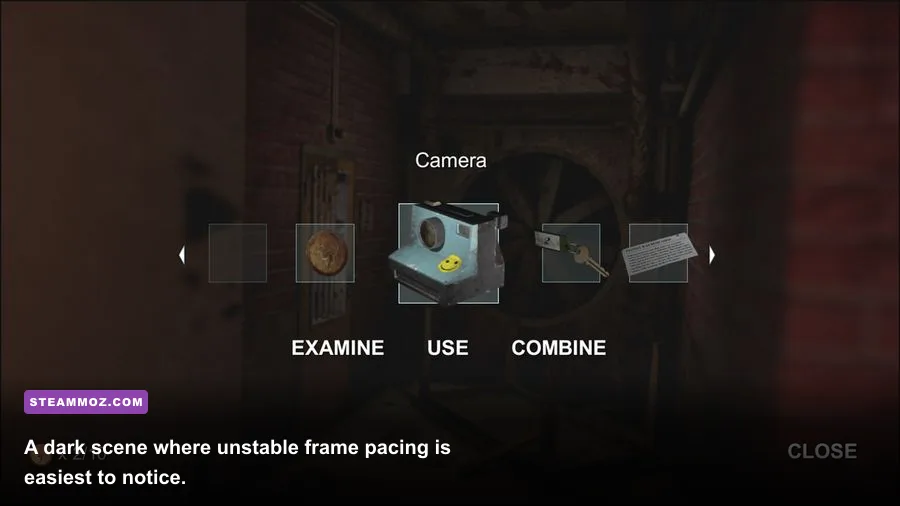
Before touching Windows compatibility settings, confirm that Steam has every file it expects. Open your Steam Library, right-click Decay: The Mare, choose Properties, open Installed Files, and select Verify integrity of game files. Steam will replace missing or damaged data, but it won't automatically repair every user-created configuration file.
After verification, restart Steam completely rather than simply closing the game window. If Steam itself is stuck in the background, use Task Manager to end Steam before launching again. The game's official Steam page is also worth checking for current platform notes, community reports, and the exact build installed on your account.
Next, test the executable without extra software. Turn off Discord's game overlay, Steam Overlay, GeForce Experience or NVIDIA App overlay, AMD Adrenalin overlay, MSI Afterburner and RivaTuner Statistics Server. Older Unity titles can fail when multiple programs inject an FPS counter, capture hook, or controller layer into the same process.
| Check | Where to change it | What it rules out |
|---|---|---|
| Game files | Steam Properties > Installed Files | Corrupted or incomplete installation |
| Overlays | Steam, Discord, NVIDIA, AMD, RTSS | Injection conflicts and startup crashes |
| Display scaling | Game EXE > Properties > Compatibility | High-DPI launch and black-screen errors |
| Background apps | Task Manager or a clean boot | CPU, RAM, and capture-tool interference |
If another older PC game is also crashing, compare your symptoms with Steamoz's Ghost Recon Breakpoint crash troubleshooting guide. The symptoms differ, but the overlay and driver checks are the same sensible first pass.

🎮 Decay: The Mare
Looking to experience this game? Grab your digital key directly on our store for $0.74.
View on Steammoz Store →Use a performance profile that suits this older Unity game
Decay: The Mare is not a modern GPU stress test. Its listed PC requirements are extremely light compared with current hardware: a Windows 7-era 2 GHz processor, 2 GB of RAM, a DirectX 9-compatible graphics card with roughly 512 MB of video memory, DirectX 9.0c, and about 3 GB of storage. Those numbers are a floor, not a promise that every modern Windows configuration will behave perfectly.
Start at 1280x720 or 1600x900, select the lowest available quality preset, and restart the game after applying changes. If the game exposes individual options, lower shadows first. The dark corridors and atmospheric lighting still look convincing at reduced shadow quality, while shadow rendering can create sudden frame-time spikes when you move between rooms.
| Setting or profile | Recommended value | FPS impact | Visual trade-off |
|---|---|---|---|
| Resolution | 1280x720 for testing | High | Softer image, but excellent diagnostic baseline |
| Quality preset | Low, then Medium | Medium to high | Reduces lighting and texture detail |
| Shadows | Low or disabled | High | Less depth in corridors and rooms |
| Anti-aliasing | Off or lowest option | Low to medium | More jagged edges at native resolution |
| V-Sync | On for a stable 60 Hz display | Small | Can add input latency but removes tearing |
| Display mode | Exclusive fullscreen first | Low to medium | Usually gives cleaner frame pacing than borderless |
Test one change at a time in the same area. The facility's enclosed rooms are better for comparison than a random save because you can repeat the same camera movements and watch for stutter. If 720p still drops below 30 FPS on hardware that easily exceeds the listed requirements, the bottleneck is probably not raw GPU power.
Stop startup crashes with Windows compatibility fixes
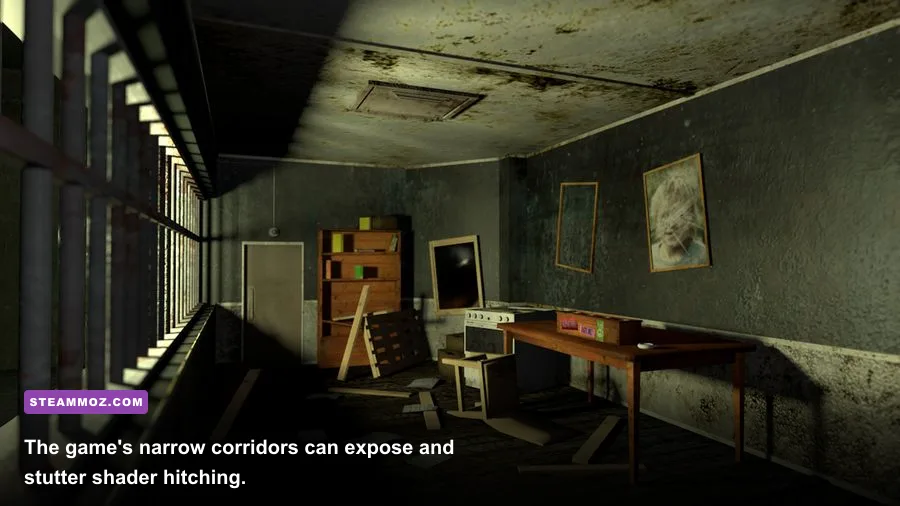
Find the executable through Steam by opening Properties > Installed Files > Browse. Right-click the game's EXE, open Properties > Compatibility, and test these options individually: Disable fullscreen optimizations and Run this program as an administrator. Administrator mode shouldn't be your permanent default unless it solves a specific permissions error, but it can reveal whether Windows is blocking access to the game's save or configuration folders.
High-DPI scaling is another common culprit on laptops and 1440p or 4K monitors. In the same Compatibility window, choose Change high DPI settings, enable Override high DPI scaling behavior, and test Application. If the game launches with a black screen, press Alt+Enter once to switch between fullscreen and windowed mode.
For a Unity game that crashes immediately after a renderer change, use Steam's launch options. Enter -screen-width 1280 -screen-height 720 -screen-fullscreen 0 in the game's Properties under General > Launch Options. This forces a small window, giving you a usable display even when saved fullscreen settings are broken. Remove the options after you regain control.
Don't stack compatibility modes blindly. Windows 7 compatibility, forced administrator privileges, and multiple launch flags can create a new problem while hiding the original one. Change one setting, launch, and record the result.
Reset Unity configuration files safely
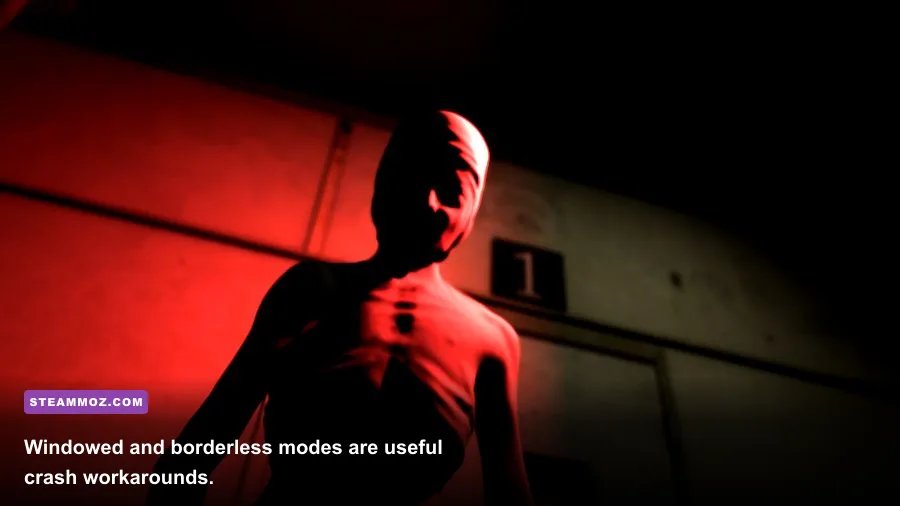
If verification passes but the game still crashes before the menu, reset its local settings. First close Steam and back up any save files you can identify. Search Windows for folders named Decay The Mare, DecayTheMare, or a publisher/developer folder inside %USERPROFILE%\AppData\LocalLow, %APPDATA%, and %LOCALAPPDATA%. Older Unity games commonly keep preferences in one of those locations.
Do not delete the whole folder immediately. Rename a suspected configuration folder to something like DecayTheMare_backup, then launch the game. Renaming is safer than deletion: if the new profile fixes the crash, you can restore saves or copy back files selectively. If the game starts but your progress disappears, close it and restore only the save data, not the old graphics preference files.
When a reset works, set resolution and quality from the lowest stable profile. Avoid instantly returning to the setting that caused the failure. A corrupted fullscreen preference can be recreated by selecting fullscreen again, so test windowed mode first and leave it running for several minutes.
Also install current motherboard and GPU drivers from the manufacturer's official support page, but avoid using a driver-cleaning tool unless a normal update fails. For DirectX-related errors, Microsoft's official DirectX guidance explains the supported runtime path. Don't download random DLL files from third-party websites; they often create malware risks and mismatched versions.
Fix stutter, hitching, and unstable frame pacing
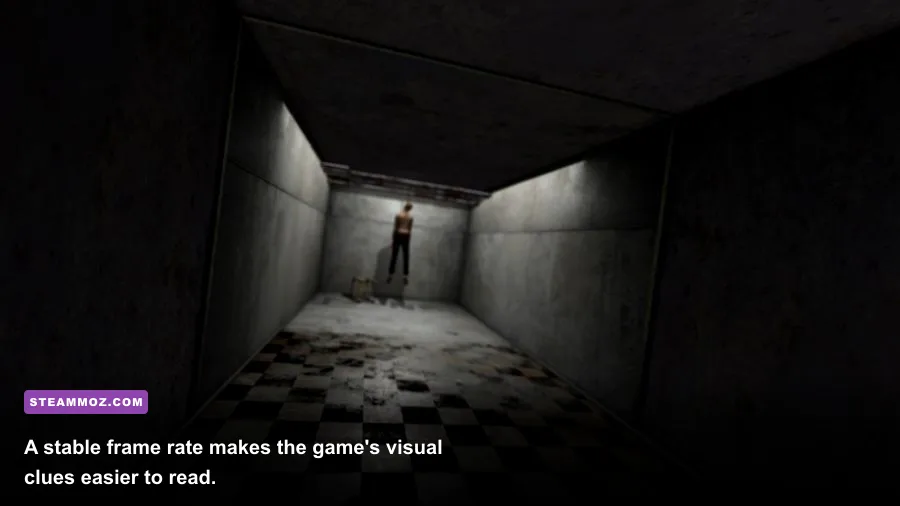
Once the game launches, measure consistency rather than chasing a huge FPS number. A locked 30 FPS feels far better than a wildly fluctuating 25-70 FPS presentation, especially while exploring the dim corridors around Reaching Dreams. Use your GPU control panel to apply a frame cap if the game has no reliable limiter. Set 30 FPS on weak integrated graphics, 60 FPS on mainstream systems, and leave V-Sync enabled if tearing appears.
Keep the frame cap below your monitor's refresh rate when using an external limiter: 58 FPS on a 60 Hz display is a practical starting point. If that produces uneven pacing, use an in-game V-Sync option instead. Disable background recording, browser video playback, animated wallpapers, and hardware monitoring overlays while testing.
| Symptom | Likely cause | Best first fix | Target result |
|---|---|---|---|
| Crash before menu | Bad Unity display preference | Use windowed launch options and reset config | Reaches the main menu consistently |
| Black screen with audio | Fullscreen or DPI conflict | Alt+Enter and override DPI scaling | Visible image at 720p windowed |
| Brief pauses when turning | Asset loading or overlay hooks | Disable overlays and cap FPS | Fewer frame-time spikes |
| Constant low FPS | Resolution, shadows, or integrated GPU | Lower resolution and shadows | Stable 30 FPS baseline |
| Screen tearing | Uncapped rendering | Enable V-Sync or a frame cap | Cleaner camera movement |
If you're playing on a laptop, force the dedicated GPU in Windows Graphics settings and keep the charger connected. Windows power-saving modes can quietly lock an otherwise capable system to low clocks. This is a more likely explanation than overheating if performance is poor immediately from the first room.
Use this final crash-proof setup
After troubleshooting, the most dependable profile for most modern PCs is 1600x900 or native 1080p, Low or Medium quality, low shadows, V-Sync enabled, and exclusive fullscreen. If fullscreen remains unstable, use a 1280x720 window with the launch flags above. Keep every overlay disabled until you've completed a full session, then re-enable them one at a time.
For a weak laptop, choose 1280x720, Low quality, shadows disabled, V-Sync on, and a 30 FPS cap. For a mid-range desktop, use 1920x1080, Medium quality, low shadows, and a 60 FPS cap. A high-end GPU won't magically remove Unity-era compatibility issues, so don't assume max settings are the right answer just because the game is visually modest.
If the problem survives file verification, a clean config reset, overlay removal, compatibility testing, and a fresh driver install, report it through the official Steam Support portal with your GPU model, Windows version, crash timing, and whether windowed mode works. Include your Player.log if you can locate it in the game's Unity data folder. That log is far more useful than simply saying “it crashes.”
For more PC troubleshooting ideas, Steamoz's guide to Hunt: Showdown crash and low-FPS fixes covers driver, overlay, and frame-pacing checks in a newer game. You can also compare the general approach with our King's Bounty II PC fixes. With Decay: The Mare, the winning strategy is simpler: restore a clean Unity profile first, then build visual quality back up until the atmosphere stays intact without sacrificing stability.