If Hunt: Showdown 1896 crashes or drops into an ugly slideshow after equipping Azure Arsenal gear, start with the practical fix: verify the Steam files, clear the shader cache, update your GPU driver, then lower VRAM-heavy settings before touching advanced Windows tweaks. Use DLSS or FSR 2 at Quality, set Object Quality and shadows to Medium, keep Texture Quality within your card's VRAM limit, and test the affected weapon in Training Mode. Most recurring crashes come from corrupted assets, shader compilation, unstable overlays, or a VRAM spike—not from the Azure Arsenal loadout itself.
Azure Arsenal is content inside the normal Hunt: Showdown 1896 client, not a separate graphics mode. That matters because a crash that appears only when a particular skin, weapon, or hunter loads usually points toward an asset-cache problem. If every match crashes at the same location, suspect streaming or the driver. If the game closes when the arsenal appears in the roster or equipment screen, start with file verification and cache cleanup.

Run these crash fixes in the right order

Don't begin by deleting random folders or reinstalling Windows. Work from the least destructive fix to the most revealing one. First, close Hunt, Steam, Discord, NVIDIA App, AMD Software, and any monitoring utility. Reboot once, then launch the game without an overlay.
- Verify the installation. In Steam, right-click Hunt: Showdown 1896, choose Properties, Installed Files, and Verify integrity of game files. Let the process replace missing or damaged Azure Arsenal assets. This is the first move if the crash began immediately after a patch.
- Clear shader caches. Use Windows Settings, System, Storage, Temporary files, and remove DirectX Shader Cache. NVIDIA users can also clear the contents of the NVIDIA DXCache and GLCache folders; AMD users should use the Reset Shader Cache option in Adrenalin. Don't delete the folders themselves. The first match afterward may stutter while shaders rebuild.
- Update—or cleanly reinstall—the GPU driver. Install a current WHQL driver from NVIDIA's driver page or AMD's support page. If the issue started directly after a driver update, use the previous stable driver instead. A clean installation is worthwhile when the crash is accompanied by a black screen or driver timeout.
- Disable overlays and injectors. Turn off Steam Overlay, Discord Overlay, Xbox Game Bar, NVIDIA ShadowPlay, AMD Metrics Overlay, MSI Afterburner OSD, ReShade, and Overwolf. Hunt's anti-cheat can dislike software hooks, while overlays also consume a little VRAM during an already heavy scene.
- Remove overclocks temporarily. Return GPU core, VRAM, CPU, and RAM to stock settings. Hunt can expose marginal memory instability that other games tolerate. If XMP or EXPO is enabled, test one session with it disabled before blaming the Azure Arsenal content.
For official patch notes and known issues, check the official Hunt news page. Crytek sometimes fixes a repeatable crash server-side or in a hotfix, so a new patch can change the best diagnosis.
🎮 Hunt: Showdown 1896 - Azure Arsenal
Looking to experience this game? Grab your digital key directly on our store for $4.99.
View on Steammoz Store →Use a stable Hunt 1896 graphics profile
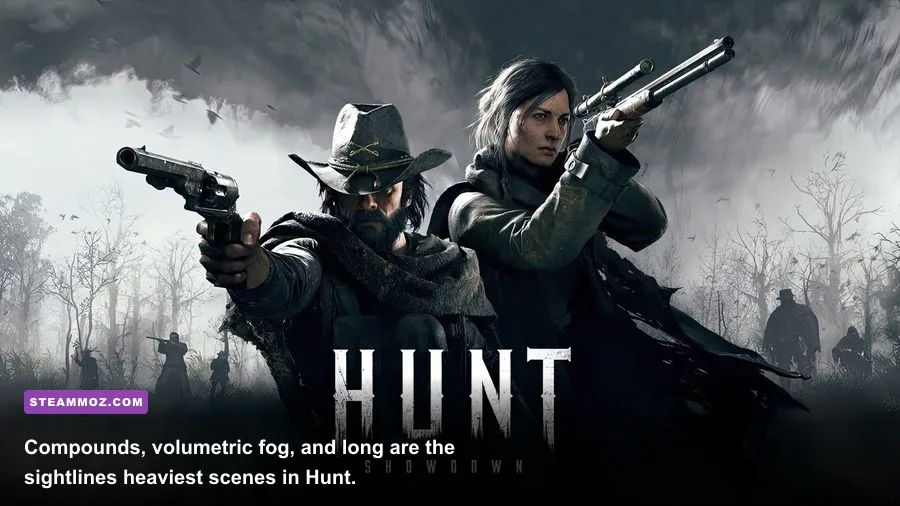
Hunt's upgraded 1896 presentation leans hard on volumetric effects, shadows, foliage, and asset streaming. Turning everything to Low makes the game look worse without guaranteeing smooth performance. A balanced profile protects image clarity while cutting the settings that hammer frame time during a compound fight.
| Setting | Recommended Value | FPS Impact | Visual Note |
|---|---|---|---|
| Upscaling | DLSS Quality on RTX; FSR 2 Quality on Radeon | High gain at 1440p and 4K | Quality mode preserves hunter silhouettes better than Performance. |
| Object Quality | Medium | High CPU and streaming gain | Reduces distant geometry without destroying close-range detail. |
| Texture Quality | High below 8GB VRAM; Medium at 6GB or less | Low FPS impact, high VRAM impact | Lower this first when textures pop in or the game crashes. |
| Shadow Quality | Medium | Medium to high gain | Low shadows are cheaper but make dark interiors harder to read. |
| Lighting Quality | Medium | Medium gain | Keeps lanterns and indoor contrast believable. |
| Volumetric Fog | Low or Medium | High gain in foggy compounds | One of the best settings to reduce GPU spikes. |
| Water Quality | Low | Small to medium gain | Useful on Stillwater Bayou and water-heavy sightlines. |
| Anti-Aliasing | SMAA 1X or the game's lowest stable option | Small gain | Avoid stacking expensive AA with aggressive upscaling. |
| Motion Blur, Depth of Field, Film Grain | Off | Small gain | Cleaner target tracking and less visual noise. |
| VRAM Usage Target | 80 percent | Stability gain | Leaves room for Windows, Steam, and overlays. |
Set the game's 3D Resolution to 100 percent when using DLSS or FSR 2. Lowering both the upscaler mode and 3D Resolution can produce a blurry image with no useful extra stability. If you have an RTX card, DLSS Quality is the cleanest starting point. FSR 2 Quality is the sensible Radeon choice, while native rendering is preferable on a strong GPU that can hold your refresh-rate target.
Match settings to your PC, not your monitor

The official Steam listing has historically positioned Hunt around a 12GB-RAM minimum, with hardware around a Core i5-6600 or Ryzen 5 2600 and a GTX 660 Ti or Radeon R7 370 at the low end. Its recommended class is roughly a Core i7-7700 or Ryzen 5 3600 paired with a GTX 1070 or Radeon Vega 56 and 16GB of memory. Those figures are a floor, not a promise of a locked 60 fps in 1896's busiest compounds.
| PC Target | Practical Profile | Expected Goal | Priority Upgrade |
|---|---|---|---|
| Older 4-core CPU, 4-6GB GPU | 1080p, FSR 2 Quality, Low/Medium mix | 45-60 fps with dips | GPU VRAM and system RAM |
| Ryzen 5 3600 or Core i7-7700, 6-8GB GPU | 1080p/1440p, Quality upscaling, Medium | 60-90 fps depending on compound | CPU if frames dip during fights |
| Modern 6-core CPU, RTX 3060 Ti or RX 6700 XT | 1440p, Quality upscaling, Medium/High | 80-120 fps with scene variation | GPU for higher resolution |
| Modern 8-core CPU, RTX 4070-class or better | 1440p High or 4K Quality upscaling | High-refresh play with dips | Keep VRAM headroom and cap fps |
Sixteen gigabytes of dual-channel RAM is the realistic baseline. Hunt streams large maps, so a single 8GB stick can create hitching even when the average FPS looks fine. Install the game on an SSD, keep the Windows page file system-managed, and leave at least 20 percent free space on the drive. A full SSD can worsen patching, shader rebuilding, and asset-streaming behavior.
Don't chase a headline average. A stable 72 fps cap feels better than a wildly fluctuating 110 fps on a 144Hz display. Set the cap in Hunt or your driver slightly below the refresh rate—141 for 144Hz, 162 for 165Hz—and watch the 1% lows during a compound push.
Separate a GPU problem from a CPU or shader problem
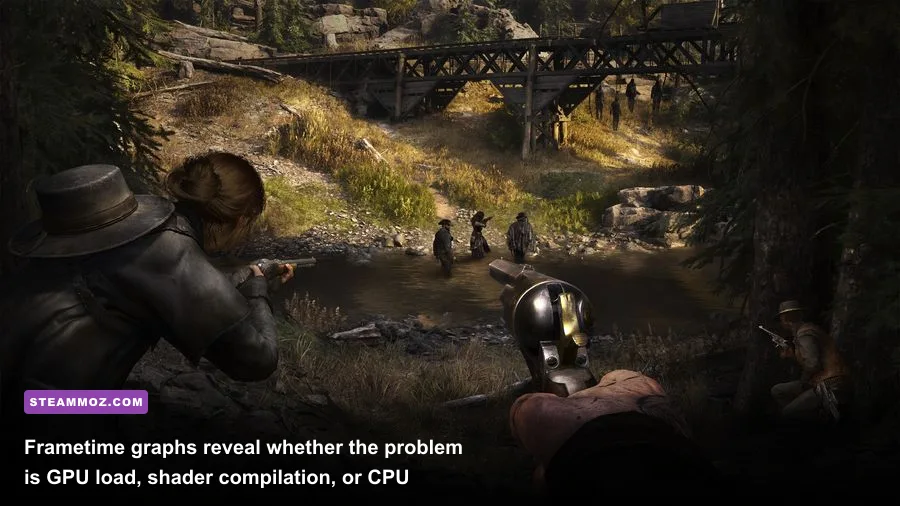
Use an unobtrusive performance overlay for one test match, then remove it for normal play. A GPU pinned around 95-99 percent means resolution, upscaling, fog, and shadows are the levers. A GPU sitting at 60-80 percent while one CPU thread is saturated points to a CPU or asset-streaming limit; dropping resolution won't solve it.
Shader stutter feels like brief freezes when entering a compound, aiming down sights, or seeing a newly loaded effect. It should improve after caches rebuild. Persistent hitching after several matches suggests RAM pressure, an overlay, a background scan, or a drive problem. Crashes during loading with a sudden driver reset suggest VRAM or driver instability. Check Windows Reliability Monitor for display-driver failures and Event Viewer for application errors, but don't treat every generic Hunt crash code as a definitive diagnosis.
On laptops, force Hunt to the dedicated GPU in Windows Graphics settings and use the high-performance power mode while plugged in. Disable battery-saving modes. On desktop PCs, confirm the monitor cable is connected to the graphics card rather than the motherboard. These simple mistakes can turn a capable system into a low-FPS disaster.
Test Azure Arsenal without risking a hunter
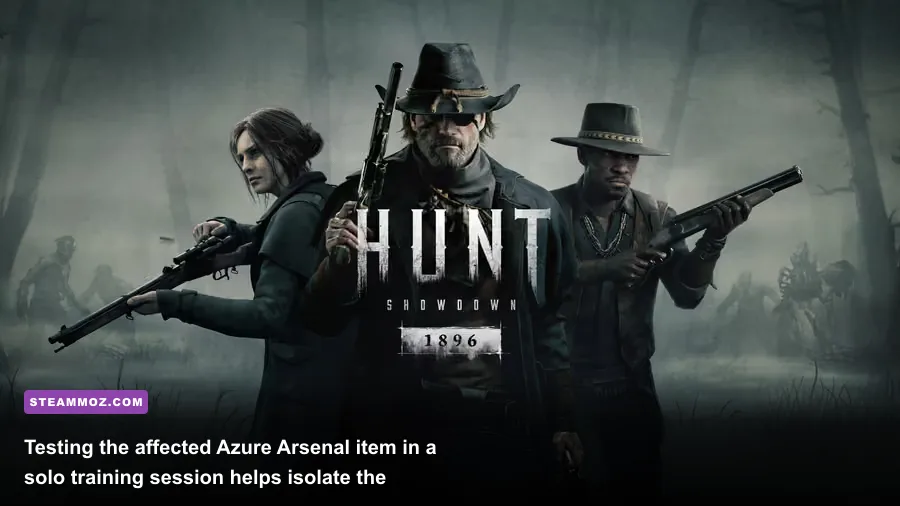
Before taking the affected Azure Arsenal item into a live Bounty Hunt, equip it on a cheap loadout and enter Training Mode. Walk through a dense compound, turn toward water or heavy fog, fire the weapon, swap tools, and open the equipment screen. This creates a repeatable test instead of sacrificing a recruited hunter every time the client fails.
- Run Hunt once with the default hunter and a basic weapon. If it crashes here, Azure Arsenal is probably incidental.
- Equip the specific Azure Arsenal weapon or cosmetic and repeat the same route. A crash only on this step strongly supports a bad asset or cache.
- Disable all overlays and lower Texture Quality one tier. If the crash vanishes, restore settings one at a time to identify the trigger.
- Try a second map and a different display mode. Borderless mode can expose conflicts with capture tools; exclusive fullscreen can help on some systems.
- Report a reproducible crash through Hunt: Showdown Support, including GPU model, driver version, RAM, map, weapon, and the exact action before the crash.
Never repeatedly force-close the game while Steam is patching or verifying files. Let the process finish, restart Steam, and verify again if the download reports a mismatch. If none of the fixes work, perform a clean reinstall only after backing up your settings and noting your keybinds. The official Steam page for Hunt: Showdown 1896 is also the right place to confirm current requirements and recent client changes.
For broader PC troubleshooting, Steamoz's guide to smoother FPS settings covers the same frame-time mindset, while the Gearshifters PC settings guide explains how to read hardware bottlenecks. The key Hunt-specific lesson remains simple: keep VRAM headroom, rebuild shaders after driver changes, remove overlays, and test Azure Arsenal in Training Mode before returning to the Bayou.