For the best Hunt: Showdown 1896 graphics settings for max FPS, start with 1440p, exclusive fullscreen, Object Quality on Medium, Texture Quality on High, Lighting and Shadow Quality on Low, Effects on Medium, and DLSS or FSR on Quality. Disable motion blur, depth of field, chromatic aberration, and film grain. This combination keeps hunter silhouettes, muzzle flashes, and foliage readable while cutting the settings that quietly punish frame time.
One quick clarification: The Beast Hunter is a Hunter cosmetic, not a separate graphics mode or standalone campaign. The same performance profile applies whether you're using The Beast Hunter, a standard Legendary Hunter, or a regular recruit. Hunt's CryEngine rendering load changes dramatically between open marshes, dense compounds, and boss lairs, so a stable frame rate matters more than chasing a prettier screenshot.

Best Hunt: Showdown 1896 settings for max FPS
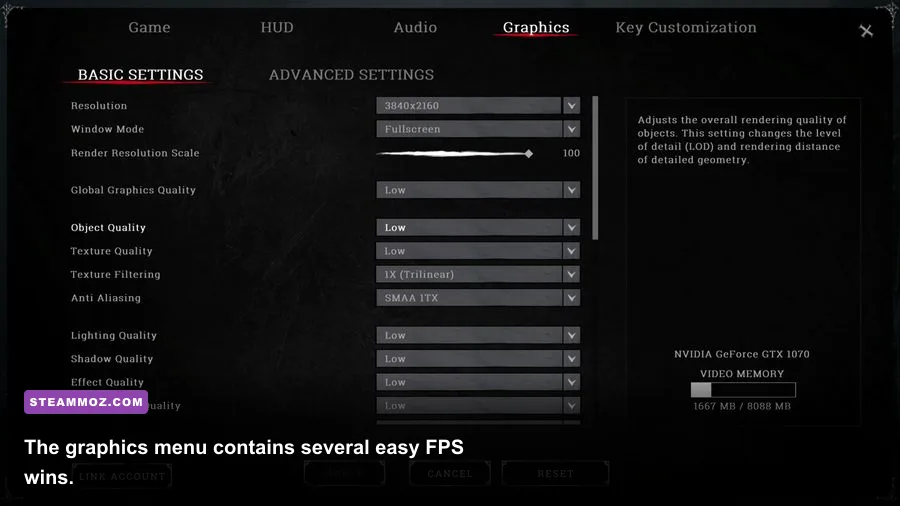
Use the profile below as the sensible competitive baseline. It targets a stable 60 FPS on older recommended hardware and gives stronger systems room to push 100 FPS or more. Hunt is unusually sensitive to frame-time spikes; a locked 90 FPS feels better than an unstable 120 FPS that collapses whenever a compound loads in.
| Setting | Recommended Value | FPS Impact | Visual Note |
|---|---|---|---|
| Display Mode | Fullscreen | Low | Usually delivers the most consistent frame pacing. |
| Resolution | Native 1440p or 1080p | Very high | Lower this only after reducing heavy quality settings. |
| V-Sync | Off | Low | Reduces input latency; use a frame limiter if tearing is severe. |
| Super Resolution | DLSS Quality or FSR Quality | High | Quality mode preserves distant hunter detail better than Balanced. |
| Object Quality | Medium | High | Controls scene complexity and distant geometry. |
| Texture Quality | High | Low to medium | Needs VRAM more than raw GPU power. |
| Texture Filtering | 8x or 16x | Very low | Improves ground and wall clarity; don't sacrifice this first. |
| Lighting Quality | Low | High | A major win in interiors and compound fights. |
| Shadow Quality | Low | High | High shadows cost frames without improving target visibility enough. |
| Effects Quality | Medium | Medium | Keeps explosions, fire, and weather from looking flat. |
| Post-Process Quality | Low | Medium | Removes expensive image effects that can soften targets. |
| Water Quality | Low or Medium | Medium | Low is ideal on DeSalle water-heavy routes. |
| Motion Blur | Off | Small | Sharper turns and cleaner tracking. |
| Depth of Field | Off | Small | Prevents focus effects from obscuring sightlines. |
| Screen Space Reflections | Off or Low | Medium | Reflections are rarely worth the frame-time cost. |
Start with these settings before touching Windows tweaks or launch commands. The biggest mistake is setting everything to Low. That can make foliage and surfaces shimmer, reduce visual separation, and leave the game looking worse without guaranteeing better 1% lows. High textures, high filtering, and medium effects are the useful exceptions because they preserve clarity at a comparatively modest cost.

🎮 FORM
Looking to experience this game? Grab your digital key directly on our store for $14.99.
View on Steammoz Store →Which settings actually cost the most FPS?
Hunt's most expensive options aren't always the ones that look dramatic in the menu. Lighting, shadows, object quality, water, and post-processing can all hit performance in different ways. A GPU-bound player should lower resolution or enable upscaling. A CPU-bound player should focus on object quality and scene complexity instead.
| Performance Problem | First Setting to Change | Second Change | What to Expect |
|---|---|---|---|
| GPU usage stays near 99% | Enable DLSS/FSR Quality | Lower Lighting to Low | More headroom at the same native output resolution. |
| FPS drops in busy compounds | Object Quality to Medium | Shadow Quality to Low | Better lows when geometry and NPC activity spike. |
| VRAM is full | Texture Quality to Medium | Restart the game | Reduces texture streaming hitching. |
| Image looks blurry | Use DLSS/FSR Quality | Raise sharpening carefully | Avoid Balanced or Performance at 1080p. |
| Stutter while traversing compounds | Object Quality down one step | Close overlays | Helps streaming and frame-time consistency. |
| Screen tearing | Cap FPS below refresh rate | Test V-Sync or VRR | Use G-SYNC or FreeSync if your display supports it. |
Object Quality deserves special attention. It affects how much geometry the engine has to maintain, and Hunt's large compounds can expose a CPU limit even when your graphics card isn't fully loaded. If your average FPS looks fine but the game judders while entering a new area, Medium is the first setting I'd test.
Lighting and shadows are different problems. Low lighting can make interiors look less atmospheric, but it often produces a much healthier frame rate in boss lairs and tight wooden buildings. Low shadows also reduce the number of dynamic shadow calculations. In a competitive match, stable visibility beats cinematic shadow detail.
Texture Quality is mostly a VRAM decision. On an 8GB card, High can work at 1080p or 1440p if other applications are closed, but Medium is safer if you see sudden hitching. On 12GB or more, High is generally the right choice. Texture Filtering at 16x is an excellent bargain: it makes dirt roads, rooftops, and floorboards clearer at oblique angles with barely noticeable performance cost.
Best profiles for 1080p, 1440p, and 4K
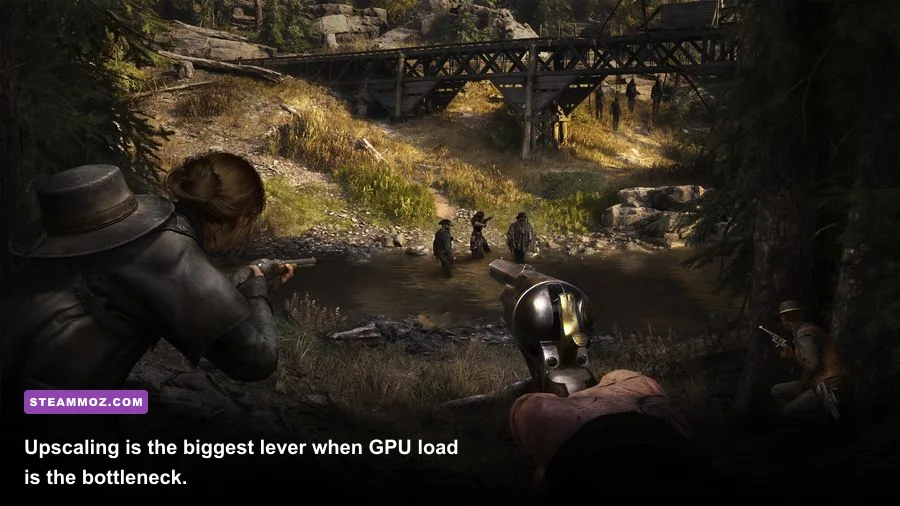
Don't copy a 4K creator's settings onto a mid-range 1080p system. Hunt scales heavily with resolution, and upscaling behaves differently depending on pixel density. The profiles below are a better starting point than blindly selecting a preset.
| Target | Core Profile | Upscaling | Practical Goal |
|---|---|---|---|
| 1080p competitive | Object Medium, Textures High, Lighting Low, Shadows Low | Native or DLSS/FSR Quality | High refresh rate with clear silhouettes. |
| 1440p balanced | Object Medium, Textures High, Effects Medium, Post Low | DLSS/FSR Quality | Strong clarity and stable 60-100 FPS. |
| 1440p high-end | Object High, Textures High, Lighting Medium | Native or Quality | Sharper visuals while retaining competitive frame times. |
| 4K cinematic | Object High, Textures High, Lighting Medium | DLSS/FSR Quality or Balanced | Best image quality, but not ideal for high-refresh play. |
At 1080p, DLSS or FSR can become CPU-limited because the GPU finishes frames quickly. If GPU usage falls well below 90% and FPS barely changes between Native and Quality, keep native resolution and lower Object Quality instead. At 1440p, Quality upscaling is usually the sweet spot. Balanced may introduce shimmer around wire fences, branches, and distant rooflines—exactly the places where a hunter can disappear.
At 4K, don't expect a mid-range card to brute-force native resolution. DLSS Quality or FSR Quality provides a better compromise than dropping every individual setting to Low. If the image looks soft, check sharpening and render scale before raising shadows; shadow quality won't restore lost detail.
Visibility settings that matter in a firefight
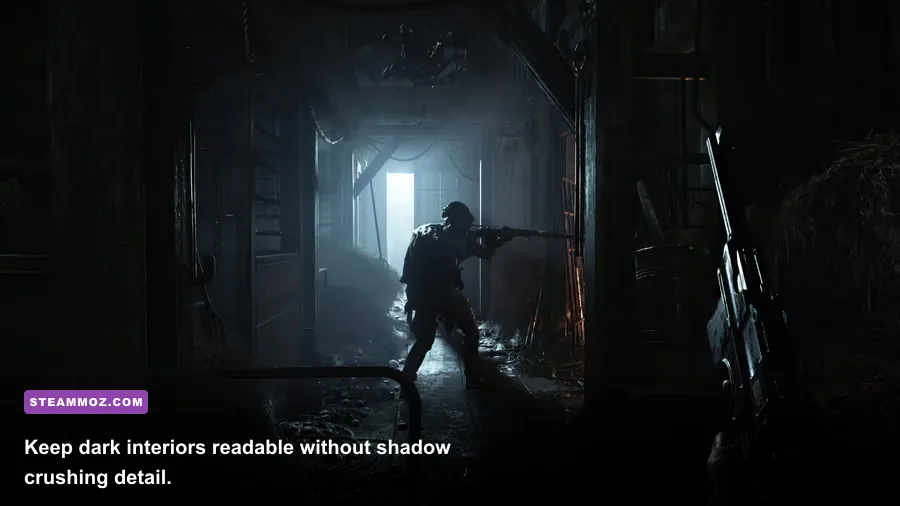
Hunt rewards visual information, but “competitive visibility” doesn't mean exploiting a magic brightness setting. Raising brightness too far washes out dark interiors and makes the game harder to read. Calibrate your monitor so black detail is visible without turning every lair gray, then remove effects that interfere with target recognition.
Keep these effects disabled
Motion Blur should be Off because it smears fast camera movement and makes tracking a rifle peek harder. Depth of Field should also be Off; cinematic focus is great in screenshots but can soften the exact doorway you're watching. Film grain and chromatic aberration, when available in your build, should be disabled for a cleaner image. Screen Space Reflections can stay Off unless you value wet-surface atmosphere more than frames.
Don't lower every texture option. A sharp weapon model and readable surface detail help you identify cover, windows, and traps. Keep Texture Quality High if your VRAM allows it, and use Texture Filtering at 8x or 16x. The visual difference is noticeable around the edges of roads and wooden platforms, while the performance hit is tiny compared with lighting or shadows.
Dark Sight itself isn't a graphics setting, but its heavy blue overlay makes monitor calibration obvious. If black crush hides a doorway after leaving Dark Sight, fix the display gamma or black-level setting rather than maxing in-game brightness. This is especially important for The Beast Hunter, whose darker outfit can blend into shadowed compounds when contrast is poorly calibrated.
Fix stutter, input lag, and unstable FPS
A high average FPS number won't save a match if frame times spike during a reload or enemy push. Use the official Hunt: Showdown 1896 Steam page to confirm updates and hardware requirements, and check Crytek's official Hunt website for patch notes. The game has changed substantially since its original release, so old configuration advice can be misleading.
Step 1: Find your real bottleneck
Use an overlay such as MSI Afterburner or your GPU vendor's performance monitor. GPU usage around 95-99% means resolution, upscaling, lighting, and effects are the right targets. GPU usage below roughly 85% with poor FPS usually points toward a CPU limit, background software, object complexity, or an inconsistent frame cap.
Step 2: Cap frames intelligently
For a 60Hz monitor, cap near 60 FPS. For 144Hz, try 120 or 141 FPS rather than allowing unlimited spikes. A cap slightly below refresh rate gives VRR displays room to operate and can improve input consistency. If you use V-Sync, test it against a VRR setup; many players prefer V-Sync Off with a reliable external or in-game limiter to minimize latency.
Step 3: Clean up the PC side
Install the latest stable GPU driver, close browser tabs and recording tools, and disable overlays you don't use. Keep Hunt on an SSD; the official Steam listing recommends a substantial install, and streaming a large map from a slow hard drive can worsen traversal hitching. If a patch causes sudden crashes or low FPS, Steamoz's Hunt: Showdown 1896 PC fixes is a useful companion checklist.
For broader troubleshooting, compare these guides on Ghost Recon Breakpoint performance fixes and Katamari Damacy REROLL PC settings. The specific engines differ, but the process—identify the bottleneck, change one variable, then measure—is exactly the same.
Recommended hardware targets
Hunt: Showdown 1896 is demanding enough that the old “can it launch?” question isn't useful. Crytek's published Steam requirements list 12GB of RAM and a GTX 1070 or Radeon Vega 56-class GPU for the minimum tier, with an RTX 2060 Super or RX 5700 XT-class card in the recommended range. Treat those as starting points, not guarantees of 144 FPS.
| Component | Minimum-Class Target | Recommended for 1440p | Pro-Tuned Profile |
|---|---|---|---|
| CPU | Core i7-7700 or Ryzen 5 2600 | Core i7-8700 or Ryzen 5 3600 | Modern 6-core or 8-core CPU with strong single-thread performance. |
| GPU | GTX 1070 or Vega 56 | RTX 2060 Super or RX 5700 XT | RTX 3060 Ti, RX 6700 XT, or faster. |
| Memory | 12GB RAM | 16GB RAM | 16GB dual-channel or more. |
| Storage | SSD strongly preferred | NVMe SSD | NVMe with healthy free space. |
| Frame target | 60 FPS | 60-100 FPS | 100 FPS or higher at competitive settings. |
The short version is simple: set textures high, cut lighting and shadows first, keep Object Quality at Medium unless your CPU is strong, and use Quality upscaling at 1440p or 4K. Then cap FPS to a number your system can actually hold through a compound fight. The Beast Hunter won't make your PC run faster, but this profile will make the game look clean, react quickly, and give you far fewer excuses when the next hunter appears through the fog.