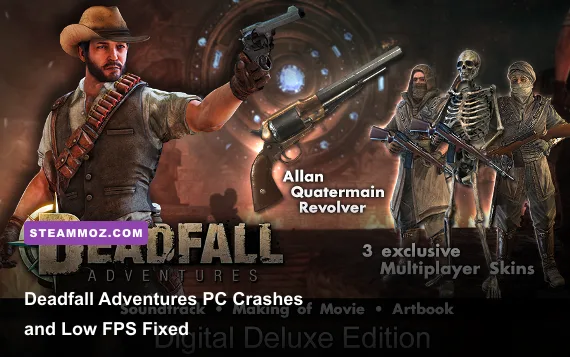
Deadfall Adventures Digital Deluxe usually stops crashing and running at low FPS after four fixes: verify the Steam install, reset the Unreal Engine 3 configuration files, disable overlays, and lower shadows and post-processing before touching texture quality. The Digital Deluxe content does not require a different performance profile, so these steps apply to the standard PC release too. Start with a clean launch, then tune the game around a stable 60 FPS target rather than chasing maximum presets.
Deadfall Adventures is an older Unreal Engine 3 shooter, and that matters. Its temples combine dynamic lighting, dense foliage, particle effects, physics objects, and scripted set pieces. Modern GPUs can render the game easily in raw horsepower terms, but old UE3 games can still hitch during level streaming or crash when a damaged configuration file, overlay hook, or outdated driver collides with the renderer. The goal here is to separate a real hardware limit from a broken install.
Start With the Fixes That Prevent Most Crashes
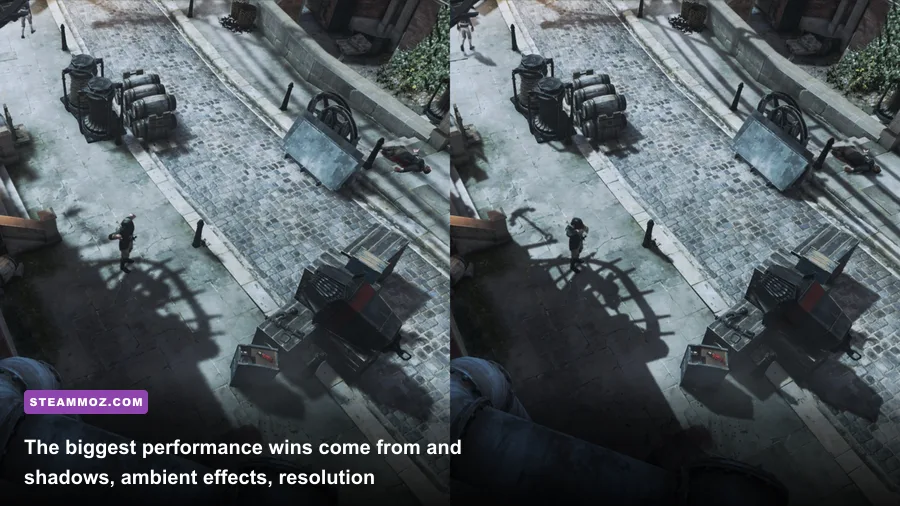
Before changing advanced settings, open the game's official Steam page and confirm that Steam is installing the correct app rather than a shortcut to an incomplete library folder. Right-click Deadfall Adventures in Steam, choose Properties, open Installed Files, and select Verify integrity of game files. Let the process finish completely. A missing executable, corrupt package, or interrupted update can produce a crash before the main menu appears.
Next, reset the local settings. Close the game and Steam, then press Windows-R and enter %LOCALAPPDATA%. Search for a folder named DeadfallAdventures, Deadfall Adventures, or a similarly named publisher folder. Rename it to DeadfallAdventures_backup instead of deleting it. Launch again. Unreal Engine 3 will rebuild default configuration files, which clears bad resolution, fullscreen, audio, and renderer values. If the game starts, copy saves back only if necessary; don't overwrite the newly generated config files.
Disable every overlay for the first test: Steam Overlay, Discord, GeForce Experience, AMD Adrenalin recording, Xbox Game Bar, MSI Afterburner overlay, and RivaTuner Statistics Server. Overlay hooks are a common reason older DirectX games crash during startup or when switching between fullscreen and the desktop. Once the game is stable, re-enable one overlay at a time. That identifies the culprit without turning troubleshooting into guesswork.
Use the publisher's Deadfall Adventures page for the supported release information, then install a current graphics driver with the clean-install option. If the problem began immediately after a driver update, try the previous stable driver instead. Also add the game's installation folder to Windows Security exclusions temporarily, or test with real-time protection paused, because aggressive antivirus scanning can interrupt old games while they load large level packages. Restore protection after testing.

🎮 Deadfall Adventures Digital Deluxe
Looking to experience this game? Grab your digital key directly on our store for $6.24.
View on Steammoz Store →Use a Stable Graphics Profile Before Chasing 60 FPS
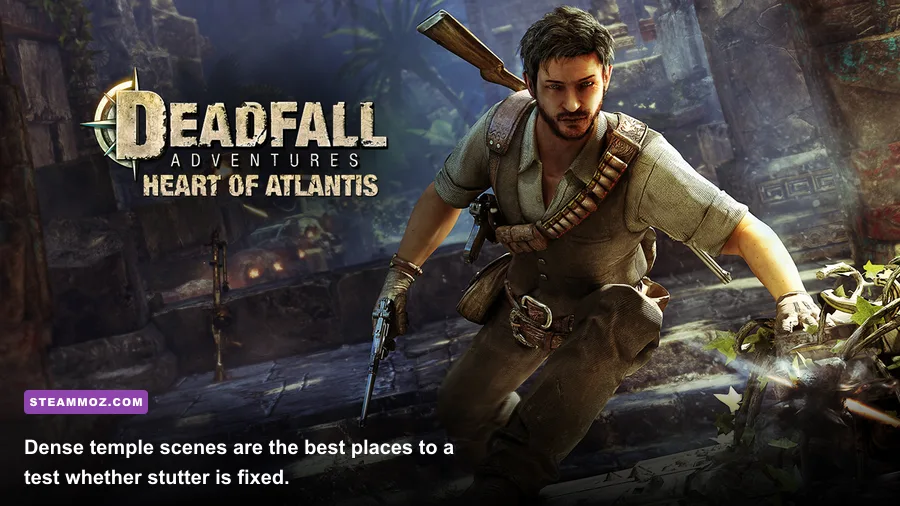
Deadfall Adventures' texture quality is usually the setting worth preserving. Lowering textures often makes the game look muddy while delivering little benefit unless the GPU is short on VRAM. Dynamic shadows and post-processing are different: they affect every torch-lit room, foliage-heavy exterior, and scripted explosion. Start at your monitor's native resolution, use fullscreen, keep textures High, and reduce the expensive effects first.
| Setting | Recommended Value | FPS Impact | Visual Trade-Off |
|---|---|---|---|
| Resolution | Native 1080p, then 900p or 720p if needed | Very high | Lower resolution is the fastest GPU-side improvement, but it softens the image. |
| Texture Quality | High; Medium on cards with limited VRAM | Low to medium | High keeps temple walls and weapons sharper. |
| Dynamic Shadows | Medium | High | Reduces torch and foliage shadow detail without destroying atmosphere. |
| Anti-Aliasing | Medium or the lowest stable option | Medium | Lower values reveal more jagged edges around ruins and weapons. |
| Post-Processing | Medium | Medium to high | Reduces bloom, depth effects, and some cinematic softness. |
| Ambient Occlusion | Off or Low | Medium | Corners lose some contact shading, but corridors become smoother. |
| V-Sync | Off for testing; On if tearing is distracting | Variable | V-Sync can add input latency and cause larger frame-time jumps. |
| FOV | Default | Low | A wider field of view can slightly increase scene rendering workload. |
Test each change in the same demanding area instead of comparing the menu with gameplay. The jungle paths, large pyramid chambers, and scenes with fire or multiple enemies are better benchmarks than a quiet corridor. Change one option, restart the level, and watch frame-time consistency. A locked 45 or 60 FPS feels better than a number that swings from 80 to 35 whenever a torch-lit arena loads.
For a low-end PC, use 900p or 720p, Medium textures, Low shadows, Low post-processing, and Ambient Occlusion Off. A mainstream 1080p machine should handle native 1080p, High textures, Medium shadows, and Medium anti-aliasing more comfortably. High-end hardware can raise shadows and anti-aliasing, but the old engine may still show traversal stutter that no graphics preset completely removes.
Fix Stutter, Frame Pacing, and Sudden FPS Drops
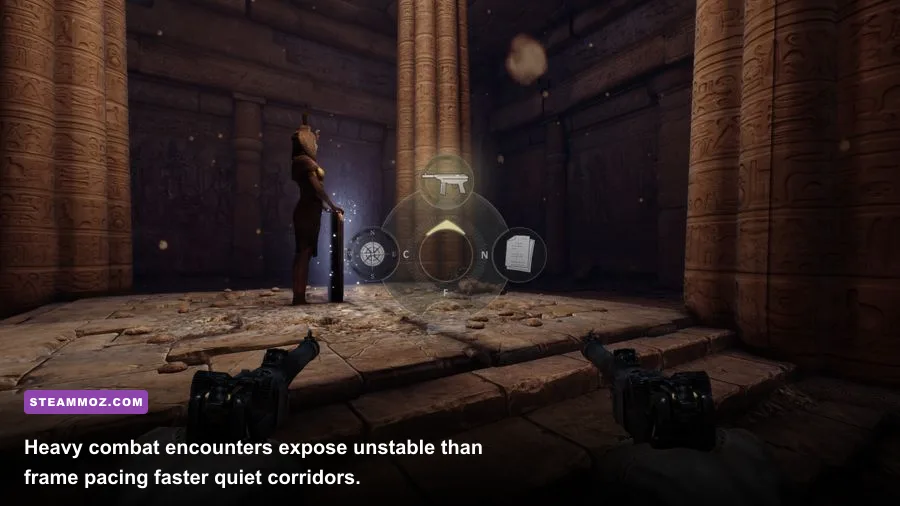
Low average FPS and hitching are different problems. If the counter sits at 35 FPS, lower resolution and shadows first. If it reads 90 FPS but the camera pauses every few seconds, suspect level streaming, background applications, shader compilation behavior, or an unstable frame cap. This is where a frame limiter helps more than another visual downgrade.
Try capping the game at 60 FPS through your GPU control panel or RTSS. If your PC cannot hold 60, use 30 or 45 rather than leaving the frame rate uncapped. Keep the cap below the monitor refresh rate when using adaptive sync. Disable the Steam download process during play, close browser tabs with hardware acceleration, and stop recording software. Old UE3 games can react badly to CPU spikes even when the GPU has plenty of headroom.
Run the game from an SSD if possible. Moving Deadfall Adventures from a crowded mechanical drive won't magically double FPS, but it can shorten loading and reduce asset-streaming pauses. Check Task Manager while playing: GPU usage near 95–100 percent means resolution, anti-aliasing, or shadows are limiting performance; low GPU usage alongside a saturated CPU core points toward an engine or processor bottleneck.
If fullscreen flickers or alt-tab causes a crash, test borderless windowed mode. If that option isn't exposed in the menu, use the game's configuration file after backing it up, or start with a simple -windowed launch option in Steam. Don't stack random Unreal command-line switches from forum posts. Options such as forced DirectX modes can help one system and break another, so test one change at a time and remove it if the menu becomes unstable.
Our broader crashing and stutter guide covers the same driver, overlay, and frame-pacing checks for another older PC game. The principle is identical: measure frame time first, then decide whether the problem is rendering or streaming.
Stop Startup Crashes, Black Screens, and Mid-Level Exits
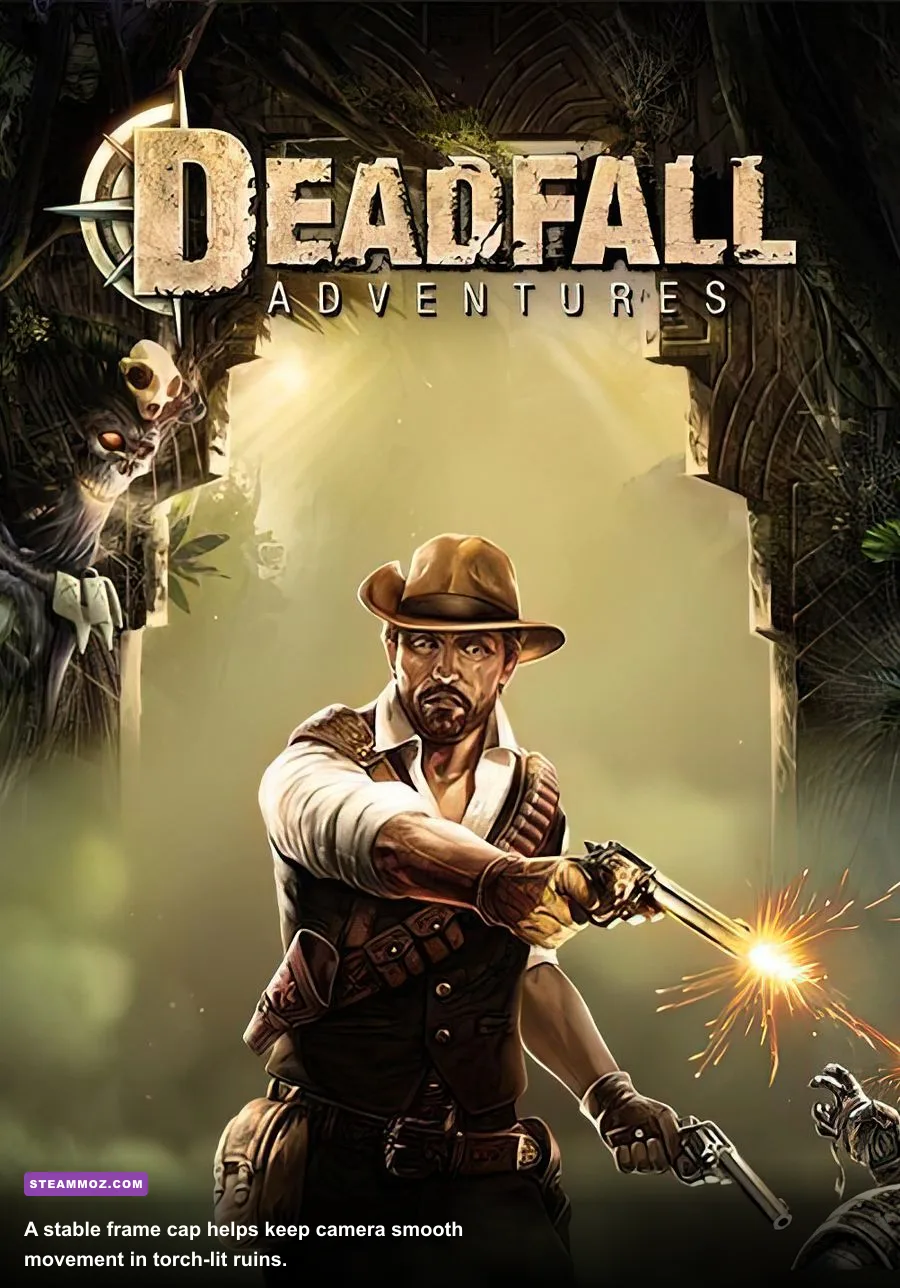
A crash before the menu usually points to a configuration, dependency, permissions, or overlay problem. A crash after loading a particular chapter is more suspicious: corrupted files, a broken save, or a repeatable engine fault in a scripted sequence. Test by starting a new game. If a new profile works but the old save crashes at the same location, back up the save and replay the chapter rather than repeatedly forcing the damaged checkpoint.
Install or repair the Microsoft Visual C++ redistributables and DirectX legacy components included in the game's Steam installation folder, if present. These older libraries can coexist with current DirectX versions; installing them doesn't downgrade DirectX 12. Run the executable once as administrator only as a diagnostic test. Permanent administrator mode can create permission problems in save locations, so turn it off if it doesn't solve the crash.
Check Windows Event Viewer after a crash under Windows Logs, Application. A faulting module that names a graphics driver suggests a driver cleanup or rollback. An audio DLL points toward an audio enhancement, virtual device, or headset utility. An overlay DLL points directly at the software that injected itself. This is far more useful than reinstalling the whole game every time the desktop appears.
For black screens, press Alt-Enter once to switch display modes, wait several seconds, and then set a conservative resolution. Disconnect unusual controllers and virtual gamepad drivers during testing. Disable spatial audio and third-party sound enhancements. Deadfall Adventures is a first-person shooter built around weapon audio and atmosphere, but a stable stereo output is a better starting point than an elaborate audio stack that crashes the old engine.
Recommended Profiles for Three PC Classes
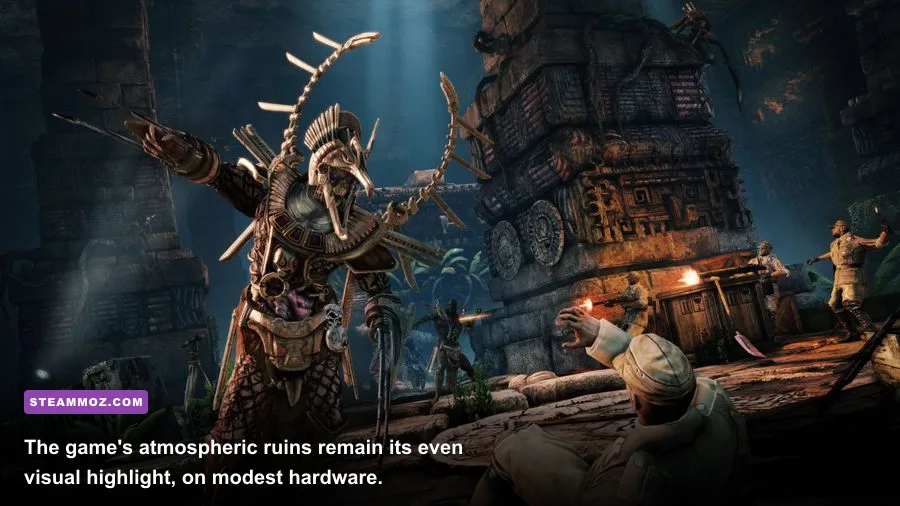
Don't judge the Digital Deluxe edition by its bonus content. The extra material does not turn the game into a heavier build; the same renderer and campaign scenes determine performance. Choose a profile below, then adjust only after running through a demanding temple encounter. For context, Steam's listed requirements are old and conservative, so modern compatibility issues often matter more than the minimum GPU label.
| PC Profile | Resolution and Core Settings | Expected Goal | Best First Adjustment |
|---|---|---|---|
| Older laptop or entry-level desktop | 720p, Medium textures, Low shadows, Low post-processing, AO Off | Stable 30 FPS | Lower resolution before textures. |
| Mainstream 1080p PC | 1080p, High textures, Medium shadows, Medium AA, AO Low | Stable 45–60 FPS | Reduce shadows if temple arenas dip. |
| Modern gaming PC | 1080p or 1440p, High textures, High shadows, Medium or High AA | 60 FPS with a cap | Use a cap to control traversal spikes. |
Steam's official community discussions can help confirm whether a crash is widespread, but separate old reports from your exact Windows and driver setup. If you want another settings-focused reference, Steamoz's Firefighting Simulator performance article explains why shadows, overlays, and frame caps should be tested independently.
The Fastest Reliable Troubleshooting Order
Use this order and you'll avoid wasting an afternoon reinstalling a game that only needed a reset configuration. First, verify files. Second, rename the local Deadfall Adventures configuration folder. Third, disable overlays and recording tools. Fourth, clean-install or roll back the GPU driver. Fifth, launch at 720p or 1080p fullscreen with Low shadows and post-processing. Sixth, cap the frame rate at 30, 45, or 60. Finally, restore features one at a time.
- Launch a new game and test a demanding temple or jungle scene.
- Raise textures first if performance is stable; they normally offer the best visual return.
- Raise shadows and anti-aliasing separately, checking frame time after each change.
- Re-enable Steam Overlay, Discord, and monitoring tools one by one.
- Keep the working configuration backup so a future crash can be reversed quickly.
That process fixes the common Deadfall Adventures PC problems without sacrificing the game's best visual details. Preserve the sharp textures, tame the expensive lighting, keep the frame rate predictable, and treat every launch option as a controlled experiment. If the game still crashes after a clean configuration, verified files, current dependencies, and a clean driver, Event Viewer and the Steamoz crash-diagnosis checklist are the next useful stops—not another blind reinstall.