If A Monster’s Expedition keeps crashing, freezing during island transitions, or dipping into choppy low FPS on PC, the fastest fix is to verify the Steam installation, reset the game’s display configuration, disable overlays, and then test a capped 60 FPS profile at a sensible resolution. The game is visually minimalist and normally runs on modest hardware, so persistent stutter usually points to corrupted files, an overlay conflict, a bad fullscreen mode, driver trouble, or background software—not a demanding GPU workload.
That distinction matters. This isn’t a game where lowering every setting should magically cure a struggling graphics card. A Monster’s Expedition is built around a clean, readable presentation: water, islands, trees, rocks, museum exhibits, and the small orange monster you guide through more than 1,000 interconnected islands. If performance is poor, aggressive visual downgrades can make the picture ugly without touching the real cause. Work through the fixes below in order, changing one thing at a time so you know what actually helped.
Start with the fixes that solve most crashes
Before editing files or reinstalling Windows, perform a clean baseline test. Close the game, restart Steam, and reboot the PC. A full restart clears a surprising number of overlay, driver, and memory conflicts, especially if the game has been suspended or left running while you played another title.
1. Verify the Steam installation
Open Steam, right-click A Monster’s Expedition in your Library, choose Properties, open Installed Files, and select Verify integrity of game files. Steam will compare the local installation against its depot and replace missing or damaged files. Your saves are not normally removed by this process, but backing up important saves before troubleshooting is still smart.
Verification is especially important if the crash began after an interrupted update, a sudden power loss, moving the game between drives, or installing mods or third-party reshade tools. Remove unofficial injectors first. A tiny-looking visual tweak can still interfere with Unity’s rendering startup and produce a crash before the title screen appears.
2. Remove launch options and reset display behavior
In the game’s Steam Properties, check the Launch Options box. Delete experimental commands unless you added one for a specific reason. Resolution commands, forced APIs, and old Unity startup flags can conflict with modern drivers or a changed monitor layout.
Then launch the game and test borderless windowed mode if exclusive fullscreen crashes. If you can’t reach the menu, try Steam’s launch configuration only as a temporary recovery step, not a permanent performance solution. A bad resolution or refresh-rate combination can make the game appear frozen when it is actually rendering outside the visible display range.
3. Turn off overlays for the first test
Disable the Steam Overlay in the game’s Properties and temporarily shut down Discord Overlay, Xbox Game Bar, AMD Software overlay, NVIDIA overlay, MSI Afterburner’s RTSS hook, and recording tools. Overlay software inserts itself into the rendering process. That can be harmless for months and then break after a driver or Windows update.
Once the game runs for 15 to 20 minutes without crashing, re-enable overlays one at a time. This turns guesswork into a proper diagnosis. If the crash returns immediately after enabling one tool, you’ve found the culprit. Our Deep Rock Galactic crashing guide covers the same overlay-isolation approach for another Steam game.
4. Update the right software, then test cleanly
Install the latest stable graphics driver from NVIDIA, AMD, or Intel, and let Windows finish pending updates. If the problem started immediately after a driver update, rolling back to the previous stable driver is reasonable. During a GPU driver installation, choose the clean-install option where available, but don’t repeatedly reinstall drivers without evidence that the driver is involved.
Also check that your laptop is using the dedicated GPU rather than an integrated graphics chip. In Windows, open Settings > System > Display > Graphics, add the game executable, choose High performance, and relaunch. This is less important on a desktop, but hybrid laptops can occasionally launch a game on the wrong adapter.
| Symptom | Most likely cause | First action | What success looks like |
|---|---|---|---|
| Crash before the menu | Overlay, bad launch option, damaged file | Disable overlays and verify files | Game reaches the title screen consistently |
| Crash when loading an island | Corrupted asset, driver conflict, background hook | Verify files and test without overlays | Island transitions complete normally |
| Black screen but audio continues | Fullscreen or refresh-rate mismatch | Switch to borderless/windowed mode | Picture returns without restarting |
| Brief freezes every few seconds | Shader compilation, overlay polling, disk activity | Close monitoring tools and test another drive | Frame pacing becomes even |

🎮 A Monster's Expedition
Looking to experience this game? Grab your digital key directly on our store for $5.99.
View on Steammoz Store →Use a stable graphics profile instead of chasing maximum FPS
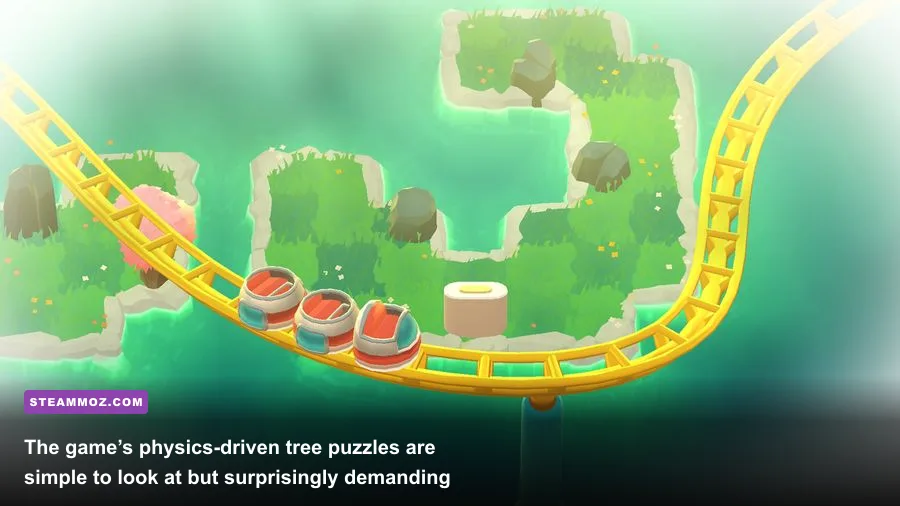
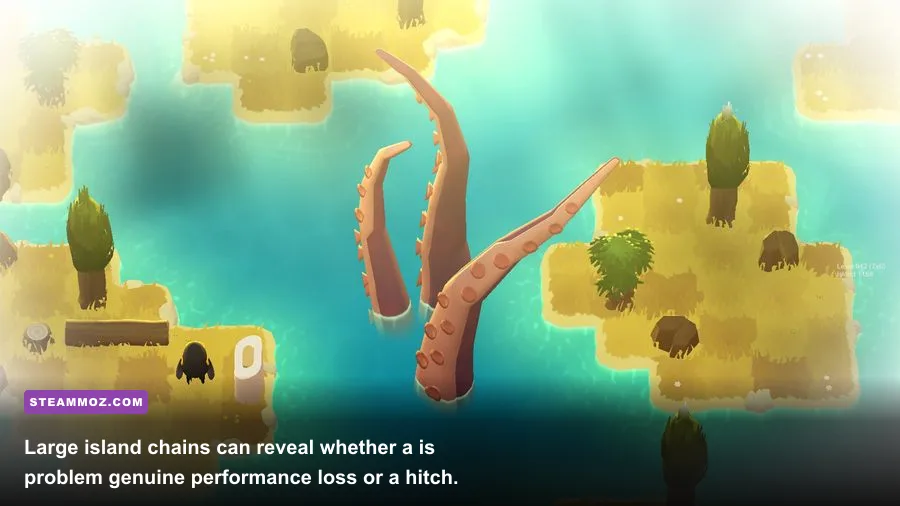
A Monster’s Expedition doesn’t need a complicated competitive setup. You’re solving environmental puzzles, not tracking enemies at 240 Hz. A stable 60 FPS with consistent frame pacing feels better than an uncapped counter that jumps between 120 and 45 whenever the camera crosses a large island chain.
Open the game’s video or graphics options and begin with your monitor’s native resolution. If the game is rendering at 4K on an entry-level laptop, drop to 1920×1080 first. If you’re on a 1080p display, lowering resolution often gives little benefit because the game’s bottleneck may be CPU-side simulation, asset streaming, or a bad frame-pacing interaction rather than raw pixel fill.
The recommended test profile
Set fullscreen or borderless windowed mode, enable V-Sync if you see tearing, and cap the frame rate to 60 if the game offers an in-game limiter. If it doesn’t, use your GPU control panel or RTSS—but keep RTSS disabled during the first crash test. A 60 FPS cap reduces power spikes, prevents unnecessary GPU work, and gives you a clear target while troubleshooting.
For a 120 Hz or 144 Hz monitor, don’t assume that running uncapped is automatically better. Puzzle movement benefits from responsiveness, but the important thing here is consistency. Try 60 FPS first, then 120 only after the game is stable. If the frame rate is smooth at 60 but erratic at 120, leave the cap in place. You’ll notice fewer stutters when pushing trees, steering the boat, or entering a new island group.
| Setting | Recommended value | FPS impact | Visual or stability note |
|---|---|---|---|
| Resolution | Native; 1920×1080 for testing | Medium at high resolutions | Lower only if GPU usage is high |
| Display mode | Borderless or fullscreen | Low | Borderless is a strong fix for black-screen crashes |
| Frame-rate limit | 60 FPS baseline | Improves consistency | Prevents needless GPU spikes |
| V-Sync | On if tearing appears | Small latency cost | Can smooth uneven presentation |
| Shadow quality | Medium or High | Low to medium | Reduce before lowering resolution |
| Effects and post-processing | Medium | Low to medium | Useful test if transitions hitch |
| Texture quality | High unless VRAM is limited | Low on most systems | Visual clarity matters more than ultra settings |
How to identify the real bottleneck
Use Task Manager or your GPU monitoring tool while playing. If GPU usage sits near 95–100% and lowering resolution produces a clear FPS increase, the graphics processor is the limit. If GPU usage stays low while one CPU core spikes, the issue is more likely simulation, streaming, a background task, or frame pacing. If both usage figures look normal but the game hitches, check storage activity, overlays, and thermal throttling.
Don’t judge performance only from a crowded island. Walk around a quiet starting area, push a tree onto water, board the boat, and cross into a new section. Those actions test different systems. A repeatable route is far more useful than staring at an FPS number during a single lucky minute.
Fix stutter caused by Windows, storage, and background apps
Low FPS and stutter aren’t identical. Low FPS means the game is consistently rendering too slowly. Stutter means frame delivery is uneven: you may see 60 FPS on a counter, but the image pauses for a fraction of a second. In a thoughtful puzzle game, those little hiccups are irritating because they make movement and timing feel less precise than they should.
Check drive health and installation location
If the game is installed on an aging hard drive, nearly full SSD, external USB drive, or a drive that is busy syncing files, island transitions can hitch. Keep at least 10–15 percent free space on the game drive. Pause OneDrive, Dropbox, torrent clients, and large downloads during testing. If possible, move the installation to an internal SSD through Steam’s storage manager.
Windows Defender can also scan files while they’re being read. Don’t permanently disable security software, but you can test with the game folder excluded from real-time scanning if you understand the security trade-off and your installation is legitimate. Remove that exclusion afterward if it doesn’t help.
Stop power-saving from throttling the game
On a laptop, plug in the charger and set Windows power mode to Best performance while testing. Battery profiles can reduce CPU and GPU clocks enough to create dips, even in a lightweight game. Make sure the laptop vents aren’t blocked and check temperatures after 20 minutes. A CPU or GPU that repeatedly hits its thermal limit may downclock, producing rhythmic drops that look like a software bug.
Close browsers with dozens of tabs, RGB utilities, hardware dashboards, capture software, and animated desktop applications. The point isn’t that any one program is “bad”; it’s that polling, recording, and memory compression can create interruptions. Run a clean test with only Steam and the game open.
Use Windows compatibility options carefully
Right-click the game executable, choose Properties > Compatibility, and avoid blindly enabling every checkbox. Compatibility mode can create new problems. The only useful tests are usually disabling fullscreen optimizations or running as administrator when permissions clearly appear to be involved. If neither changes the behavior, undo the setting.
For broader PC performance habits, our Don’t Be Afraid settings guide explains why resolution, frame caps, and background load matter more than simply selecting every low preset. You can also compare the workflow with our Fade to Silence stutter fixes.
Reset broken configuration files without losing your progress
A damaged preference file can crash a game at startup or preserve a bad resolution after you change monitors. The safe approach is to rename configuration folders rather than delete them immediately. Renaming creates a backup and lets the game generate fresh defaults on the next launch.
Use a controlled reset
First, close the game and Steam. Look in the game’s local installation folder and in the Windows user locations commonly used by Unity games, such as %USERPROFILE%\AppData\LocalLow, %APPDATA%, and %LOCALAPPDATA%. Search for folders named after A Monster’s Expedition, its developer, Draknek & Friends, or the game’s executable. Don’t delete random folders: confirm the files are clearly connected to the game.
Rename a suspected settings folder to something like A Monsters Expedition_backup, then launch the game. If the crash disappears, rebuild your settings slowly. Start at 1920×1080, borderless mode, 60 FPS, and default quality. If your saves were stored in that folder, copy them back only after confirming which files are saves and which are preferences. Steam Cloud can help, but it isn’t a substitute for a manual backup.
Before resetting anything, check the official A Monster’s Expedition Steam page for current announcements and community reports. The developer’s official game page is also useful for confirming the supported release and contacting the studio if a reproducible bug remains.
When reinstalling is worth the time
Reinstall only after verification and configuration reset fail. Uninstall through Steam, manually check that the old installation folder is gone, reboot, and install again on an internal drive. If the game works on a fresh installation but your old profile does not, the problem is likely in a local configuration or save-related file. Restore backups carefully rather than copying the entire old folder over the new one.
Steam Cloud conflicts deserve attention here. If Steam asks whether to use local or cloud files, choose the newer copy only when you’re certain it contains the latest progress. A stale cloud configuration can bring the same broken settings straight back after reinstalling.
Test the game properly and know when to report a bug
After each fix, use the same short test route: load the title screen, open your existing save, walk across two or three islands, push several trees, board the boat, and transition into another island group. Then play for at least 15 minutes. This matters because a game that survives the menu but crashes during streaming hasn’t really been fixed.
| Test stage | Action | Record | Interpretation |
|---|---|---|---|
| Startup | Launch with overlays disabled | Time to menu and crash status | Crash here points to files, drivers, or configuration |
| Save loading | Open the same save three times | Whether the same location fails | Repeatable location failure suggests a local asset or save issue |
| Traversal | Cross islands and board the boat | Frame-time spikes and freezes | Hitches here suggest streaming, storage, or background activity |
| Long session | Play for 20–30 minutes | Temperatures and crash timing | Late failure can indicate heat, memory, or overlay buildup |
If nothing works, gather useful evidence instead of posting “it crashes.” Include your Windows version, CPU, GPU, RAM, whether the game is on an SSD, display resolution, driver version, exact crash moment, and whether verification changed anything. Mention if it happens only during boat travel, loading, or opening the museum. A short video and crash log can turn a vague report into a reproducible issue.
For more Steam troubleshooting habits, see our Firefighting Simulator crash and FPS fixes and Deponia Doomsday settings guide. The same rule applies here: change one variable, test a repeatable route, and keep a backup before touching saves.
The best final profile for most players is refresh-rate-appropriate fullscreen or borderless mode, native resolution, a 60 FPS cap, V-Sync only when needed, current drivers, and no third-party overlays. Because A Monster’s Expedition is so lightweight, a stable clean setup should make its island-hopping feel as calm and deliberate as the puzzles themselves. If it still crashes after a verified reinstall with every overlay removed, you’ve moved beyond ordinary low-FPS tuning and have a strong, reproducible bug report ready for the developer.