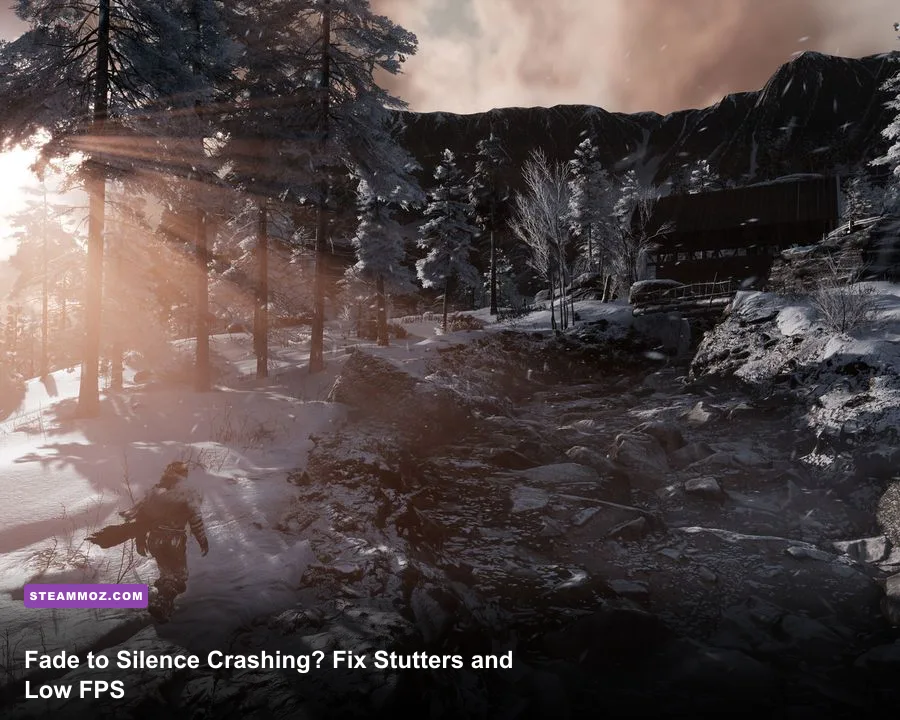
Fade to Silence crashes and low FPS usually come from a messy combination of old Unreal Engine 4 behavior, outdated GPU drivers, shader compilation, and settings that push foliage, shadows, and view distance too hard. Start by verifying the game files, forcing a clean DirectX 11 launch, updating or clean-installing your graphics driver, and using the optimized settings profile below. If the game still crashes, reset its configuration files and disable overlays before touching Windows registry tweaks.
Check Your PC Before Changing Settings
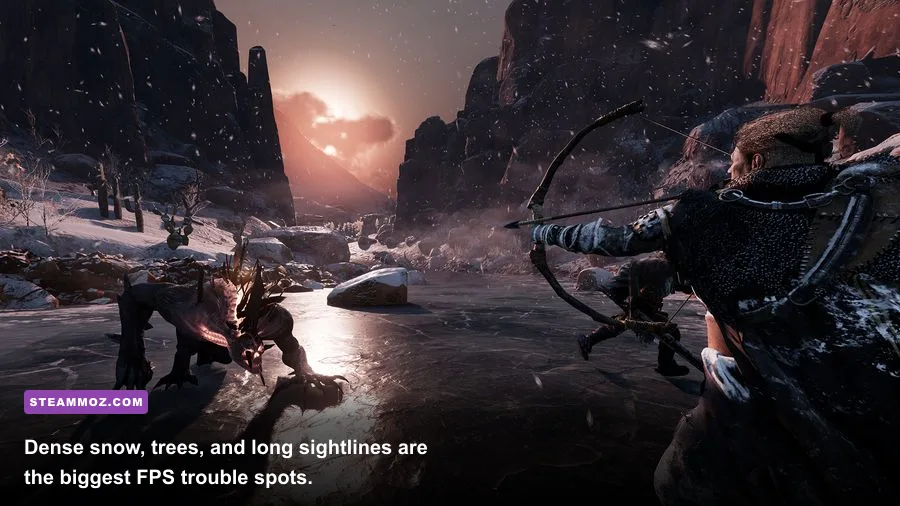
Fade to Silence is not a lightweight survival game. Its frozen forests combine volumetric-looking weather, dense vegetation, long outdoor sightlines, dynamic shadows, and streaming between settlement and wilderness areas. That workload can expose CPU limits even when your graphics card appears capable.
The official Steam listing places the minimum target around a 64-bit Windows system, an Intel Core i5-4460 or AMD equivalent, 8 GB of RAM, and a GeForce GTX 960-class GPU with 4 GB of VRAM. The recommended tier moves toward an i7-3770-class processor, 16 GB of RAM, and a GTX 1060 with 6 GB of VRAM. Those are launch-era targets, not a guarantee of locked 60 FPS on modern high-resolution displays.
| Component | Minimum Target | Recommended Target | Practical 2026 Advice |
|---|---|---|---|
| CPU | Core i5-4460 class | Core i7-3770 class | Four real cores can run it, but six modern cores improve traversal smoothness. |
| Memory | 8 GB RAM | 16 GB RAM | Use 16 GB to reduce background paging and settlement-area hitching. |
| GPU | GTX 960 4 GB class | GTX 1060 6 GB class | Use a card with at least 4 GB VRAM at 1080p. |
| Storage | Hard drive supported | SSD preferred | An SSD helps asset streaming and reduces traversal pauses. |
Before testing, close browsers, recording tools, RGB utilities, and aggressive antivirus scans. Watch CPU, GPU, RAM, and VRAM usage with MSI Afterburner or a similar monitor. If GPU usage sits below 90 percent while the frame rate falls during forest traversal, the bottleneck is probably CPU simulation, asset streaming, or shader compilation rather than raw GPU power.

🎮 Fade to Silence
Looking to experience this game? Grab your digital key directly on our store for $7.49.
View on Steammoz Store →Fix Crashes First With a Clean Launch
1. Verify the installation
Open Steam, right-click Fade to Silence, choose Properties, open Installed Files, and select Verify integrity of game files. This replaces damaged packages but does not repair a corrupted configuration file, so continue with the steps below if the crash returns.
2. Remove launch conflicts
Clear every custom launch option temporarily. Do not stack random commands from old forum posts. If the game crashes before reaching the menu, test -dx11 as the only launch option. Fade to Silence was built around DirectX 11-era PC hardware, and a forced DX11 path can avoid a problematic renderer selection on newer systems.
Also disable Steam Overlay, Discord Overlay, GeForce Experience or Radeon recording, Xbox Game Bar, and RTSS overlay for the first test. Overlay hooks can crash older Unreal Engine 4 builds during startup, map transitions, or resolution changes.
3. Reset local settings
Back up your saves before deleting configuration data. Close the game, then search Windows for the Fade to Silence configuration folder under %LOCALAPPDATA% and the game's saved-data directories. Rename the relevant Fade to Silence folder rather than deleting it outright. Launch again so the game generates fresh settings. This is particularly useful after changing resolution, switching GPUs, or moving from fullscreen to borderless mode.
Keep saves separate from configuration files. If the crash only happens when loading one particular save, test a new game. A damaged save or a broken world-state reference needs a different fix than a renderer crash.
For broader Unreal Engine troubleshooting, compare your setup with Steamoz's guide to fixing choppy FPS in Exogate Initiative. The games are different, but overlay isolation, clean config resets, and frame-time testing remain useful.
Use This Fade to Silence FPS Settings Profile
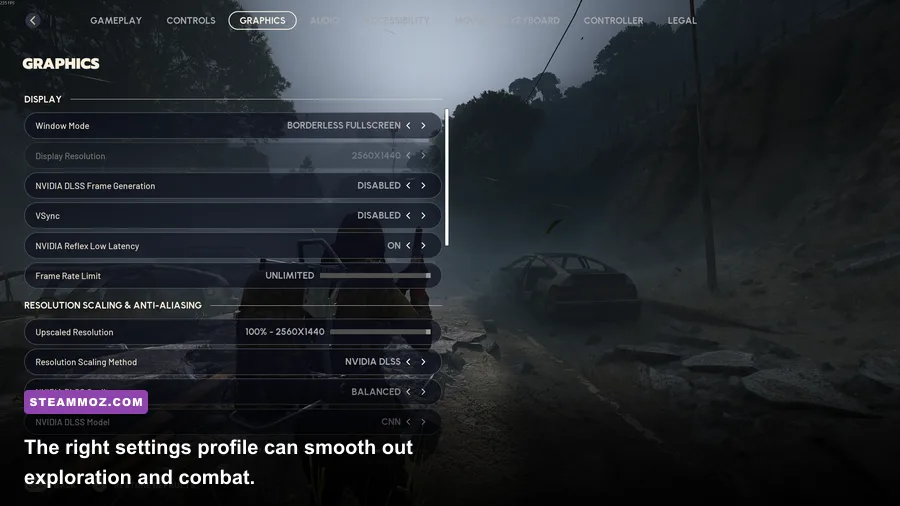
Begin at 1920x1080, exclusive fullscreen if available, and a 60 FPS cap. A cap is important: letting the GPU render unlimited frames can create heat and clock instability, while a stable 45 or 60 FPS feels better than a fluctuating 70-to-35 FPS range in this slow, deliberate survival game.
| Setting | Recommended Value | FPS Impact | Visual Trade-Off |
|---|---|---|---|
| Resolution | 1920x1080 | Very high | Keep native resolution; lower only as a last resort. |
| Resolution Scale | 90-100% | High | 90% adds performance with a mild softness penalty. |
| Texture Quality | High on 6 GB VRAM, Medium on 4 GB | Low to medium | Mostly affects memory use, not average FPS. |
| Shadow Quality | Medium | High | Lowering shadows helps CPU-heavy outdoor scenes. |
| Foliage or Vegetation | Medium | Very high | Reduces tree and grass density at distance. |
| View Distance | Medium | High | Shortens the most expensive wilderness draw calls. |
| Effects and Post Processing | Medium | Medium | Preserves weather atmosphere without excess blur. |
| Anti-Aliasing | Medium or High | Medium | Lower it after shadows and foliage, not before. |
| Motion Blur | Off | Small | Improves clarity and removes a common source of perceived softness. |
| V-Sync | Off with a frame cap | Variable | Use V-Sync if tearing is worse than added latency. |
The key mistake is lowering textures first. Textures generally consume VRAM, while foliage, shadows, and view distance create the heavy frame-time spikes. Change one setting at a time, walk from the settlement into a forest, then fight an enemy group. That route gives you a more useful test than staring at an empty camp.
If your GPU reaches 99 percent, reduce resolution scale or anti-aliasing. If GPU usage is low and one CPU core is heavily loaded, lower foliage, shadows, and view distance. That distinction prevents you from sacrificing image quality to solve the wrong bottleneck.
Stop Stutter From Drivers and Shaders
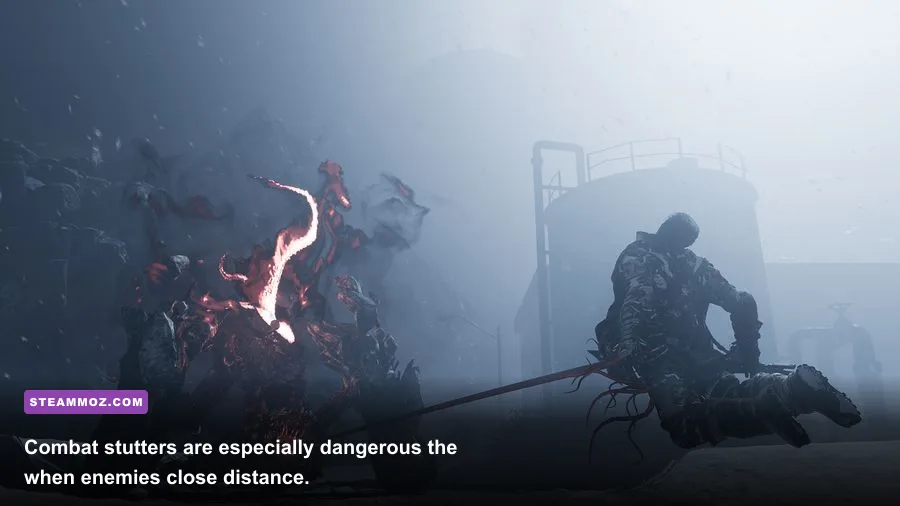
Fresh drivers aren't always enough. A driver update can leave behind a shader cache or profile that conflicts with an older game. Use the latest stable driver from the NVIDIA driver page or AMD's official support page. Choose a clean installation when the installer offers it. If crashes began immediately after a driver update, test the previous stable driver instead.
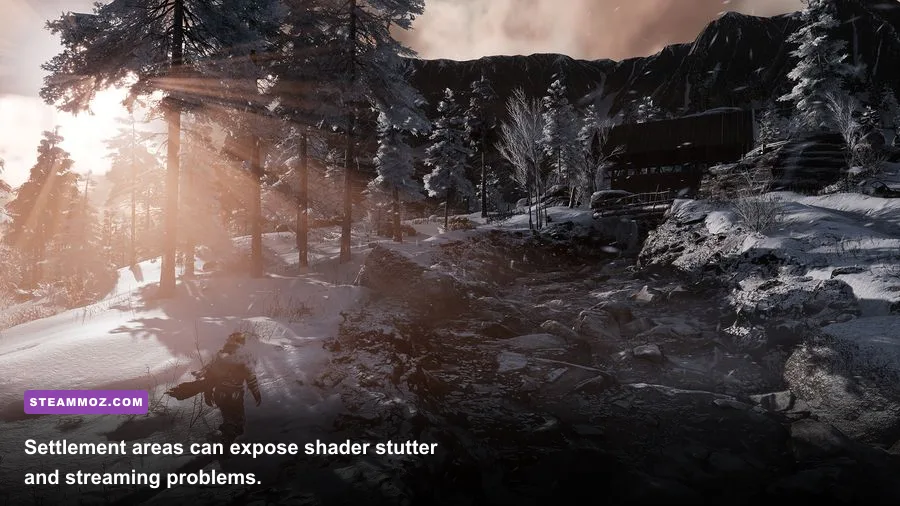
Do not panic if the first trip through the wilderness stutters. Shader compilation and asset streaming can cause one-time hitches after a driver change or configuration reset. Play the same route for several minutes, quit normally, then repeat it. Persistent stutters on every pass suggest a real CPU, storage, or settings problem.
Install the game on an SSD, leave at least 15 percent free space on that drive, and disable background disk-heavy tasks. Windows Defender scans, cloud-sync clients, and recording software can interrupt streaming. Avoid third-party “FPS booster” tools; they often kill useful background services while doing nothing for Unreal Engine frame pacing.
For comparison, Steamoz's Edge of Sanity performance settings guide shows why survival games can suffer from traversal hitching even when average FPS looks healthy. Use frame-time graphs, not just the headline number.
Fix Windows, GPU, and Power Conflicts
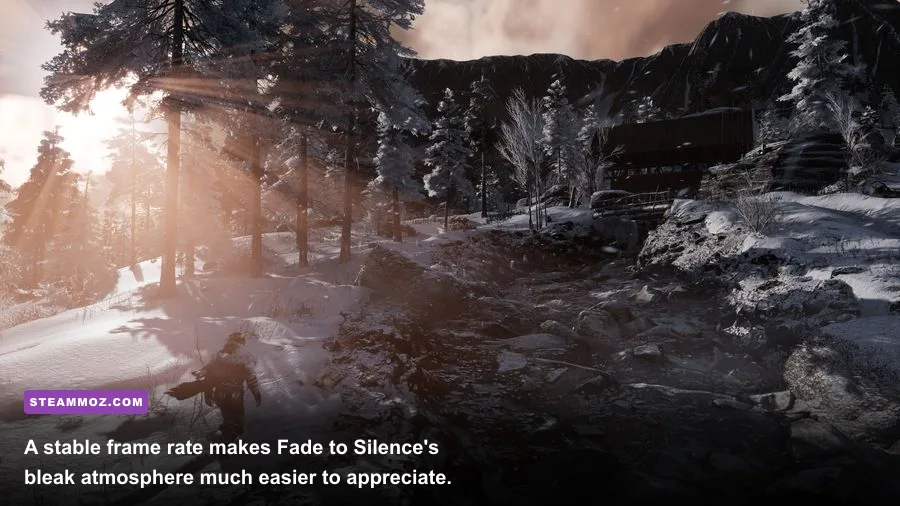
For laptops
Open Windows Settings > System > Display > Graphics, add the Fade to Silence executable, and select High performance. Then connect the charger and choose a performance power mode. Laptop hybrid graphics can otherwise launch the game on integrated graphics, producing terrible FPS that looks like a broken game.
For desktop GPUs
In NVIDIA Control Panel or AMD Software, create a Fade to Silence profile. Use the dedicated GPU, disable forced supersampling, and avoid driver-level sharpening or enhanced sync while diagnosing crashes. Revert any overclock, undervolt, or unstable XMP memory profile. A game that crashes only during weather-heavy scenes may be exposing marginal GPU or RAM stability.
Check Windows components
Install pending Windows updates, the current Microsoft Visual C++ redistributables, and the latest motherboard chipset driver. Run sfc /scannow from an elevated Command Prompt if several unrelated games are crashing. If only Fade to Silence fails, the game files, configuration, overlay, or driver profile remain the more likely suspects.
The THQ Nordic support portal is the right place to check publisher-specific troubleshooting and submit crash details. Include your GPU, driver version, Windows build, crash location, and whether a new game behaves differently from an old save.
Find the Real Cause With a Repeatable Test
Don't change ten variables and then guess which one worked. Use this order:
- Restart Windows and launch with overlays disabled.
- Verify Steam files and test a new save.
- Run 1080p, 90 percent resolution scale, medium shadows, medium foliage, and medium view distance.
- Walk the same settlement-to-forest route for five minutes.
- Record average FPS, one-percent lows, GPU usage, VRAM use, and CPU temperature.
- Raise one setting at a time until the frame-time spikes return.
| Symptom | Most Likely Cause | First Fix | What Not to Do |
|---|---|---|---|
| Crash before the menu | Bad config, overlay, renderer conflict | Reset config, disable overlays, test -dx11 | Do not edit the registry first. |
| Crash during loading | Damaged files or save data | Verify files and test a new game | Do not overwrite your only save backup. |
| Low FPS in forests | CPU draw calls, foliage, shadows | Lower foliage, view distance, and shadows | Do not lower textures as your first move. |
| Brief hitch every few seconds | Streaming, shader cache, background disk use | Use an SSD and repeat the route after shader warm-up | Do not assume average FPS explains it. |
| GPU usage stays low | CPU limit, power mode, wrong GPU | Check Windows GPU assignment and CPU load | Do not increase graphics settings blindly. |
If nothing works, reinstall after backing up saves and configuration. Install to an SSD, launch once with default settings, then apply the optimized profile. For more PC troubleshooting habits, Steamoz's Generation Zero performance coverage offers another useful example of diagnosing open-world survival-game stutter rather than chasing meaningless average FPS.
Fade to Silence can still run well on modern PCs, but it rewards disciplined tuning. Stabilize the renderer first, control foliage and shadows second, and only then chase higher image quality. That approach fixes both the dramatic crashes and the less obvious problem: a game that technically runs at 60 FPS but feels rough every time you leave camp.