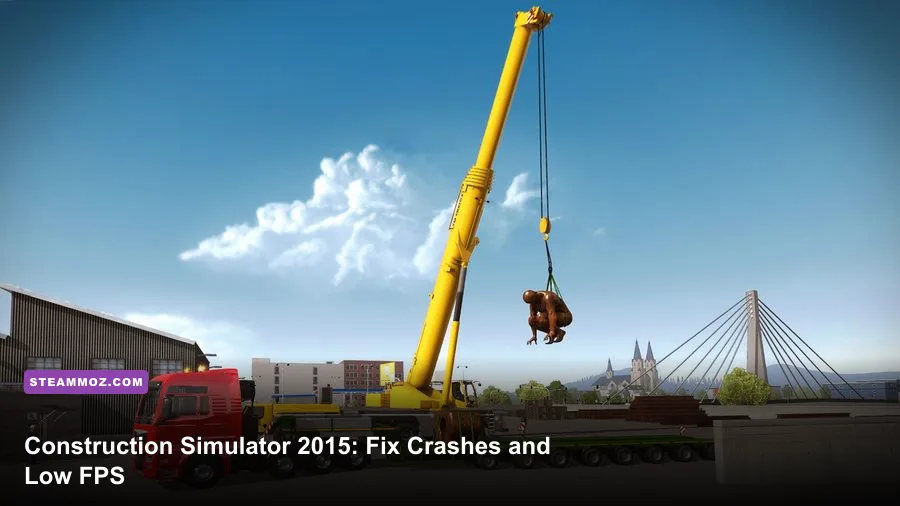
If Construction Simulator 2015 crashes when you select the Liebherr LTM 1300 6.2 or crawls below 30 FPS near a busy site, the fastest fix is a clean baseline: verify the Steam files, reset the game’s configuration, disable overlays, run the game at 1080p with shadows and anti-aliasing reduced, then cap the frame rate to a stable 30 or 60 FPS. The crane itself usually isn’t “too powerful” for your GPU; its large model, site clutter, vehicle reflections, and camera distance simply reveal driver, shader, and CPU bottlenecks that smaller jobs can hide.
That distinction matters. A crash on launch, a crash while loading a save, and a severe stutter when extending the LTM 1300 6.2 boom are different problems. Treating all three as “turn everything to Low” wastes time. This guide targets the PC version of Construction Simulator 2015, including the Liebherr LTM 1300 6.2 content, and keeps your save files safe while you troubleshoot.
Before changing anything, check the current official Steam listing for the requirements and DLC ownership status. The game is an older PC release, so modern Windows builds, graphics drivers, high-refresh monitors, and overlay software can create more trouble than the original hardware ever did.
Start With the Fix That Identifies the Problem
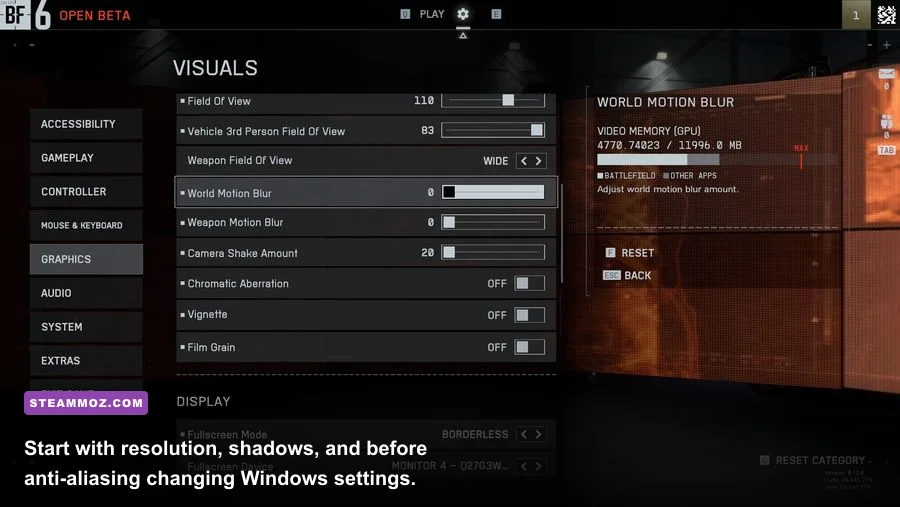
First, completely close the game and Steam. Reopen Steam, right-click Construction Simulator 2015 in your library, choose Properties, open Installed Files, and select Verify integrity of game files. This replaces missing or damaged archives, including files added by DLC updates. It does not delete your career.
Next, launch the game without the Liebherr vehicle selected. Load a small contract using a basic truck or excavator, drive to an uncomplicated area, and watch the result. If the small job is stable but the LTM 1300 6.2 crashes during vehicle selection, the likely suspects are corrupted cached data, a bad config value, an overlay hook, or a driver issue triggered by the crane’s asset. If every map crashes, focus on installation, permissions, compatibility, and drivers instead.
| What happens | Most likely cause | First action | What success looks like |
|---|---|---|---|
| Crash before the main menu | Broken file, driver, overlay, or config | Verify files and disable overlays | Main menu loads consistently |
| Crash selecting LTM 1300 6.2 | Vehicle asset, cache, or graphics setting | Reset config and lower shadows | Crane preview and career load |
| Crash loading one save | Damaged save or bad streamed location | Test an older save or new profile | Other saves remain playable |
| Low FPS only at large sites | CPU draw calls, shadows, or view distance | Lower shadows and cap FPS | Stable frame pacing near the job |
For additional context, our Deep Rock Galactic performance fixes cover the same useful diagnostic split between launch crashes and in-game stutter. The principle applies here: identify the repeatable trigger before piling on random tweaks.
🎮 Construction Simulator 2015: Liebherr LTM 1300 6.2
Looking to experience this game? Grab your digital key directly on our store for $1.19.
View on Steammoz Store →Use a Clean Configuration and Compatibility Pass
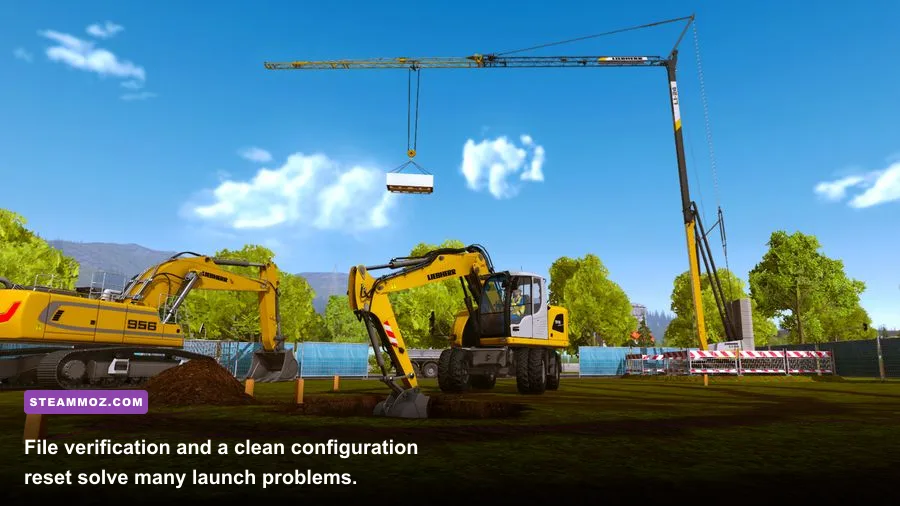
Configuration corruption is easy to overlook because reinstalling the game may leave user settings behind. Find the game’s local configuration and save folders through Steam’s Browse local files option, then back up any folder containing career or profile data before renaming a settings folder. Rename it rather than deleting it; a name such as config_backup lets you restore it if needed. Start the game and allow it to create fresh defaults.
Don’t randomly delete your entire Documents folder. The location can vary by build and Windows account, and your progress is worth protecting. If a new profile runs correctly while your old career crashes at one contract, the installation is probably fine. Keep the backup, test an earlier save, and avoid repeatedly loading the same broken checkpoint while troubleshooting.
Now test compatibility in a controlled way. Right-click the game executable, open Properties > Compatibility, and try Disable fullscreen optimizations. If Windows scaling is involved, open Change high DPI settings and test application scaling. Don’t stack Windows 7 compatibility mode, administrator mode, forced DPI overrides, and third-party “FPS booster” tools all at once. Change one item, test the same crane job, and record the result.
Run Steam’s file verification again after any interrupted update. Also check the astragon support portal for version-specific notices. The publisher’s support pages are more reliable than old forum posts that may refer to a different build, a discontinued launcher, or a graphics driver from a decade ago.
Finally, disable Steam Overlay, Discord Overlay, GeForce Experience or AMD recording overlays, MSI Afterburner’s on-screen display, ReShade, and controller remapping injectors for one test. Older games can crash when several programs hook the same DirectX rendering calls. If disabling one overlay fixes the crash, re-enable the others individually so you know which program is responsible.
Best Graphics Settings for Stable LTM 1300 FPS
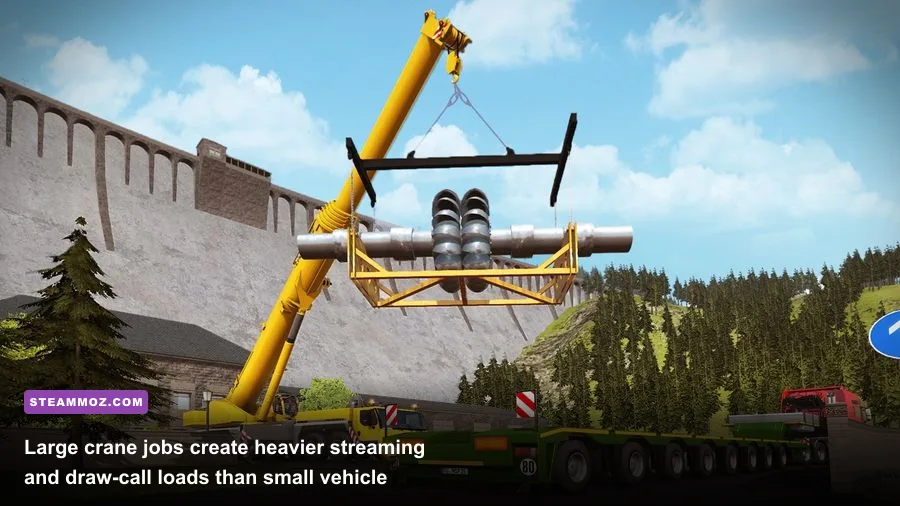
The LTM 1300 6.2 stresses two different parts of the PC. The GPU handles the crane’s visible geometry, shadows, lighting, and anti-aliasing. The CPU handles traffic, physics, construction-site objects, and the draw calls created as you rotate a long boom across the scene. That’s why lowering resolution can fail to fix a busy-site slowdown: if the processor is the limit, 720p may look worse without becoming much faster.
Begin at 1920×1080 if your display supports it, then use a 30 FPS cap for weaker systems or a 60 FPS cap for a modern mid-range PC. A locked 30 is much better than a wild 22–47 FPS swing during precision crane work. If the game offers a vertical-sync option, test it both on and off; use the setting that produces fewer camera jolts, not the one that gives the biggest peak number in an empty field.
| Setting | Recommended starting value | FPS impact | Visual trade-off |
|---|---|---|---|
| Resolution | 1920×1080, then 1600×900 | High GPU impact | Lower values soften the image |
| Shadows | Low or Medium | High GPU and CPU impact | Edges and contact shadows lose detail |
| Anti-aliasing | Low or Off for testing | Medium GPU impact | More jagged crane cables and railings |
| View distance | Medium | High CPU impact near sites | Distant objects appear later |
| Texture quality | Medium or High if VRAM allows | Low to medium impact | High retains sharper vehicle surfaces |
| Reflections and effects | Low | Medium GPU impact | Less shine and environmental detail |
| V-Sync | Test On and Off | Frame-pacing dependent | On can reduce tearing but add latency |
Use shadows and view distance as your first serious compromises. The Liebherr’s extended boom can make the engine draw a huge number of site objects at once, and shadows multiply that work. Textures are usually the safer setting to keep higher, provided your graphics card has enough VRAM and you aren’t seeing texture pop-in or hitching.
If the game stutters every few seconds rather than staying at a low average FPS, watch storage activity and background applications. A nearly full hard drive, antivirus scanning, browser tabs with video, and cloud-sync utilities can create periodic pauses. Installing the game on an SSD won’t transform the engine’s maximum FPS, but it can shorten loading and reduce asset-streaming stalls.
Our guides to Firefighting Simulator: Ignite and Fade to Silence use the same practical rule: reduce the settings that affect scene complexity first, then protect image quality with textures and a sensible resolution.
Driver, Windows, and GPU Fixes That Actually Matter
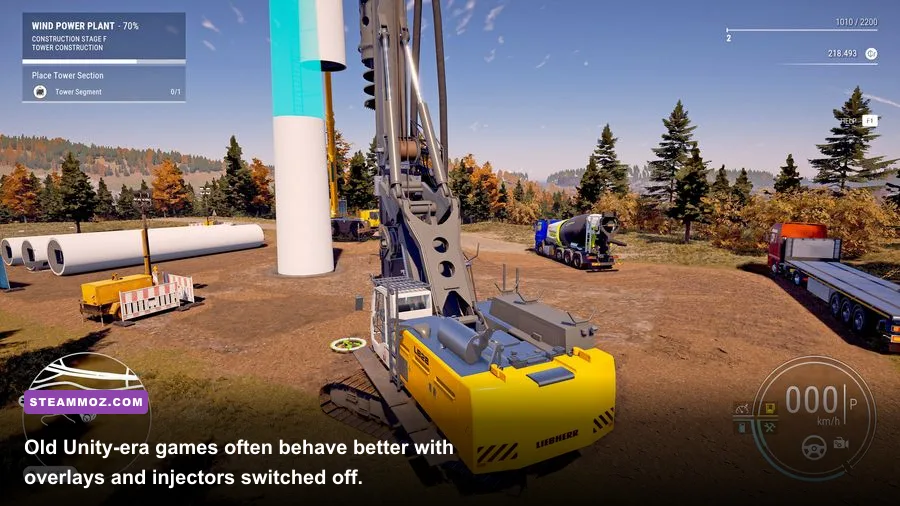
Install a current graphics driver from NVIDIA’s driver page or AMD’s support page, but don’t assume the newest driver is automatically best. If the problem started immediately after a driver update, use the manufacturer’s clean-install option or roll back to the previous stable package. Intel integrated graphics users should update through Intel or the laptop manufacturer, because some notebooks require an OEM driver.
For NVIDIA cards, open the game profile in NVIDIA Control Panel and leave global overrides alone. Set Power management mode to Prefer maximum performance only for the game, and leave texture filtering at its default while testing. AMD users can create a per-game profile without forcing Radeon Super Resolution, Enhanced Sync, or Anti-Lag until the base game is stable. Extra driver features make diagnosis harder and rarely rescue an old simulation engine from a CPU limit.
Use Windows Task Manager while reproducing the slowdown. GPU usage close to 95–100 percent means resolution, shadows, anti-aliasing, or effects are the right targets. GPU usage that falls while one CPU core is heavily loaded points toward view distance, site density, traffic, and frame pacing. A laptop stuck on its integrated GPU needs a separate fix: set the game executable to High performance under Windows Settings > System > Display > Graphics.
Also select the correct Windows power mode, plug in gaming laptops, and stop vendor utilities from switching performance profiles mid-session. Temperatures matter too. If the game starts smoothly and slows after 15 minutes, check for CPU or GPU thermal throttling instead of blaming the LTM 1300. Clean vents, remove an aggressive undervolt, and test again with monitoring software closed if its overlay is causing instability.
Make the Crane Jobs Smooth Without Sacrificing Control
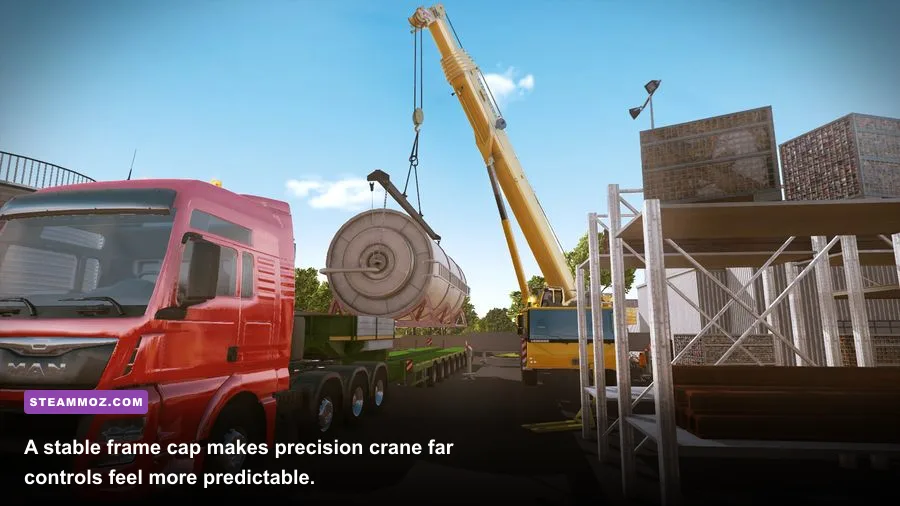
Once the game stops crashing, test the Liebherr systematically. Start a small contract, drive to the site with the crane folded, park away from dense traffic, and save. Then deploy the outriggers, extend the boom in stages, rotate the camera through 360 degrees, and load the same area again. This sequence tells you whether the hitch is tied to vehicle animation, camera distance, object streaming, or the save itself.
| Test stage | What to do | Watch for | Likely interpretation |
|---|---|---|---|
| Vehicle selection | Open the LTM 1300 6.2 preview | Immediate crash or black screen | Asset, config, overlay, or driver conflict |
| Travel | Drive with the boom folded | Hitches in normal streets | Streaming or CPU frame pacing |
| Deployment | Lower outriggers and set up | Short freeze during animation | Asset loading; reduce effects and overlays |
| Full extension | Extend and rotate the boom | FPS falls as the camera pans | Shadows, view distance, or CPU draw calls |
| Reload | Save, exit, and reload the job | Crash only on that save | Possible damaged checkpoint or profile data |
For playability, use a frame cap that your slowest normal scene can hold. If the crane site sits around 42 FPS, a 40 FPS cap may feel steadier than uncapped output; if your system fluctuates between 28 and 55, choose 30. Keep mouse or controller sensitivity consistent while testing because uneven frame pacing can feel like input lag even when the average FPS looks acceptable.
Don’t use unofficial DLL replacements, pirated “fixed” executables, or random launch parameters copied from unrelated Unity games. They can trigger antivirus warnings, break Steam’s file check, and make a legitimate DLC problem impossible to isolate. If you need launch options, use only a documented option from the developer or a trusted Steam discussion that matches your exact build.
For a final clean test, reboot Windows, launch only Steam, disable every overlay, use the medium profile from the table, and repeat the same LTM 1300 contract. If it works, restore settings one at a time. That creates a dependable setup instead of a mysterious pile of tweaks. You can also compare the workflow with our Chef Life PC crash guide and Deponia Doomsday settings guide; both emphasize the same disciplined, one-change-at-a-time approach.
The winning configuration for most modern PCs is refreshingly modest: 1080p, medium textures, low-to-medium shadows, medium view distance, low effects, overlays disabled, current or known-stable GPU drivers, and a locked 30 or 60 FPS. If the game still crashes after file verification, a clean config, overlay removal, and a new-profile test, document the exact trigger, GPU, Windows version, and crash timing before contacting the official Construction Simulator 2015 support channel. That information is far more useful than simply reporting that the Liebherr crane “runs badly.”