
The best Crimzon Clover World EXplosion graphics settings are simple: use exclusive fullscreen, select your display's native resolution, disable VSync if your monitor has a high refresh rate, and prioritize a locked 60 fps over decorative effects. This is a 2D bullet hell game, so lowering resolution rarely fixes a weak GPU; stable frame pacing, controller polling, overlays, and background CPU activity matter much more when the screen fills with bullets.
That distinction is crucial. Crimzon Clover: World EXplosion is built around precise movement, rapid enemy patterns, and scoring systems that punish hesitation. A single hitch during a dense boss attack can turn a planned micro-dodge into a collision. The target isn't merely a large FPS number in a corner. The target is consistent frame delivery with instant input, especially in Original, Boost, Unlimited, and Arcade Arrange runs where Break Rate effects and bullet density can climb dramatically.
Best Crimzon Clover World EXplosion settings for max FPS
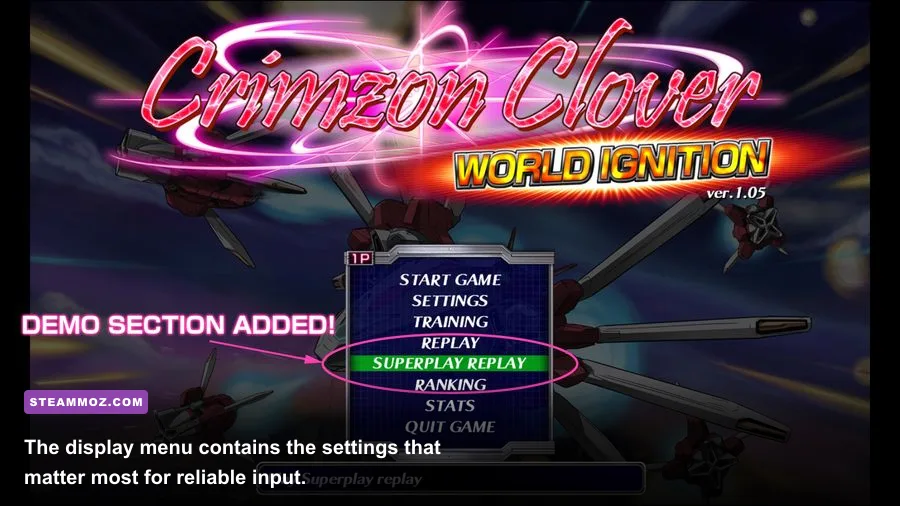
Start with the profile below. It is the best baseline for most desktop PCs, gaming laptops, and Steam Deck-style systems. The game is visually lightweight, but that doesn't mean every option is irrelevant. A native 1080p image keeps the playfield crisp, while fullscreen avoids the extra compositor behavior that can introduce uneven pacing on some Windows setups.
| Setting | Recommended value | FPS impact | Visual or input note |
|---|---|---|---|
| Display mode | Fullscreen | Low to medium | Usually gives the cleanest presentation and lowest desktop interference. |
| Resolution | Native monitor resolution | Low | Preserves sharp sprite edges; lowering it rarely helps much. |
| VSync | Off for high-refresh displays; On for tearing-sensitive setups | Low | Off can reduce latency; On can smooth visible tearing. |
| Frame limit | 60 fps or display-matched cap | None | Consistency is more valuable than an uncapped counter. |
| Background applications | Close browsers, capture tools, and launchers | Situational | Reduces CPU spikes and overlay interruptions. |
| Post-processing or filter options | Off unless you specifically prefer them | Low | Cleaner pixels and fewer unnecessary effects. |
There is one important caveat: World EXplosion is not a modern 3D game with a long list of texture, shadow, and ambient-occlusion sliders. Depending on the build and display mode, the in-game menu is intentionally compact. Don't waste time hunting for a hidden “ultra performance” preset. The meaningful choices are resolution, window mode, synchronization, and any available filter, scanline, or visual-effect toggles.
For a 60 Hz monitor, a stable 60 fps is the correct goal. On a 120 Hz or 144 Hz display, test both uncapped output and a sensible cap. If the game exposes only a 60 fps target, leave it there; doubling the monitor refresh rate won't magically make the underlying game simulation twice as responsive. The same principle applies to other small PC games covered in Steamoz's low-latency settings guide.

🎮 Crimzon Clover World EXplosion
Looking to experience this game? Grab your digital key directly on our store for $9.99.
View on Steammoz Store →Why frame pacing matters more than resolution
Crimzon Clover's action is deliberately readable: bullets have strong colors, enemy shots form recognizable shapes, and your ship's hitbox is tiny. That design only works when frames arrive evenly. A nominal 60 fps result with a periodic 100-millisecond spike feels worse than a locked, consistent output because your ship appears to jump across a dangerous gap exactly when you need fine control.
Use a repeatable test rather than staring at the title screen. Enter Original Mode, choose the same ship and stage, and play through a dense section without changing your route. Then repeat in Boost or Unlimited, where scoring behavior and bullet volume create a heavier visual workload. Watch for three symptoms: the music continuing while the image pauses, inputs feeling delayed after a brief freeze, and bullets appearing to skip forward. Those point to frame-time instability, not necessarily insufficient average FPS.
| Observed result | Likely cause | Best fix | Expected benefit |
|---|---|---|---|
| Steady 60 fps with visible tearing | VSync disabled | Enable in-game VSync or driver sync | Smoother image, potentially slightly more latency. |
| 60 fps counter but occasional gameplay hitch | Overlay, capture hook, or background task | Disable overlays and close heavy applications | Better frame-time consistency. |
| Slowdown only during dense Break Rate effects | Rendering or compatibility overhead | Use fullscreen and disable filters or extra effects | Fewer spikes in peak-complexity scenes. |
| Controls feel delayed at all times | VSync queue, wireless input, or display mode | Test VSync off and wired input in fullscreen | Lower input latency. |
| Image is blurry at native resolution | Scaling or smoothing filter | Use integer scaling or disable smoothing | Sharper bullets and ship edges. |
Don't confuse intentional game behavior with a PC performance fault. Bullet-hell shooters can include deliberate slowdowns or timing behavior under extreme activity, while a Windows hitch usually affects the entire presentation: audio crackle, desktop cursor pauses, or a sudden frametime jump. If the game feels consistent but the FPS overlay reports an occasional dip, play the same sequence again before changing five settings at once.
Best profiles for desktop PCs, laptops, and Steam Deck
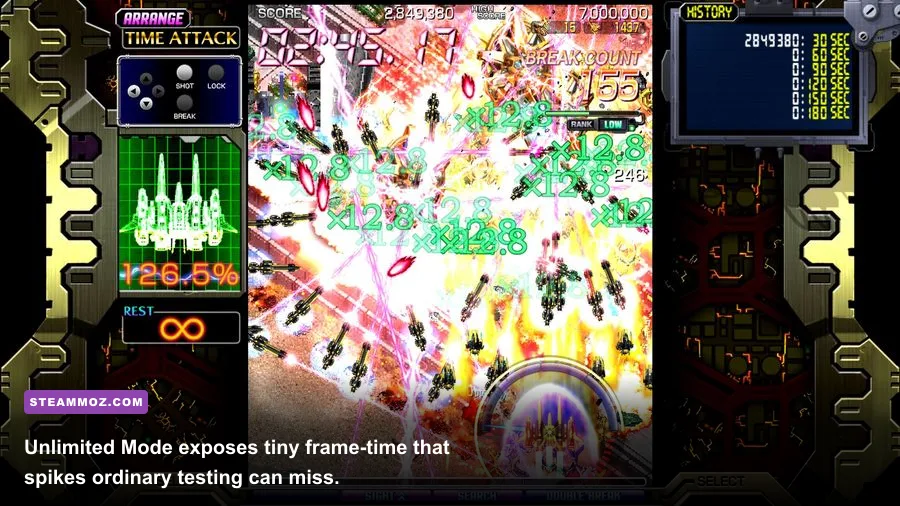
A dedicated gaming PC should have no trouble running World EXplosion at native resolution. The useful tuning is about latency and compatibility, not extracting power from a graphics card. Start with the high-refresh profile below, then switch to the conservative profile only if you see tearing, scaling artifacts, or intermittent stutter.
| Platform or setup | Resolution | Sync profile | Performance priority |
|---|---|---|---|
| Desktop, 60 Hz monitor | Native resolution | VSync On if tearing appears | Perfectly even 60 fps delivery. |
| Desktop, 120–144 Hz monitor | Native resolution | VSync Off first; test driver sync if needed | Lowest practical input latency. |
| Older laptop | Native, then one step lower if required | Fullscreen; VSync based on tearing | Prevent power-saving clock drops and background spikes. |
| Steam Deck handheld | Native panel resolution | Use a locked 60 fps target | Stable controls and battery-friendly output. |
| External 4K display | Native or 1080p integer-scaled | Test both VSync states | Avoid soft non-integer scaling of the playfield. |
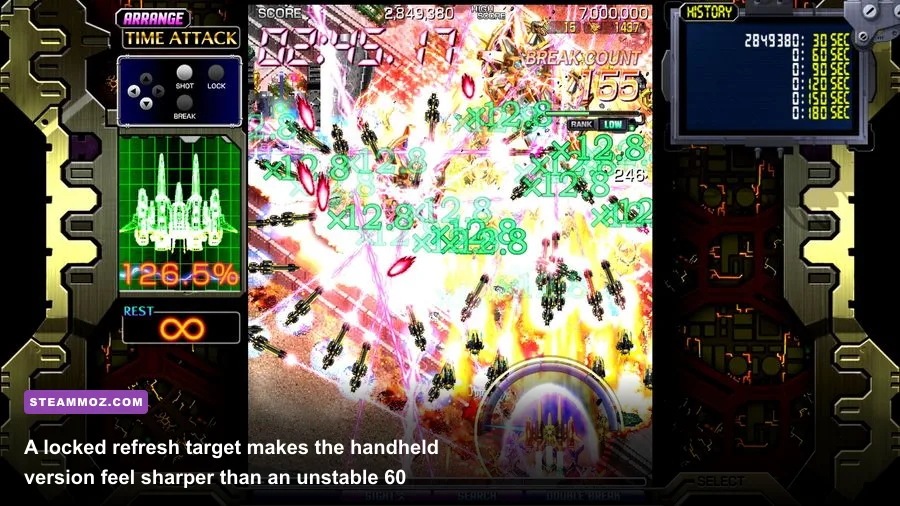
On Steam Deck, don't chase an unlocked frame counter. Set a firm 60 fps target through the system performance tools, keep refresh behavior consistent, and avoid aggressive power limits until you've confirmed the game actually needs them. The cleanest handheld experience is the one where movement and audio remain synchronized throughout an Unlimited run. If your Deck is stuttering across several games, compare the broader troubleshooting advice in Steamoz's crashing and low-FPS fixes, but remember that those heavier 3D recommendations won't all apply here.
On laptops, disable battery saver while testing. A tiny shooter can still be affected by rapid CPU power-state changes, especially if a browser, recording utility, or RGB controller is active. Plugging in the charger and using the laptop's balanced or performance mode is often more useful than lowering resolution.
Visual effects, Break Rate, and competitive clarity
The best-looking profile isn't always the best scoring profile. Crimzon Clover uses bright bullets, explosions, counters, and Break-related effects to communicate the state of a run. Filters, scanlines, and smoothing can add retro flavor, but they can also soften bullet edges or make overlapping colors harder to parse. For learning routes, turn decorative effects off and use the cleanest image possible.
This matters most when activating Break and Hyper-related scoring systems. The screen becomes louder, not simply prettier: more enemies, larger hit effects, and more score feedback can compete with the projectile pattern you actually need to read. Keep brightness and contrast at a level where blue, purple, and red bullets remain distinct. If your monitor has a motion-processing mode, disable it. Television-style interpolation adds latency and can make bullets look unnaturally smooth without improving the game's actual timing.
Don't use a sharpening filter to compensate for a bad resolution scale. Pixel-art shooters look best with integer scaling where available. A 1080p display can present a 720p image cleanly only if the scaling path behaves well; otherwise native resolution with smoothing disabled is usually the safer choice. Take a screenshot during a dense boss pattern and inspect the bullet outlines. If small projectiles have fuzzy halos, fix scaling before touching GPU settings.
For players who enjoy the arcade presentation, re-enable scanlines after your route is learned. They change atmosphere, not mechanics, but the competitive rule is simple: if an effect makes a bullet harder to identify, it doesn't belong in your serious score attempt.
Input, drivers, and the final no-stutter checklist
Graphics settings only solve half the problem. A responsive Crimzon Clover setup also needs a clean input path. Use a wired controller or keyboard while diagnosing latency, then compare wireless play afterward. Disable Steam Input only if it is creating duplicate mappings or inconsistent behavior; otherwise, its controller layer can be perfectly serviceable. The key is to change one layer at a time.
- Update the game through its official Steam page and verify the installation if files behave strangely.
- Set fullscreen, native resolution, and a 60 fps target before experimenting with filters.
- Disable Steam, Discord, GPU, and recording overlays during a benchmark run.
- Test Original Mode first, then repeat the same route in Unlimited Mode.
- Try VSync off for lower latency; turn it on if tearing disrupts bullet reading.
- Use a wired controller or keyboard, then check whether wireless hardware adds delay.
- Save the profile that produces the most consistent feel, not the highest peak counter.
For game information, the developer's official site is the right place to check releases and support details, while the Steam community discussions can help identify build-specific compatibility quirks. Keep your graphics driver current, but don't assume a driver update is automatically an improvement; if a new version introduces odd scaling or latency, rolling back is a valid troubleshooting step.
The short version is brutally practical: native resolution, fullscreen, clean scaling, no unnecessary overlays, and a locked frame target. Lower resolution is a last resort, not the magic button. Crimzon Clover: World EXplosion rewards rhythm and precision, so the strongest performance profile is the one that keeps every dodge, Break activation, and boss pattern visually continuous from the first stage to the final screen.
If other PC games are also hitching, Steamoz's PC fixes for crashes and low FPS and max-FPS settings guide are useful next stops. For World EXplosion specifically, though, resisting unnecessary tweaks is part of the solution. A simple, stable setup lets the game's patterns—not your frame-time graph—demand all of your attention.