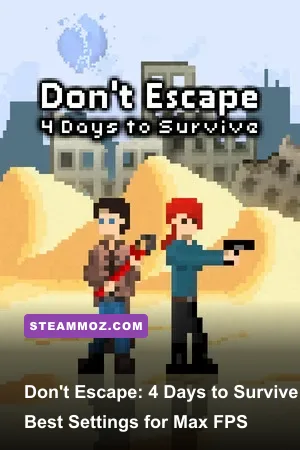
If you want the highest possible frame rate in Don't Escape: 4 Days to Survive, leave the game's visual quality alone and optimize the environment around it: use the native Steam build, disable browser zoom, run the game at 100% display scaling, and eliminate overlays that interfere with the HTML5 canvas. There is no modern preset menu with textures, shadows, ambient occlusion, or anti-aliasing sliders. On almost any supported PC, the game should already run at a stable 60 FPS, so stutter usually points to browser rendering, Windows scaling, background software, a bad fullscreen mode, or a frame-pacing issue rather than weak hardware.
That distinction matters. This is a pixel-art survival adventure from scriptwelder, built around David's four-day preparation period, not a 3D shooter pushing a graphics card. You are searching rooms, reading clues, collecting items, placing defenses, and deciding how to survive the final threat. The rich painted backgrounds can look demanding, but they are still fundamentally 2D scenes. Dropping resolution will not magically double performance the way it can in Cyberpunk 2077, and changing a nonexistent “Ultra” preset is a waste of time.
This guide separates real game settings from useful Windows, Steam, and browser fixes. It also explains what to change first, what to leave untouched, and how to tell the difference between low FPS and input delay. For comparison, our Deponia Doomsday settings guide covers a similar click-heavy PC experience, but Don't Escape needs even less GPU tuning.
Does Don't Escape: 4 Days to Survive Have Graphics Settings?
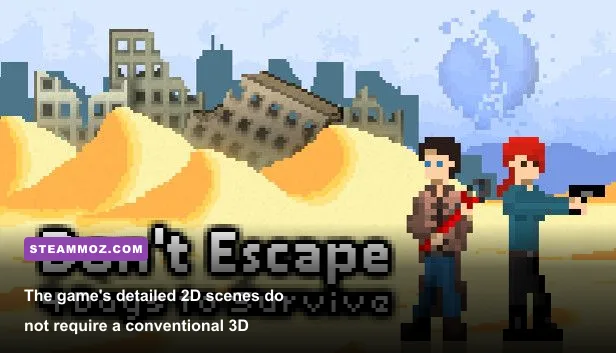
Not in the way PC players usually mean by “graphics settings.” The Steam version does not expose a full menu for texture quality, shadow quality, effects, foliage, view distance, or anti-aliasing. Its presentation is designed around fixed illustrated scenes and a 2D game canvas. That means there is no genuine low, medium, or ultra profile to select, and there is no meaningful texture setting to lower for extra frames.
The settings that actually matter are display mode, scaling, zoom, frame synchronization, and the application used to render the game. If you are playing through Steam, start there rather than launching a random old browser version. The official Steam page is the cleanest route to the current PC release. Steam also avoids several problems associated with obsolete Flash wrappers, including missing plugins, inconsistent browser scaling, and audio or input behavior that can make the game feel slower than it really is.
| Setting or Variable | Recommended Value | Expected Performance Effect | Visual or Control Note |
|---|---|---|---|
| In-game quality preset | Default | None available to tune | The game does not provide modern quality tiers |
| Display scaling | 100% | Low to moderate improvement if scaling was excessive | Prevents a blurry or oversized canvas |
| Browser zoom | 100% | Can reduce rendering overhead | Use Ctrl+0 to reset Chrome, Edge, or Firefox zoom |
| Resolution | Native desktop resolution | Usually negligible on a modern PC | Preserves crisp scene art and readable text |
| Fullscreen mode | Test fullscreen first | Can improve frame pacing | Windowed mode may behave better on multi-monitor setups |
| V-Sync | Default or application-controlled | Mostly affects pacing, not average FPS | Disable only when it clearly adds input lag |
| Steam Overlay | Disabled for troubleshooting | Small CPU and compositing benefit | Re-enable it if performance does not change |
Do not confuse the game's fixed canvas with a low-quality mode. The visual identity of Don't Escape: 4 Days to Survive depends on its dark color grading, hand-crafted backgrounds, and small environmental details. Lowering your monitor resolution can make those details softer without solving the underlying issue. If the cursor feels delayed, the scene takes a moment to respond, or the game hitches when you enter a new screen, the cause is more likely compositing or frame pacing than raw rendering load.

🎮 Don't Escape: 4 Days to Survive
Looking to experience this game? Grab your digital key directly on our store for $2.99.
View on Steammoz Store →Best Steam and Windows profile for maximum FPS
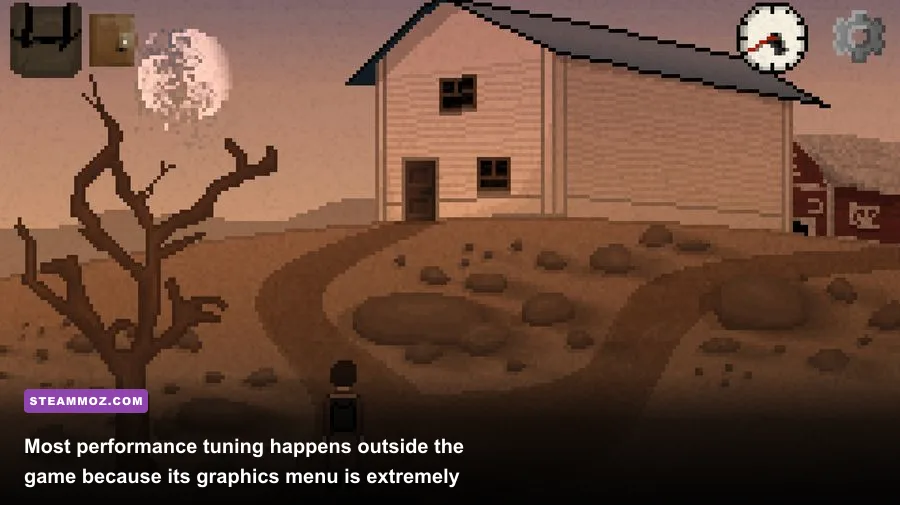
For the Steam release, use a simple profile: install the game on a healthy drive, close unnecessary overlays, set Windows display scaling to 100%, and let the game run at your monitor's native resolution. That may sound too easy, but it is the right approach for a lightweight 2D adventure. Aggressive “gaming mode” utilities often create more problems than they solve by forcing odd compatibility flags or injecting overlays into a title that does not need them.
Begin with Steam's own files. Open Library, right-click Don't Escape: 4 Days to Survive, choose Properties, then use Installed Files and select Verify integrity of game files. This does not increase the game's theoretical FPS, but it can repair a damaged executable or asset that causes pauses when a new location loads. Keep Steam's shader pre-caching enabled globally unless you have a specific reason to disable it; it is not a major factor for this game, but there is little benefit in turning it off.
Next, reset scaling. In Windows, open Settings > System > Display and check Scale. A 100% value gives the canvas a straightforward one-to-one relationship with the desktop. At 125% or 150%, Windows may enlarge the game surface and ask the compositor to resample it. On a modern GPU the performance cost should be tiny, yet the result can be blurred text, strange mouse coordinates, or apparent hitching. If you need larger interface text, increase your desktop resolution or use Windows Magnifier outside the game rather than stacking multiple scaling layers.
| Optimization Step | Where to Change It | Priority | Why It Helps |
|---|---|---|---|
| Verify installation | Steam > Properties > Installed Files | High | Repairs missing or corrupted game files |
| Disable Steam Overlay | Steam game Properties | Medium | Removes an unnecessary compositing layer |
| Reset display scale | Windows Display settings | High | Avoids enlarged canvas rendering and blurry input mapping |
| Close capture software | Task Manager or app settings | Medium | Reduces hooks from recording and overlay tools |
| Use native resolution | Windows Display settings | Medium | Keeps the artwork sharp and avoids resampling |
| Use a normal power plan | Windows Power settings | Low | Prevents aggressive clock changes on some laptops |
| Update GPU driver | AMD, Intel, or NVIDIA software | Low | Useful for compatibility, rarely necessary for raw FPS |
Disable the Steam Overlay temporarily by opening the game's Properties and turning off Enable the Steam Overlay while in-game. Do the same for Discord, Xbox Game Bar, GeForce Experience, AMD Adrenalin, MSI Afterburner, and screen-recording tools if you are diagnosing stutter. You do not need to permanently sacrifice these features. Test with a clean session, then restore them one at a time. If the frame rate remains stable, the overlay was not the culprit.
Laptop users should plug in the charger and select a balanced or high-performance profile. This game does not need a discrete GPU, but some laptops aggressively lower CPU clocks on battery. That can affect asset loading and input responsiveness even when the measured GPU usage sits near zero. A stable 60 FPS matters more here than chasing an absurd three-digit counter.
Best browser settings if you are playing the web version
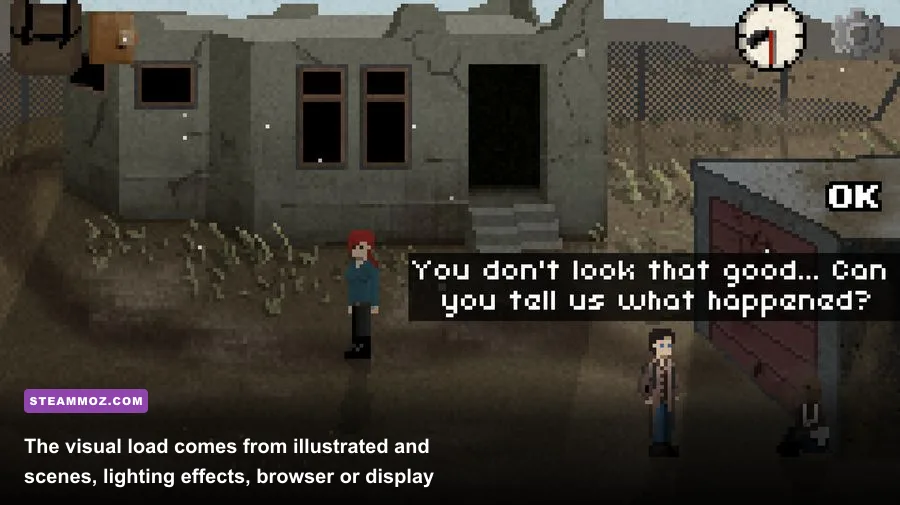
The web version is where most “low FPS” complaints become complicated. A browser is simultaneously managing the game canvas, page scaling, extensions, video decoding, hardware acceleration, and background tabs. For a Flash-era adventure that has been adapted to HTML5, those layers can produce uneven frame pacing even when the title itself is barely using the graphics card.
First, reset browser zoom with Ctrl+0. Do not rely on the browser showing 100% in one tab; the site may have its own canvas scaling or remembered zoom value. Use a clean window with one game tab, then close video-heavy pages and web applications. You can also test a private window, which temporarily removes most extensions. If the game suddenly feels smooth there, disable script blockers, visual themes, shopping assistants, and cursor-modifying extensions one at a time.
Hardware acceleration should normally remain enabled in Chrome, Edge, and Firefox. It allows the browser to send canvas work through the GPU and often produces better scrolling and animation. However, a broken driver path can cause flicker, black screens, or rhythmic stutter. If that happens, test the opposite setting: open the browser's system or performance settings, turn hardware acceleration off, restart the browser, and compare. Keep whichever mode delivers steadier frame times. There is no universal winner because the result depends on the browser version and graphics driver.
Use the browser's own task manager to find interference. Chrome and Edge open it with Shift+Esc. Look for tabs or extensions consuming CPU, memory, or GPU process time. A 2D game can feel rough when a background tab is encoding video or a browser process is being throttled. Firefox users should check about:performance for high-impact tabs and extensions.
| Web Setting | Starting Recommendation | When to Change It | Likely Symptom |
|---|---|---|---|
| Zoom | 100% | Always reset before testing | Blurry image, wrong cursor position, uneven scaling |
| Hardware acceleration | Enabled | Test disabled after graphical glitches | Flicker, black canvas, or inconsistent frame pacing |
| Extensions | Temporarily disabled | Use a private window for comparison | Delayed clicks or sudden pauses |
| Background tabs | Closed | Especially video and web-app tabs | Periodic stutter or audio crackle |
| Browser window | One clean window | Avoid multiple scaled displays initially | Canvas resizing and unstable presentation |
| Energy saver | Disabled while testing | On laptops or battery power | Slow response and fluctuating frame pacing |
Do not use browser zoom as a performance preset. Zooming out may reduce the canvas size, but it also changes how the artwork is sampled and can make tiny clues harder to see. That is especially frustrating in a game where examining an object, spotting a useful item, or reading a note can determine whether David survives the next day. If you want a smaller window, resize the browser deliberately and keep zoom at 100% instead.
The developer's official scriptwelder site is also worth checking if you are comparing releases. Old hosted versions can behave differently from the Steam build, particularly after browsers removed native Flash support. Avoid downloading unofficial executables advertised as “optimized.” They are unnecessary and can introduce malware or compatibility problems.
Best performance profiles for low-end and high-refresh PCs
Because the game is so light, the best profile depends less on hardware power and more on stability. A ten-year-old office laptop should be able to handle the native presentation, while a modern 144 Hz gaming monitor may expose browser frame pacing that a 60 Hz display hides. The goal is not to force Don't Escape into a refresh rate it was never designed to target. The goal is a clean, consistent image with immediate clicks.
For a low-end laptop, keep the desktop at its native resolution, close background applications, play while connected to power, and use the Steam version if available. You can disable transparency effects in Windows and select a balanced or high-performance power mode, but there is no reason to lower every visual option because the game has no meaningful quality sliders. If the laptop has integrated Intel graphics, update the driver through the manufacturer's support page rather than relying on a random driver package.
For a mainstream desktop, the default Steam profile is already the recommended profile. Keep overlays off only if you see stutter, and use fullscreen if it produces steadier pacing. A 60 FPS cap can be useful if a browser version is rendering at an unstable rate. Use the game's own limiter if it provides one; otherwise, avoid forcing a global limiter through a driver panel unless you are comfortable checking whether it adds latency.
For a high-refresh monitor, try both exclusive-looking fullscreen and a normal window. Some HTML5 canvas games synchronize more cleanly in a window because the desktop compositor handles them predictably. Others feel smoother fullscreen. Check the cursor while moving across the inventory and scene, then click several objects. The best mode is the one that maintains consistent response, not the one that produces the biggest FPS number.
| PC Profile | Recommended Resolution | Display Mode | Extra Tuning |
|---|---|---|---|
| Older office laptop | Native resolution | Fullscreen, then windowed if unstable | Plug in power, close tabs, disable overlays |
| Integrated graphics desktop | Native resolution | Whichever has steadier pacing | Reset Windows scaling to 100% |
| Mainstream gaming PC | Native resolution | Fullscreen preferred starting point | Keep default game presentation |
| 144 Hz or 240 Hz monitor | Native resolution | Test fullscreen and windowed | Consider a stable 60 FPS cap |
| Multi-monitor setup | Native resolution on primary display | Windowed may be smoother | Disable animated content on other screens |
One important warning: do not judge performance only by the Steam FPS overlay. A high reading does not guarantee good frame delivery, and a lightweight canvas may report a number that is disconnected from what the game actually needs. Watch for consistent animation, clean audio, and immediate interaction. If every screen transition pauses for exactly the same length of time, that is likely asset loading. If the game jerks whenever another application updates, that points toward the compositor or background process.
Players dealing with general PC stutter can also compare the troubleshooting workflow in our Deep Rock Galactic performance fixes. The games are technically very different, but the useful habits are identical: isolate overlays, verify files, test a clean launch, and change one variable at a time.
How to diagnose stutter without ruining the game's visuals
Start by identifying the exact symptom. A low average frame rate means the game is consistently slow. A frame-time spike means it is smooth most of the time but briefly freezes. Input delay means clicks or cursor movement arrive late, even when animation looks normal. Audio crackle suggests CPU contention, driver trouble, or an overloaded browser process. Each symptom needs a different fix, so randomly lowering resolution is not a useful first move.
Run a controlled test. Restart the PC, launch only Steam or the browser, and load the game. Play through the same type of sequence for several minutes: move between screens, open the inventory, inspect objects, and trigger a transition. Then repeat with the Steam Overlay off. If the issue vanishes, restore your other overlays individually. If nothing changes, test windowed mode, then fullscreen. Finally, test browser hardware acceleration if you are using the web version. Keep notes. Changing five things at once makes it impossible to know what helped.
- Confirm the release. Prefer the Steam build over an abandoned Flash mirror or unofficial download.
- Reset scaling. Set browser zoom and Windows display scaling to 100%.
- Verify files. Repair the Steam installation before changing drivers or compatibility settings.
- Remove overlays. Test Steam, Discord, Game Bar, GPU overlays, and recording tools without injection.
- Compare display modes. Try fullscreen and windowed while keeping every other setting identical.
- Test acceleration. For a browser build, compare hardware acceleration enabled and disabled after restarting.
- Check power behavior. Plug in laptops and prevent battery-saving modes from lowering CPU clocks.
- Restore defaults. If a tweak made the game blurrier or less responsive, undo it rather than stacking another fix.
| Observed Problem | Most Likely Cause | First Fix | Do Not Do First |
|---|---|---|---|
| Blurry scene art | Browser or Windows scaling | Set zoom and display scale to 100% | Lower the monitor resolution |
| Delayed clicks | Overlay, browser load, or display mode | Use a clean launch and test windowed mode | Install a random FPS booster |
| Periodic one-second pauses | Background process or asset loading | Close video tabs and verify files | Change every graphics option at once |
| Black or flickering canvas | Browser acceleration or driver path | Test the opposite acceleration setting | Download an unofficial game executable |
| Slow performance on battery | CPU power throttling | Plug in the laptop and use balanced mode | Force maximum GPU settings |
| Stutter only with overlays | Compositing or capture hook | Disable overlays individually | Blame the game's artwork |
Keep compatibility settings conservative. Windows compatibility mode, forced administrator launches, high-DPI overrides, and third-party wrappers can occasionally rescue an old title, but they can also break mouse scaling or introduce new timing problems. Only use them after the normal Steam build, verified files, updated drivers, and clean display scaling have failed. If you do test a high-DPI override, record the original setting so you can revert it immediately.
There is also a gameplay reason not to chase visual compromises. Don't Escape: 4 Days to Survive rewards careful observation. The four-day structure gives you limited time to gather information and prepare a defense, while small environmental clues and readable item descriptions steer your decisions. A blurry canvas can hide a clickable object; a laggy cursor can make a timed interaction feel broken. Image quality and input clarity are part of performance here, even if the FPS counter says everything is fine.
For broader troubleshooting ideas, see our Chef Life PC fixes and Fade to Silence stutter guide. Those articles deal with heavier games, but the same clean-testing discipline applies.
The final max-FPS setup
For most players, this is the complete answer: install the official Steam version, verify its files, run at native resolution, keep Windows and browser scaling at 100%, test fullscreen before windowed mode, and disable overlays only while diagnosing problems. If you are using a browser, reset zoom with Ctrl+0, close demanding tabs, keep hardware acceleration enabled unless it causes glitches, and compare a private window. Do not lower nonexistent texture or shadow settings, and do not sacrifice the game's crisp artwork for a theoretical FPS gain.
On capable hardware, Don't Escape: 4 Days to Survive should deliver a stable, responsive presentation without serious tuning. When it does not, the solution is almost always cleaner rendering conditions rather than more aggressive graphics reductions. Once the game feels smooth, leave the profile alone and focus on the actual challenge: using David's four days intelligently, reading every clue, and building a defense that survives the night.
For reference, you can find the game's listing through Don't Escape: 4 Days to Survive on Steam, while the developer's official website provides background on scriptwelder's adventure games. If your wider library also needs optimization help, our Don't Be Afraid settings article is a useful next stop.