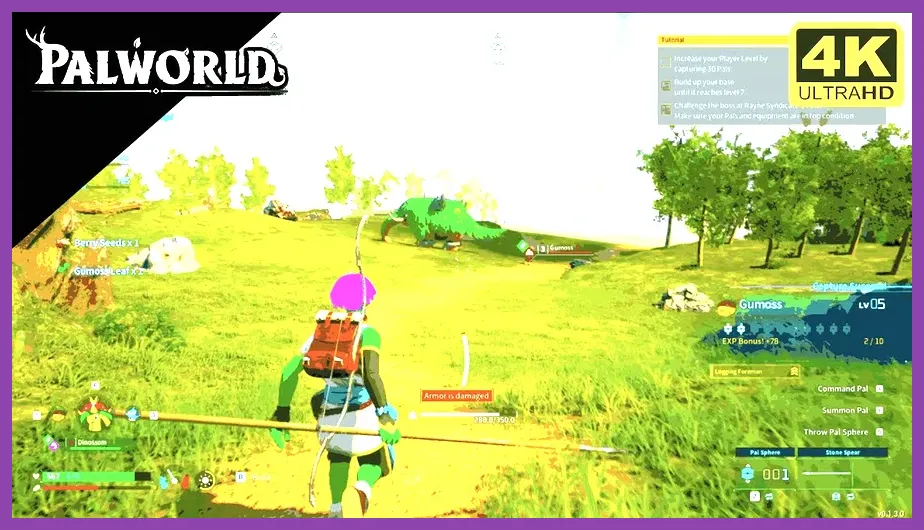
To fix lag and low FPS in Palworld, start by updating your GPU drivers, lowering a few key graphics settings—Shadow Quality to Medium, Texture Quality to High, View Distance to 80%, and disabling V‑Sync—while enabling DLSS or FSR if your hardware supports it, then close background apps and verify game files through Steam.
Update Your Graphics Drivers and Windows
Keeping your graphics drivers current is the most effective way to resolve sudden FPS drops. For NVIDIA cards, open GeForce Experience, go to the Drivers tab, and click “Check for updates”; install the latest Game Ready driver (as of version 551.86). AMD users should launch Radeon Software, select Updates, and apply the newest Adrenalin edition (23.50 or newer). After installing, restart your PC to ensure the driver loads correctly.
Windows updates also matter. Navigate to Settings → Windows Update, click “Check for updates”, and install any optional quality updates that include scheduler improvements. Set your power plan to “High performance” (Control Panel → Hardware and Sound → Power Options) and, for laptops, plug in the charger to prevent CPU throttling. Finally, verify that your BIOS is up to date by visiting your motherboard manufacturer’s support page; a newer BIOS can improve memory compatibility and reduce latency.
Optimize In-Game Graphics Settings for Palworld
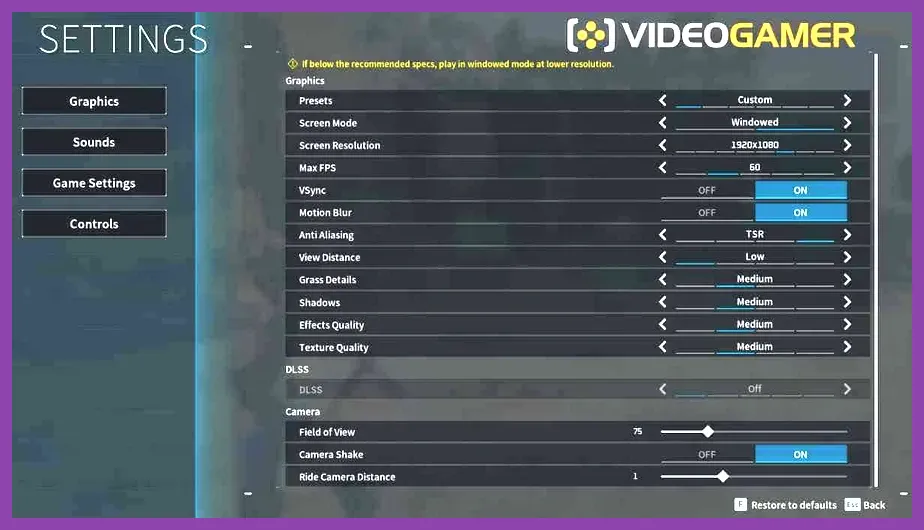
Open Palworld’s settings menu and focus on the following parameters, which have the biggest impact on frame rates:
- Shadow Quality: Set to Medium. Shadows are the most expensive effect; moving from Ultra to Medium can regain 15‑25 FPS on mid‑range GPUs.
- Texture Quality: Keep at High. Palworld’s textures are well‑optimized; dropping to Medium saves little VRAM but noticeably degrades visual fidelity.
- View Distance: Reduce to 80% (or 0.8). This limits how far the engine renders distant terrain, cutting CPU‑side draw calls.
- Anti‑Aliasing: Choose TAA Low or FXAA. TAA Ultra adds significant GPU load; Low offers a good balance.
- Vertical Sync: Disabled. V‑Sync caps your FPS to the monitor refresh rate and introduces input lag; keep it off unless you experience tearing.
- Motion Blur: Off. This post‑process effect adds unnecessary GPU work.
- Foliage Density: Medium. Dense foliage spikes CPU usage in forested areas; Medium keeps visuals decent while easing the load.
- DLSS / FSR: If you have an RTX card, enable DLSS set to Quality; for AMD GPUs, turn on FSR 2.2 at Quality. These upscaling techniques can raise effective FPS by 30‑45% without a noticeable loss in clarity.
Apply the changes, then restart the game to let the new settings take effect.
Adjust Launch Options and Configuration Files
Steam launch options let you bypass certain engine defaults that can cause stutter. Right‑click Palworld in your Library → Properties → General → Launch Options and paste:
-high -malloc=system -USEALLAVAILABLECORES -novsync
The For deeper tweaks, navigate to Save the file, then launch Palworld again. These .ini edits reinforce the in‑game choices and prevent the game from resetting them after updates. Even with optimal settings, background applications can steal CPU cycles and cause frame‑time spikes. Open Task Manager (Ctrl + Shift + Esc), go to the Processes tab, and sort by CPU. End tasks for: Next, switch to the Details tab, find If you have an SSD, ensure Palworld is installed on it; loading times and asset streaming benefit greatly from faster storage. Use CrystalDiskMark to confirm sequential read speeds above 3000 MB/s for NVMe drives. Certain Palworld locations and encounters are notorious for CPU spikes. The Mount Obsidian volcanic zone, the Tower’s upper floors, and dense forest biomes near the Spawn Island often push the engine past 100 % CPU usage on quad‑core chips. When entering these zones, consider a temporary profile: For boss fights—such as Mammorest (the icy behemoth in the Frostlands), Kingpaca (the desert‑dwelling alpaca), or the Shadow‑type boss in the Abyssal Caverns—reduce the following: These adjustments can keep frame times under 16 ms (≈60 FPS) even during the most chaotic encounters. If you’ve applied all software fixes and still see dips below 45 FPS, it’s time to look at hardware. GPU Overclock: Using MSI Afterburner, increase the core clock by +50 MHz and memory clock by +200 MHz. Apply a +20 % power limit, monitor temperatures (stay under 80 °C), and test for stability with a 10‑minute FurMark run. A modest overclock can add 5‑10 FPS in Palworld. CPU Overclock: For Intel K‑series or AMD Ryzen chips, raise the multiplier by 2‑3 steps (e.g., from 4.2 GHz to 4.5 GHz) while keeping voltage under 1.35 V. Stress test with Prime95 for 30 minutes. Be aware that Palworld is more GPU‑bound, but a faster CPU helps with AI and physics in crowded bases. Enable Reflex (NVIDIA): In the NVIDIA Control Panel → Manage 3D Settings → Palworld.exe → Low Latency Mode set to “Ultra”. This reduces input lag and can smooth out perceived stutter. RAM Upgrade: Palworld benefits from at least 12 GB of RAM; 16 GB is the sweet spot for multitasking (game + Discord + browser). If you’re running 8 GB, upgrade to a dual‑channel 16 GB kit (DDR4‑3200 or DDR5‑5600 depending on your platform). Storage: Move Palworld to an NVMe SSD if it’s currently on a SATA drive or HDD. Load times drop from ~45 seconds to under 8 seconds, and asset streaming stutters disappear. Finally, keep your system clean: quarterly dust removal, reapply thermal paste on the CPU/GPU every 18‑24 months, and ensure case airflow is positive (more intake than exhaust). With these steps, lag and low FPS in Palworld should be a thing of the past. For further reading on performance tweaks, see our guide on fixing lag in Helldivers 2, and check the official Palworld wiki for detailed graphics options: Palworld Wiki.-high flag tells Windows to give Palworld high priority CPU time, -malloc=system</math> forces the allocator to use the system heap (reducing fragmentation), -USEALLAVAILABLECORES ensures all logical threads are utilized, and -novsync doubles the V‑Sync disable for extra safety.</p>
%LOCALAPPDATA%\Palworld\Saved\Config\WindowsNoEditor\Engine.ini and add or modify these lines under the [/Script/Engine.RendererSettings] section:r.ShadowQuality=2
r.ViewDistanceScale=0.8
r.TextureQuality=2
r.AntiAliasingMethod=1
r.VSyncEnabled=0
r.MotionBlurQuality=0
Manage Background Processes and System Resources
Palworld.exe, right‑click, choose “Set priority”, and select “High”. Avoid “Realtime” as it can destabilize the system. Then, under the Startup tab, disable non‑essential programs that launch at boot—this reduces the baseline load before you even start the game.Specific Tweaks for CPU‑Heavy Areas and Boss Fights
Advanced Solutions: Overclocking, DLSS/FSR, and Hardware Upgrades