
To fix crashing on PC in Crusader Kings 3, you must immediately address corrupted local game files, incompatible user mods, and unstable graphics API settings by verifying your installation through Steam, clearing out the Documents Paradox Interactive cache directory, and switching your renderer from DirectX 12 to DirectX 11. Paradox Interactive's grand strategy epic handles vast amounts of background calculations regarding titles, character lineages, and real-time state changes, making it acutely sensitive to file corruption, outdated drivers, and memory leaks. Whether you are experiencing sudden CTDs (Crash to Desktop) right during the loading screen or random freezes while executing a plot against your rival duke, applying these targeted troubleshooting steps will restore stability to your campaign.
Verify Integrity of Game Files via Steam
Corrupted installation files are the leading cause of crashes right after a major patch or hotfix drops. When the Steam updater fails to cleanly overwrite old assets—such as map shaders, localization files, or event scripts—Crusader Kings 3 will inevitably crash when attempting to load specific assets.
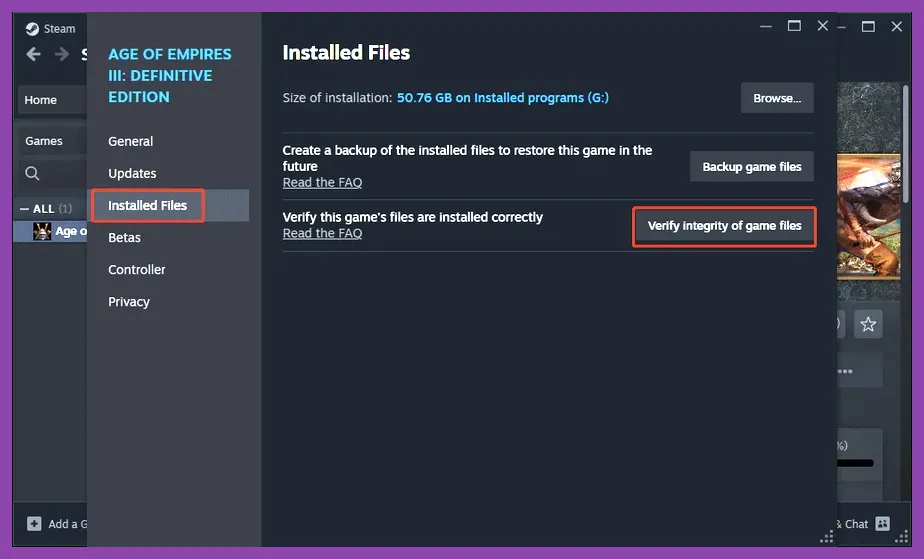
To fix this, launch your Steam client, navigate to your Library, and right-click on Crusader Kings 3. Select Properties from the drop-down menu, go to the Installed Files tab, and click on Verify integrity of game files. Steam will cross-reference your local installation with the official Paradox Interactive server repository, automatically downloading any missing or corrupted bytes. This process usually takes between three to five minutes depending on your storage drive speed.
If you enjoy testing other complex simulation and strategy titles while troubleshooting, you might find our guide on Manor Lords best beginner tips and tricks helpful for managing resource-heavy PC games.
Purge the Paradox Interactive Local Cache
Even after verifying game files, lingering cache data stored deep within your Windows user profile can conflict with newly updated scripts. Crusader Kings 3 stores transient graphical data, custom map states, and cached checksums inside your local user directories.
Navigate to your file explorer and go to C:\\Users\\[Your Username]\\Documents\\Paradox Interactive\\Crusader Kings III. Inside this folder, locate the directories named gfx, logs, and shaders. Permanently delete these three folders. Do not touch your save games folder unless you are performing a completely clean reinstall. When you restart Crusader Kings 3, the game will automatically regenerate these cache folders with fresh, uncorrupted files.
For players optimizing performance across different hardware setups, understanding system resource allocation is vital. Check out our detailed Monster Hunter Wilds best system requirements PC settings guide to learn how modern game engines manage CPU threads and VRAM pools.
Switch from DirectX 12 to DirectX 11
By default, Crusader Kings 3 often launches using the DirectX 12 API, which can lead to severe stuttering, memory leaks, and driver crashes on certain NVIDIA and AMD graphics cards—particularly when transitioning between the realm map view and the character interaction interface.
To force the game to run on the much more stable DirectX 11 renderer:
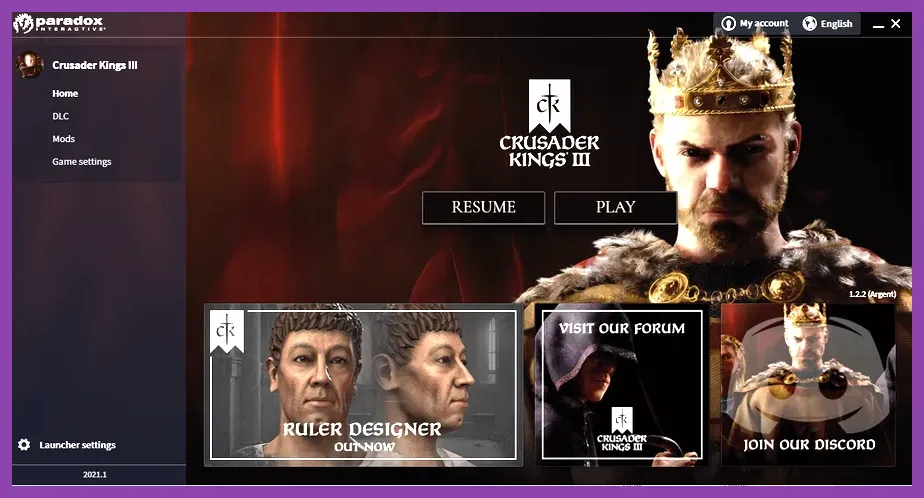
- Open the Paradox Launcher before starting your game session.
- Navigate to the Settings tab on the left-hand menu.
- Locate the Display Mode and Renderer options.
- Change the rendering API from DirectX 12 to DirectX 11.
- Save your changes and relaunch the game.
This simple switch eliminates the vast majority of unexplained mid-game crashes tied to shader compilation errors and asynchronous compute pipelines.
Manage and Disable Incompatible Mods
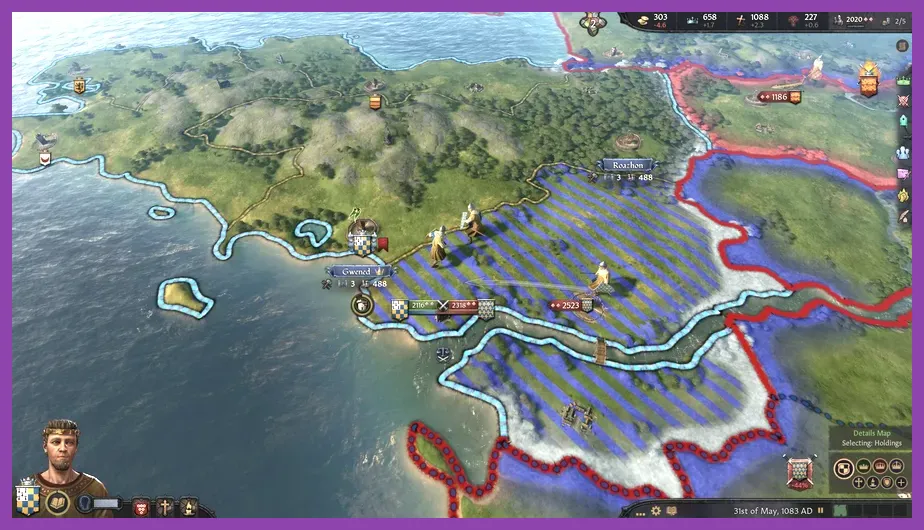
The Crusader Kings 3 Steam Workshop is filled with incredible total conversion mods, UI overhauls, and flavor packs, but running outdated modifications is the #1 reason players experience instant CTDs the moment they hit the single-player campaign button.
Open your Paradox Launcher and click on the Mods tab, then select All Playsets. If your game is crashing:
- Disable all active mods by toggling the master switch off for your current playset.
- Launch the vanilla game. If the crash stops, you know a mod is responsible.
- Re-enable your mods in small batches of three to five to isolate the exact culprit causing the version mismatch.
- Check the Steam Workshop page for each mod to ensure they have been updated to support the current game patch version listed on the official Crusader Kings 3 Wiki.
Mod management requires patience, similar to configuring complex team synergies. If you enjoy deep strategic customization, take a look at our breakdown of the inzoi best team comp synergy guide for tactical inspiration.
Optimize In-Game Graphics Settings

Pushing your GPU and CPU past their thermal and memory limits during massive war declarations or succession crises can trigger hardware safety shutdowns or driver timeouts. Lowering specific graphical bottlenecks will keep your frame rates stable and prevent crashes.
Apply the following optimized graphics profile in your settings menu:
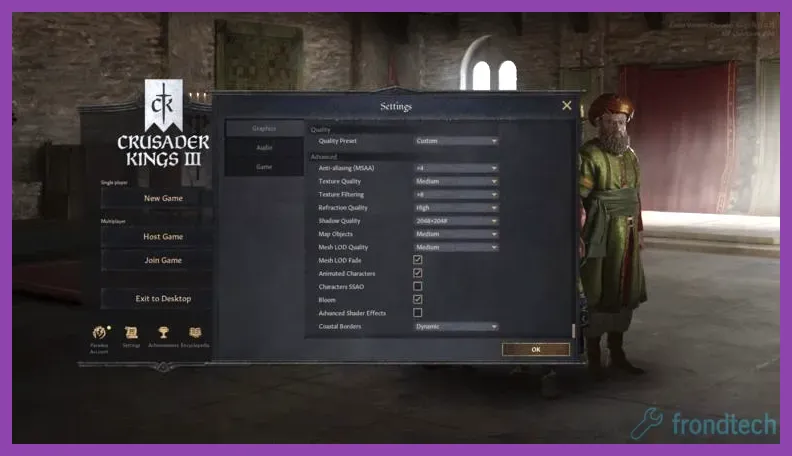
- Display Mode: Borderless Fullscreen (prevents alt-tab crashing issues)
- Resolution: Native desktop resolution (e.g., 1920x1080 or 2560x1440)
- VSync: Enabled (caps frame rates and reduces thermal load)
- Max FPS: 60 or 120 (matches your monitor refresh rate to avoid GPU over-processing)
- Texture Quality: High (or Medium if your VRAM is under 4GB)
- Shadows: Medium (reduces heavy CPU/GPU overhead on map rendering)
- Water Quality: Low or Medium
- Reflections: Off
- Bloom: Off
- Depth of Field: Off
For handheld PC users playing on devices like the Steam Deck or ASUS ROG Ally, optimizing performance profiles is even more crucial. Read our expert tips in the Lenovo Legion Go best graphics settings for performance guide to maximize battery life and minimize thermal throttling.
Update GPU Drivers and Windows Runtimes
Outdated graphics card drivers lack the necessary Vulkan and DirectX optimizations required to handle Paradox's heavy Clausewitz engine architecture. Visit NVIDIA GeForce Experience or AMD Adrenalin to download and install the latest Game Ready drivers for your specific card model.
Additionally, ensure that your Windows operating system is fully updated and that you have the latest Microsoft Visual C++ Redistributables installed. Missing runtime libraries will frequently cause games to throw silent error codes or crash directly to the desktop without generating a proper crash dump log. If you are also exploring portable hardware ecosystems, our Nintendo Switch 2 system requirements and specs guide highlights how next-gen hardware handles demanding game optimization.
Configure Antivirus and Windows Defender Exceptions
Aggressive third-party antivirus software (such as McAfee, Norton, or Avast) or Windows Defender's Controlled Folder Access can mistakenly flag Crusader Kings 3's write operations to your Documents folder as suspicious behavior. When your security software blocks the game from saving temporary files or writing crash logs, the game engine freezes and crashes.
To fix this interference, open your Windows Security settings, go to Virus & threat protection, click on Manage settings under Virus & threat protection settings, scroll down to Exclusions, and select Add or remove exclusions. Add the entire Crusader Kings 3 installation folder (typically located at C:\\Program Files (x86)\\Steam\\steamapps\\common\\Crusader Kings III) as well as the Paradox Interactive Documents folder to your whitelist. This ensures your security suite allows the game unhindered read and write access during gameplay.