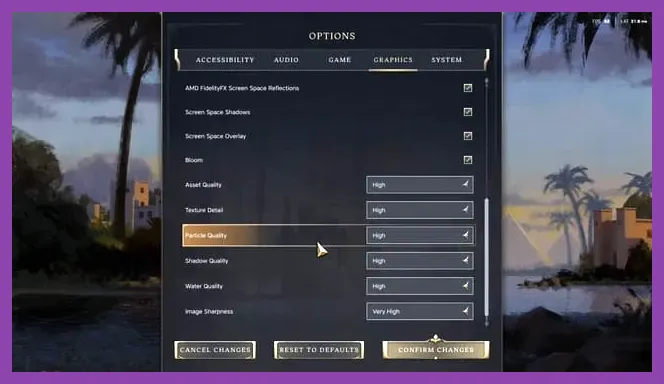
To achieve a smooth 60+ FPS and eliminate stuttering during late-game turn transitions in Sid Meier's Civilization VII, set Shadow Quality to Medium, Texture Resolution to High, Turn Animation Speed to Fast, and disable Screen Space Reflections and Volumetric Fog. By targeting these specific resource hogs, you can drastically reduce CPU and GPU bottlenecks without sacrificing the distinct tactical clarity required to conquer your rivals on the world stage.
Understanding Civilization 7 Performance Bottlenecks
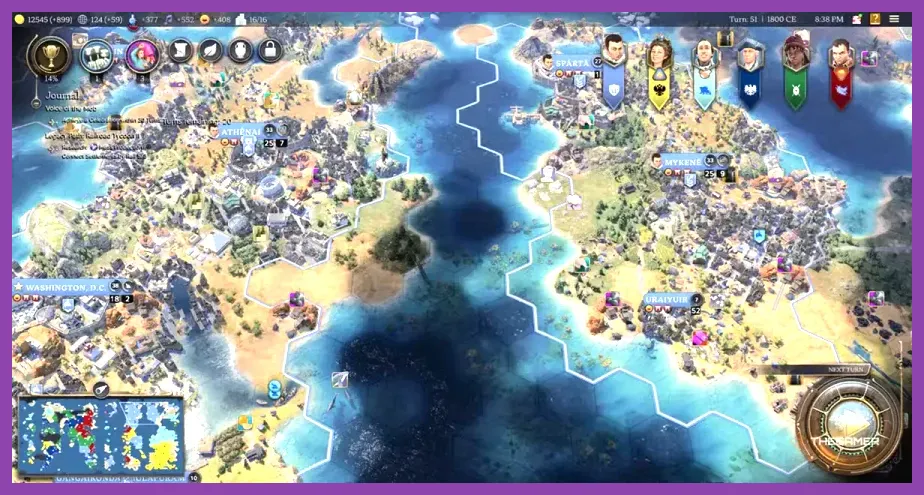
Managing a massive global empire across distinct ages strains both your processing unit and graphics hardware differently than a fast-paced first-person shooter. While games like Monster Hunter Wilds or Nine Sols demand rapid input response times and frame-pacing stability, 4X strategy titles place a massive computational load on your CPU during the end-of-turn calculations, followed by heavy GPU rendering when updating the massive world map, thousands of individual units, and complex urban sprawl.
Developer Firaxis Games built this iteration on a heavily modified engine designed to handle vast amounts of data simultaneously. However, out-of-the-box maximum presets often enable redundant graphical flourishes that add negligible visual fidelity while brutally tanking your frame rates during the modern and information eras. Adjusting settings such as global illumination, anti-aliasing passes, and shadow filtering provides an immediate performance uplift.
Optimized Display and Resolution Settings
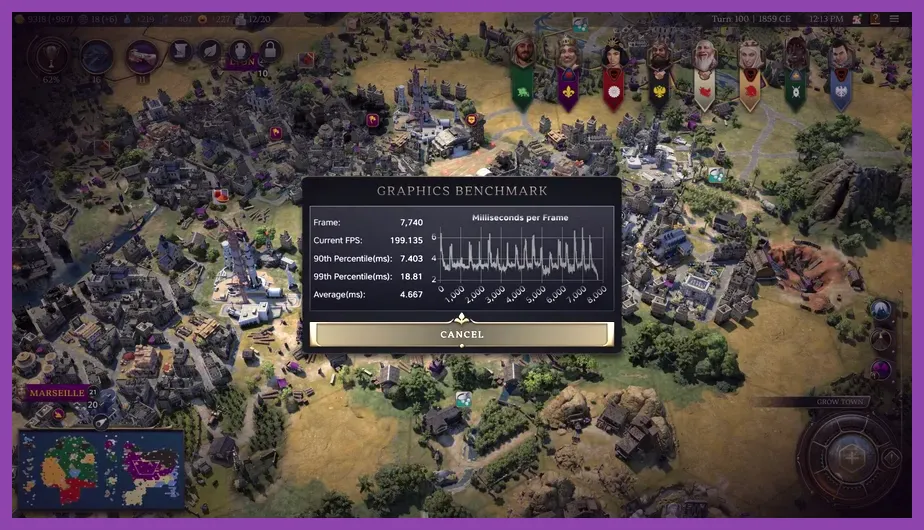
Before touching individual graphical sliders, you must configure your display mode correctly. Always play in Exclusive Fullscreen rather than Borderless Windowed to ensure your graphics card dedicates its full resources to rendering the game canvas. If you are playing on a lower-spec machine or a portable device similar to how users tune hardware found in the Lenovo Legion Go best graphics settings for performance guide, dropping your render resolution slightly below native is a viable strategy.
Upscaling technologies are your best friend in modern 4X titles. If your graphics card supports it, enable NVIDIA DLSS, AMD FSR, or Intel XeSS and set the mode to Quality for 1440p displays or Balanced for 4K setups. This grants you a substantial framerate boost while preserving crisp text legibility on UI elements, research trees, and city management panels.
Detailed Graphics Settings Breakdown
To pinpoint the exact adjustments needed to stabilize your frame pacing, apply the following profile directly within your video settings menu:
- Display Mode: Exclusive Fullscreen
- V-Sync: Off (Enable via your GPU control panel if you experience screen tearing)
- Max Framerate: Match your monitor's refresh rate (e.g., 60 or 144 FPS)
- Texture Resolution: High (Drop to Medium only if your GPU has less than 6GB VRAM)
- Shadow Quality: Medium (High-resolution shadow maps consume vast amounts of memory during large battles)
- Volumetric Fog: Off or Low (Removes heavy atmospheric haze that blurs the map while draining performance)
- Screen Space Reflections: Off (Massive performance killer near coastal cities and rivers)
- Anti-Aliasing: TAA or FXAA (Avoid heavy multi-sampling options unless running an enthusiast rig)
- Geometry Detail: Medium (Reduces poly counts on distant terrain features and unrevealed map tiles)
Similar to managing heavy base-building loads in titles like Manor Lords, Civilization 7 renders numerous independent animated units, trade caravans, and environmental assets simultaneously. Lowering geometry detail helps your graphics card process large army movements without stuttering.
Optimizing Turn Times and UI Animations
Performance in a 4X strategy game is measured not just in frames per second, but in seconds per turn. As civilizations expand across multiple continents, the artificial intelligence must calculate movement paths, combat resolutions, and economic yields for every single faction in the game. To keep gameplay snappy, dive into the gameplay settings menu and adjust the following parameters:
- Quick Combat: Enabled (Instantly skips lengthy attack animations during wars)
- Quick Movement: Enabled (Speeds up unit traversal across hexes)
- Auto-Cycle Units: Disabled (Prevents the camera from frantically snapping across the globe when a unit finishes moving)
- Leader Scene Quality: Medium (Lowers the polygon count and lighting complexity of diplomacy screens)
By enabling quick combat and movement, you cut down the redundant GPU rendering loops required to animate skirmishes, dramatically accelerating your overall campaign pacing.
Advanced Configuration and Troubleshooting

If you continue to experience micro-stutters or abrupt frame drops during the late-game atomic and information eras, you should inspect your system's memory allocation. Strategy games are notorious for heavy memory leaks if left running for consecutive hours. Restarting your game application every few hours clears cached asset data and restores baseline performance.
Additionally, ensure your graphics card drivers are fully up to date by visiting the official Nvidia Drivers or AMD Support portals. Game-ready drivers frequently include specific optimization patches designed to reduce pipeline compilation stutter in newly released strategy titles. Coupled with the tailored graphics profile outlined above, your rig will comfortably handle global conquest from the ancient era straight through to a science victory.