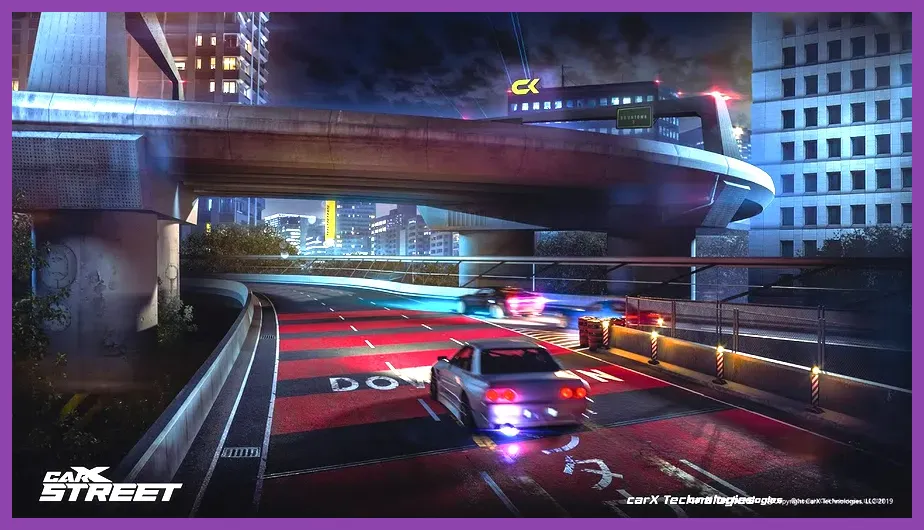
To achieve a smooth 60+ FPS in CarX Street on PC, set Resolution Scale to 100%, Shadows to Medium, Post-Processing to Low, Draw Distance to High, and disable Motion Blur and V-Sync. This specific configuration eliminates micro-stutters during high-speed tandem drifts while maintaining crisp visual clarity for navigating the sprawling open world of Sunset City.
Understanding CarX Street Performance Bottlenecks
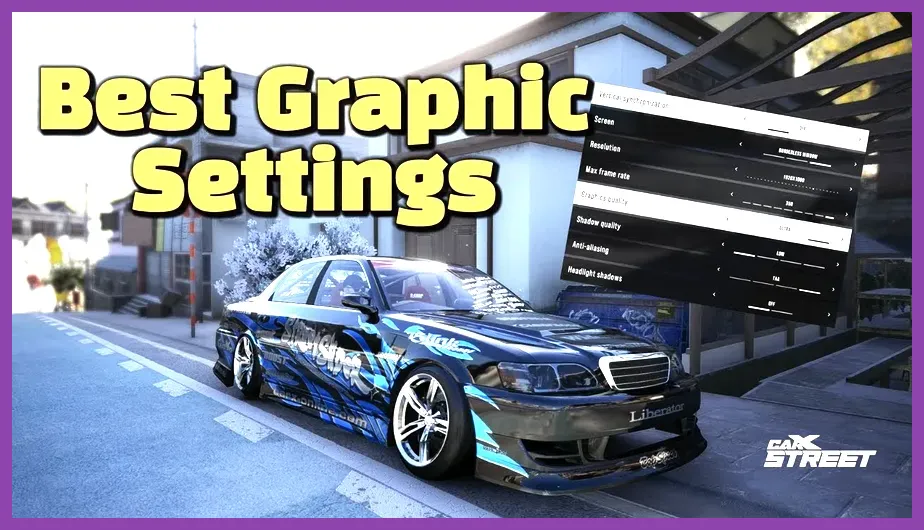
CarX Street demands heavy CPU and GPU resources due to its seamless open-world streaming, dense traffic physics, and detailed vehicle reflection models. When driving at speeds exceeding 200 mph through urban environments, the game engine constantly loads high-resolution textures and geometry into VRAM. If your hardware is struggling, you will experience sudden frame drops right in the middle of crucial corner entries or competitive club races.
Before touching any in-game sliders, ensure your graphics card drivers are fully updated. NVIDIA and AMD frequently release game-ready drivers that optimize memory allocation for demanding open-world titles. Furthermore, keeping the game installed on a fast NVMe SSD rather than a mechanical HDD is mandatory to eliminate texture pop-in and stuttering caused by slow asset streaming. For players balancing performance across multiple devices, checking hardware guidelines similar to those found in our Lenovo Legion Go best graphics settings guide can help establish a baseline for handheld or lower-end rigs.
When analyzing your system's output, look closely at 1% and 0.1% low framerates. A fluctuating average of 70 FPS means little if severe stutter drops your frame rate to 25 FPS every time you enter a densely populated city zone. The optimization profile detailed below focuses specifically on evening out these frame-time spikes to ensure buttery-smooth steering inputs.
Optimal Display and Resolution Settings
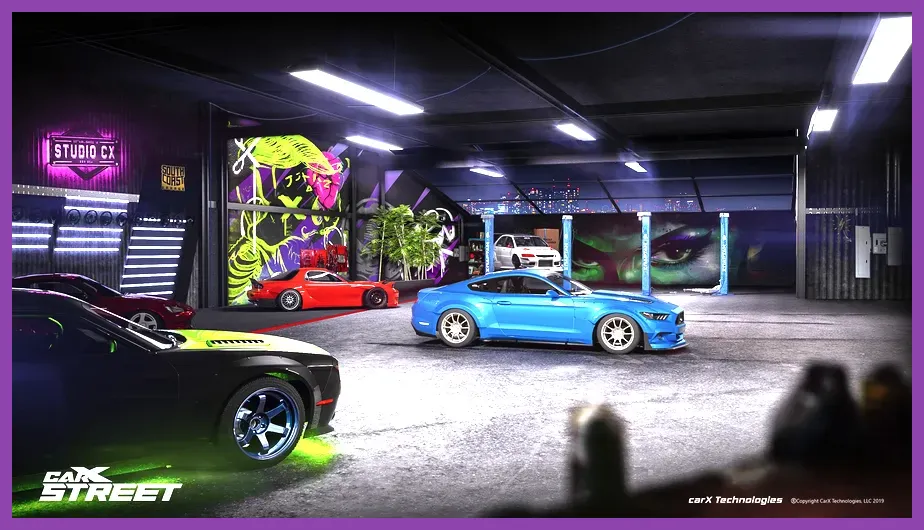
Getting your display options right is the foundation of any stable performance profile. Incorrect resolution scaling or window modes can instantly cripple your GPU's processing pipeline before you even touch advanced rendering toggles.
- Display Mode: Exclusive Fullscreen. Avoid Borderless Windowed unless you frequently alt-tab, as Fullscreen dedicates maximum system resources directly to the game process.
- Resolution: Match your monitor's native native resolution (e.g., 1920x1080 for 1080p displays or 2560x1440 for 1440p). Lowering resolution should be a last resort if your GPU is heavily outdated.
- Resolution Scale: 100%. Dropping this below 100% renders the game at a lower internal resolution and upscales it, resulting in a blurry image that makes distant braking points hard to judge.
- V-Sync: Off. Turning V-Sync off reduces input lag significantly. If you suffer from screen tearing, enable Adaptive Sync or G-Sync through your GPU control panel instead.
- Max FPS Limit: Set this to match your monitor's refresh rate (e.g., 60, 144, or 240) to prevent your GPU from overheating during loading screens and menus.
Proper configuration here ensures your display pipeline operates efficiently. For deeper dives into tuning high-performance visual profiles across various demanding genres, check out recommendations like the Nine Sols best graphics settings guide or general system requirements breakdowns such as the Monster Hunter Wilds PC settings overview.
Advanced Video Settings: What to Turn Down or Off

This is where you will claw back the majority of your lost frames. Many of CarX Street's advanced graphical features offer negligible visual improvements at the steep cost of 15% to 30% of your total framerate.
Start with Shadow Quality. Set this to Medium. Ultra shadows cast hyper-detailed block patterns that severely tax the CPU, while Low shadows look pixelated and ruin the immersion during night runs. Medium strikes the ideal sweet spot. Next, turn Post-Processing to Low or Medium. High post-processing introduces heavy bloom and depth-of-field filters that obscure the road ahead.
Always Disable the following options completely:
- Motion Blur: Adds an artificial blur smear to fast motion that often hides important road hazards and causes eye strain.
- Chromatic Aberration: Creates a distracting color-shifting border around the edges of the screen that serves no performance or functional purpose.
- Lens Flare: Can cause blinding light bursts when racing toward the setting sun in Sunset City, heavily impairing visibility.
- Film Grain: Adds unnecessary digital noise over the crisp asphalt textures.
By stripping away these synthetic camera effects, you not only boost performance but also gain a much cleaner, sharper view of your racing line. This meticulous tuning approach mirrors the optimization strategies discussed in our Manor Lords optimization guide.
World Detail and Draw Distance Optimization
CarX Street features a massive open world filled with buildings, roadside vegetation, pedestrians, and dynamic traffic. Managing how far out these objects render is vital for maintaining steady frame rates during high-speed highway cruising.
Set Draw Distance to High rather than Epic. Setting it to Epic forces the engine to render distant structural geometries and street lamps that are completely outside your field of view when taking tight mountain hairpins. High draw distance keeps the horizon looking full while protecting your CPU from massive draw-call bottlenecks.
Set Vegetation Quality to Medium. Lush grass patches and roadside trees look great when parked in the garage, but at 180 mph, excessive foliage density drains GPU shading power for zero competitive advantage. Similarly, set Traffic Density to Medium. While lower traffic makes the world feel slightly emptier, it drastically reduces pathfinding calculations for the CPU, preventing sudden framerate dips when rounding crowded city blocks.
If you enjoy optimizing complex game mechanics and visual parameters, you might also appreciate exploring strategic progression guides like the Mount and Blade 2 Bannerlord armor location guide or mastering combat efficiency detailed in the Lies of P weapons tier list.
Texture Quality, Reflections, and Anti-Aliasing
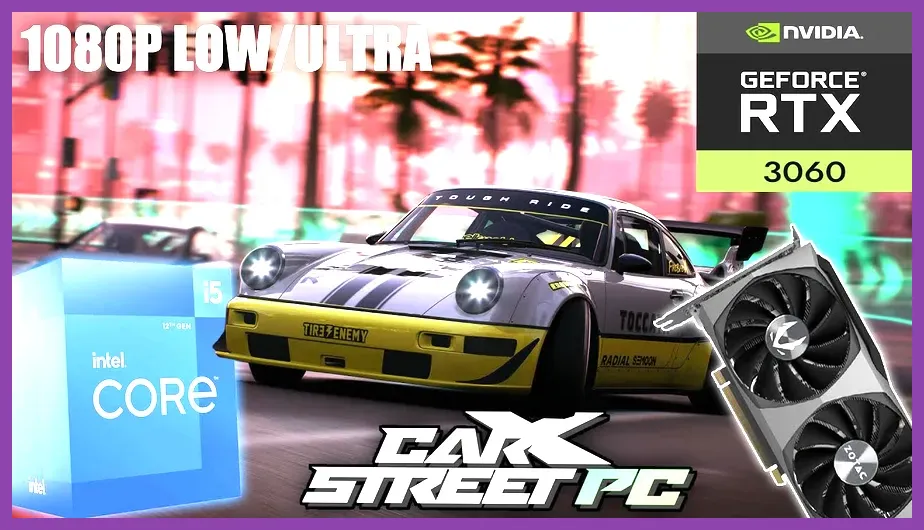
The final layer of optimization involves your texture fidelity, surface reflections, and edge smoothing. These settings dictate how crisp your modified sports cars look under street lamps and neon signs.
Set Texture Quality to High if your graphics card has at least 6GB or 8GB of VRAM. Textures consume storage space in memory rather than taxing real-time core processing power, meaning as long as you do not exceed your VRAM budget, High textures cost virtually zero frames. If you are playing on a lower-end laptop or budget card with 4GB VRAM or less, drop this to Medium to prevent catastrophic stuttering.
Set Reflection Quality to Low or Medium. Real-time car paint and puddle reflections are notoriously heavy on GPU shaders. Turning reflections down to Low removes ray-traced or complex screen-space reflection calculations, instantly yielding up to 10 extra frames per second during wet-weather night events. Finally, use TAA (Temporal Anti-Aliasing) on Medium. TAA effectively smooths jagged polygon edges on spoiler kits and roll cages without causing the aggressive shimmering associated with older FXAA methods.
Testing and Monitoring Your New Performance Profile
Once you have applied these recommended settings, jump into a test session in an open area of Sunset City or start a solo time-attack sprint. Use an external monitoring overlay like MSI Afterburner or RivaTuner Statistics Server to track your GPU utilization, CPU temperature, and frame-time consistency.
A properly optimized game should show GPU usage hovering around 95% to 99% with a flat, stable green frame-time line. If you notice persistent stuttering, drop the Draw Distance or Reflection Quality down one more notch. Fine-tuning these values ensures that whether you are building a drift monster or competing in top-tier club championships, your hardware never holds you back from crossing the finish line in first place.