To fix extreme battery drain while playing Azur Lane, you need to toggle off high-framerate modes, reduce particle effects during bullet-hell combat encounters in maps like Operation Siren, and disable high-resolution asset loading in the game's core options. Azur Lane is notorious for running continuous background physics, live2d animations, and rendering hundreds of anti-air projectiles simultaneously, which quickly overheats mobile devices and drains lithium-ion batteries. By implementing a few targeted configurations in both the game client and your operating system settings, you can drastically reduce power consumption, lower device temperatures, and extend your play sessions without sacrificing your daily commission grinding or event farming efficiency.
Adjusting In-Game Graphics and Frame Rate Options
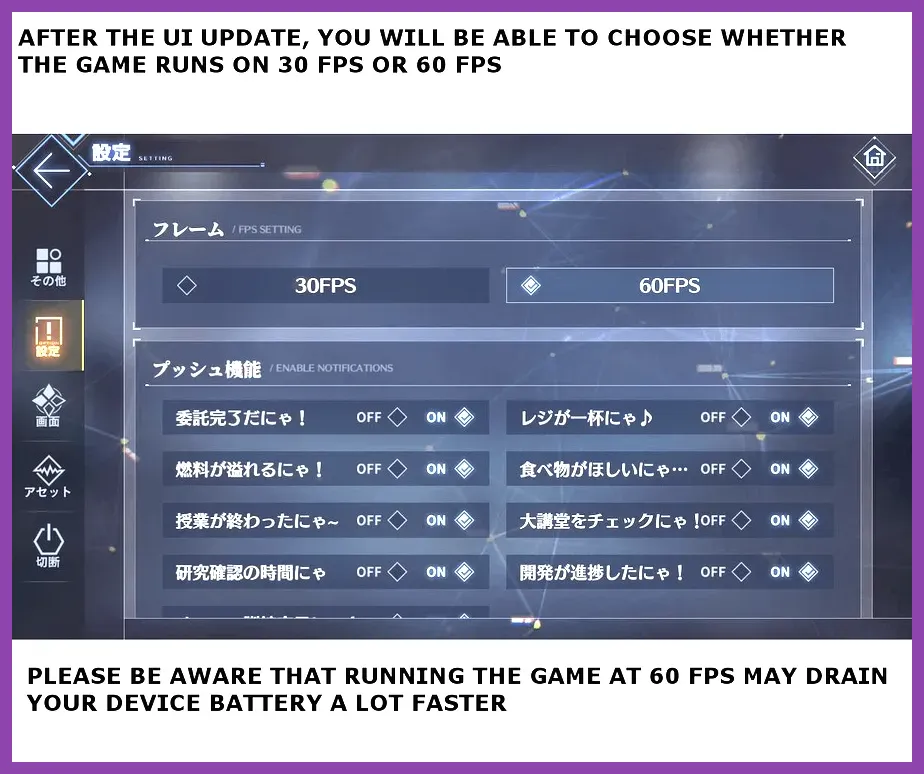
The single biggest culprit behind rapid battery drain in Azur Lane is the unchecked frame rate and heavy rendering load during intensive sortie sequences, particularly when running modern high-refresh-rate displays. By default, many devices push the game to run at 60 FPS or higher, keeping the GPU and CPU locked at high clock speeds even during menu navigation or idle fleet management. To counter this, head directly into the game's Options menu via the gear icon on the main port screen, navigate to the Game tab, and re-evaluate your performance presets.
First, consider locking your frame rate. While 60 FPS makes Enterprise's Lucky E or Bismarck's kinetic bombardments look buttery smooth, dropping the frame rate to 30 FPS on secondary farming devices or during routine event clears cuts GPU rendering demand in half. Furthermore, make sure to toggle off heavy visual features such as High-Resolution Assets if your device screen resolution doesn't genuinely require them. For players experiencing severe battery loss while farming Chapter 14 or Chapter 15 stages, pairing these tweaks with advice found in our performance optimization guides can stabilize overall hardware draw.
Minimizing Combat Particle Density and Live2D Load
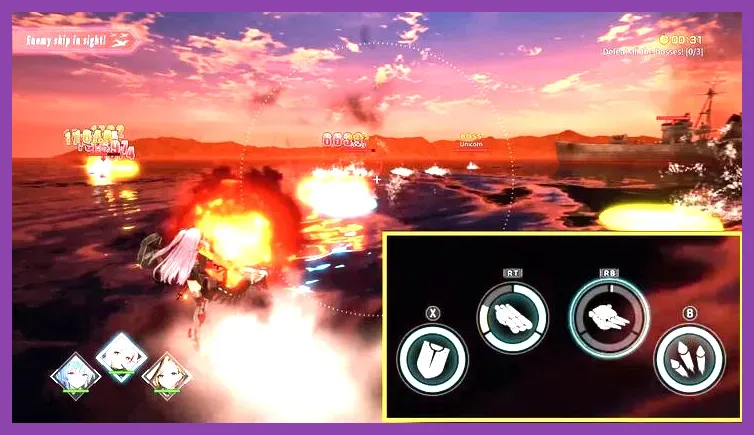
When you enter combat nodes—especially boss fights against arbitrars in Operation Siren or EX difficulty stages—the screen fills with hundreds of bullet sprites, torpedo trails, and barrage animations from ships like Musashi, Shinano, or Jean Bart. Each active sprite demands processing power. To mitigate this heavy thermal load, look at the combat display settings and disable non-essential floating battle text and excessive background rendering where available.
Additionally, the game's mesmerizing Live2D secretary animations constantly cycle through heavy vector calculations and texture streaming in the main port. If you leave your device sitting on the dock while managing your mental cube research or canteen supplies, your battery percentage will plummet. Switch your active secretary to a static 2D portrait or a lower-impact skin whenever you step away from your device for more than a couple of minutes. For players exploring heavy hardware optimization workflows similar to those needed for demanding desktop titles, managing background asset rendering is always the primary step toward thermal equilibrium.
Optimizing Operating System Battery Saver and Background Restrictions
Hardware optimization goes far beyond the game's internal sliders. Both Android and iOS operating systems feature aggressive power management protocols that can be manually tuned to prevent Azur Lane from chewing through your battery while running in the background or during prolonged auto-search farming loops. If you frequently use auto-search overnight or while at work, your screen stays awake continuously, accelerating display-based power drain.
On Android devices, navigate to your phone's Settings > Apps > Azur Lane > Battery, and select the "Optimized" or "Restricted" profile depending on your current needs. Avoid letting the game run with unrestricted background battery access when you aren't actively looking at the screen. On iOS, toggle on Auto-Brightness or manually lower your display brightness slider to roughly 35% to 40%, as OLED and LCD panels pulling maximum nit brightness account for up to sixty percent of total mobile power consumption. If you enjoy grinding resource-heavy mobile RPGs concurrently, check out our resource management tips in Marvel Future Fight speedrun strategies to understand how efficiency applies across different mobile architectures.
Managing Emulator Settings for PC Play
Many Commanders prefer running Azur Lane on PC emulators like BlueStacks, LDPlayer, or MuMu Player to avoid mobile thermal throttling entirely and protect their smartphone batteries. However, unoptimized emulator instances can actually draw massive amounts of PC power, leading to overheating rigs and spiking electricity bills. If you run the game via an emulator to save your phone, you still need to apply strict core allocations.
Open your emulator's engine settings and lock the CPU allocation to 2 or 4 cores, and limit RAM usage to 4GB. Do not leave the emulator running on unrestricted hardware profiles. Furthermore, enable hardware-accelerated GPU scheduling and force the emulator to run on your dedicated graphics card rather than integrated graphics. For those who frequently transition between desktop gaming and mobile apps, reviewing hardware setups like those discussed in our system optimization breakdowns will keep your overall computing environment running cool and clean.
Utilizing Official Support and Developer Resources
Yostar frequently updates the game client with engine patches, asset compression bundles, and bug fixes designed to address memory leaks and abnormal power consumption. Keeping your game client completely up to date via official channels is critical for long-term battery health. Corrupted asset caches can force your processor into endless read-write loops, generating excess heat and draining your battery at double the normal rate.
Before launching into major event farming grinds, use the title screen's "Repair" or "Check for Updates" utility to verify your file integrity and clear out redundant cache clutter. For official patch notes, developer announcements, and community-driven performance troubleshooting, consult the official Yostar Azur Lane website and cross-reference game mechanics with the community-maintained Azur Lane English Community Wiki. Staying informed on upcoming engine updates ensures your device remains optimized for every major war archive release and major collaboration event without unexpected hardware meltdowns.