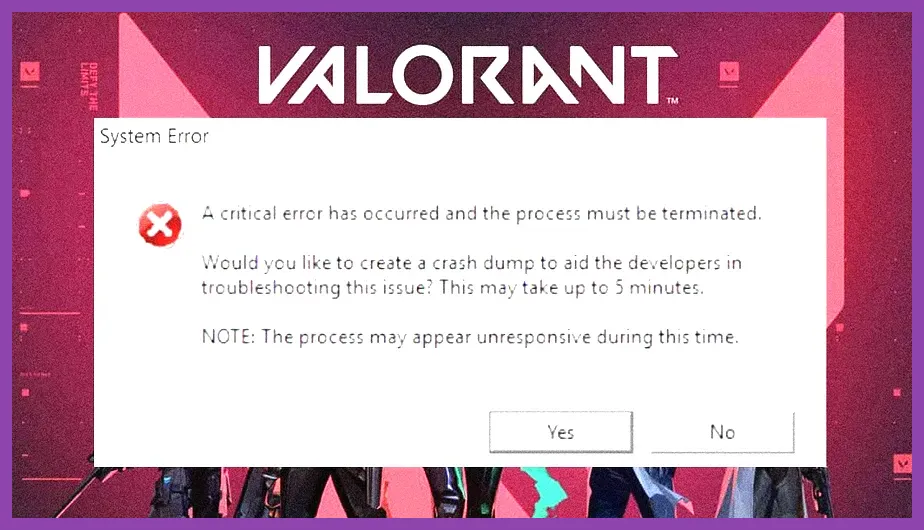
To fix crashing on PC in Valorant, you need to address kernel-level conflicts with Riot Vanguard, update your NVIDIA or AMD graphics drivers, disable aggressive background overlays, and clear corrupted DirectX shader caches. Random crashes during Agent Select, mid-round gunfights on maps like Ascent or Bind, or unexpected desktop drops can completely ruin your competitive MMR climb. If you are experiencing sudden Unreal Engine fatal error prompts or freezing screens, executing a systematic troubleshooting checklist will restore stability to your rig.
Reinstall and Update Riot Vanguard Anti-Cheat
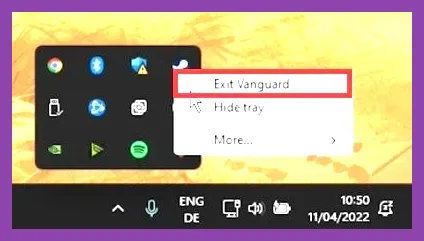
Riot Vanguard is the kernel-level anti-cheat system required to run Valorant. Because it operates at the core of your operating system, any corrupted service file or conflict with third-party software will instantly trigger a game crash or prevent Valorant from launching entirely. To fix this, you must completely uninstall and reinstall Vanguard. Open your Windows Command Prompt as an administrator, type sc delete vgc, and then type sc delete vgk. Restart your PC, launch Valorant, and the game client will automatically prompt you to download and install a fresh copy of Vanguard.
For more optimization tips regarding competitive shooters, check out our guide on how to fix lag and boost FPS. Keeping your background environment clean is critical when running high-polling-rate mice and intensive tactical shooters.
Update or Rollback Your GPU Drivers
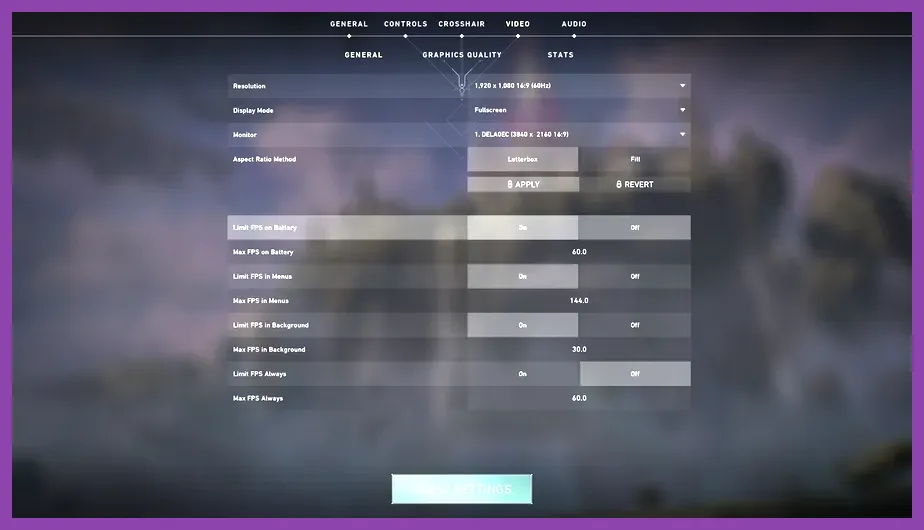
Outdated or corrupted display drivers are the primary culprit behind DirectX crashes and fatal error logs in Valorant. Head over to the official NVIDIA Drivers Page or the AMD equivalent to download the absolute latest stable driver package for your graphics card. If you recently updated your drivers and the crashing started immediately after, use a tool like Display Driver Uninstaller (DDU) in Safe Mode to wipe your existing display drivers clean before installing a previous stable version. This eliminates residual registry conflicts that cause memory access violations.
Managing hardware resources effectively is similar to optimizing loadouts in tactical multiplayer environments. Review our best loadout for ranked strategies to ensure your setup is always primed for peak performance.
Configure Optimal In-Game Graphics Settings
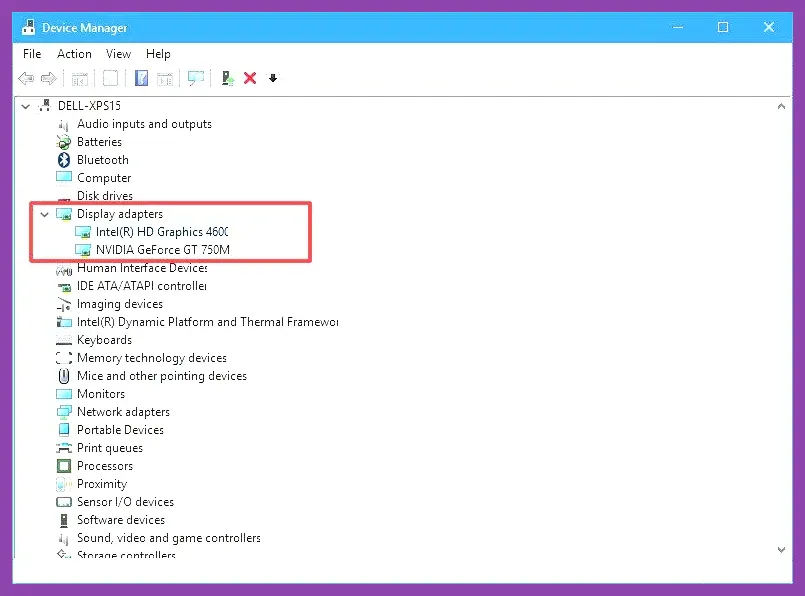
Running maxed-out graphics settings can occasionally overwhelm your VRAM or trigger thermal throttling on mid-range GPUs during heavy utility spam (such as Brimstone smokes or Viper poison walls). Navigate to your Valorant Video settings and apply a stable, competitive performance profile:
- Display Mode: Fullscreen (Exclusive fullscreen prevents Windows desktop composition from interfering with rendering).
- Resolution: Match your native monitor resolution (e.g., 1920x1080 at 240Hz).
- Material Quality: Low or Medium (reduces VRAM strain).
- Detail Quality: Low.
- UI Quality: Low.
- Vignette: Off.
- VSync: Off (crucial for eliminating input lag).
- Anti-Aliasing: MSAA 2x or None.
- Anisotropic Filtering: 4x.
- Improve Clarity: On.
- Beta 'Experimental' Sharpening: Off.
- Bloom: Off.
- Distortion: Off.
- Cast Shadows: Off (significantly boosts minimum frame rates and prevents shadow-rendering crashes).
If you enjoy tactical depth and resource management on the go, check out our insights on Clash of Clans best free to play build guide for another masterclass in system optimization.
Disable Fullscreen Optimizations and Run as Administrator
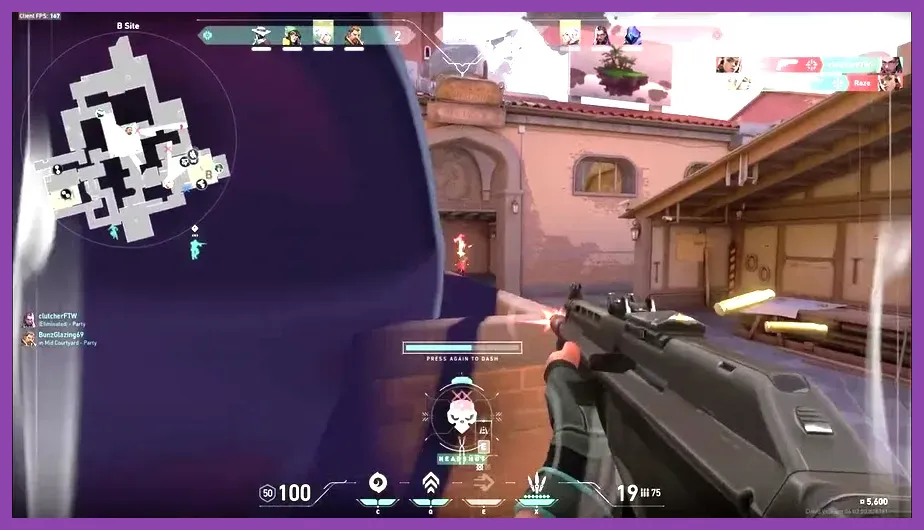
Windows feature updates often introduce aggressive display scaling features that interfere with DirectX 11 rendering in Valorant. To bypass this, navigate to your Valorant installation directory (typically located at C:\Riot Games\Valorant\live\ShooterGame\Binaries\Win64\ShooterGame.exe). Right-click the executable file, select Properties, and go to the Compatibility tab. Check the box for Disable fullscreen optimizations and also check Run this program as an administrator. Click Apply and OK. This forces Windows to grant Valorant direct, unobstructed access to your GPU resources without interference from desktop overlays.
Team coordination and clean communication are just as important as technical stability. For squad-based tactical inspiration, take a look at the DayZ best squad compositions and team synergies guide.
Disable Conflicting Third-Party Overlays and Background Software
Overlay software running in the background frequently hooks into Valorant's rendering pipeline, causing instant crashes upon launching a match. Disable the Discord overlay, NVIDIA GeForce Experience overlay, Xbox Game Bar, and third-party overclocking utilities like MSI Afterburner or RivaTuner Statistics Server (RTSS). Additionally, check your antivirus quarantine logs (such as Windows Defender or Malwarebytes) to ensure that Riot Vanguard files or the main game executable are not being falsely flagged and blocked from executing memory operations.
For more deep dives into character loadouts and optimization mechanics, explore our detailed breakdown of Final Fantasy 7 Rebirth best party synergies and builds.
Verify Game Files and Clear DirectX Shader Cache
Corrupted game installation files or a bloated DirectX shader cache will cause sudden crashes during map loading screens. Open the Riot Client, click on your profile icon in the top right, go to Settings, and navigate to the Valorant tab. Click the Repair button to automatically scan and replace missing or damaged game assets. Furthermore, clear your Windows temporary shader cache by searching for 'Disk Cleanup' in your Windows start menu, selecting your primary drive, and checking the box for DirectX Shader Cache before running the cleanup utility. Restart your computer once finished.
Staying up to date with patch notes and official support documentation via the Official Valorant Website ensures you never miss critical hotfixes deployed by Riot Games.