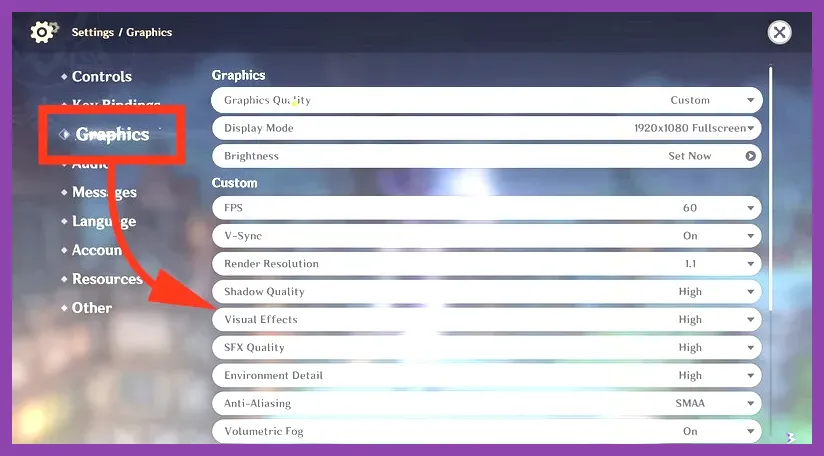
To immediately fix lag, micro-stuttering, and low FPS in Genshin Impact, open your in-game Graphics settings and set Render Resolution to 1.0 (or 0.8 on low-end systems), turn Motion Blur off, set Volumetric Fog and Crowd Density to Low, and switch your Display Mode to Exclusive Fullscreen. To eliminate ping latency and network rubberbanding, flush your system DNS, connect via a wired Ethernet cable, set your primary DNS server to Cloudflare (1.1.1.1), and force the HoYoPlay launcher to terminate background downloads after boot.
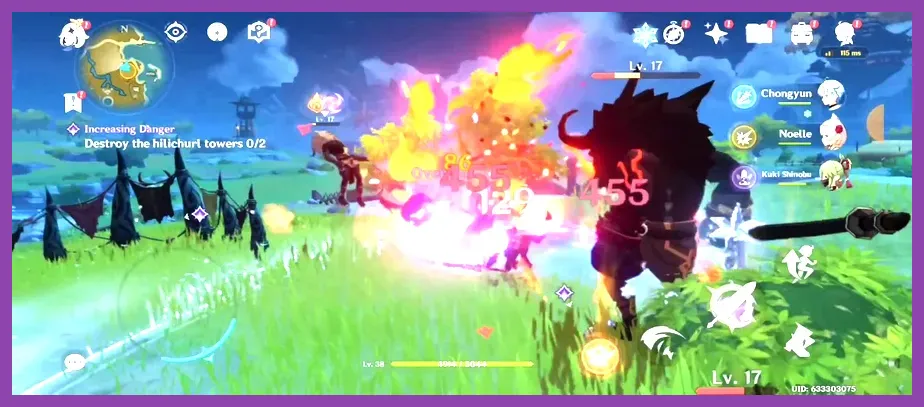
Best In-Game Graphics Settings for Max FPS and Zero Stutter
Genshin Impact’s open-world engine relies heavily on both single-core CPU throughput and GPU pixel fill rates. Populated cities like Liyue Harbor, Fontaine’s Court, and Natlan’s dense sub-regions cause severe frame drops if unoptimized visual effects push your system past its limit. Adjusting performance-heavy toggles while preserving visual clarity provides a dramatic uplift in overall frame rate smoothness. Players tweaking performance parameters in competitive or hardware-demanding titles like Tekken 8 best settings for max FPS will recognize how isolated settings changes restore low frame pacing.
Access your settings through the Paimon Menu (ESC on PC, tap Paimon icon on mobile), navigate to Graphics, and configure the custom profile detailed below:
- Display Mode: Fullscreen (Enables Direct3D exclusive access, reducing desktop window manager overhead).
- FPS: 60 FPS (Locks game physics calculations; uncapped or external unlocked FPS tools can trigger account flags).
- V-Sync: Off (Turn On only if severe screen tearing occurs and G-Sync/FreeSync is unavailable).
- Render Resolution: 1.0 (For low-end GPUs like GTX 1050 Ti or mobile chipsets, drop to 0.8 for a 25% performance boost).
- Shadow Quality: Low or Medium (High shadows cast dynamic real-time maps across huge terrain distances, eating massive VRAM bandwidth).
- Visual Effects: Low or Medium (Reduces particle emission rates during multi-element burst rotations such as Xiangling’s Pyronado combined with Furina’s Salon Solitaire).
- SFX Quality: Low or Medium (Limits high-frequency sound channel pressure on low-tier audio drivers).
- Overall Settings: Custom (Pre-made presets apply redundant high-end post-processing features).
- Environment Detail: Medium (High draws assets far out, swamping CPU draw calls in forested zones).
- Volumetric Fog: Off (Calculates light scattering through volumetric ray marching; disabling yields a massive 10-15% FPS spike in Sumeru and Fontaine).
- Reflection: Low or Off (Prevents real-time water body rendering loops in sea areas).
- Motion Blur: Off (Eliminates artificial camera smearing and reduces rendering latency).
- Bloom: Off (Removes harsh light glow filters, freeing shader resources).
- Crowd Density: Low (Directly reduces CPU thread overhead by limiting non-interactive NPC spawns in hub towns).
- Sub-Surface Scattering: Low or Off (Disables real-time skin translucency shaders).
- Anisotropic Filtering: 8x or 4x (Minimal impact on modern discrete GPUs, sharpens ground textures at sharp angles).
Advanced PC Optimization and GPU Control Panel Tweaks
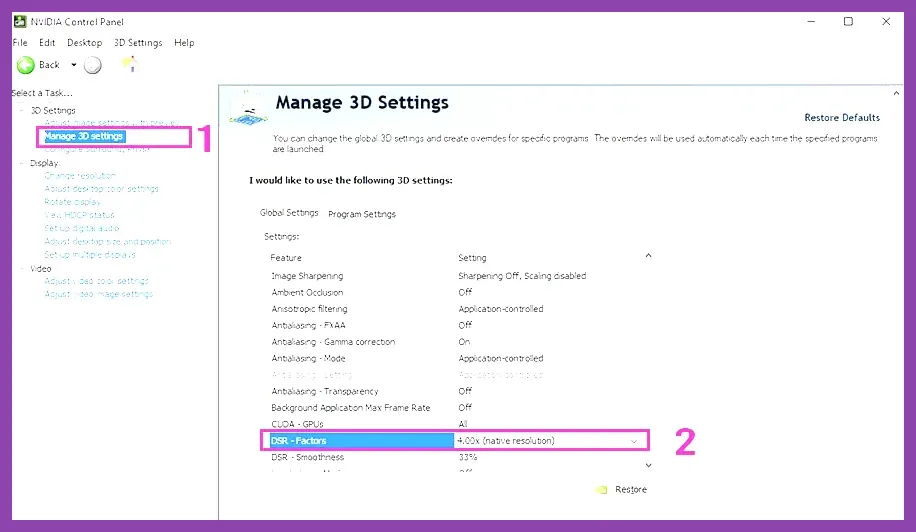
Beyond simple in-game graphics options, adjusting GPU driver configurations ensures Genshin Impact utilizes maximum hardware bandwidth without hitting artificial driver-level latency bottlenecks. HoYoverse’s Unity-based engine builds direct pipeline states through DirectX 11. Overriding global driver profiles prevents frame time spikes when loading assets across region borders.
NVIDIA Control Panel Optimization
Open the NVIDIA Control Panel by right-clicking your desktop, select Manage 3D Settings, navigate to the Program Settings tab, and add `GenshinImpact.exe` (found in your `Genshin Impact Game` installation folder, not the launcher folder). Apply these exact parameters:
- Power Management Mode: Prefer Maximum Performance (Prevents the GPU core clock from downclocking during simple dialogues).
- Low Latency Mode: On or Ultra (Reduces render queue buffers, cutting input latency when canceling animations).
- Shader Cache Size: 10GB or Unlimited (Essential fix: prevents micro-stuttering whenever new combat particle effects compile on screen).
- Max Frame Rate: Off (Let the in-game 60 FPS cap control execution speed).
- Threaded Optimization: On (Forces execution onto multi-core CPU architectures).
AMD Radeon Software Optimization
Open AMD Software: Adrenalin Edition, head to Gaming > Games > Genshin Impact, and configure the profile as follows:
- Radeon Anti-Lag: Enabled (Reduces click-to-response delays during rapid skill rotations).
- Radeon Boost: Disabled (Dynamic resolution adjustments can cause erratic blur issues in Unity engine builds).
- Radeon Image Sharpening: Enabled at 10-20% (Restores crisp texture edges if running at 0.8 Render Resolution).
- Wait for Vertical Refresh: Always Off (Unless screen tearing occurs on legacy 60Hz displays).
- Surface Format Optimization: Enabled (Allows the driver to swap render targets to faster format memory).
To maximize system efficiency when jumping into intensive single-player open worlds, reviewing general resource setups in guides like Starfield best class build for solo players reveals how background service trimming preserves system memory for raw rendering performance.
How to Fix High Ping, Packet Loss, and Server Lag
Network lag in Genshin Impact differs entirely from hardware low FPS. High ping (indicated by a yellow or red MS counter in the top-right corner) causes damage numbers to register late, delays character switching, and disrupts time-sensitive combat challenges like the Spiral Abyss. Because hit checks pass through HoYoverse server validation via the official Genshin Impact website infrastructure, keeping network routing clean is non-negotiable.
1. Flush DNS and Switch to Domain Name Servers
Default ISP DNS servers often route game packets inefficiently across long node chains. Switch to low-latency public DNS providers and purge local cache records:
- Press `Win + R`, type `cmd`, and press Enter to open the Command Prompt.
- Type `ipconfig /flushdns` and hit Enter.
- Open Control Panel > Network and Sharing Center > Change adapter settings.
- Right-click your network adapter (Ethernet preferred over Wi-Fi), select Properties, highlight Internet Protocol Version 4 (TCP/IPv4), and click Properties.
- Select Use the following DNS server addresses:
- Preferred DNS: 1.1.1.1 (Cloudflare)
- Alternate DNS: 8.8.8.8 (Google)
- Check Validate settings upon exit and click OK.
2. Disable Network Throttling and Background Services
Windows background sync services frequently hijack upload bandwidth during gameplay. Open your Task Manager (`Ctrl + Shift + Esc`), navigate to the Network column, and kill processes like OneDrive, Windows Update background host, and torrent clients. If you run client apps like HoYoPlay or third-party launch utilities, configure them to shut down entirely upon game execution. Optimizing network routes and bandwidth usage is as critical here as managing base upgrades in games like Pacific Drive how to upgrade the garage and level up fast, where efficiency dictates success.
Optimizing Genshin Impact on Mobile Devices (iOS & Android)
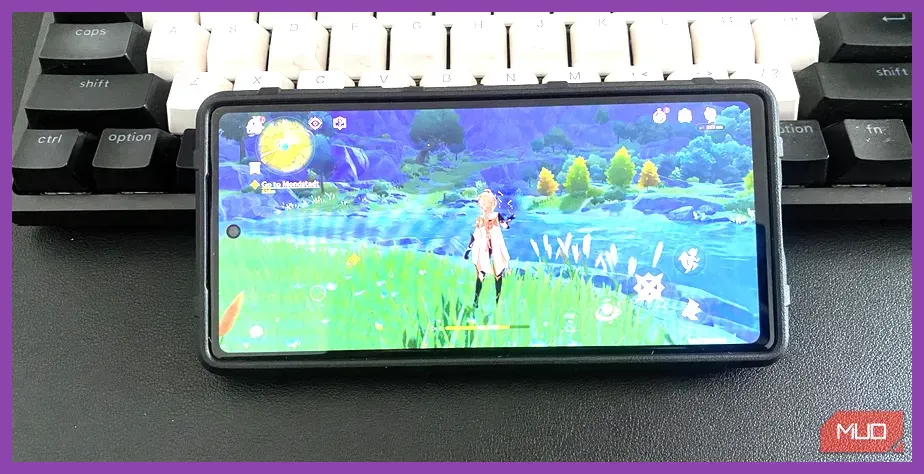
Mobile performance drops in Genshin Impact are primarily triggered by thermal throttling. When smart device system-on-chip (SoC) temperatures exceed thermal thresholds, internal safety governors dynamically underclock CPU and GPU cores, cutting frame rates down to sub-20 levels within minutes of play.
Android Optimization Steps
- Enable Game Turbo / Game Space: Access your phone's native performance app (Xiaomi Game Turbo, Samsung Game Booster, or ROG Armoury Crate). Lock operational modes to Performance Mode and disable automatic screen brightness auto-dims.
- Adjust Developer Options: Go to Settings > System > Developer Options. Locate Force 4x MSAA and ensure it remains **Disabled** (enforcing 4x MSAA cooks mobile processors during open-world traversal).
- Clear System Cache: Periodically clear cached data inside App Info > Genshin Impact > Storage > Clear Cache.
iOS Optimization Steps
- Disable Low Power Mode: Low Power Mode caps CPU clock rates at roughly 60% capacity, forcing severe framerate chokes. Keep it off while playing.
- Turn off Background App Refresh: Go to Settings > General > Background App Refresh and disable it entirely or restrict it to Wi-Fi only.
- Keep Device Cool: Remove heavy protective phone cases during long sessions to allow ambient heat radiation from the glass backpanel. Using external clip-on semiconductor cooling fans stops thermal throttling entirely on flagship Apple and Qualcomm chips.
Focusing on skill efficiency and optimal hardware execution mirrors progression systems seen in title mechanics across platforms; checking our Persona 3 Reload best skills to unlock first guide illustrates how structured tuning improves output across every gaming experience.
Driver Updates, System Power Plans, and Cache Flushing
Outdated display drivers and clogged shader caches are responsible for sudden frame stuttering after major game version updates (e.g., version increments like 4.8 to 5.0). Clean system states eliminate software execution collisions.
1. Perform Clean Driver Reinstallations
Outdated display drivers lack performance patches created specifically for open-world games running on modern DirectX pipelines. Fetch the newest packages directly through Nvidia's official driver download hub or AMD's driver support portal. Check "Perform a clean installation" during setup to wipe legacy configuration conflicts clean.
2. Enable High Performance Power Plan in Windows
Standard Windows power plans allow processor cores to enter idle states dynamically, leading to latency spikes when transitioning into real-time combat encounters:
- Press `Win + R`, type `powercfg.cpl`, and hit Enter.
- Expand Show additional plans and select High Performance or Ultimate Performance.
- Open Settings > Gaming > Game Mode and ensure Game Mode is turned ON. This assigns high priority to game process threads over background system operations.
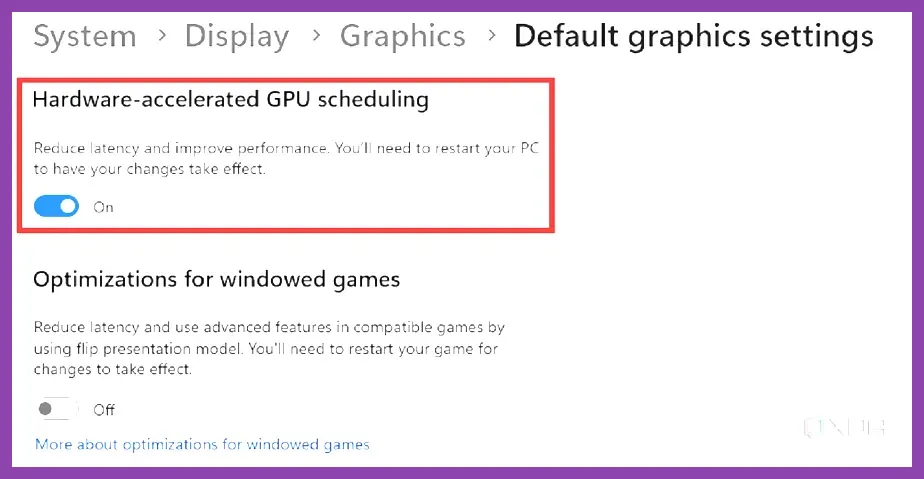
- Click Graphics Settings on the right side of the Game Mode page and toggle Hardware-Accelerated GPU Scheduling (HAGS) to **On**. Restart your PC to commit changes.
3. Flush Windows DirectX and Genshin Cache Files
Corrupted pre-compiled shader files force your graphics card to recompile shaders on the fly every time an ability fires. Deleting old cache folders resolves this instantly:
- Close Genshin Impact and the HoYoPlay launcher entirely.
- Press `Win + R`, type `%localappdata%`, and hit Enter.
- Locate temporary GPU cache folders: for NVIDIA users, navigate to `NVIDIA\\DXCache`; for AMD users, navigate to `AMD\\DxCache`. Delete all contents inside these folders (skip files currently in use by active system processes).
- Open the Run box (`Win + R`), type `temp`, press Enter, and delete temporary junk files.
If you enjoy optimizing game performance across demanding open-world survival titles, explore our comprehensive gear and system walkthrough in the Subnautica 2 best starting build and early gear guide. You can also consult player discussions on the official HoYoLAB community platform to track active server status updates and regional latency metrics.