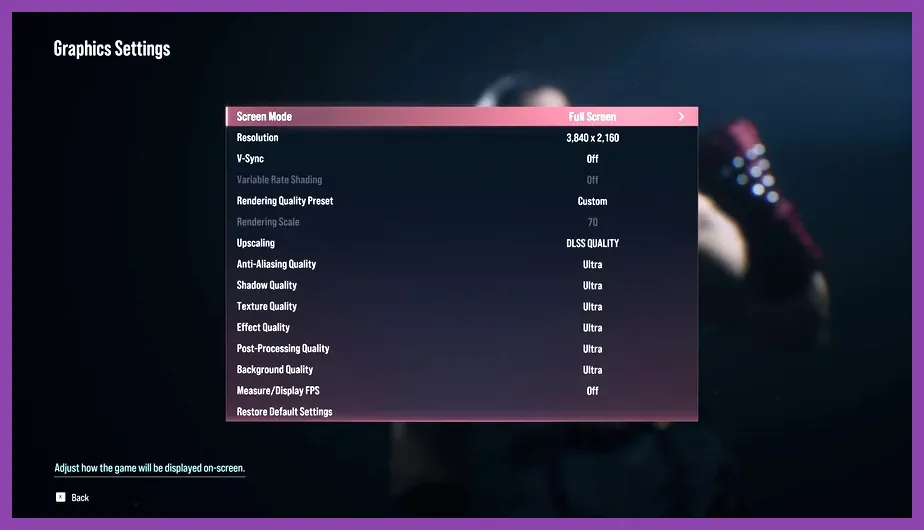
Quick Summary: The "Competitive" Preset for Immediate Gains
If you need maximum frames right now without reading further: Set Resolution to Native (1920x1080), Upscaling to DLSS Quality (NVIDIA) or FSR Quality (AMD/Intel), Frame Generation On (RTX 40-series only), V-Sync Off, NVIDIA Reflex On + Boost. In Quality settings: Textures High, Shadows Low, Effects Low, Foliage Low, Shading Quality Low, Post Processing Low. This preset targets 144Hz+ on mid-range GPUs (RTX 3060 / RX 6600) and 240Hz+ on high-end cards.
Display & Resolution: Native vs. Upscaling Strategy
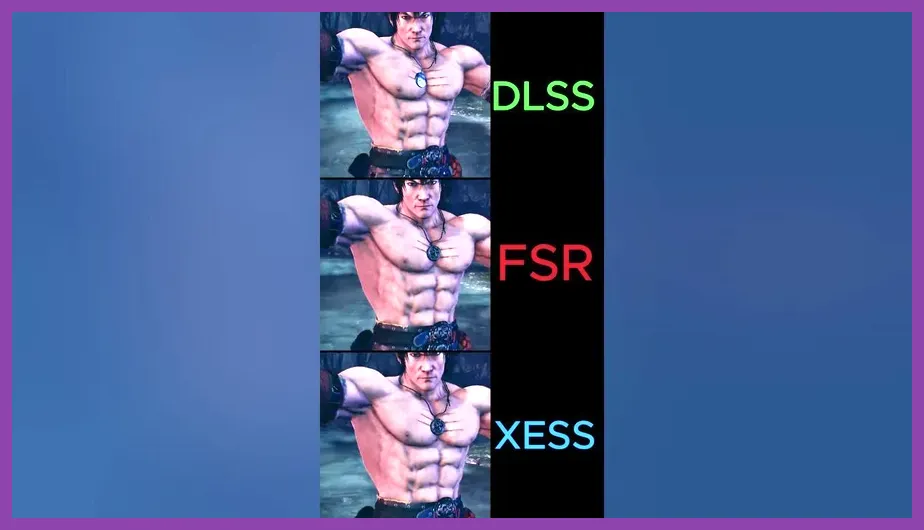
Tekken 8 runs on Unreal Engine 5, making it heavily reliant on upscaling technology for high refresh rates. Always run Display Mode: Fullscreen Exclusive — Borderless adds 1-2 frames of DWM latency. Set Resolution to your monitor's native panel resolution (usually 1920x1080 or 2560x1440). Do not lower the output resolution slider; use the Screen Percentage (Render Scale) or Upscaler settings instead.
Upscaler Selection Priority
- NVIDIA RTX 20/30/40 Series: DLSS (Super Resolution). Use Quality for 1440p, Balanced for 1080p high refresh.
- NVIDIA RTX 40 Series Only: Enable DLSS Frame Generation. It inserts AI frames, doubling perceived FPS. Crucial: Keep Reflex On+Boost enabled to counteract FG latency.
- AMD RX 6000/7000 / Intel Arc: FSR 2.2/3.0. Use Quality or Balanced. FSR 3 Frame Generation works on all GPUs but adds more latency than DLSS FG.
- Older GPUs (GTX 10-series, RX 500): FSR 1.0 (Spatial) or Screen Percentage 75-80%.
NVIDIA DLSS Technology Overview | AMD FidelityFX Super Resolution
Graphics Quality Breakdown: Settings That Actually Cost FPS
Not all "Low" settings are equal. Tekken 8's character models and stage geometry are dense; the engine scales specific passes differently. Here is the exact impact hierarchy based on an RTX 4070 / Ryzen 7 7800X3D test bench at 1080p:
| Setting | Recommendation | FPS Impact (Approx.) | Visual Cost |
|---|---|---|---|
| Shadow Quality | Low | +15-25% | Dynamic shadows removed; baked contact shadows remain. |
| Effects Quality | Low | +10-15% | Hit sparks, electric arcs (Kazuya/Jin), heat aura simplified. |
| Shading Quality | Low | +8-12% | Character specular highlights flattened; minimal gameplay impact. |
| Post Process Quality | Low | +5-8% | Bloom, DOF, Motion Blur disabled. Keep Motion Blur Off always. |
| Foliage Quality | Low | +3-5% | Background vegetation density reduced (stages like Yakushima). |
| Texture Quality | High (VRAM permitting) | 0-2% | Character skin/cloth detail. Drop to Medium only if <8GB VRAM. |
| View Distance | Medium | +2-3% | Background geometry pop-in. Low causes distracting pop-in. |
Pro Tip: Character Detail (separate slider in some patches) should stay High. It governs skeleton/hitbox visualization fidelity; Low can rarely cause visual desync perception.
NVIDIA Reflex & Anti-Lag: The Latency Stack
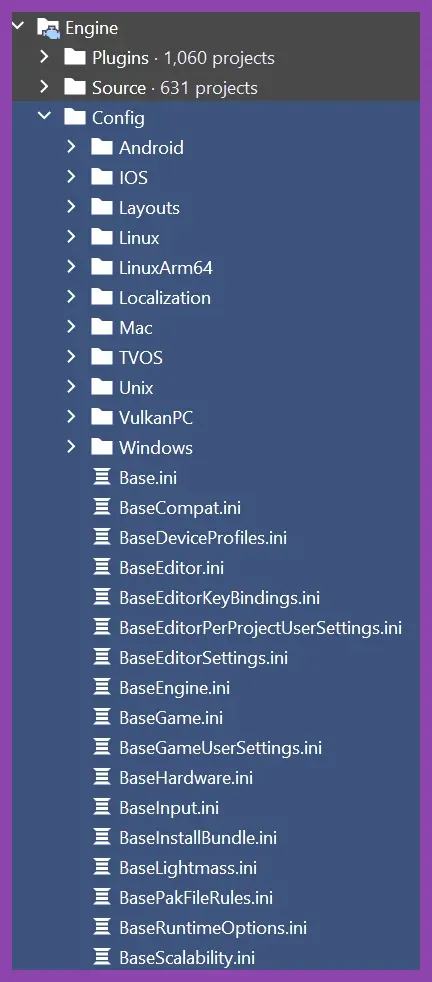
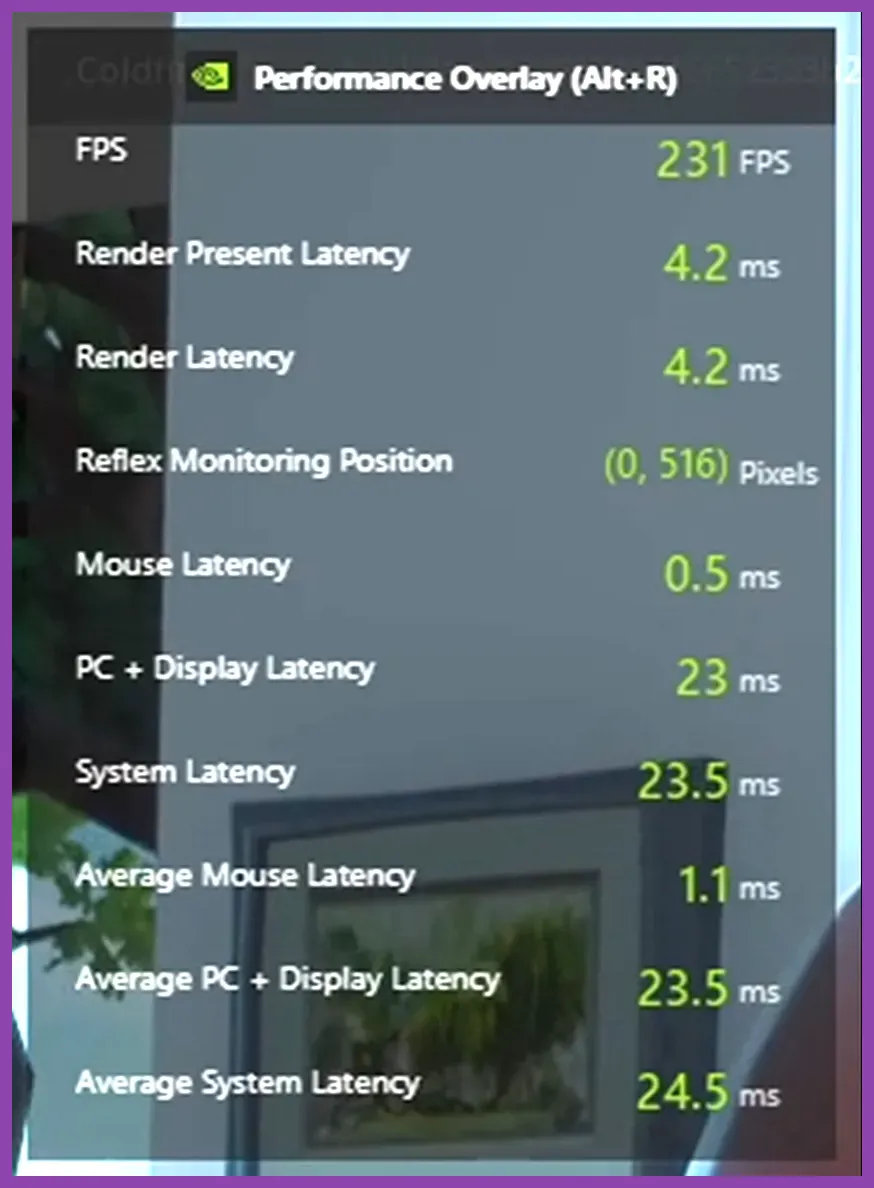
FPS is meaningless if input latency is high. Tekken 8 supports NVIDIA Reflex Low Latency natively. Set it to On + Boost. This keeps GPU clock speeds high during CPU-bound frames, reducing render queue latency by 20-35ms in typical scenarios. If you are on AMD, enable Anti-Lag+ in Adrenalin Software (requires RDNA 3 / RX 7000 series) or standard Anti-Lag for older cards. Do not use in-game "Low Latency Mode" if using Reflex/Anti-Lag driver-side; they conflict.
Verify it works: Enable the Reflex Latency Analyzer overlay (GeForce Experience Alt+Z -> Performance -> Latency). You want "Render Latency" and "System Latency" to drop when Reflex toggles On.
NVIDIA Reflex SDK Documentation
Advanced Config: Engine.ini "Potato" Tweaks
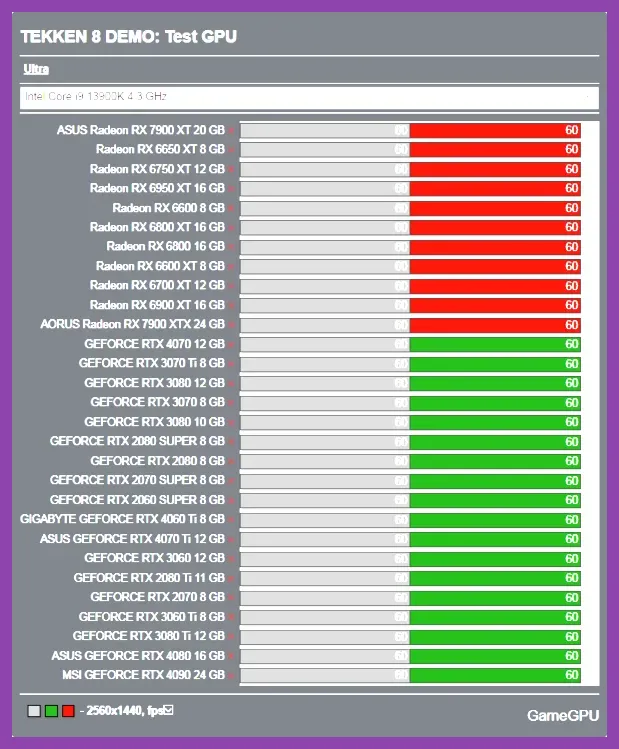
For integrated graphics (iGPU) or sub-30 FPS laptops, the in-game "Low" preset isn't low enough. Navigate to %LOCALAPPDATA%\Tekken8\Saved\Config\Windows\Engine.ini. Paste the following under [SystemSettings] (create header if missing). This forces scalability groups below the UI minimum:
[SystemSettings]
r.ShadowQuality=0
r.Shadow.CSM.MaxCascades=0
r.Shadow.RadiusThreshold=0.01
r.DetailMode=0
r.FoliageQuality=0
r.GroundClutterQuality=0
r.VolumetricFog=0
r.BloomQuality=0
r.DepthOfFieldQuality=0
r.MotionBlurQuality=0
r.LensFlareQuality=0
r.Tonemapper.GrainQuantization=0
r.LightFunctionQuality=0
r.RefractionQuality=0
r.SSR.Quality=0
r.SceneColorFringeQuality=0
r.EyeAdaptationQuality=0
r.TranslucencyVolumeBlur=0
r.MaterialQualityLevel=0
r.SkeletalMeshLODBias=2
r.ParticleLightQuality=0
sg.ShadowQuality=0
sg.EffectsQuality=0
sg.FoliageQuality=0
sg.ShadingQuality=0
sg.PostProcessQuality=0
sg.TextureQuality=2
sg.ViewDistanceQuality=1
sg.AntiAliasingQuality=1
Warning: This disables volumetric fog (stage atmosphere) and screen-space reflections (puddles/wet floors). Character outlines remain sharp. Backup the file before editing. UE5 Scalability Reference
Hardware-Specific Profiles: 1080p / 1440p / 4K & Steam Deck
One preset does not fit all. Match your hardware tier below.
High-End (RTX 4080/4090, RX 7900 XTX) — 4K 144Hz+ / 1440p 360Hz
- Res: 3840x2160 (4K) or 2560x1440
- Upscaler: DLSS Quality (4K) / DLAA (1440p Native)
- Frame Gen: On (4K) / Off (1440p 360Hz for purity)
- Textures: Ultra | Shadows: Medium | Effects: Medium | Shading: High
- Reflex: On + Boost
Mid-Range Sweet Spot (RTX 3060/4060/4070, RX 6700 XT/7700 XT) — 1080p 240Hz / 1440p 144Hz
- Res: 1920x1080 or 2560x1440
- Upscaler: DLSS Balanced (1440p) / Quality (1080p)
- Frame Gen: On (RTX 40-series) / Off (30-series)
- Textures: High (8GB+ VRAM) / Medium (8GB VRAM @ 1440p)
- Shadows/Effects/Shading/Post: Low
- View Distance: Medium
Budget / Entry (GTX 1650/1660, RX 580/6600 8GB, RTX 3050) — 1080p 60-100Hz
- Res: 1920x1080
- Upscaler: FSR 2 Quality / DLSS Performance
- Textures: Medium (4GB VRAM) / High (6-8GB VRAM)
- All Quality Sliders: Low
- Screen Percentage: 85% (if FSR unstable)
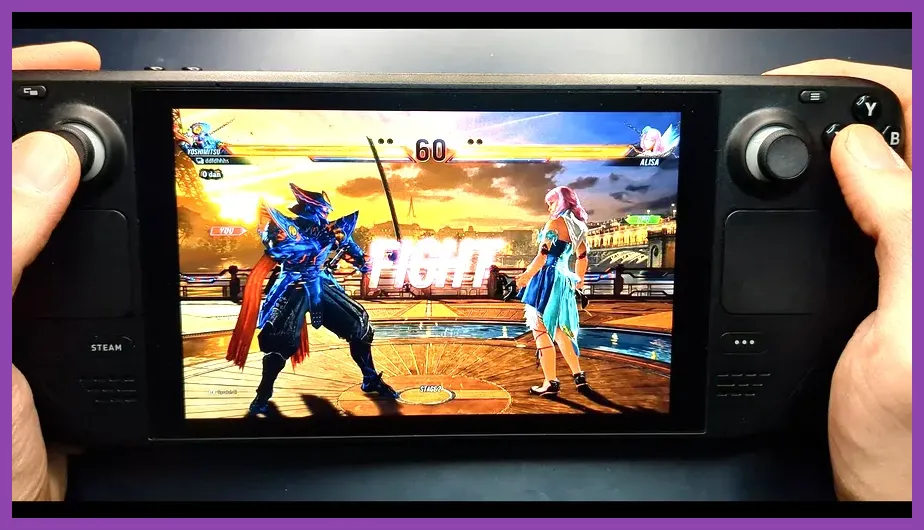
Steam Deck / Handhelds (ROG Ally, Legion Go) — 800p 60Hz Locked
- SteamOS Deck: Use Steam Deck verified profile as baseline.
- In-Game: 1280x800, FSR Quality, 40Hz Refresh Rate Cap (Steam Deck OS settings), 15W TDP Limit.
- Settings: All Low, Textures Medium, View Distance Low.
- Windows Handhelds (Ally Z1 Extreme): 1920x1080, FSR Balanced, 60Hz Cap, 25W TDP, Reflex On+Boost (if NVIDIA eGPU) / Anti-Lag+.
Check Steam Store Page for official system requirements updates.
Verifying Performance: Benchmarking Your Config
Don't guess — measure. Tekken 8 lacks a built-in benchmark, so create a repeatable test:
- Mode: Offline vs CPU (Ghost Battle or Arcade). i>Character: Kazuya (complex VFX) vs Jack-8 (large geometry).</li> i>Stage: Yakushima (heavy foliage/volumetrics) or Urban Square (SSR puddles).</li> i>Record 60 seconds of active combat (not idle). Use Xbox Game Bar (Win+G) or CapFrameX for 1% Low / 0.1% Low metrics.</li> i>Target: Average FPS > Monitor Hz; 1% Low > 60 FPS (competitive minimum).</li>
If 1% Lows dip below 60, drop Shadows or Effects first. If Average is fine but input feels laggy, ensure Reflex On+Boost is active and V-Sync is Off in both game and NVCP/Adrenalin. For CPU bottlenecks (common on 12th/13th Gen Intel non-K or Ryzen 5000 non-X3D), lowering View Distance and Crowd Density (if available in .ini) helps more than GPU settings.
For further optimization on similar UE5 titles, see our guide on system requirement analysis or engine tweak methodologies.