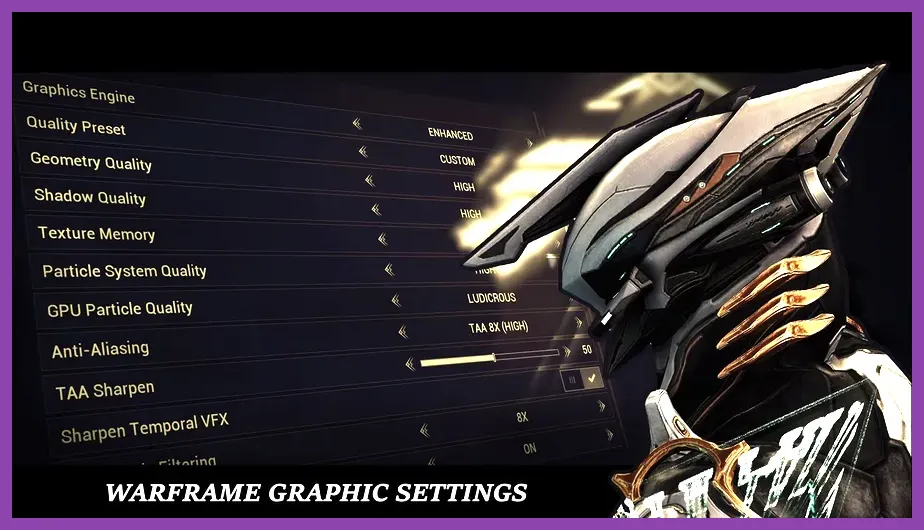
To fix lag and low FPS in Warframe, you must immediately disable Dynamic Resolution, turn off Vertical Sync (V-Sync), and switch your display mode from Borderless Fullscreen to native Exclusive Fullscreen. Digital Extremes’ fast-paced cooperative shooter relies heavily on constant particle rendering and rapid data streams, making improper video profiles and unstable network connections the primary culprits behind stuttering frame rates and sudden rubberbanding during high-density missions like Sanctuary Onslaught or Arbitration alerts.
Configuring In-Game Display and Video Settings
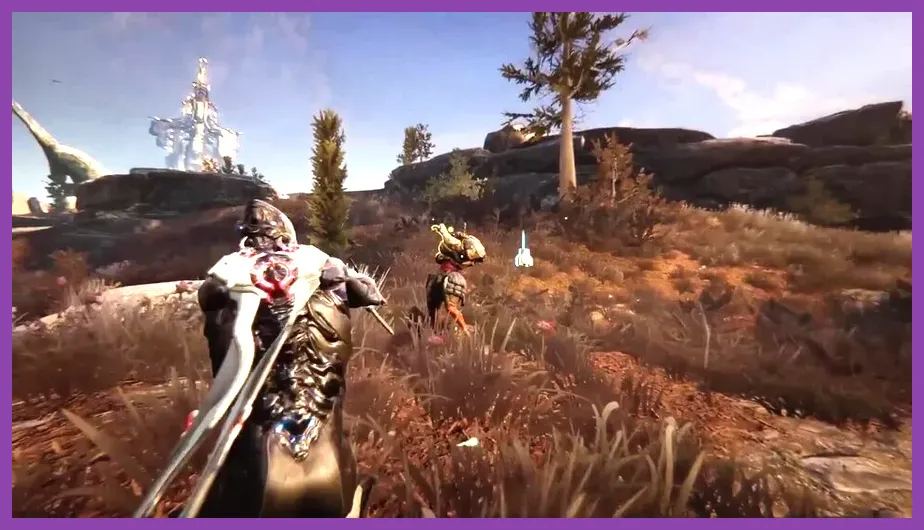
Navigating the Warframe settings guide reveals numerous graphical toggles that directly drain GPU and CPU resources. Start by heading into your main menu, selecting Options, and moving to the Display tab. Ensure your Resolution matches your monitor's native layout, and strictly select Fullscreen rather than Borderless or Windowed. Borderless mode forces Windows to manage compositing, which routinely introduces input latency and drops average frame rates by 15 to 25 percent.
Next, locate Vertical Sync and toggle it to Off. While V-Sync prevents screen tearing, it introduces heavy input lag and locks your framerate if your system dips below your monitor's refresh rate. If you suffer from screen tearing, enable NVIDIA G-Sync or AMD FreeSync directly through your GPU control panel instead of the game client. Furthermore, make sure to turn off GPU Particles or drop them to Low. During intense void cascade runs or when playing frames like Saryn and Nova with active ability spam, thousands of simultaneous particle effects overwhelm mid-range graphics cards, causing severe micro-stuttering.
Optimizing Advanced Graphical Profiles
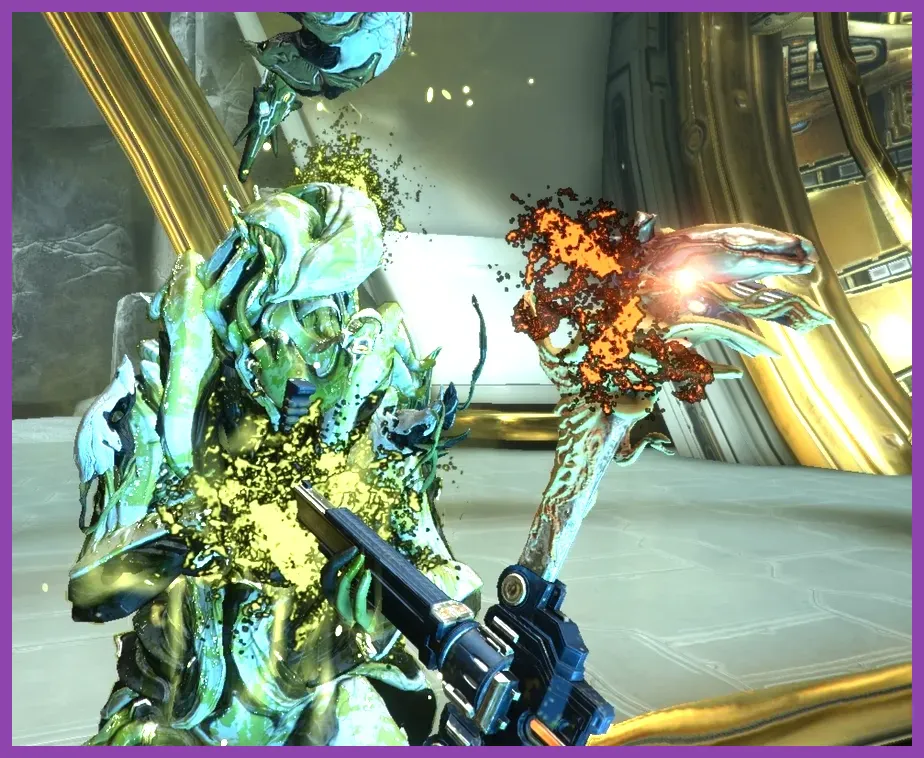
Moving further down the display menu requires a balanced approach between visual fidelity and raw computational overhead. Shadows and reflections are notoriously heavy on hardware. Set Shadow Quality to Medium or Low, and completely disable Screen Space Reflections (SSR). Volumetric Lighting and High-Dynamic Range (HDR) add aesthetic flair to tile sets like Lua or the Zariman Ten Zero, but they consume significant GPU compute power. Turn Volumetric Lighting down to Medium and disable Depth of Field and Motion Blur to keep your target frame rate stable.
Anti-Aliasing is another critical bottleneck. If your hardware struggles during intense crossfire, switch from temporal anti-aliasing methods to simpler configurations or utilize upscaling technologies. If you own an RTX card or compatible hardware, turn on DLSS (Deep Learning Super Sampling) and set it to Quality mode. For AMD users, FidelityFX Super Resolution (FSR) 1.0 or 2.0 provides a massive boost to baseline FPS by rendering the game at a lower internal resolution before intelligently upscaling it to your native display. If you are exploring other performance fixes across different platforms, you can check out this guide on how to fix lag and boost fps for similar optimization strategies.
Managing Open Worlds and High-Density Zones
Open-world landscapes like the Plains of Eidolon on Earth, the Vallis on Venus, and the Cambion Drift on Deimos introduce massive draw distances and dynamic weather systems that tax both your CPU and RAM. To prevent sudden frame drops when Archwinging across these zones, lower your Geometry Detail and turn down Dynamic Resolution. Dynamic Resolution automatically scales your rendering resolution down when the engine detects a performance dip, which helps maintain smooth inputs during frantic Eidolon hunts against the Teralyst, Gantulyst, and Hydrolyst.
Additionally, adjust your Field of View (FOV). While maxing out your FOV allows for greater situational awareness during Steel Path survival missions, it forces your GPU to render a much wider area of complex tileset geometry simultaneously. Lowering your FOV slider slightly can yield immediate performance returns on aging hardware. For players experiencing hardware-related freezes or application shutdowns in other titles, reviewing troubleshooting steps such as how to fix crashing on pc in valorant or how to fix crashing on pc in dayz can offer valuable context on system stability.
Optimizing Network Settings and Fixing Lag
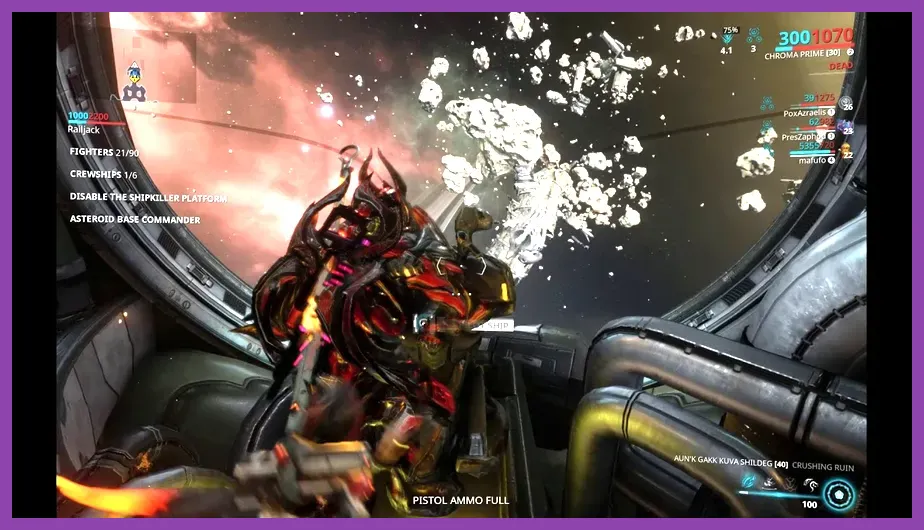
Network latency, rubberbanding, and host migrations are separate from low FPS but ruin gameplay just as severely. Because Warframe utilizes a peer-to-peer (P2P) networking architecture where one player acts as the host for the squad, your connection quality depends heavily on your hardware configuration and matchmaking limits. Open your Steam Warframe page, verify your game files, and then adjust your in-game Gameplay settings.
Look for the Matchmaking Ping Limit option and restrict it to 150 or 200 ms. This prevents the matchmaking system from placing you into high-latency squads where the host has an unstable connection, which causes severe input delay and erratic enemy movement. Furthermore, take note of your system's network ports. Warframe uses UDP ports 3960 and 3962 by default. Access your router settings and enable UPnP (Universal Plug and Play), or manually set up port forwarding for these specific UDP ports to ensure your Strict NAT type changes to Open, vastly improving squad connectivity.
System-Level Tweaks and Background Processes

Beyond in-game sliders and network adjustments, optimizing your Windows operating system ensures your hardware dedicates its maximum potential to running Warframe. Start by disabling Hardware-Accelerated GPU Scheduling (HAGS) if you notice mouse stuttering, or enable Game Mode in Windows 10 and 11 to prioritize game threads over background applications. Press Ctrl + Shift + Esc to open Task Manager and completely close resource-heavy background tasks such as web browsers, Discord overlays, and recording software like GeForce Experience shadowplay if your RAM or CPU utilization sits above 85 percent.
Ensure your graphics drivers are fully updated by downloading the latest packages directly from NVIDIA, AMD, or Intel. Corrupted driver caches often introduce stuttering during shader compilation phases when loading into new nodes like Duviri Paradox or Arbitrations. If you encounter broader software conflicts or system performance bottlenecks during daily gaming sessions, consulting resource articles like how to level up fast in sea-of-thieves or reviewing guides on how to get legendary weapons in wuthering waves can help you streamline your gaming routine.
Advanced Engine Maintenance and Cache Defragmentation
Over months of gameplay, Warframe’s local data cache can become fragmented, leading to excessively long loading screens when transitioning between your Orbiter, relays, and active missions. To resolve this, open the Warframe standalone launcher (or access the launcher settings via Steam before clicking Play) and locate the Verify and Optimize tools. Running the verification process checks all game assets for corruption, while the Optimize tool defragments the cached archive files, ensuring the game engine reads assets rapidly from your Solid State Drive (SSD).
It is vital that Warframe is installed on an SSD rather than an older Mechanical Hard Drive (HDD). Open-world streaming and continuous asset loading during void fissures cause catastrophic stuttering and texture pop-in when bottlenecked by mechanical read speeds. By combining optimized video settings, a strict ping matchmaking limit, updated drivers, and SSD caching, you will achieve a consistently high frame rate and completely eliminate lag spikes during your solar system adventures.