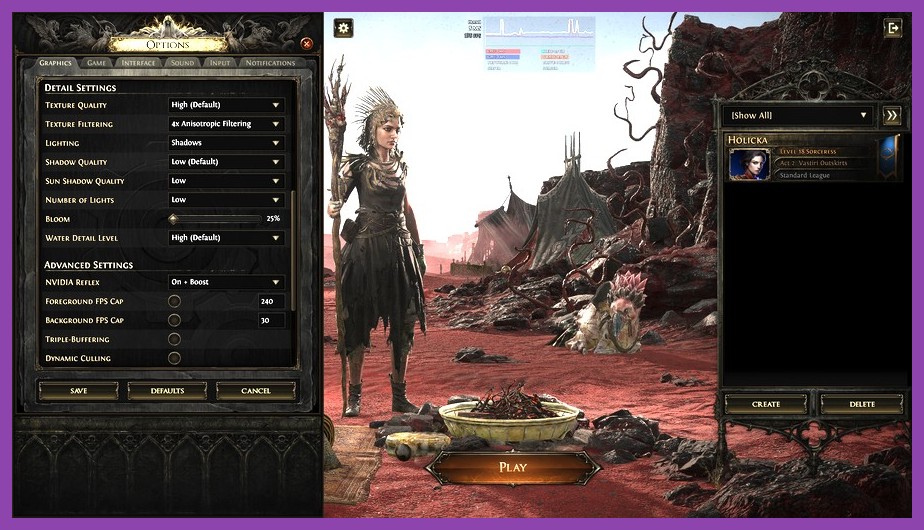
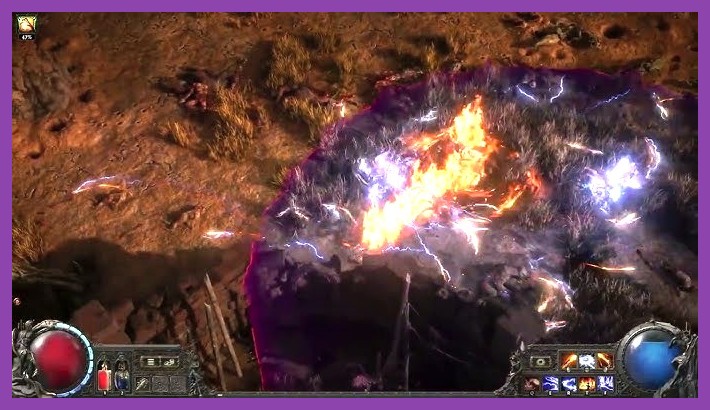
Path of Exile 2 is a visual tour de force that significantly evolves Grinding Gear Games' signature action RPG formula. Featuring physically based rendering, advance volumetric lighting, dynamic global illumination, and intricate particle simulation, the engine looks stunning. However, all this graphical visual fidelity comes at a steep hardware performance cost. When hundreds of enemy monsters, elemental projectiles, dynamic lights, and skill visual effects collide simultaneously on screen, even top-tier gaming rigs can experience frame rate drops, micro-stutters, and severe thermal throttling. If you want to dominate Wraeclast with buttery-smooth gameplay and razor-sharp reaction times, dialing in the optimal graphics configuration is mandatory.
In this comprehensive performance guide, we will break down every single display option, shadow parameter, lighting setting, and background driver optimization to unlock maximum FPS in Path of Exile 2 without rendering the world into an unreadable pixelated smear. Whether you are running a high-end desktop GPU or squeezing extra performance out of a budget gaming rig, these benchmarks and settings recommendations will deliver optimal frame stability during intense endgame mapping scenarios.
1. Understanding the Path of Exile 2 Engine and System Bottlenecks
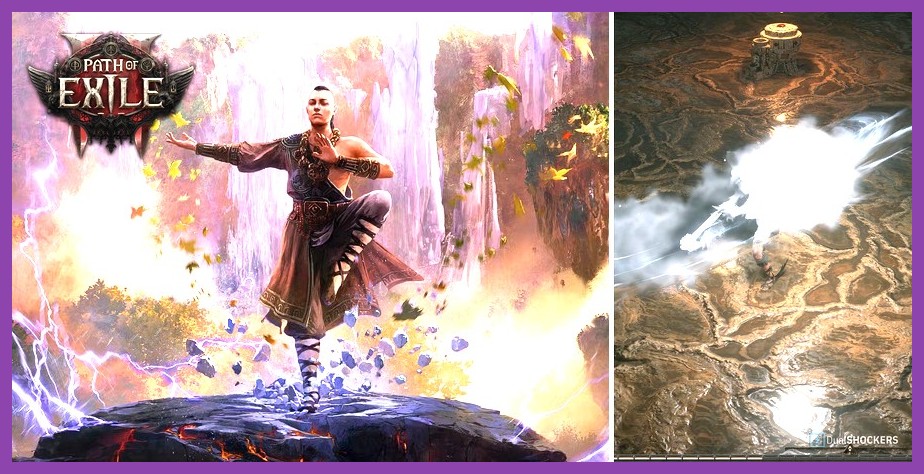
Before tweaking individual slider settings, it is crucial to understand how the internal engine of Path of Exile 2 utilizes system hardware. Unlike traditional story-driven single-player RPGs that primarily strain the graphics card through static textures and high geometry output, action RPGs impose equal load upon both the Central Processing Unit (CPU) and Graphics Processing Unit (GPU). Understanding this dynamic helps prevent severe bottlenecking across your computer's components.
CPU vs GPU Bottlenecks in Action RPGs
In low-density combat zones, your GPU handles the vast majority of rendering tasks: calculating shadow maps, displaying global illumination, generating atmospheric fog, and rasterizing high-fidelity surface textures. However, as soon as you step into high-tier maps with massive mob packs, the CPU workload skyrockets. The CPU must calculate pathfinding for dozens of aggressive monsters, process server-side hit detection, trigger status ailment damage calculations, manage loot drops, and dispatch hundreds of draw calls per frame to the graphics card.
If your frame rate drops precipitously while standing still in town or fighting solitary bosses, your system is likely GPU-bound. If your game stutters or drops frame rates specifically when opening combat encounters, triggering huge explosive herald chains, or zooming through dense maps, your CPU is bottlenecked. Similar engine behavior occurs in other hardware-heavy titles; for instance, optimizing frame pacing requires balancing hardware resources just as we detailed in our Elden Ring PC performance optimization guide.
System RAM and VRAM Requirements
Path of Exile 2 consumes significant Video RAM (VRAM) and system memory. Modern high-resolution asset streaming requires at least 8 GB of VRAM for stable frame delivery at 1080p, while 1440p and 4K resolutions push memory consumption past 10 GB to 12 GB. On the system memory front, 16 GB of RAM is the absolute functional minimum, while 32 GB is highly recommended to eliminate random background asset-loading stutters. If you suspect your memory subsystem is bottlenecking your PC system, check out our insights on RAM upgrades and system memory performance to resolve system-wide frame hitching.
2. Best In-Game Display and Resolution Settings for Smooth Gameplay

Navigating to the game graphics menu reveals essential core display options. Configuring these foundational settings correctly establishes a solid baseline frame rate before diving into visual detail parameters.
Renderer Selection: DirectX 12 vs Vulkan
Path of Exile 2 supports multiple rendering Application Programming Interfaces (APIs). Selecting the right renderer is the single most critical decision for eliminating performance hitching:
- DirectX 12: Generally offers the best baseline average frame rate on modern NVIDIA GeForce RTX cards (30-series and 40-series) and recent Windows 11 builds. It handles multi-threaded CPU draw calls efficiently, leading to smooth dynamic combat rendering.
- Vulkan: Excellent for AMD Radeon graphics cards and older Intel multi-core CPUs. Vulkan features superior asynchronous compute capabilities and dynamic memory allocation, making it exceptionally resilient against sudden frame-time spikes during massive explosions.
Recommendation: Test DirectX 12 first. If you experience persistent shader-compile stuttering or micro-hitching during massive spell combinations, switch immediately to Vulkan and clear your local shader caches.
Display Mode and Resolution
- Display Mode: Set to Exclusive Fullscreen or Borderless Windowed. Fullscreen grants the operating system direct pipeline access to your GPU, minimizing input latency. However, if you utilize multi-monitor setups for trade websites and build planners, Borderless Windowed works reliably with Windows 11 Auto HDR and GPU Flip Model hardware scheduling.
- Resolution: Always run at your monitor's native display resolution (e.g., 1920x1080, 2560x1440, or 3840x2160). Lowering display resolution manually creates blurry text and muddy UI elements. Instead of lowering native display resolution, rely on AI spatial upscalers like DLSS or FSR to gain raw rendering performance.
- V-Sync: Set to Off in-game. Standard V-Sync introduces input lag and can lock frame output down to 30 FPS if your frame rate drops even slightly below 60 FPS. Enable NVIDIA G-Sync or AMD FreeSync in your monitor settings and GPU driver panel instead.
3. Graphics Options Ranked: Detailed Setting-by-Setting Breakdown
To maximize your frame rate while maintaining clear visual fidelity, you must optimize each graphic toggle based on its individual performance cost. Below is an exhaustive breakdown of every key graphics setting available in Path of Exile 2, along with tuned performance recommendations.
Shadow and Lighting Quality Settings
Shadow rendering and volumetric ambient light calculations represent the single largest GPU drain in Path of Exile 2's modified engine architecture.
- Shadow Quality: Set to Medium or Low. High shadow settings render real-time soft shadows for every tiny projectile, minion, and piece of world debris. Dropping shadows from High/Ultra down to Medium can boost overall rendering performance by 18% to 25% with virtually zero loss in combat legibility.
- Global Illumination: Set to Low or Off. Real-time indirect lighting looks hyper-realistic in dark subterranean dungeons, but dynamic bounced light sources destroy GPU frametimes during intense particle encounters. Turning this off yields massive stability gains.
- Sun Shadows: Set to Low. Maps taking place outdoors render vast distance shadow maps. Lowering this preserves local character clarity while dramatically reducing VRAM overhead.
- Volumetric Lighting / Fog: Set to Medium or Low. Volumetric fog passes require intense GPU fill rate calculations. Lowering volumetric precision cleans up screen clutter while regaining up to 12% extra FPS in misty environmental zones.
Texture and Filtering Parameters
Texture quality affects visual crispness and memory usage without heavily impacting actual GPU processing cores, provided your graphics card possesses sufficient video memory.
- Texture Detail: Set to High (if VRAM is 8 GB or higher) or Medium (if VRAM is 4 GB to 6 GB). Lowering texture quality below Medium creates muddy surfaces and ruins visual style without delivering noticeable performance gains on modern cards.
- Anisotropic Filtering: Set to 8x or 16x. Texture filtering consumes almost zero performance overhead on graphics cards manufactured within the past decade, ensuring floor textures remain crisp when viewed at sharp camera angles.
Effects, Particles, and Post-Processing
Combat in Path of Exile 2 involves screen-filling elemental explosions, lightning arcs, and icy ground effects that severely tax visual rendering pipelines.
- Water Detail: Set to Low or Medium. Real-time water reflections and physical mesh displacement look neat in river valleys but waste valuable computing cycles during high-speed map clears.
- Particle Quality: Set to Medium. High particle quality generates exponentially more visual elements during spell cascades. Setting particles to Medium preserves spell mechanics recognition while protecting your GPU against thermal throttling spikes.
- Bloom: Set to 25% or 50%. Excessive bloom creates blinding visual noise during endgame combat. Reducing bloom level enhances combat visibility while providing minor frame stability improvements.
- Depth of Field & Motion Blur: Set both to Disabled. Cinematic camera blur hampers quick combat reaction times and wastes GPU fill cycles rendering blurry background pixels. Disable both immediately for clean tactical awareness.
For more deep dives into optimizing challenging gaming engines across various genres, explore our curated collection of gaming guides and hardware tutorials, or read our breakdown of PC system requirement optimization strategies.
4. Upscaling and Dynamic Resolution: DLSS, FSR, and XeSS Configured
Modern graphics engines rely heavily on spatial and temporal upscaling technologies to achieve maximum framerates without visual degradation. Path of Exile 2 fully supports NVIDIA DLSS (Deep Learning Super Sampling), AMD FSR (FidelityFX Super Resolution), and Intel XeSS.
Choosing the Right Upscaler
If you own an NVIDIA GeForce RTX graphics card, NVIDIA DLSS is superior. It utilizes dedicated Tensor Core hardware to reconstruct high-frequency visual details, maintaining extreme crispness on UI elements, ground textures, and character models. AMD Radeon and Intel Arc owners should utilize AMD FSR 3 or Intel XeSS respectively.
Optimal Upscaler Quality Modes
- 1080p Display Resolution: Set Upscaler to Quality Mode or Native DLAA. Reconstruction at lower render targets like 720p can introduce shimmering on thin particle effects and dynamic foliage.
- 1440p Display Resolution: Set Upscaler to Quality or Balanced. Quality mode renders internally at roughly 960p, yielding a massive 35% to 50% FPS boost while remaining virtually indistinguishable from native 1440p rendering.
- 4K Display Resolution: Set Upscaler to Balanced or Performance. Renders internally at 1080p, delivering immense frame rate performance gains that allow high-refresh-rate 4K gaming on modern GPUs.
Configuring Dynamic Resolution Scaling
If you prefer native spatial rendering over temporal upscaling, Path of Exile 2 includes a built-in Dynamic Resolution feature:
- Dynamic Resolution Enable: Toggle to On.
- Target Frame Rate: Match this setting to your display's target refresh rate (e.g., 60, 120, or 144 FPS).
When dynamic resolution is active, the game automatically scales down rendering resolution on the fly the moment screen action threatens to pull framerates below your chosen threshold. This prevents sudden game lag during massive boss attacks while automatically returning to full rendering crispness as soon as action subsides. Players diving into high-density content should complement these graphic tweaks with an optimal character build, as detailed in our guide to the best Path of Exile 2 starting builds.
5. Windows, GPU Driver, and System-Level Optimization Tweaks
Configuring in-game settings is only half the battle. If your underlying Windows operating system and graphics drivers are misconfigured, background processes will continuously steal hardware execution time, creating unwanted micro-stutters and input delay.
NVIDIA Control Panel Optimization
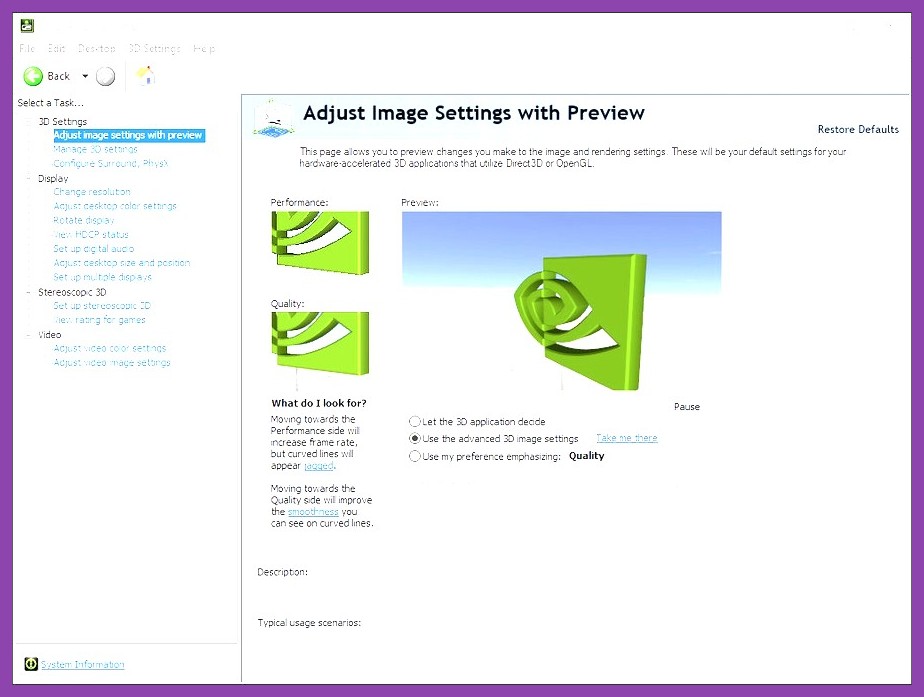
NVIDIA GPU owners can open the NVIDIA Control Panel, navigate to Manage 3D Settings, select the program profile for Path of Exile 2 (or global settings), and apply the following tweaks:
- Power Management Mode: Set to Prefer Maximum Performance. This prevents your GPU clock speed from dynamically downclocking during quiet moments, guaranteeing full voltage access when suddenly entering dense combat encounters.
- Low Latency Mode: Set to On or Ultra. Minimizes buffer queues, ensuring user input clicks instantly execute skill actions on screen.
- Max Frame Rate: Set to 3 FPS below your display refresh rate (e.g., set to 141 FPS on a 144Hz G-Sync monitor) to keep G-Sync active continuously without introducing standard V-Sync latency.
- Shader Cache Size: Set to 10 GB or Unlimited. Path of Exile 2 compiles thousands of complex shaders. Expanding driver storage prevents old compiled assets from being continuously overwritten and recompiled.
AMD Radeon Software Optimization
AMD GPU owners should open AMD Software: Adrenalin Edition and tweak the following performance options:
- Radeon Anti-Lag: Set to Enabled to drop processing latency.
- Radeon Boost: Set to Disabled, as dynamic resolution scaling is handled far cleaner natively within the internal game engine.
- Radeon Image Sharpening: Set to On (30% to 50%) to restore crisp edge details if using AMD FSR upscaling.
Windows Operating System Adjustments
Make sure your host operating system is tuned specifically for maximum gaming throughput:
- Enable Hardware-Accelerated GPU Scheduling (HAGS): Open Windows Settings > System > Display > Graphics. Toggle HAGS to On and restart your PC. HAGS offloads frame scheduling tasks directly to dedicated GPU processors, lowering CPU overhead.
- Turn On Game Mode: Windows Game Mode prioritizes CPU core allocation exclusively to the active game window while suspending non-essential background Windows update tasks.
- Disable Background Overlays: Overlays provided by Discord, GeForce Experience, Steam, and RivaTuner Statistics Server consume GPU render passes. Disable non-essential visual overlays to eliminate random frame drops.
Gamers interested in wider hardware optimization strategies across different genres can check out our extensive library of guides covering PC gaming performance breakdowns and curated RPG guides and tips.
6. Eliminating Stuttering: Engine Config Files and Shader Cache Fixes
Even after configuring optimized graphics settings, players occasionally experience persistent hitching or micro-stuttering caused by corrupted engine shader caches or misconfigured sound drivers. Here is how to perform deep system maintenance to restore buttery-smooth visual stability.
Clearing Path of Exile 2 Shader Caches
When game client updates arrive or graphics drivers update, legacy compiled shaders stored on your drive can conflict with new rendering instructions, creating extreme frame hitches whenever new visual effects appear on screen.
- Close Path of Exile 2 completely.
- Navigate to your main AppData directory (typically located at
C:\Users\YOUR_USERNAME\AppData\Roaming\Path of Exile 2). - Locate folders named
ShaderCacheD3D12,ShaderCacheVulkan, orMinimap. - Delete the contents inside these cache folders. Do not delete main configuration files.
- Launch the game client. The game will seamlessly rebuild fresh, uncorrupted shader binaries upon your initial zone loading screens.
Optimizing Sound Driver CPU Overhead
A little-known performance bottleneck in Grinding Gear Games' engine architecture stems from audio channel processing. When dozens of monsters die simultaneously, the engine attempts to process hundreds of distinct audio positional cues, completely overwhelming single-core CPU throughput.
- Open the in-game Audio Menu.
- Set Audio Channels from High down to Medium or Low.
- This simple tweak drastically relieves multi-thread CPU strain, eliminating high-tier mapping micro-stutters without impacting essential combat sound cues.
By systematically applying these in-game graphics profiles, enabling temporal upscaling, clearing stale shader caches, and tuning system-level drivers, you guarantee that Path of Exile 2 runs at maximum possible FPS on your gaming hardware. Keep your drivers updated via official portals like NVIDIA Driver Support or AMD Driver Download Center, check the official Path of Exile 2 Steam Store page for engine patch updates, and enjoy smooth, uninterrupted gameplay in Wraeclast!