
Elden Ring has taken the gaming world by storm, offering a vast, mysterious open world that begs to be explored on a capable PC. If you’re wondering whether your rig can handle the Lands Between without turning into a slideshow, you’ve come to the right place. This guide breaks down the official system requirements, shows you how to check your own hardware, and gives practical tips to squeeze every frame out of your setup. Grab your favorite beverage, settle in, and let’s make sure your PC is ready to face the toughest bosses FromSoftware has ever crafted.
Understanding Elden Ring's PC Demands

FromSoftware’s masterpiece isn’t just a pretty face; it’s a technically demanding title that pushes modern hardware. The game combines high‑resolution textures, complex lighting, and a sprawling open world that streams assets continuously. Knowing what the developers consider the baseline helps you avoid nasty surprises like stuttering during a boss fight or long load times when fast‑traveling to a distant site of grace.
The official requirements, listed on the Steam store page, are split into Minimum and Recommended tiers. Minimum specs aim for 30 FPS at 720p with low settings, while Recommended targets 60 FPS at 1080p with medium‑high settings. Keep in mind that these numbers assume a clean Windows install and up‑to‑date drivers; background apps can eat into your performance budget.
If you’re aiming for a smooth 60 FPS experience at 1080p or higher, you’ll want to meet or exceed the Recommended specs. For those with 1440p or 4K monitors, pushing beyond the Recommended range becomes necessary, especially if you want to enable features like ray tracing or ultra‑high texture packs.
Minimum vs Recommended Specs

Let’s break down the numbers so you can see exactly where your hardware stands.
Minimum Requirements
- OS: Windows 10 64‑bit
- Processor: Intel Core i5‑8400 or AMD Ryzen 3 3300X
- Memory: 12 GB RAM
- Graphics: NVIDIA GeForce GTX 1060 3 GB or AMD Radeon RX 580 4 GB
- DirectX: Version 12
- Storage: 60 GB SSD (SSD strongly recommended)
Recommended Requirements
- OS: Windows 10/11 64‑bit
- Processor: Intel Core i7‑8700K or AMD Ryzen 5 3600X
- Memory: 16 GB RAM
- Graphics: NVIDIA GeForce GTX 1070 8 GB or AMD Radeon RX 5700 XT 8 GB
- DirectX: Version 12
- Storage: 60 GB SSD
Notice the jump from a GTX 1060 to a GTX 1070 (or RX 580 to RX 5700 XT) and the increase from 12 GB to 16 GB of RAM. The CPU requirement also steps up from a mid‑tier i5/Ryzen 3 to a more powerful i7/Ryzen 5. These changes reflect the game’s reliance on strong single‑threaded CPU performance for AI and physics, coupled with a GPU that can handle dense foliage, complex shaders, and high‑resolution textures.
If your system sits somewhere between these two tiers, you can still enjoy Elden Ring by tweaking settings. Lowering shadow quality, turning off ambient occlusion, or reducing draw distance can often regain 10‑20 FPS without sacrificing too much visual fidelity.
How to Check Your PC's Specs
Before you start adjusting settings, it’s smart to verify what you’re working with. Windows provides built‑in tools that give you a quick snapshot of your hardware.
- Open the Run dialog – Press Win + R, type
dxdiag, and hit Enter. - System Tab – Here you’ll see your operating system, processor, and total memory.
- Display Tab – Select your primary GPU to view the chip name, driver version, and available video memory.
- Save All Information – Click the “Save All Information” button at the bottom to create a text file you can reference later or share on forums for troubleshooting.
Alternatively, third‑party utilities like CPU‑Z, GPU‑Z, or Speccy offer more detailed readouts, including clock speeds and temperatures. Keeping an eye on temperatures is crucial; if your CPU or GPU throttles due to heat, you’ll see sudden FPS drops during intense encounters.
Once you have your specs, compare them to the tables above. If you’re missing the mark in one area (say, you have a strong GPU but only 8 GB of RAM), consider upgrading that component first—memory upgrades are often the most cost‑effective way to boost performance in modern games.
Optimizing Settings for Performance

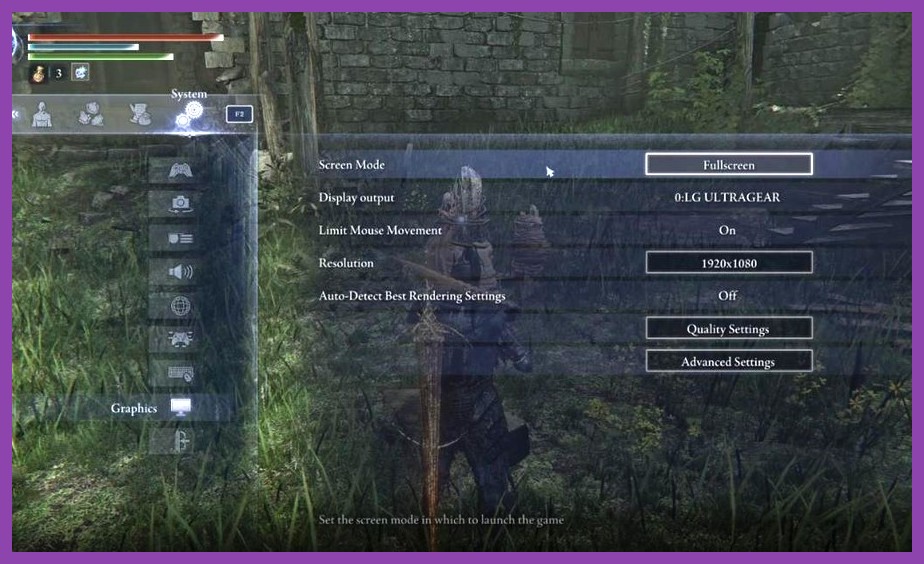
Now that you know where you stand, let’s talk about getting the best possible experience without buying new hardware. Elden Ring’s settings menu offers a range of options that impact performance differently.
Resolution – This is the biggest factor. Dropping from 4K to 1440p or 1080p can yield massive FPS gains. If you’re aiming for 60 FPS, 1080p is a safe baseline for most mid‑range GPUs.
Texture Quality – High‑resolution textures consume VRAM. If you have a 4‑6 GB GPU, set this to Medium; 8 GB+ cards can handle High without issue.
Shadow Quality – Shadows are notoriously expensive. Try Low or Medium; the visual drop is often subtle, especially in dimly lit areas.
Ambient Occlusion – Turning this off can free up a few frames with minimal impact on overall atmosphere.
Anti‑Aliasing – TAA (Temporal Anti‑Aliasing) provides the smoothest edges but can cause slight blur. FXAA is lighter; you can also try turning it off and relying on your monitor’s native sharpness.
Draw Distance – Reducing how far the game renders distant objects helps with CPU and GPU load. A setting of Medium usually works well.
Motion Blur & Depth of Field – These are purely cosmetic; disabling them can improve clarity and FPS.
After adjusting each setting, launch the game and monitor your FPS with an overlay tool like MSI Afterburner or the built‑in Steam overlay. Aim for a stable frame rate that stays above your target (e.g., 60 FPS) even during the most chaotic battles. If you notice dips, lower the most impactful setting first—usually shadows or draw distance.
Common Performance Issues and Fixes

Even with a rig that meets the Recommended specs, you might encounter hiccups. Here are some frequent problems and how to solve them.
Stuttering During Asset Streaming – Elden Ring streams world data as you move. If you’re using a traditional HDD, expect noticeable stutter when entering new areas. The fix? Install the game on an SSD. An NVMe drive yields the best results, but a SATA SSD already eliminates most streaming stutters.
Driver‑Related Crashes – Outdated graphics drivers can cause crashes or graphical glitches. Visit the NVIDIA or AMD website and download the latest stable driver. For NVIDIA cards, the Game Ready drivers are optimized for new releases; for AMD, the Adrenalin Edition works well.
Background Applications Hogging Resources – Chrome tabs, Discord streams, or backup software can consume CPU and RAM. Before launching Elden Ring, close unnecessary programs. You can also use Windows’ Game Mode (Settings → Gaming → Game Mode) to prioritize resources.
Overheating – If your PC shuts down or throttles during long sessions, check your cooling. Ensure fans are spinning freely, vents are unblocked, and consider reapplying thermal paste on the CPU/GPU if temperatures regularly exceed 85 °C under load.
Windows Updates Interfering – Occasionally, a Windows update will reset power settings or install a generic driver that hurts performance. After any major update, revisit your power plan (set to High Performance) and verify your graphics driver version.
If you’ve tried all the above and still face issues, the Elden Ring community on Reddit and the official forums are excellent places to search for specific error messages. Often, a simple tweak like disabling Xbox Game Bar or adjusting virtual memory can resolve persistent problems.
Future‑Proofing Your Rig for Elden Ring DLC
With the Shadow of the Erdtree expansion on the horizon, it’s wise to think ahead. The DLC promises new areas, tougher enemies, and likely additional graphical enhancements. While FromSoftware hasn’t released official DLC requirements yet, we can infer what to expect based on the base game’s trends.
Anticipated Increases
- VRAM Usage – New high‑resolution textures and more complex particle effects could push VRAM needs toward 8‑10 GB for high settings.
- CPU Load – Additional AI for new enemy types may benefit from stronger single‑threaded performance; a modern 6‑core/12‑thread CPU (like an Intel i5‑13600K or AMD Ryzen 5 7600X) should be comfortable.
- Storage – Expect the DLC to add another 10‑15 GB, so ensure you have at least 80 GB free on your SSD.
If you’re planning to upgrade soon, consider a GPU with at least 8 GB of VRAM (RTX 3060 Ti / RX 6700 XT or better) and a CPU that excels in single‑threaded tasks. Investing in a fast NVMe SSD will also pay off, not just for Elden Ring but for future titles that rely heavily on streaming assets.
Finally, keep an eye on official channels—the official Elden Ring website and FromSoftware’s Twitter account often post updates about performance patches and DLC news. Staying informed ensures you’ll be ready to dive into the new content the moment it launches.
Your journey through the Lands Between awaits. With the right hardware, a few smart setting tweaks, and a bit of maintenance, you’ll experience Elden Ring exactly as the developers intended: smooth, immersive, and unforgettable. Now go forth, Tarnished, and may your frames be ever high.