
Introduction: The Lands Between on PC – Why Performance Matters

FromSoftware\'s epic has captivated millions with its sprawling open world, intricate lore, and punishing combat. When the game arrived on PC, players expected the same level of polish and immersion that the consoles delivered, but the transition brought a new set of challenges: frame-rate stability, loading times, and graphical fidelity. In this deep dive we explore how the PC version behaves, what hardware it truly needs, and how you can squeeze every drop of performance out of your rig without sacrificing the atmospheric beauty that makes the Lands Between unforgettable.
The PC launch was accompanied by a wave of optimism, yet early reports highlighted stuttering in certain areas, occasional texture pop-in, and a dependence on CPU cores that surprised many. Understanding these nuances is the first step toward a smooth experience. Whether you are rocking a high-end RTX 4090 or a more modest GTX 1660, the following sections will guide you through the technical foundations, optimal settings, and community-driven tweaks that keep the adventure flowing.
Understanding Elden Ring\'s PC Demands: CPU, GPU, and Storage

At its core, Elden Ring is a CPU-heavy title. The game\'s open-world design constantly streams assets, runs complex AI for enemies, and manages a vast network of interconnected systems. Benchmarks show that a modern six-core processor running at 3.5 GHz or higher provides a solid baseline, while the GPU shoulders the responsibility for rendering the game\'s breathtaking vistas, detailed character models, and dynamic lighting.
According to the <a href=\'https://steammoz.com/blog/elden-ring-pc-system-requirements-minimum-recommended-and-optimization-tips-for-smooth-play/\' rel=\'nofollow noopener\' target=\'_blank\'>official system requirements</a> published by Bandai Namco, the minimum spec calls for an Intel Core i5-8400 or AMD Ryzen 3 3300X paired with a GTX 1060 6 GB or RX 580 8 GB. For a comfortable 60 FPS experience at 1080p with medium settings, the recommended spec steps up to an Intel Core i7-9700K or Ryzen 7 3700X alongside an RTX 2060 or RX 5700 XT.
Storage also plays a subtle but important role. The game benefits from an SSD, reducing those dreaded hitch-spikes when entering new zones or fast-traveling across the map. While a HDD will still run the title, expect longer load times and occasional stutter during asset streaming.
External sources such as the <a href=\'https://www.fromsoftware.jp/ww/\' rel=\'nofollow noopener\' target=\'_blank\'>FromSoftware website</a> and the <a href=\'https://store.steampowered.com/app/1245620/Elden_Ring/\' rel=\'nofollow noopener\' target=\'_blank\'>Steam store page</a> provide the most up-to-date patch notes, which often include performance-focused fixes.
Optimizing Graphics Settings for Smooth Gameplay
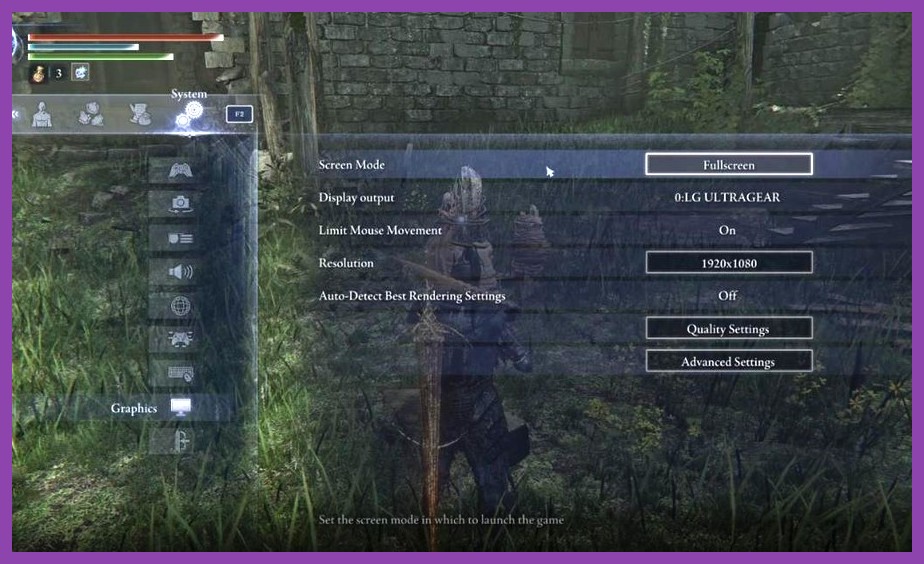
Once you know your hardware\'s limits, the next step is to tailor the in-game graphics options. Elden Ring offers a surprisingly granular set of sliders, allowing you to balance visual fidelity with frame-rate stability.
- Resolution and Refresh Rate: Match your monitor\'s native resolution for the clearest image, but consider dropping to 1080p if your GPU struggles to maintain 60 FPS at 1440p or 4K.
- Texture Quality: This setting has a moderate impact on VRAM usage. If you have 6 GB or less, set it to Medium; with 8 GB+ you can safely push to High.
- Shadow Quality: Shadows are among the most expensive effects. Lowering them from High to Medium often yields a noticeable FPS boost with minimal visual loss.
- Ambient Occlusion and Depth of Field: These post-process effects can be toggled off to free up GPU cycles, especially on older cards.
- Anti-Aliasing: TAA (Temporal Anti-Aliasing) provides the best edge smoothing at a reasonable cost. If you experience ghosting, try FXAA or disable AA altogether.
- Volumetric Fog and Motion Blur: These are largely cosmetic; turning them off can help maintain a stable frame-rate during intense combat.
For a quick reference, many community guides suggest starting with the Medium preset, then individually adjusting the sliders above while monitoring your FPS counter. Tools such as MSI Afterburner or the built-in Steam overlay let you see real-time performance.
If you own an NVIDIA RTX card, consider enabling DLSS (if your driver version supports it). Although Elden Ring does not ship with native DLSS, the community has created injection mods that upscale the image while preserving performance. Similarly, AMD\'s FidelityFX Super Resolution (FSR) can be applied via third-party wrappers.
Hardware Tweaks and Driver Updates for Maximum FPS
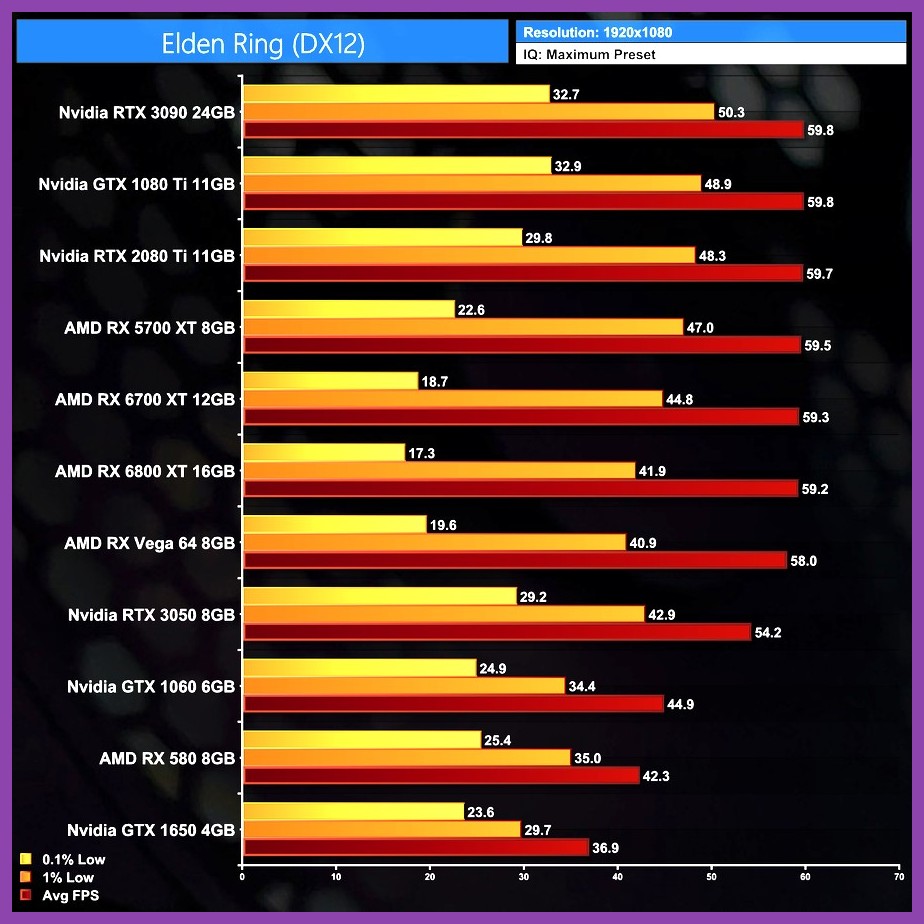
Beyond in-game settings, several system-level adjustments can help you extract every possible frame.
Driver Maintenance: Keeping your GPU drivers up to date is essential. Both NVIDIA and AMD release frequent updates that include optimizations for newly launched titles. Visit the <a href=\'https://www.nvidia.com/Download/index.aspx\' rel=\'nofollow noopener\' target=\'_blank\'>NVIDIA driver download page</a> or the <a href=\'https://www.amd.com/en/support\' rel=\'nofollow noopener\' target=\'_blank\'>AMD support hub</a> to grab the latest version.
Windows Power Plan: Set your power plan to High Performance or Ultimate Performance (available on Windows 11 Pro) to prevent the CPU from throttling during long sessions.
Background Processes: Close unnecessary applications, especially those that consume CPU or disk bandwidth (e.g., web browsers with many tabs, cloud sync clients).
Virtual Memory: Ensure your page file is set to system-managed size or manually allocate at least 1.5x your RAM capacity to avoid paging spikes during asset streaming.
CPU Affinity and Priority: Some players report smoother gameplay by setting Elden Ring\'s process priority to High and restricting it to specific cores via Task Manager or third-party tools like Process Lasso. This can reduce interference from background tasks.
Overclocking (with caution): A modest GPU overclock (5-10% increase in core clock) can translate into a few extra frames, provided your cooling solution can handle the extra heat. Always monitor temperatures and stress-test with tools like FurMark or 3DMark.
Finally, consider checking your RAM timings. Enabling XMP profiles in the BIOS ensures your memory runs at its advertised speed, which can help reduce stutter in memory-intensive scenes.
Community Mods and Performance Patches: Going Beyond Vanilla
The passionate Elden Ring modding community has produced a variety of tools aimed at improving performance, fixing bugs, and enhancing visual quality without breaking the game\'s integrity.
Performance-Focused Mods: Mods such as Elden Ring FPS Unlocker remove the internal 60 FPS cap, allowing the game to run at the refresh rate of your monitor. Others, like LazyNPCDebugger, strip out unnecessary AI scripts in less-visited areas, reducing CPU load.
Visual Enhancement Packs: While not strictly performance mods, texture packs that replace low-res assets with higher-quality versions can be paired with DLSS or FSR to maintain frame-rates while enjoying a sharper look.
Patch Managers: Tools like Mod Engine 2 simplify the installation and management of multiple mods, ensuring compatibility and easy rollback if a mod causes instability.
Before installing any mod, always back up your save files and verify that the mod is compatible with the latest game version. The <a href=\'https://steammoz.com/blog/essential-elden-ring-tips-and-tricks-how-to-survive-and-dominate-the-lands-between/\' rel=\'nofollow noopener\' target=\'_blank\'>essential tips guide</a> on Steamoz also includes a curated list of safe, performance-oriented mods.
With the right combination of hardware knowledge, settings tweaks, driver updates, and community support, Elden Ring on PC can run as smoothly as it does on consoles—if not better. The Lands Between awaits, and now you have the tools to explore every corner without missing a beat.