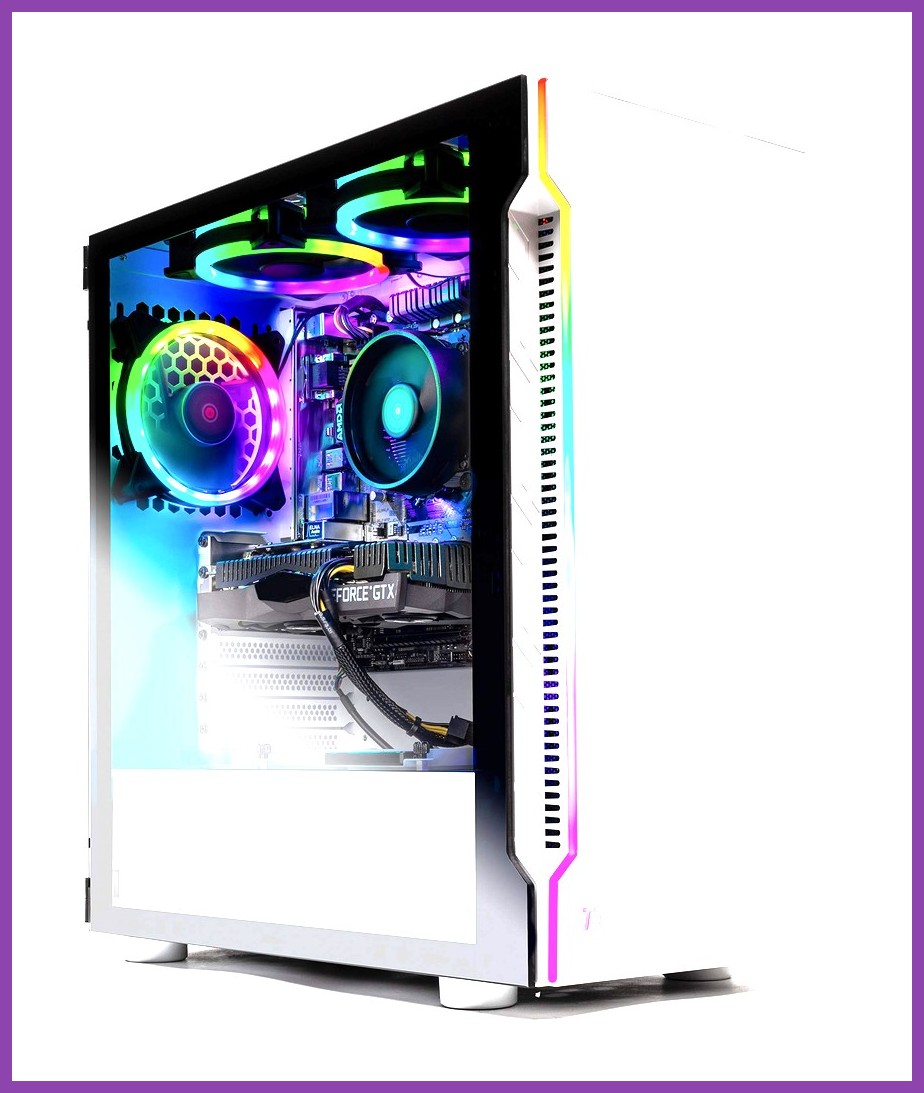
Picture this: you’re about to raid a dragon’s lair in Elden Ring, your Skytech Archangel rig is humming, but the fps drops the moment you sprint into the open field. Sound familiar? We’ve all been there, staring at that loading screen while our dream PC decides to play hide‑and‑seek with performance.
Is Your Skytech Archangel Running Out of Steam?
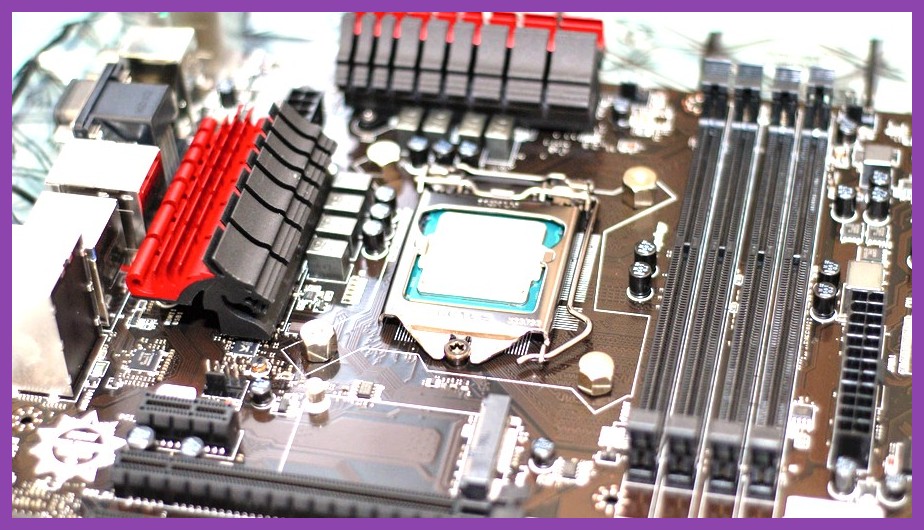
If the lag feels like a boss fight you can’t win, the culprit is often the RAM. Even the most powerful GPU can’t compensate for memory bottlenecks, and our beloved Archangel can start feeling a bit sluggish after a year or two of intensive gaming sessions.
Why RAM Is the Unsung Hero of Gaming Performance
RAM is the short‑term storage that holds the game data your CPU needs instantly. More capacity means you can load larger worlds without stuttering, while higher speeds and lower latency shave precious milliseconds off each frame. Think of it as giving your system a faster highway to the GPU—without it, you’re stuck on country roads.
Understanding Speed, Capacity, and Latency
When we talk about RAM, we’re juggling three key specs:
- Capacity (GB): The amount of data the memory can hold at once. 16GB is a sweet spot for most gaming rigs, but 32GB future‑proofs you for VR and streaming.
- Speed (MHz): Higher MHz means faster transfers. DDR5‑5600 is the current champ, though DDR4‑3600 still offers great value.
- Latency (CL): Lower CAS latency (e.g., CL16 vs CL18) means quicker response times. It’s a subtle factor but worth checking.
Need a deeper dive? Check out Elden Ring PC system requirements for a similar performance‑focused guide.
How to Pick the Perfect RAM for Your Skytech Archangel
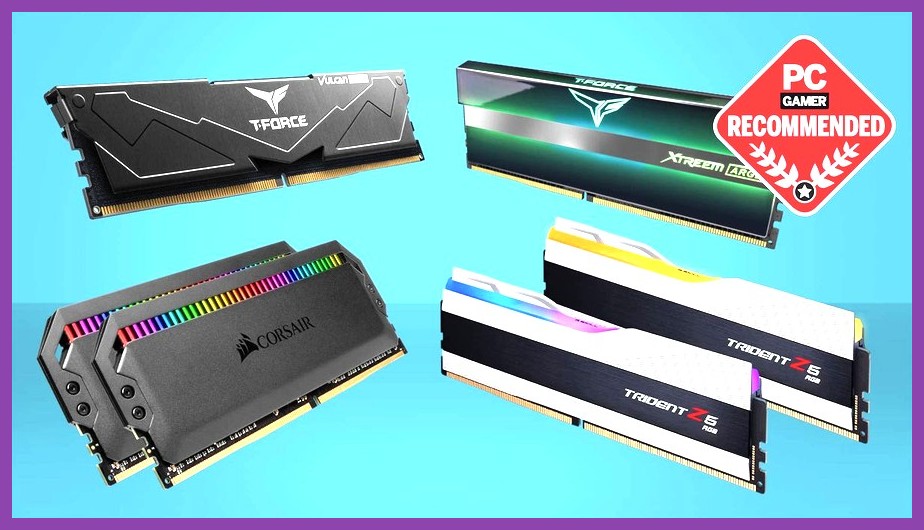
Not every stick of RAM will fit your Archangel’s motherboard. Here’s a quick compatibility checklist:
- Motherboard Socket: Most Skytech Archangel models use DDR4, but some newer units support DDR5. Verify the spec sheet on the Skytech Archangel product page.
- Maximum Speed: If your board supports DDR4‑3600, buying DDR5 will be a waste (and won’t fit). Use PCPartPicker to double‑check.
- Dual‑Channel vs. Quad‑Channel: Most consumer boards run dual‑channel. Install matched pairs for optimal performance.
Also, consider Crucial’s RAM buying guide for reliable recommendations that match your budget.
Compatibility Checklist: Motherboard, CPU, and Form Factor
Before you click “Add to Cart,” open your Skytech case and locate the motherboard. Note the RAM slots (DIMM) and any existing sticks. Ensure the new modules match the form factor (UDIMM) and voltage (usually 1.35V for DDR4, 1.25V for DDR5). If you’re mixing old and new, prioritize speed matching.
Step‑by‑Step: Installing New RAM in Your Skytech Archangel
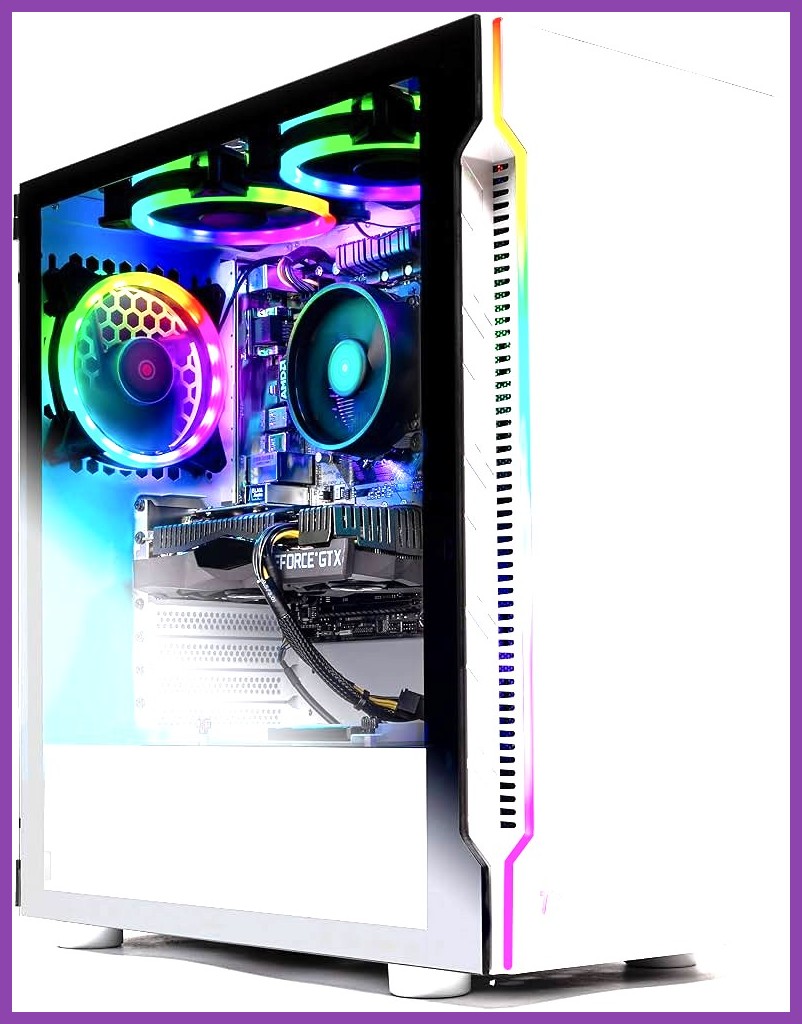
Upgrading RAM is one of the easiest PC upgrades, but a little care goes a long way.
Safety First: Power Down and Ground Yourself
- Shut down Windows and unplug the power cable.
- Ground yourself using an anti‑static wrist strap or touch a metal case panel.
- Open the side panel—most Archangel cases have a simple tool‑less release.
Locate the RAM slots (usually along the edge of the motherboard). Gently push the existing sticks outward until they click free. Set them aside.
Take your new RAM sticks, align the notch on the module with the slot key, and press down evenly until you hear a satisfying click. Repeat for the second slot (if you’re doing a dual‑channel upgrade). Close the case, reconnect power, and boot into BIOS to confirm the new modules are detected.
Testing Your Gains: Benchmarking the Upgrade
You bought the RAM, you installed it—now how do you know it actually helped? A quick benchmark can be eye‑opening.
Simple Tools to Prove You Got Faster Frame Rates
- FPS Counter: In‑game overlays like FRAPS or the built‑in Windows Game Bar let you compare before/after numbers.
- 3DMark: Run the Night Raid test; a boost in scores often mirrors real‑world gaming improvements.
- Task Manager: Watch the “Memory” usage during intense scenes. If you see fewer page‑outs and smoother frame delivery, the upgrade is working.
If you want a deeper dive into system tuning, check out Resident Evil 4 parry guide for precision‑focused tips (the same mindset applies to fine‑tuning your rig).
Where to Buy Compatible RAM and Save Money
Price shopping can be a game in itself. Here are a few reliable avenues:
- Official Retailers: Newegg, B&H, and Amazon often have bundle deals.
- Manufacturer Direct: Crucial, Kingston, and Corsair offer certified kits for Skytech builds.
- Second‑Hand Market: Sites like eBay can hide steals, but verify the seller’s return policy.
Never forget to use PCPartPicker to run a compatibility check before purchase. It’s the quickest way to avoid a costly mismatch.
Top Retailers and Price‑Comparison Tips
Set up price alerts on Amazon, keep an eye on flash sales at Newegg, and don’t overlook the “Clearance” sections at B&H. Sometimes a slightly older generation (DDR4‑3200) offers better value than the latest DDR5‑5600.
Final Thoughts: Keep Your Skytech Archangel Thunderous
Upgrading RAM is a low‑risk, high‑reward tweak that can transform a decent gaming PC into a beast. By picking the right capacity, speed, and latency, and following the simple installation steps above, you’ll notice smoother loading screens, higher frame rates, and fewer stutters in your favorite titles.
Remember, the journey doesn’t end at installation. Keep your system clean, update BIOS when manufacturers release patches, and periodically revisit your memory configuration as newer standards emerge. For more PC‑building wisdom, swing by our Gamesir X2 Pro guide and Razer Kishi mobile gaming tips—they share the same spirit of optimizing every component.
Maintenance Tips to Prolong Performance
- Periodically dust off the case vents to keep temperatures low.
- Run Windows Memory Diagnostic weekly to catch hidden errors.
- Update your GPU drivers regularly; RAM works hand‑in‑hand with the graphics stack.
With these steps, your Skytech Archangel will keep delivering those epic gaming moments—frame by frame, gigabyte by gigabyte.