
Mobile Legends: Bang Bang does not natively support physical controllers, meaning players looking to use a gamepad must rely on third-party keymapping apps, Bluetooth pairing solutions, or PC emulators to bridge the hardware gap. Because MOBA titles demand lightning-fast twitch reactions, precise directional movement via an analog stick, and rapid skill-shot casting, traditional touchscreen controls often feel restrictive for competitive players transitioning from platforms like Team Fortress 2 or complex RPGs. While Moonton has kept native controller integration absent from the official iOS and Android clients, you can successfully configure a physical gamepad using specialized mapping software without triggering anti-cheat penalties if done correctly.
Understanding Native Limitations and The Mapping Solution
If you connect a standard Bluetooth controller like an Xbox Wireless Controller, a PlayStation DualSense, or a Razer Kishi directly to your phone and launch Mobile Legends: Bang Bang, you will quickly notice that the game completely ignores physical button inputs. The engine is built strictly around touch gestures, multi-touch panels, and virtual joystick dragging. To overcome this limitation, you need an intermediate mapping layer that translates physical gamepad hardware inputs into simulated screen taps and swipes.
Popular mapping solutions include apps like Octopus, Mantis Gamepad Pro, or Panda Gamepad Pro. These utilities float an invisible overlay on top of your game window, allowing you to drag virtual touch icons onto the exact screen coordinates where your skill buttons, battle spells like Retribution or Flicker, and movement d-pad sit. For gamers who prefer playing on desktop setups, you can also explore tools similar to State of Survival Best Emulator Settings for PC, running MLBB through BlueStacks or LDPlayer, which feature built-in native keymapping profiles specifically optimized for MOBAs.
Choosing the Right Hardware: Gamepads vs. Telescopic Controllers
Before diving into software configuration, your choice of hardware dictates how comfortable your ranked grind will be. Telescopic controllers that grip your smartphone horizontally—such as the Backbone One, Razer Kishi V2, or GameSir X2—offer a handheld console experience similar to a Nintendo Switch or Steam Deck OLED Unlock All Secret Characters style setup. Alternatively, standard wireless controllers paired via Bluetooth work exceptionally well if you mount your phone on a kickstand or desk tripod.
Step-by-Step Guide to Setting Up Mantis Gamepad Pro or Octopus
Configuring a mapping app requires patience and precise calibration to ensure zero input lag during team fights. Follow these exact steps to get your controller running smoothly with Mobile Legends:
- Step 1: Download your preferred mapping application (Mantis Gamepad Pro or Octopus) from the official Google Play Store or iOS App Store.
- Step 2: Connect your controller via Bluetooth. Ensure your phone recognizes the device as an active paired gamepad before launching the mapping utility.
- Step 3: Enable USB Debugging or Wireless Debugging in your phone's Developer Options if prompted by the mapping app (required for advanced overlay permissions on modern Android versions).
- Step 4: Add Mobile Legends: Bang Bang to the mapping app's cloned game list. Do not launch the game directly from your standard app drawer; it must be initialized through the mapper to activate the overlay.
- Step 5: Open MLBB through the mapper, enter a Custom Training lobby or Practice mode, and press the floating mapping button to open the editor overlay.
Mapping Your Movement and Skill Wheels
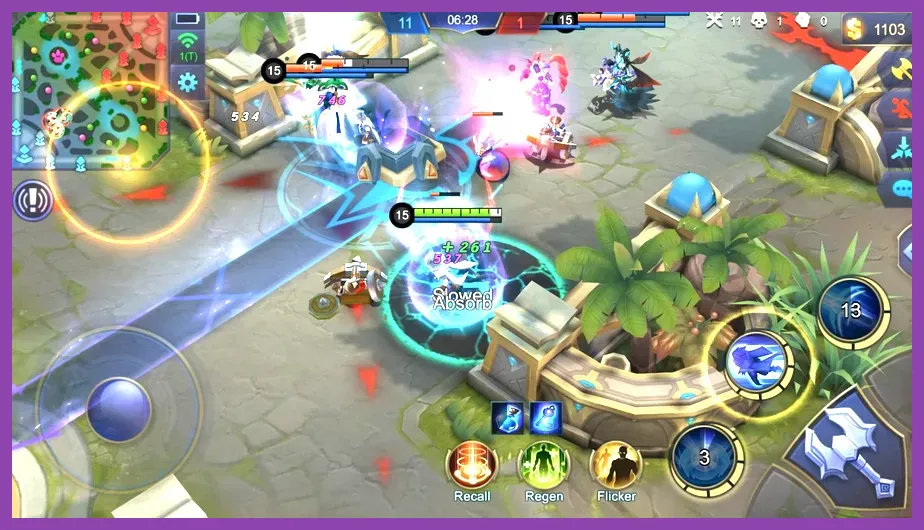
Precision is everything when throwing skill shots with heroes like Gusion, Fanny, or Selena. When dragging mapping icons onto your screen, align the left analog stick precisely over the in-game virtual movement joystick. Set the radius of the analog stick mapping to match the exact outer boundary of the game's movement circle. This prevents dead zones that can sluggishly stall your directional pathing when dodging skill shots.
For your ability buttons (Skill 1, Skill 2, and Ultimate), assign them to your controller's face buttons (A, X, Y, B or Cross, Square, Triangle, Circle). Crucially, configure these buttons for Directional Skill Casting rather than quick-tap instant casting. In MOBA games, holding down a face button while tilting the right analog stick allows you to aim your skill shots with incredible accuracy, mimicking the mouse-flick mechanics found in titles like Street Fighter 6 System Requirements Minimum and Recommended hardware specifications.
Fine-Tuning Sensitivity and Dead Zones for MOBA Combat
Default settings in third-party keymappers rarely feel natural right out of the box. You will need to spend time in Custom Practice mode tweaking sensitivity parameters. If your right analog stick feels too jittery when aiming long-range spells like Moskov's Spear of Destruction or Layla's Destruction Rush, increase the camera sensitivity dampening within your mapping app.
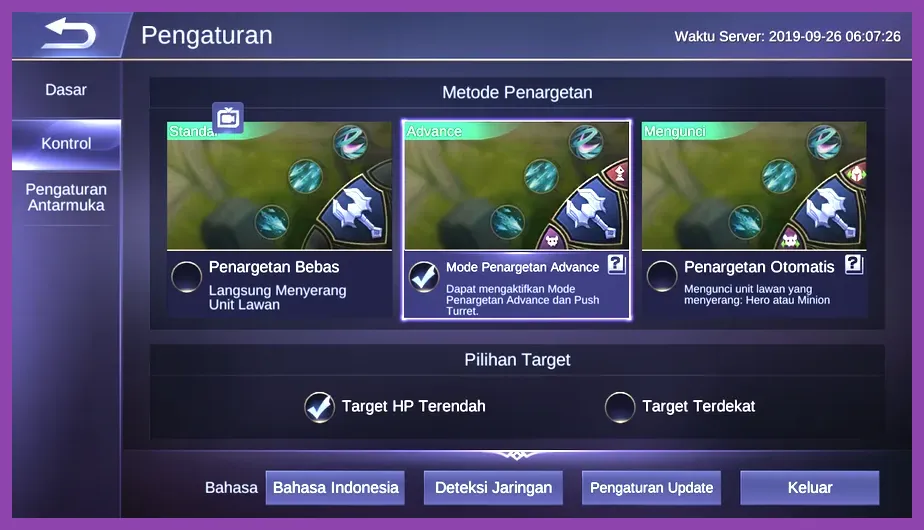
Furthermore, ensure that your in-game settings within Mobile Legends match your new physical setup. Navigate to the game's Basic Settings and adjust the following parameters:
- Hero Lock Mode: Enabled. This allows you to map specific shoulder buttons (L1/R1 or LB/RB) to switch targets between enemy heroes and minion waves cleanly.
- Targeting Priority: Lowest HP (Percent) or Closest Target, depending on your main role (Assassin vs. Tank).
- Skill Wheel Sensitivity: Medium to High, ensuring your gamepad's right stick translates smoothly to rapid circular sweeps.
- Camera Shift: Enabled. This lets you nudge the camera with the right stick to scout fog-of-war areas without dragging your thumb across the glass.
Optimizing Combat Combos with Macro Keys
One major advantage of using advanced mapping software is the ability to program macro sequences or multi-touch combos onto single bumper buttons. For example, complex assassin execution loops—such as executing a multi-stage dash, item active skill activation, and retribution secure—can be chained onto a single paddle press on pro-tier controllers like the Xbox Elite Series 2. However, use macros cautiously; excessive automation can sometimes trigger automated detection filters, so keeping macro inputs minimal and realistic is vital for account safety.
Hardware Connection and Bluetooth Troubleshooting
Wireless interference is the number one enemy of mobile competitive gaming. If you experience random input drops, lag spikes, or delayed skill casting while using a Bluetooth controller, check for Wi-Fi frequency interference. Most home routers operate on 2.4GHz bands, which heavily overlap with Bluetooth signal frequencies. Switching your phone's Wi-Fi connection to a 5GHz band or utilizing a wired USB-C telescopic controller completely eliminates wireless packet loss.
For players experiencing drifting analog sticks or unresponsive triggers, consult troubleshooting guides similar to Stardew Valley 1.6 Best Settings for Max FPS for device optimization routines, or recalibrate your hardware dead zones directly through the manufacturer's official firmware update software on a PC before pairing back to your mobile device.
Avoiding Ban Risks and Maintaining Account Security
A common concern among MLBB players is whether using third-party keymappers will get their account banned by Moonton's security systems. Standard mapping tools like Mantis and Octopus operate by overlaying touch inputs via Android's official Accessibility and Developer debugging APIs rather than modifying game APK files or memory addresses. Because they do not inject malicious code or alter game data files, they generally bypass basic cheat detection. Nevertheless, always avoid using modified APK clients or unauthorized game modifications found on untrusted forums.
In-Game Settings and Advanced UI Layout Adjustments
To make controller play viable in high Epic, Legend, or Mythic ranked lobbies, you must customize your in-game User Interface layout to accommodate your physical button scheme. Go to the Custom UI settings menu inside Mobile Legends and scale down or reposition elements that your mapping overlay relies on.
Move your battle spell icon (like Purify, Sprint, or Execute) to an easily reachable trigger button. Enlarge the minimap slightly so that if you map a secondary touch point to tap the map for quick camera panning, your controller layout registers the touch accurately every single time. For additional tips on optimizing mobile game layouts, check out resources like Stardew Valley Mobile Best Defensive Setup for layout ergonomic principles.
Mastering Map Awareness and Camera Panning with a Gamepad
The biggest hurdle for controller players in MOBAs is balancing movement, ability casting, and map awareness simultaneously. By mapping the right analog stick to handle both skill-shot aiming (when held) and free-camera panning (when toggled with a modifier button), you gain a massive advantage over standard thumb players who must lift their thumbs off the movement stick to check other lanes.
Dominating Ranked Matches with Your Controller Setup
Once your hardware is calibrated, your keymapping overlay is fine-tuned, and your in-game UI matches your ergonomic preferences, take your setup into Classic or Brawls modes before jumping straight into Ranked queues. Muscle memory takes time to build, especially when transitioning from touchscreen swiping to physical tactile buttons and analog triggers.
Practice hero mechanics rigorously—whether you are pulling off Flicker-Ult combos with Chou or calculating exact damage thresholds with Lesley. With the right hardware configuration and software mapping tools, playing Mobile Legends: Bang Bang with a controller transforms the mobile MOBA experience into a console-quality competitive powerhouse.