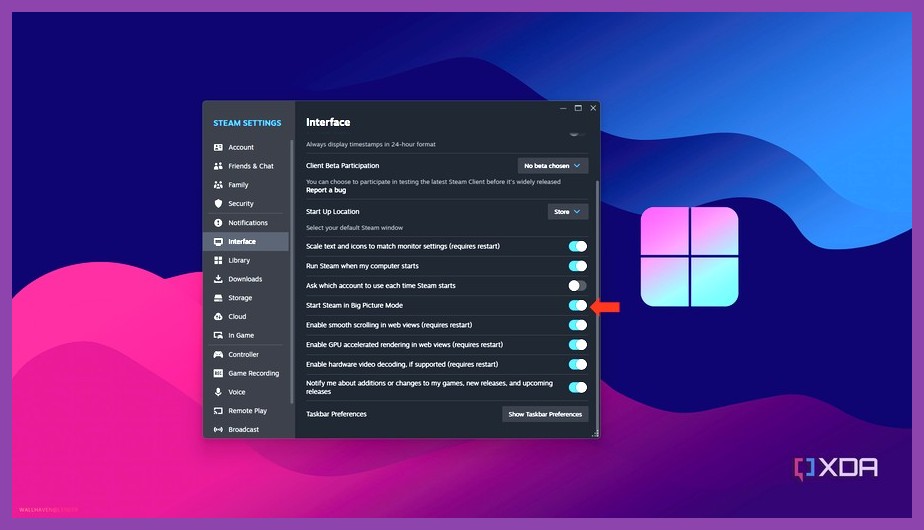
Remember when sharing PC games meant physically handing a DVD case to your sibling or awkwardly logging out of your account so someone else could try a game on your desktop? Thankfully, Valve completely overhauled its legacy Family Sharing feature into the streamlined Steam Families system. Whether you are running a household full of eager gamers or trying to pool your massive backlog with your partner, learning how to share steam games family style is single-handedly the best way to double your game collection without spending an extra dime.
Under the revised system, Valve combined Family Sharing and Family View into one unified hub. That means seamless library sharing, shared game copies for simultaneous play, robust parental safety controls, and simplified child purchase requests. In this comprehensive guide, we are breaking down everything you need to know about setting up Steam Families, understanding simultaneous play rules, dodging common restrictions, and optimizing game sharing across your PC setup and handheld devices.
What Is Steam Families and How Does Steam Game Sharing Work?
At its core, Steam Families is a feature built into the Steam client that allows up to six household members to merge their digital libraries into one giant shared pool of games. When you join a Steam Family, every eligible game owned by any member automatically becomes accessible to all other members in the family group.
Instead of having to log into another person's account or authorize specific physical PCs one by one like in the old days, Steam Families links user accounts directly. You keep your own Steam profile, maintain your separate save files, accumulate your own achievements, and keep your personal cloud saves completely intact. Your family members get to play your games, and you get access to theirs—it is a win-win situation for everyone involved.
Old Family Sharing vs. New Steam Families: What Changed?
If you used Steam's old family sharing system, you probably remember the frustration of getting kicked out of your own game the second a family member booted up any title from your shared library. Steam Families fixed this glaring flaw entirely:
- Independent Library Locks: In the old system, if someone borrowed one game from your library, your whole library was locked. In the new system, borrowing is done on a game-by-game basis. If your sibling is playing your copy of an open-world RPG, you can still play a separate tactical strategy game from your own collection at the exact same time.
- Simultaneous Multi-Copy Play: If your family owns two copies of a multiplayer game across all member accounts, two family members can play that title together simultaneously.
- Device Autonomy: Account authorization is bound to the family member rather than rigid individual hardware footprints, making switching between your main rig, gaming laptop, and handhelds far less tedious.
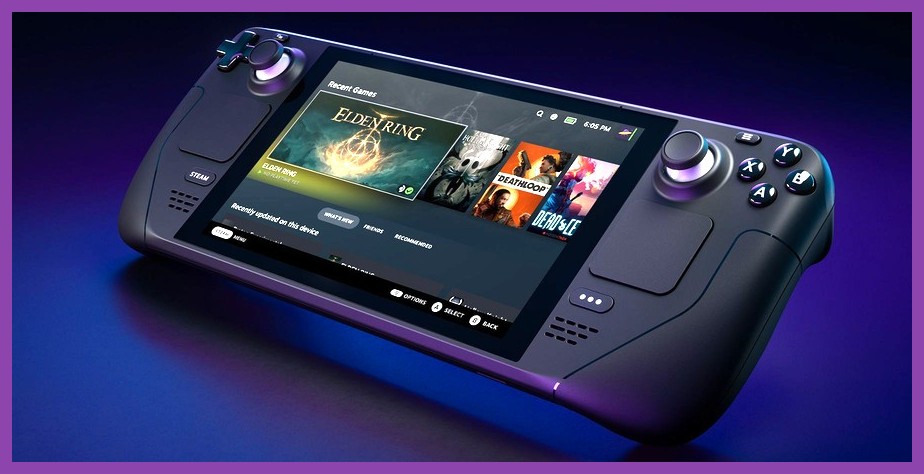
Step-by-Step: How to Share Steam Games with Family Members
Setting up your family hub takes less than five minutes. Before starting, make sure all participating accounts are updated to the latest stable release of the Steam client (or participating in the official Steam Beta channel if new features are rolling out).
Step 1: Open Your Account Settings
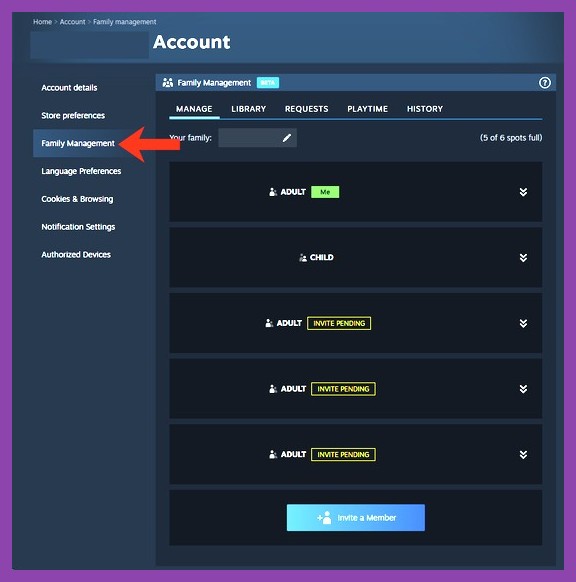
Launch the Steam desktop client on your computer. Click on Steam in the top-left menu bar and select Settings. In the left navigation sidebar, click on the Family tab.
Step 2: Create a New Steam Family
Click on the button labeled Manage your Steam Family (or Create a Family). You will be prompted to type in a name for your group—pick anything you like, such as "The Smith Gamer Clan" or "Living Room Legends".
Step 3: Invite Family Members
Once your family group is created, click Invite a Member. You can choose friends from your Steam friends list or invite them directly using their Steam ID or friend code. During the invitation process, you must assign the prospective member a role:
- Adult: Can manage members, send invites, approve child purchases, and edit parental controls. Adult members can leave the family at any time.
- Child: Subject to parental control settings managed by Adults. Child accounts cannot leave the family on their own—they must be removed by an Adult member.

Step 4: Accept the Invitation and Start Playing
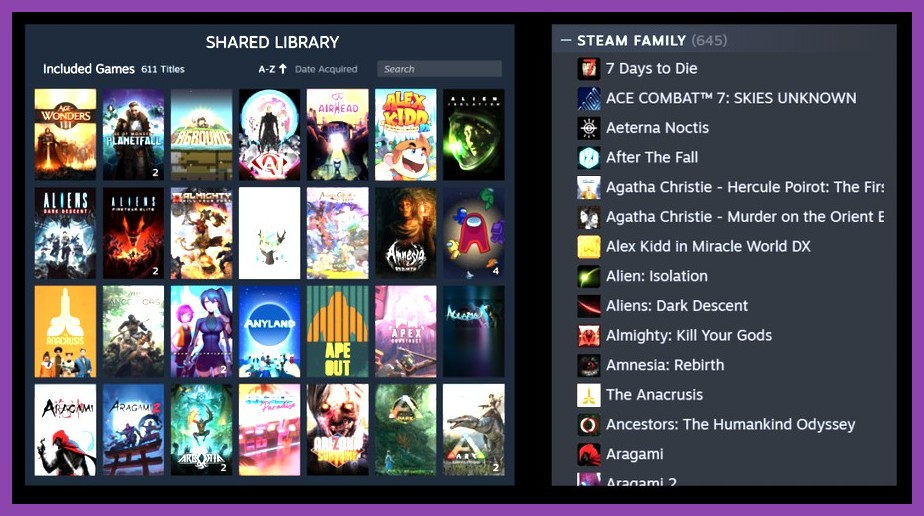
The invited person will receive a notification within Steam and via email. Once they accept the invite, their games will automatically populate into your library under a dedicated sub-section labeled Family Library. That's all there is to it! You can now browse through hundreds of newly accessible titles just like you bought them yourself.
If you're eager to hunt down budget-friendly titles to expand your group's collection fast, check out our guide on 12 Best Steam Games Under $10 That Offer Infinite Replayability or browse through our list of the 20 Free Steam Games You Can Play Right Now.
Simultaneous Play: Can Two People Play the Same Game at Once?
This is easily the most common question gamers ask when setting up Steam Families. The short answer is: Yes, but only if your family owns multiple license copies.
Here is how Valve handles game licenses in the Steam Families framework:
- Single Copy Ownership: If Account A owns Monster Hunter Wilds and Account B does not, only one person in the family can play Monster Hunter Wilds at a time. If Account B is playing it, Account A can jump in, but Account B will be prompted to save their progress and exit (or purchase their own copy).
- Multiple Copy Ownership: If Account A and Account B both own a copy of a game, any two of the six family members can play that game at the exact same time. If a third family member wants to join, the family would need a third registered copy.
This mechanics makes game guides and budget planning so much easier for households. If you love deep, long-form adventures, pooling resources to buy multiple RPG licenses during seasonal events is super smart. Make sure to read our 10 Essential Steam Sale Tips to get the maximum discount value for your entire family pool!
Steam Families Parental Controls and Child Purchasing
Steam Families isn't just a library-sharing system; it is also a complete overhaul of Steam's parental supervision toolset. Parents can now manage what their kids play, when they play, and how much money they spend without jumping through painful authorization hoops.
Key features available to Adult accounts supervising Child accounts include:
- Granular Game Access: Restrict access to specific mature titles in your library based on ESRB/PEGI content ratings or custom game blocklists.
- Playtime Restrictions: Set explicit hourly play limits or schedule allowed gaming hours (e.g., locking access after 8:00 PM on school nights).
- View Activity Reports: Track total screen time and recent gameplay history directly from your desktop or the official Steam Mobile App.
- Simplified Purchase Requests: When a child wants to buy a game on Steam, they can send a direct purchase request to the adult's account. The adult can approve and pay for the transaction straight from their phone or client without sharing credit card numbers.
You can read official documentation and developer technical breakdowns on the Official Steam Families Announcement page or consult the Steam Support Families FAQ for specific account edge cases.
Limitations, Restrictions, and Anti-Abuse Rules You Must Know
While Steam Families is incredibly generous, Valve put strict rules in place to prevent internet strangers from abusing the system as a free pirate-style network. Violating these rules can land your account with temporary sharing bans or cooldown locks, so keep these key limitations in mind:
1. The Household Geolocation Restriction
Steam Families is strictly intended for members of the same immediate household. Valve utilizes background signals like network IP geography, account activity regions, and payment methods to verify that members live in the same house. Attempting to add a gamer friend who lives in another country or different city will likely fail, returning an error that your accounts do not share a common location footprint.
2. The 1-Year Slot Cooldown Rule
To stop users from constantly swapping people in and out of family slots, Valve imposes a strict 1-year waiting period. When an Adult leaves a Steam Family (or is removed):
- They must wait 1 full year from the date they joined the previous family before they can join or create a new Steam Family.
- The family slot they vacated stays locked on a 1-year cooldown before a new individual can take that spot.
3. Cheating Bans and Shared Responsibility
Be extremely careful who you invite into your family unit. If a family member gets caught cheating with VAC (Valve Anti-Cheat) enabled hacks while playing a game borrowed from your library, your account will also receive a VAC ban in that game. Never share your library with players you do not trust completely.
4. Developer Exclusions and Third-Party Launchers
Not every single game on Steam supports family sharing. Game developers have the explicit right to opt out of the Steam Families feature for technical or commercial reasons. Common reasons games are excluded include:
- Third-Party Launchers & DRM: Games requiring external accounts (like EA App, Ubisoft Connect, or Rockstar Games Launcher) generally do not support sharing.
- Active Subscription Services: MMOs with monthly subscriptions or third-party pass systems.
- Technical Limitations: Legacy games with unsupported network code or strict hardware-level license key activations.
Before purchasing a game specifically to share with family, scroll down to the right-hand column of its official Steam Store Page and look for the official badge that says Family Sharing.
How to Share Steam Games on Steam Deck
If you own Valve's revolutionary handheld console, learning how to share Steam games on Steam Deck is an absolute game-changer. The handheld gaming experience becomes instantly elevated when your library suddenly doubles overnight with your partner's top-tier titles.
Here is how to access shared Steam Families content on your handheld:
- Ensure your Steam Deck is running the latest SteamOS build in Settings > System > System Update.
- Once your account is part of an active Steam Family on desktop, boot up your Steam Deck and press the STEAM Button.
- Select Library and navigate to your main game list.
- Press the filter button (the icon with three sliders) and make sure Group by Library/Collection is enabled.
- Scroll across your library tabs—you will see a consolidated shelf containing all shared family titles ready to download and play!
If you are looking to get the absolute best performance and battery life out of your handheld while diving into shared games, don't miss our breakdown of 15 Essential Steam Deck Tips and Tricks Every Gamer Needs to Know. For high-demand titles, tweaking your graphic setups according to our Steam Performance Optimization Guide will ensure your shared games run silky smooth at high framerates.
Essential Tips to Maximize Your Shared Library
Now that you have your Steam Family set up, here are a few pro-gamer strategies to get the maximum value out of your shared digital collection:
- Coordinate During Sales: Before buying a massive release on a major discount event, check your family members' wishlists. Make sure you don't buy duplicate copies unless you actively plan to play co-op together simultaneously. Check out our curated list of PC Games recommendations to find great co-op gems.
- Take Advantage of Offline Mode: If someone in your family wants to play a single-player game from your library while you are playing another single-player game, one of you can switch your Steam client to Offline Mode. As long as the game does not require an active internet connection, both of you can play without server license conflicts!
- Filter by RPG and High Replayability Games: Single-player campaign games like massive open-world RPGs offer the highest value per dollar in family libraries because family members can take turns tackling 100-hour adventures sequentially without interfering with save files. Explore our list of 15 Best RPG Games on Steam You Need to Play Right Now for inspiration.
Frequently Asked Questions About Steam Game Sharing
Can I share Steam games with a friend who lives far away?
Steam Families is explicitly designed for members living in the same physical household. While legacy sharing had loopholes, the current system relies on technical location metrics. Attempting to share across distant regions will trigger location mismatch errors.
Do I lose my save files if I leave a Steam Family?
No! Save files are saved directly to your local user account directory and synced to your personal Steam Cloud account. Even if you leave a family and lose access to a shared game, your save files remain intact. If you later buy the game yourself, you can resume right where you left off.
Can two children in the family play different games from the same adult's library simultaneously?
Yes! As long as Child A and Child B are playing two different games, both can play games owned by the Adult account at the exact same time without interrupting each other.
What happens if I get banned while playing a shared game?
If an account gets caught cheating in a game borrowed through Steam Families, both the player using the cheat and the account owner who provided the game license will be penalised with a VAC ban. Always keep your family group restricted to immediate family and trusted home users.
Setting up game sharing via Steam Families is easily one of the most cost-effective moves any PC gaming household can make. By pooling your libraries, coordinating sale purchases, and taking advantage of independent cloud saves, you and your family can unlock hundreds of extra hours of entertainment for free. Head into your Steam settings today, set up your family group, and start exploring your combined gaming vault!