There is nothing quite as frustrating as buying a highly anticipated game, downloading it for hours, and then booting it up only to be met with stuttering frames, unbearable input lag, and a generally sluggish experience. Whether you are rocking an older rig that has seen better days or a brand new machine that just isn’t performing up to its expected potential, game optimization is an essential skill for any PC gamer.
While upgrading your hardware is often the most direct route to better frame rates, it is also the most expensive. Before you run out to drop hundreds of dollars on a new graphics card or a fresh stick of RAM, there are countless software tweaks and configuration changes you can make right now, for free. Optimizing your Steam games isn’t just about tweaking in-game settings; it’s a holistic process that involves adjusting the Steam client itself, fine-tuning your Windows operating system, and ensuring your hardware is running as efficiently as possible.
In this comprehensive guide, we are going to walk you through the absolute best ways to optimize your Steam game performance for smoother, lag-free play. We will cover everything from hidden Steam settings that eat up your CPU, to Windows configurations designed specifically for gaming, and in-game adjustments that provide the biggest visual bang for your performance buck. By the end of this article, you will have a leaner, faster, and more capable gaming machine.
1. Optimizing the Steam Client
Many gamers don’t realize that the Steam client itself can be a significant resource hog. By default, Steam runs numerous background processes, tracks your activity, loads web content for the store and community pages, and maintains a persistent overlay. If you are on a lower-end system, these background tasks can steal precious CPU cycles and RAM away from the game you are actually trying to play.
Disable the Steam Overlay
The Steam Overlay is a convenient feature that allows you to chat with friends, browse the web, and check achievements without Alt-Tabbing out of your game. However, it requires its own rendering process, which can cause micro-stutters and drop frame rates, particularly in CPU-heavy games.
To disable the Steam Overlay globally:
- Open Steam and click on Steam in the top left corner.
- Select Settings from the dropdown menu.
- Navigate to the In-Game tab on the left sidebar.
- Toggle off the switch that says Enable the Steam Overlay while in-game.
If you rely on the overlay for specific multiplayer games (like accepting invites), you can leave it on globally but disable it for specific, demanding single-player games. Just right-click the game in your library, select Properties, and toggle the overlay off in the General tab.
Enable Low Performance and Low Bandwidth Modes
Steam has a built-in “Lite” mode for its user interface. The modern Steam library uses Chromium to render complex web elements, animated game covers, and community activity feeds. You can disable these flashy visual features to save memory.
- Go to Steam > Settings.
- Click on the Library tab.
- Check the boxes for Low Bandwidth Mode and Low Performance Mode.
- You can also disable Enable Community Content to stop Steam from loading heavy GIFs and videos on game pages.
These simple toggles will make the Steam client much snappier and prevent it from spiking your CPU usage while you are gaming.
Stop Background Downloads
By default, Steam is usually smart enough to pause downloads when you launch a game, but sometimes this setting gets changed, or certain games override it. Downloading massive updates while trying to play a multiplayer game will not only ruin your ping but also cause disk usage spikes that lead to severe stuttering.
Go to Steam > Settings > Downloads and ensure that Allow downloads during gameplay is toggled OFF.
2. Windows OS Optimizations for Gaming
Your operating system acts as the traffic cop for your computer’s resources. If Windows is prioritizing background updates, indexing files, or running heavy bloatware, your games will suffer. Microsoft has introduced several features in recent years to help alleviate this, but you need to make sure they are configured correctly.
Turn On Windows Game Mode
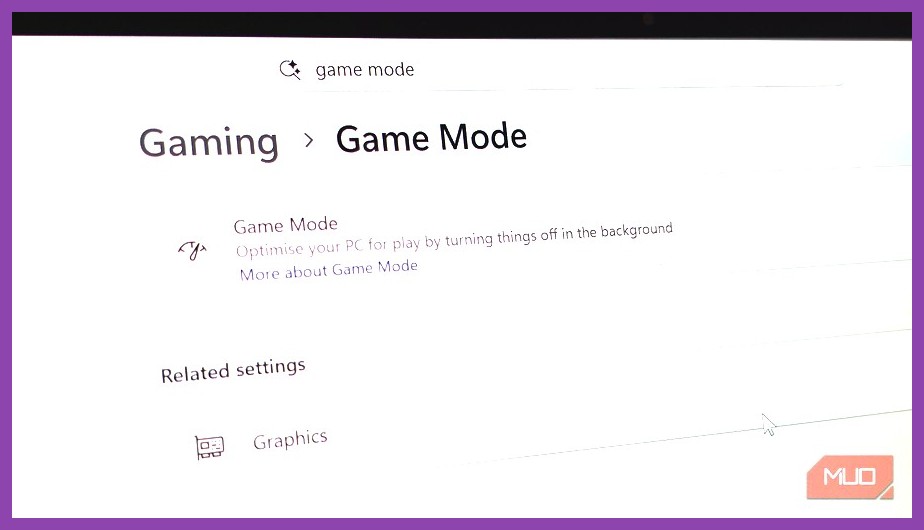
Introduced in Windows 10 and refined in Windows 11, Game Mode is a built-in feature designed to recognize when you are playing a game. When active, it tells the OS to prioritize CPU and GPU resources to the game executable while suspending background activities like Windows Updates and non-essential notifications.
To enable it:
- Press the
Windows Key + Ito open Settings. - Click on Gaming in the left menu.
- Select Game Mode and ensure the toggle is set to On.
While Game Mode isn’t a magic bullet that will instantly double your FPS, it provides a crucial baseline of stability, ensuring that random background tasks don’t cause sudden, massive frame drops during intense gameplay moments.
Enable Hardware-Accelerated GPU Scheduling (HAGS)
If you have a relatively modern graphics card (NVIDIA GTX 1000 series or newer, or AMD equivalent) and are running an up-to-date version of Windows, you should enable Hardware-Accelerated GPU Scheduling. This feature allows your graphics card to manage its own memory rather than relying on the Windows operating system to do it, reducing latency and improving average frame rates.
- Open Settings > System > Display.
- Scroll down and click on Graphics (or Graphics Settings).
- Click on Change default graphics settings.
- Toggle on Hardware-accelerated GPU scheduling and restart your PC.
Adjust Your Power Plan
By default, Windows often sets your PC’s power plan to “Balanced” to save energy. While this is great for laptops running on battery, it’s terrible for gaming desktops, as it can artificially throttle your CPU’s clock speed.
- Open the Start Menu, type Choose a power plan, and hit Enter.
- If you don’t see it immediately, click the dropdown arrow for Show additional plans.
- Select High Performance or Ultimate Performance.
This ensures that your processor is always ready to deliver its maximum clock speed the moment a game demands it, preventing stuttering caused by the CPU taking a split-second to wake up from a low-power state.
3. In-Game Settings and Visual Tweaks
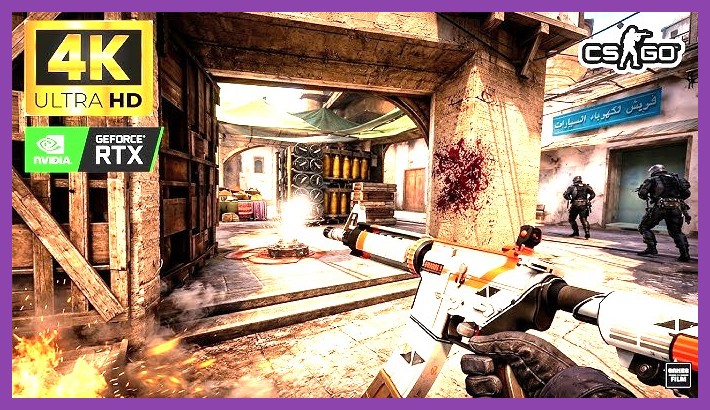
Once your client and operating system are optimized, the biggest gains will come from adjusting the graphics settings within the games themselves. It is tempting to crank everything up to “Ultra,” but the reality is that many “Ultra” settings offer virtually indistinguishable visual improvements over “High” while demanding exponentially more processing power.
Fullscreen vs. Borderless Windowed
Always try to run your demanding games in Exclusive Fullscreen mode. When you run a game in Borderless Windowed mode, the Windows Desktop Window Manager (DWM) continues to render the desktop and other background apps behind the game. This introduces input lag and reduces frame rates. Exclusive Fullscreen forces the OS to dedicate all rendering resources solely to the game.
Shadows, Volumetrics, and Anti-Aliasing
If you are struggling for frames, these are the first three settings you should lower:
- Shadow Quality: Calculating dynamic shadows in real-time is incredibly taxing on a GPU. Dropping shadows from Ultra to Medium often results in a massive 15-20% FPS boost, and in the heat of battle, you likely won’t notice the softer edges on a shadow.
- Volumetric Clouds/Fog: Often seen in expansive open-world games, volumetric effects look beautiful but are notoriously unoptimized. Lowering these to Medium or Low is highly recommended.
- Anti-Aliasing (AA): AA smooths out jagged edges on 3D models. Traditional methods like MSAA are very heavy. If the game offers it, switch to TAA (Temporal Anti-Aliasing) or use upscaling technologies like NVIDIA DLSS or AMD FSR.
Upscaling Technologies: DLSS and FSR
If you have a modern GPU, utilizing Deep Learning Super Sampling (DLSS) for NVIDIA cards, or FidelityFX Super Resolution (FSR) for AMD and older cards, is an absolute necessity. These technologies render the game at a lower internal resolution (saving massive amounts of GPU power) and then use advanced algorithms or AI to upscale the image to fit your monitor.
Setting DLSS or FSR to “Quality” mode can easily net you an extra 20-30 FPS with almost zero noticeable loss in visual clarity.
Frame Limiting and V-Sync
A fluctuating frame rate that jumps wildly between 45 FPS and 90 FPS actually feels worse to play than a rock-solid, locked 60 FPS. If your frame rate is all over the place, consider using the in-game settings to cap your maximum FPS to match your monitor’s refresh rate (typically 60Hz, 120Hz, or 144Hz).
Disable traditional V-Sync in-game if you can, as it introduces noticeable input lag. Instead, rely on a frame cap, or use NVIDIA G-Sync / AMD FreeSync if your monitor supports variable refresh rates.
4. Hardware Maintenance and Upkeep
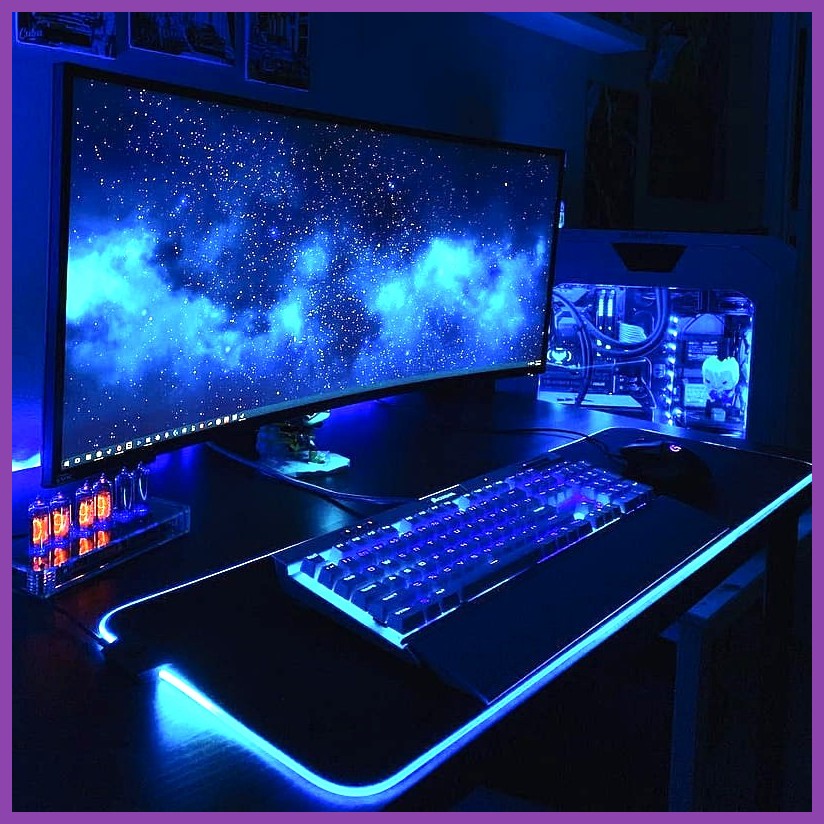
Software tweaks can only take you so far if your physical hardware is suffocating. Regular maintenance is a non-negotiable part of PC gaming.
Keep GPU Drivers Updated
Both NVIDIA and AMD frequently release driver updates that contain “Game Ready” optimizations for newly released titles. Playing a brand new game on year-old drivers is a guaranteed recipe for crashes, visual glitches, and terrible performance. Use NVIDIA GeForce Experience or AMD Adrenalin to ensure your drivers are always up to date.
Monitor Temperatures (Thermal Throttling)
If your game runs perfectly for the first 20 minutes and then suddenly becomes a lagging, stuttering mess, you are likely experiencing thermal throttling. Modern CPUs and GPUs are designed to automatically slow themselves down to prevent permanent damage if they get too hot.
Download a free monitoring tool like MSI Afterburner or HWMonitor to check your temperatures while gaming. If your CPU or GPU is regularly exceeding 85°C to 90°C, you have a cooling problem. Open your PC case, use a can of compressed air to blow out the accumulated dust in the heatsinks and fans, and ensure your case has proper airflow.
Move Games to an SSD
If you are still installing modern, massive open-world games on a traditional mechanical Hard Disk Drive (HDD), you are doing yourself a massive disservice. HDDs are simply too slow to stream high-resolution textures into memory fast enough. This leads to massive stutters when you turn a corner or enter a new area.
Moving your most played Steam games to a Solid State Drive (SSD) — particularly an NVMe M.2 SSD — will not only eliminate texture-streaming stutters but will also reduce loading screens from minutes down to mere seconds.
Video Tutorial: The Ultimate Optimization Guide
If you prefer a visual walkthrough of these steps and want to dive even deeper into Windows registry tweaks and advanced GPU control panel settings, we highly recommend checking out this excellent tutorial video below:
This video breaks down the exact settings you need to change in both the Steam client and the Windows operating system to squeeze every last drop of performance out of your rig.
Conclusion
Optimizing your PC for Steam games doesn’t have to be a daunting task. By systematically disabling unnecessary Steam overlays, enabling Windows Game Mode, turning down taxing visual settings like volumetric clouds, and ensuring your hardware is clean and updated, you can dramatically transform your gaming experience. A little bit of maintenance goes a long way in ensuring your rig stays lag-free for years to come.
Looking for some amazing games to test out your newly optimized PC? Head over to our massive list of the 28 Best PC Game Recommendations You Must Play in 2026. Or, if you want to stay up to date on all things gaming, explore our homepage for the latest news, reviews, and guides. Happy gaming!