When Valve launched the Steam Deck, it completely transformed portable PC gaming. Being able to take your entire library on a plane, on the couch, or away from your desk is a game-changer. But out of the box, SteamOS only scratches the surface of what this handheld marvel can actually do. If you are just turning on default settings and hitting play, you are leaving extra battery life, better frame rates, and massive quality-of-life upgrades on the table.
Whether you picked up the original LCD model or snagged the shiny Steam Deck OLED, tweaking system settings and installing a few essential community tools will elevate your handheld sessions. If you are looking to squeeze every last drop of performance out of your device, check out our general guide on how to optimize Steam performance. Below, we are diving deep into the absolute best Steam Deck tips, tricks, and hidden settings every owner needs to know.
1. Master the Quick Access Menu for Instant Battery Gains
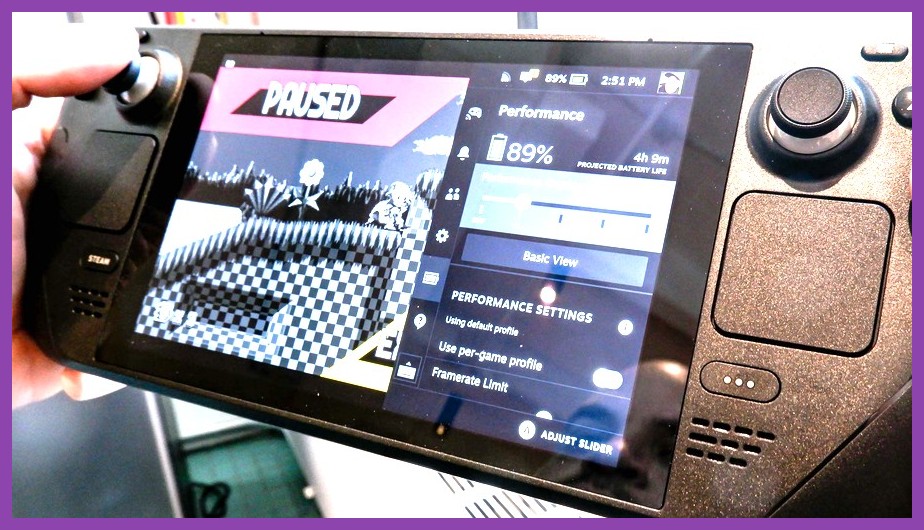
The three-dot button on the bottom right of your Steam Deck is your best friend. Pressing it pulls up the Quick Access Menu (QAM), where you will find the battery, friend list, and—most importantly—the performance overlay tab shaped like a lightning bolt.
Instead of running every title at max power, tap into individual game profiles. Here is how you double your battery life in lightweight titles:
- Enable Per-Game Profiles: Toggle "Use per-game profile" at the top so your changes only apply to the active title.
- Cap the Refresh Rate and Framerate: Dropping a title from 60 FPS down to 40 FPS (or 45 FPS on the OLED model) reduces power draw dramatically while maintaining smooth gameplay motion.
- Adjust Thermal Design Power (TDP): For indie games like Hades or Vampire Survivors, lower the TDP slider from 15W down to 5W or 7W. You will lock in buttery smooth gameplay while keeping the fans whisper-quiet.
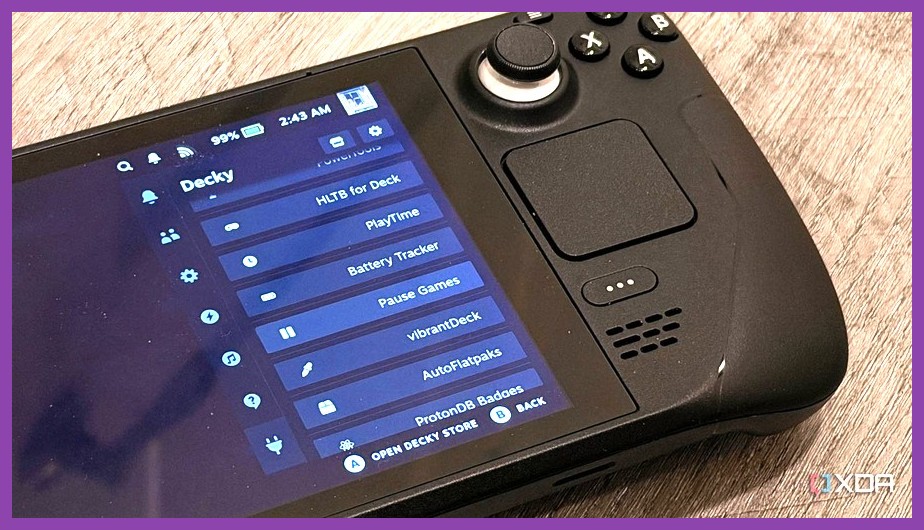
2. Install Decky Loader for Next-Level System Customization
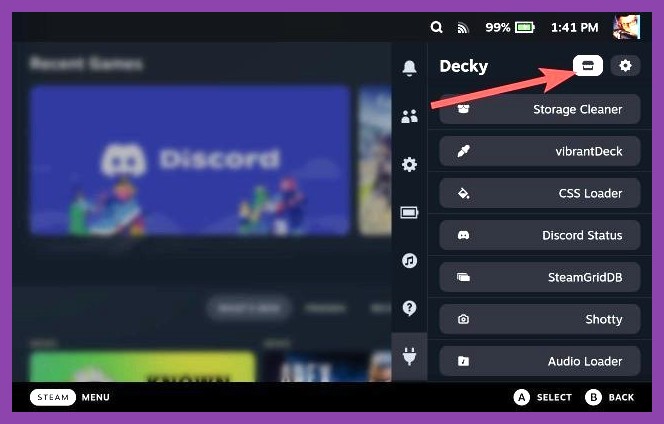
If you only do one tweak from this list, make it installing Decky Loader. Decky Loader is an open-source plugin manager that embeds seamless community tweaks straight into your SteamOS Quick Access Menu. You can view the project on the Decky Loader GitHub page.
Must-Have Decky Loader Plugins:
- ProtonDB Badges: Places a direct rating badge (Borders, Gold, Platinum) on your game art so you know immediately if a title works without checking external sites like ProtonDB.
- CSS Loader: Lets you install custom themes, change system fonts, round UI corners, and recolor menus to customize your Deck UI.
- PowerTools: Offers deep power management. You can disable individual CPU threads or tune battery charge thresholds to preserve health over long gaming sessions.
- Animation Changer: Lets you set custom boot animations every time you power on or wake up your device.
3. Tap into Proton GE for Unplayable Games
Have you ever booted up a game on your Deck only to get a blank black screen, missing video cutscenes, or instant crashes? That usually happens because the official Valve Proton layer lacks specific proprietary audio and video codecs. The solution is Proton GE (GloriousEggroll), a custom community build of Proton that patches compatibility gaps for thousands of PC games.
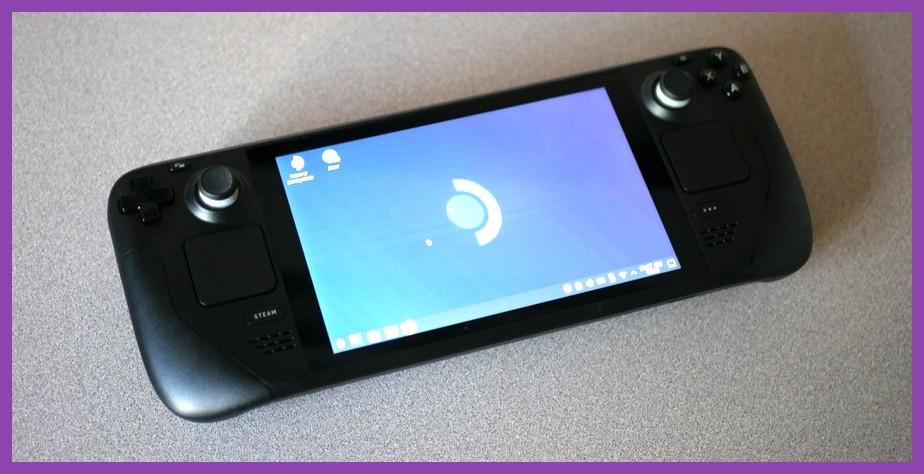
To install it, switch to Desktop Mode (Press Steam Button > Power > Switch to Desktop). Open the Discover Software Center, search for ProtonUp-QT, and install it. Open ProtonUp-QT, click "Add Version," choose the latest GE-Proton build, and hit install. Head back into Gaming Mode, click the Gear icon on any finicky game, navigate to Properties > Compatibility, check "Force the use of a specific Steam Play compatibility tool," and select your newly installed GE-Proton version.
If you are looking for amazing games to test this out on, browse our roundups of the best PC games recommendations or jump straight into incredible free Steam games that run flawlessly on portable hardware.
4. Master System Shortcuts for Speedier Navigation
Valve built a treasure trove of physical button combos into SteamOS that bypass tedious navigation menus. Holding down the Steam Button or the Quick Access Button for three seconds brings up the full shortcut cheat sheet, but here are the essential combos to memorize:
- Steam + X: Force open the virtual touch keyboard anywhere.
- Steam + L1: Toggle the Magnifier tool to read tiny text in strategy games or RPGs.
- Steam + R1: Take a quick screenshot.
- Steam + Right Trackpad (Click): Acts as a precise mouse cursor and left click.
- Steam + Pressing Long on Power Button: Force restart a frozen game without cycling power.
- Steam + Left D-Pad: Triggers the Escape key input.
5. Unlock Gyro Aiming and Custom Back Buttons
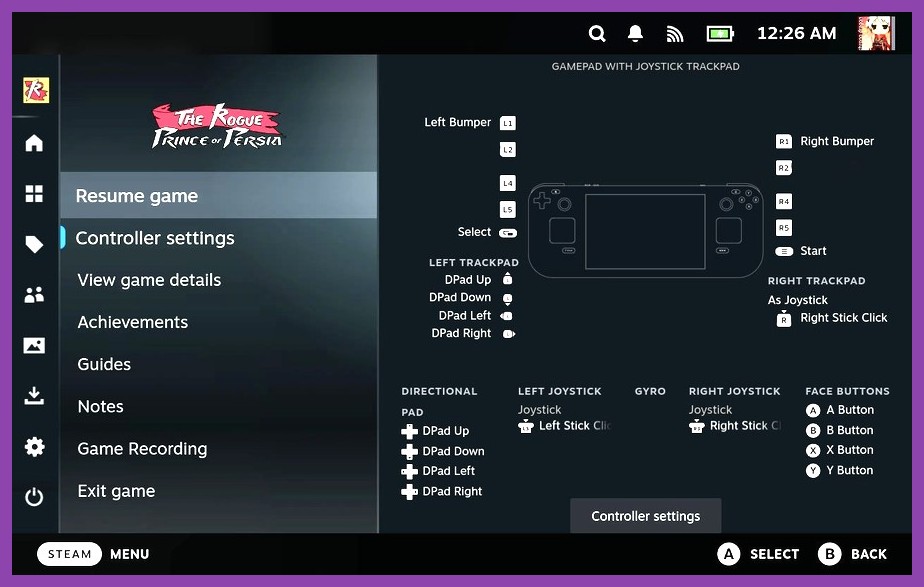
The Steam Deck's physical control options are unrivaled. You have twin trackpads, four rear grip buttons (L4, R4, L5, R5), and built-in capacitive gyro sensors inside the thumbsticks. Stop playing shooter games with standard dual-analog stick controls—gyro aiming will change your gaming habits forever.
Through the Steam Input configurator (click the Controller icon next to the Play button on any game), you can bind the Gyro sensor to trigger whenever your thumb touches the right stick or when holding down the Left Trigger (ADS). Use the analog stick for wide panning turns and subtle tilts of the physical Deck for micro-adjustments on enemy targets. It gives you mouse-like precision in heavy action games and third-person adventures.
While you are adjusting controls, bind the rear buttons to actions like sprinting, jumping, or reloading so your thumbs never have to leave the aim thumbsticks during combat.
6. Clean Up Cache Files with ShaderCacheKiller
If you own the 64GB LCD Steam Deck or store dozens of games on a MicroSD card, you have probably noticed your internal storage space getting eaten up by mysterious "Other" data. That mystery data consists of Shader Caches and compatibility files (compatdata).
Every time a game runs, Steam pre-compiles shaders to prevent stuttering. The catch? When you uninstall a game, SteamOS often leaves those shader cache folders behind on your internal SSD. Over time, gigabytes of dead space pile up.
To fix this, hop into Desktop Mode, open the Discover app store, and download a utility called Decky Storage Cleaner (available within Decky Loader) or run standalone scripts like ShaderCacheKiller. These tools analyze your system drive, show you exactly which uninstalled titles are taking up space, and let you delete them with a single click.
7. Use Built-in FSR for Heavy Graphics Games
Trying to play demanding open-world titles on handheld hardware can cause frame rates to tank. Fortunately, AMD's FidelityFX Super Resolution (FSR) is integrated directly into the official SteamOS platform menu system, allowing you to upscale low resolutions natively.
Here is how to set up native upscaling:
- In your game's in-game graphics settings, lower the render resolution from 1280x800 down to 960x600 or 1024x640. Turn off borderless windowed mode and choose Fullscreen.
- Open the Steam Deck Quick Access Menu (three-dot button) and go to the Performance tab.
- Scroll down to Scaling Filter and switch it to FSR.
- Set the FSR Sharpness slider to around 2 or 3.
SteamOS will take that lower resolution image, run it through the hardware spatial upscaler, and project a crisp image onto your display while saving a massive chunk of processing power. If you want to dive deeper into performance optimization across titles, take a look at our optimize steam game performance breakdown.
8. Bring Non-Steam Games into your Library easily
The Steam Deck is an open Linux machine, which means you aren't locked into Steam. You can play titles from Epic Games Store, GOG, Amazon Prime Gaming, and Ubisoft Connect with ease.
Instead of manually configuring Windows installers in Desktop Mode, download Heroic Games Launcher or NonSteamLaunchers from the Discover Store. NonSteamLaunchers automatically downloads, installs, and links third-party storefronts straight to your Steam library, downloading matching game artwork automatically. If you want to expand your library without spending a dime, explore our detailed list of the best free Steam games.
9. Turn Your Deck into an Emulation Powerhouse with EmuDeck
Retro gaming on the Deck display is incredible. To set up retro hardware emulation effortlessly, use EmuDeck. EmuDeck is an all-in-one automation script that installs emulators, configures hotkeys, optimizes aspect ratios, and organizes your retro ROMs directly within SteamOS.
Simply download the installer in Desktop Mode, run the quick setup, place your legally owned ROM files into the auto-generated folders, and run the Steam ROM Manager. All your favorite childhood classics will appear as individual games inside your Steam library, complete with high-resolution box art, achievements, and cloud save support.
10. Enable Native Screen Mirroring and Local File Transfers
Moving files from your desktop PC to your Steam Deck using USB drives gets tedious fast. Luckily, you can transfer files wire-free at full local network speeds.
- Warpinator / LocalSend: Install LocalSend from the Discover Store on your Deck and on your desktop PC (Windows/Mac/Linux). As long as both devices sit on the same Wi-Fi network, you can drag and drop files, game mods, and screenshots back and forth instantly.
- KDE Connect: Built natively into SteamOS Desktop Mode, KDE Connect pairs your phone or PC with your Deck for shared clipboards, file transfers, and phone notification popups directly on screen.
11. Use Radial Menus for Complex Keybindings
Strategy games, MMORPGs, and heavy simulators usually require dozens of keyboard hotkeys, making handheld play seem impossible. Steam Input solves this problem with Virtual Radial Menus.
In controller settings, you can map the left or right trackpad to act as a touch-activated radial wheel. Touching the trackpad pops up a custom wheel overlay on screen with up to 20 custom assigned hotkeys, complete with custom labels or icons. You can select items, cast spells, or execute commands with a quick thumb flick without touching a physical keyboard.
12. Fine-Tune Off-line Gaming and Cloud Saves
Planning a trip without Wi-Fi access? Steam's Offline Mode can sometimes be tricky if you do not prepare ahead of time. Follow these steps before stepping out the door:
- Connect to Wi-Fi, boot up the games you plan to play at least once, and ensure their initial setup scripts and shader compilations finish completely.
- Verify that your Steam Cloud saves have synced successfully by checking the status next to the Play button.
- Manually switch SteamOS to Offline Mode (Steam Button > Settings > Internet > Turn on Offline Mode). This prevents Steam from freezing up when trying to contact authorization servers while offline.
13. Optimize Screen Color Profiles (LCD vs OLED)
If you own the original LCD Steam Deck, colors can sometimes look washed out compared to modern phones. Valve added built-in color vibrancy controls into SteamOS to address this. Go to Settings > Display, scroll down to **Night Mode & Color Display**, and set the Color Appearance slider to **Vibrant**. This simple switch saturates colors, making games pop off the screen.
If you own the Steam Deck OLED, you already enjoy infinite contrast and vibrant HDR visuals. Make sure HDR is toggled ON in game settings menus to enjoy bright highlights without manually tweaking color sliders.
14. Tweak Battery Storage Mode for Long-Term Storage
If you plan to set your Steam Deck aside for a few weeks while diving into big releases on other platforms or keeping up with Cyberpunk news updates on your main rig, do not leave it sitting in sleep mode on a desk. The battery will discharge slowly and degrade health.
Put the device into official **Battery Storage Mode**: Power down the Deck completely, hold down the Volume Up (+) button, and tap the Power button. When the BIOS menu chirps open, navigate to Setup Utility > Power > Battery Storage Mode. The system will shut off completely and cut off internal power draw. To wake it back up later, simply plug in the official wall charger.
15. Browse Community Controller Layouts First
Before spending 20 minutes manually mapping game inputs for a title without native gamepad support, check the Steam community layout repository. Hit the Steam button while in game, select Controller Settings, tap your current controller layout, and tab over to **Community Layouts**.
Gamer communities build, vote on, and publish thousands of custom controller setups for almost every game in existence. You will frequently find layouts optimized for trackpad aiming, custom gyro configs, or full hotkey setups tailored specifically to the title you are playing.
Final Thoughts on Mastering Your Steam Deck
The Steam Deck stands out because it doesn't lock you into a rigid, closed system. It gives you the full freedom of a gaming desktop paired with the convenience of a console. Taking a bit of time to install Decky Loader plugins, configure custom Steam Input layouts, tweak per-game power profiles, and manage shader caches makes a world of difference.
Explore our main guides category and keep browsing our PC games hub to stay ahead of all the best optimizations, game reviews, and handheld tips for your library.