Nothing ruins a clutch firefight, a high-stakes boss battle, or a breathtaking cutscene faster than sudden frame drops, micro-stutters, and sluggish load times. While Valve's platform remains the undisputed home for desktop gaming, default installations carry decades of legacy background processes, rich media overlays, animated avatars, and embedded Chromium browser tabs. If you have noticed your games feeling choppy even on decent hardware, knowing how to optimize Steam performance is one of the quickest, most effective ways to reclaim precious CPU cycles and GPU overhead.
Whether you are trying to squeeze every last frame out of a budget rig or looking to streamline a high-end monster setup, tweaking the right Steam settings can drastically smooth out your frametimes. In this ultimate guide, we will break down step-by-step tweaks, hidden launch parameters, library cleanup strategies, and Windows integration tips to transform Valve's client from a resource hog into a lightweight game launcher. For broader hardware tweaks beyond the client, check out our companion guide on how to optimize steam game performance across your entire system.
1. Tame the Steam Overlay and Background Services
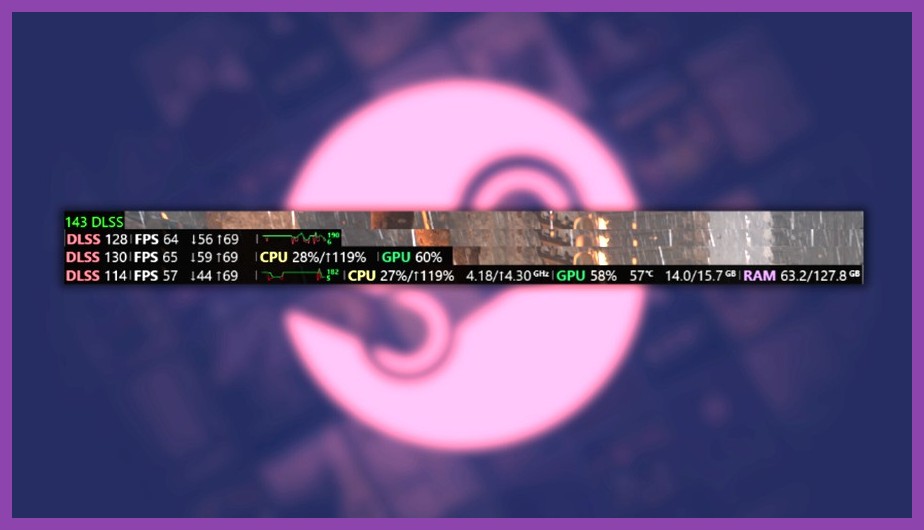
The Steam In-Game Overlay is undeniably convenient for chatting with friends, taking screenshots, or opening a quick web browser to check a guide. However, that convenient HUD runs a continuous rendering layer over your active game. On resource-bound processors or GPUs with limited VRAM, this extra layer can trigger subtle frametime spikes and input latency.
Disable the Steam In-Game Overlay Globally or Per-Game
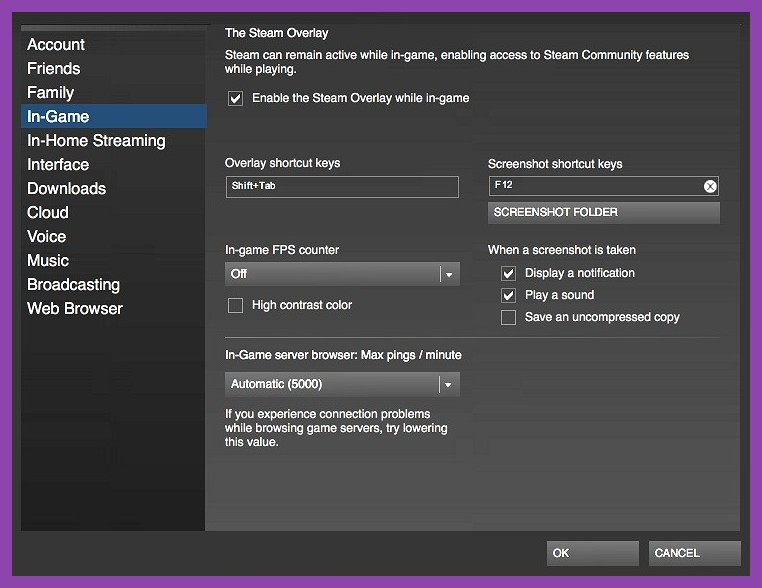
If you rarely use the Shift+Tab overlay while playing demanding titles, turning it off is an easy win for system responsiveness.
- Open the Steam client, click Steam in the top-left corner, and open Settings.
- Select the In-Game tab from the left sidebar.
- Toggle off Enable the Steam Overlay while in-game.
If you prefer keeping the overlay enabled for casual indie games or multiplayer titles, you can disable it on a game-by-game basis. Right-click any title in your library, select Properties, navigate to the General tab, and toggle off Enable the Steam Overlay while in-game specifically for that game.
Turn Off Steam Remote Play and Broadcasting
Steam includes built-in video encoding services designed to stream games to your mobile devices or broadcast your gameplay to public viewers. Even when you are not actively broadcasting, the encoding hooks remain initialized in the background, consuming memory and background CPU cycles.
Head over to Settings > Remote Play and toggle off Enable Remote Play if you do not stream your games to other local screens. Next, navigate to Settings > Broadcasting and set Privacy setting to Broadcasting disabled. Turning off these background video encoding pipelines prevents unexpected frame drops when playing fast-paced titles listed in our PC games category.
2. Trim Down Steam Client UI Bloat and WebHelper
Underneath its dark theme, the modern Steam client is essentially a customized WebKit browser running multiple steamwebhelper.exe processes. Every animated community avatar, background store video preview, and trading card notification consumes active system RAM and background CPU bandwidth. Cleaning up these client features ensures Valve's launcher stays silent while your game takes center stage.
Enable Low Performance and Low Bandwidth Modes
If your games list is massive or you frequently keep Steam open on a secondary monitor, high-resolution media banners can cause subtle micro-stutters during gameplay transitions. Steam provides built-in low-resource modes specifically designed to combat this issue:
- Go to Settings > Library.
- Check the box for Low Performance Mode (this disables graphical embellishments and smooth animations in your library).
- Check the box for Low Bandwidth Mode (this stops the library from automatically pre-loading high-resolution community images and news banners).
- Toggle on Disable Community Content to stop Steam from fetching heavy user art and guides in game hubs.
Disable GPU Hardware Acceleration in Steam Web Views
By default, Steam uses your graphics card to accelerate its internal web browser tabs and store pages. While this makes browsing the store feel super slick, it forces your GPU to share precious VRAM and render pipelines with the launcher while a game is running.
To disable hardware acceleration, go to Settings > Interface, scroll down to find Enable GPU accelerated rendering in web views, and toggle it off. Steam will prompt you to restart the client. Once restarted, your GPU will devote 100% of its processing power exclusively to rendering your favorite games from our best PC recommendations guide.
3. Optimize Downloads, Storage, and Cache Files
Corrupted download caches, fragmented library drives, and background update checks are silent culprits behind stuttering gameplay and slow loading screens. Managing your drives directly through Steam's storage tools keeps data flowing efficiently to your CPU and RAM.
Clear Steam Download Cache
Over months of downloading game patches, workshop mods, and trial builds, Steam accumulates gigabytes of temporary installer fragments. A bloated cache can slow down disk allocation speeds, corrupt patch files, and cause game startup delays. Clearing it periodically is a quick maintenance routine every gamer should practice.
Navigate to Settings > Downloads and click the Clear Cache button next to Clear download cache. Note that performing this step will log you out of Steam, so make sure you have your password and two-factor authenticator handy before confirming!
Restrict Auto-Updates During Gameplay
Few things are as frustrating as having a competitive match ruined because Steam decided to start downloading a massive update for another title in the background. While Steam is programmed to pause downloads when a game launches, background checks can still trigger high disk write activity.
Under Settings > Downloads, ensure that Allow downloads during gameplay is UNCHECKED. Furthermore, check the option to Throttle downloads while streaming if you frequently share your network connection with other family members or roommates.
Migrate Games to High-Speed NVMe SSDs
If you are still running modern blockbusters off a mechanical hard drive (HDD), no amount of setting tweaks will fix late texture streaming and long loading pauses. Moving your installed library to a fast Solid State Drive (SSD) or NVMe M.2 drive produces instant, noticeable improvements in framerate consistency.
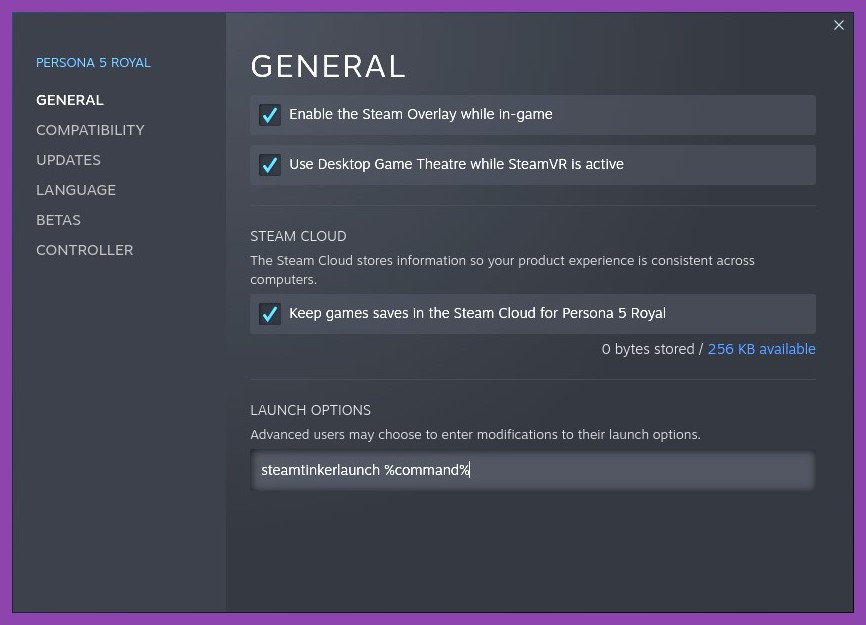
Steam makes moving game files effortless. Go to Settings > Storage, select the drive containing your game, tick the checkbox next to the titles you want to transfer, click Move, and select your target SSD drive. If you regularly test new titles from our curated list of 20 free Steam games to play, keeping your active titles on an SSD is an absolute game-changer.
4. Master Command-Line Steam Launch Options
For PC enthusiasts seeking granular control, command-line parameters entered into a game's properties window bypass default game launcher splash screens, force specific DirectX APIs, and tweak process priorities before the game engine even initializes. You can learn official command structures on the Steam Support Portal.
How to Access Launch Options
- Open your Steam Library and right-click on your desired game.
- Select Properties from the contextual menu.
- In the General tab, locate the Launch Options text field at the bottom.
Essential Command Launch Switches to Boost FPS
Here are several proven launch flags that can dramatically improve stability across dozens of popular titles:
-high— Forces your operating system's CPU scheduler to assign high priority to the game process, ensuring background apps take a backseat.-novidor-nojoy— Disables intro videos (saving load time) and turns off controller joystick polling if you exclusively play with a mouse and keyboard.-threads X— ReplacesXwith your CPU's actual thread count (e.g., 8, 12, or 16) to force games on older engines (like Source 1) to utilize all physical logical cores effectively.-dx11or-vulkan— Forces titles suffering from poor DirectX 12 optimization to run on legacy DX11 or hyper-optimized Vulkan wrappers.
If you love diving deep into performance tweaks for specific genres, explore our detailed walkthroughs in the Steamoz guides section for game-specific recommendations.
5. Fine-Tune Windows and GPU Drivers for Steam
Optimizing the Steam client client-side is only half the battle. Your underlying operating system and graphics driver parameters dictate how hardware resources are allocated when Steam passes control to an executable game engine.
Enable Windows Game Mode and Hardware-Accelerated GPU Scheduling
Modern Windows builds include built-in optimization subroutines designed specifically for full-screen games. Ensuring these options are configured properly helps avoid frame pacing hiccups.
- Press Windows Key + I to open Windows Settings, then click Gaming > Game Mode and toggle it On. This prevents Windows Update from forcing background restarts while Steam games are active.
- Go to System > Display > Graphics Settings and enable Hardware-Accelerated GPU Scheduling (HAGS). This offloads high-priority VRAM management directly to your graphics processor, reducing latency in modern AAA titles.
Clean Install GPU Drivers Regularly
Game developers frequently collaborate with chipmakers to release day-one performance drivers optimized for new releases. Ensure you regularly update your drivers directly through NVIDIA Driver Downloads or AMD Driver Support. Selecting a "Clean Installation" during driver updates wipes old display profile fragments that cause frame stuttering in Steam games.
6. Steam Deck and Handheld Optimization Highlights
If you are playing on Valve's handheld Steam Deck or similar portable Windows handhelds, managing system resources isn't just about framerates—it directly impacts battery longevity and thermal throttling limiters. You can read official hardware specifications directly on the Official Steam Store.
- Use Half-Rate Shading (VRS): On the Steam Deck's quick access menu (the three-dot button), enabling Variable Rate Shading reduces rendering workloads on peripheral textures with minimal visual impact.
- Cap Framerates to Matches Screen Refresh Rate: Capping games at 40Hz / 40 FPS on portable screens provides a surprisingly fluid experience while drastically cutting down heat and fan noise compared to an uncapped 60 FPS target.
- Manage Shader Pre-Caching: Keep Shader Pre-Caching enabled under Settings > Shader Pre-Caching in Steam. This feature pre-compiles game shaders on Valve's servers before you play, eliminating the awful stuttering caused by real-time shader compilation inside game engines.
Summary Checklist: Your Fast-Track Steam FPS Boost
To recap, optimizing Steam doesn't require complex coding knowledge or risky hardware overclocking. By running through this high-impact checklist, you will keep your client lightweight, responsive, and ready for action:
- Disable the Steam Overlay for competitive or graphically intense titles.
- Turn off Steam Remote Play, Broadcasting, and background web hardware acceleration.
- Enable Low Performance Mode and Low Bandwidth Mode in Steam's library options.
- Clear your Steam Download Cache regularly and store active games on fast SSD drives.
- Apply smart launch switches like
-highand-novidto streamline startup. - Keep Windows Game Mode turned on and GPU drivers completely updated.
With these adjustments applied, Steam will step out of the way and let your hardware do what it does best: deliver rock-solid framerates and immersive gameplay experiences. For more tech guides, game reviews, and gaming news, keep exploring Steamoz Tips & Tricks to stay ahead of the curve!