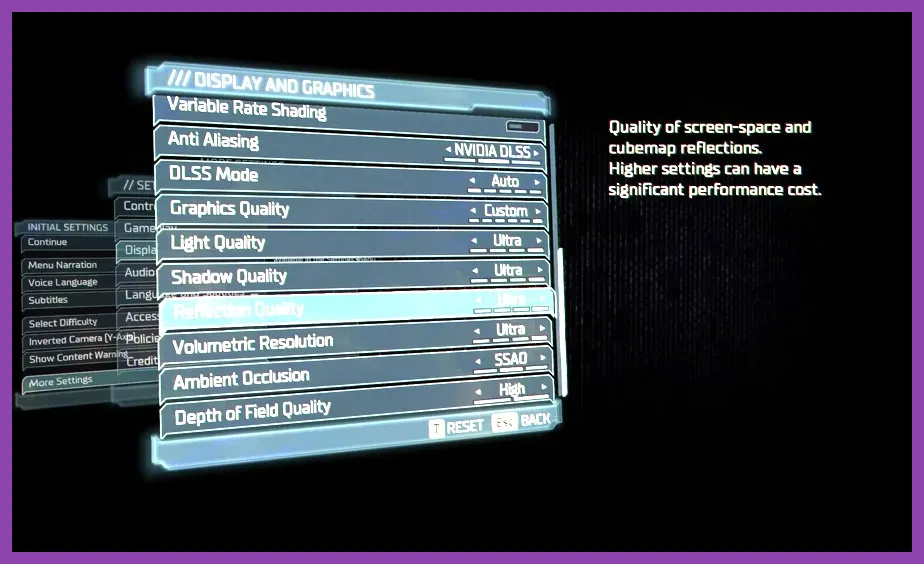
Optimizing modern gacha games on a low-end PC requires lowering specific GPU-heavy rendering parameters like shadow quality and volumetric fog, configuring dedicated GPU control panel profiles, and utilizing performance-focused Android emulators when playing mobile-first titles. By targeting the exact graphical bottlenecks that bog down integrated graphics and older CPUs—such as VRAM limitations and unoptimized particle effects—you can easily achieve a stable 60 FPS in titles like Genshin Impact and Honkai: Star Rail.
Understanding the Performance Bottlenecks in Anime Gachas
Modern gacha titles utilize advanced lighting engines, real-time cel-shading, and heavy post-processing pipelines that strain older hardware. Unlike traditional single-player RPGs, gacha games frequently load massive asset libraries for character models, weapons, and special effects dynamically during combat. If your system features an entry-level processor or integrated graphics (such as Intel UHD or AMD Radeon Vega), your primary bottleneck is memory bandwidth and shader compilation hitching.
When diving into demanding open-world anime games, the game engine constantly compiles shaders on the fly. This results in the infamous micro-stutters seen when entering new zones or executing elemental bursts. To combat this, you must shift the computational load away from your weak CPU by offloading processing tasks and stripping away non-essential visual fluff. Before tweaking individual game configurations, ensure your system drivers are fully updated via the Steam client or your manufacturer's portal. For more tactical loading and performance tips, check out our guide on Stardew Valley 16 Best Settings for Max FPS for fundamental hardware tuning habits.
Best Graphical Settings Profile for Low-End PCs
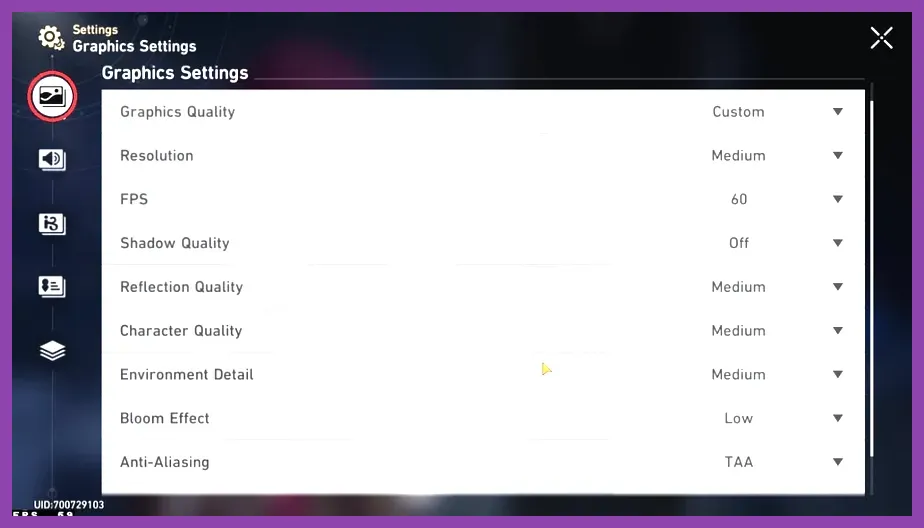
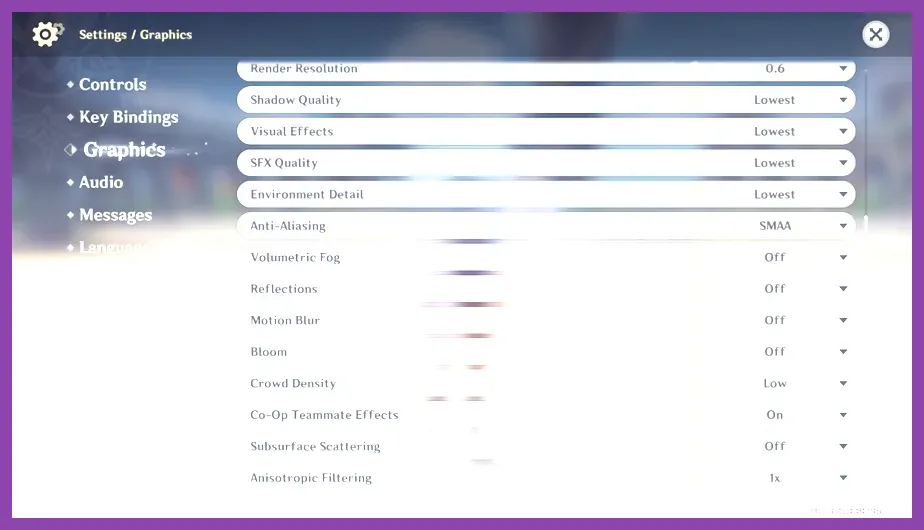
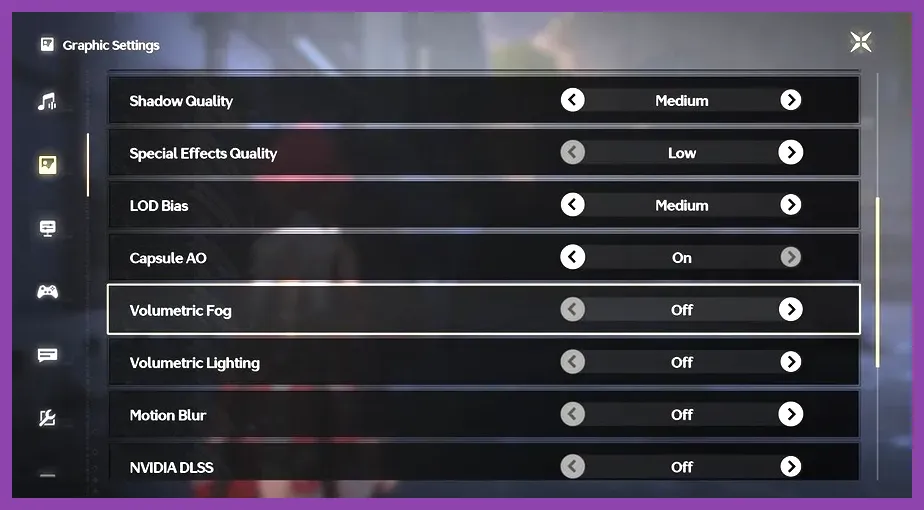
Applying the correct in-game graphical preset is the fastest way to reclaim lost frames. Do not rely on the game's auto-detect feature, as it frequently overestimates the capability of older graphics cards. Instead, manually apply the following strict profile across titles like Genshin Impact, Wuthering Waves, and Tower of Fantasy:
- Display Mode: Exclusive Fullscreen (never Borderless Windowed, to prioritize GPU resource allocation).
- Render Resolution / Resolution Scale: 0.8x or 0.85x (drastically reduces pixel fill-rate demands while keeping UI sharp).
- Shadow Quality: Low or Medium (Shadows are the single most demanding CPU/GPU render task).
- Visual Effects (VFX) / Special Effects Quality: Low (Prevents frame drops during chaotic multiplayer or ultimate skill spam).
- Crowd Density / Environment Detail: Low (Reduces NPC calculation overhead in major hub cities like Sumeru or Mondstadt).
- Vertical Sync (V-Sync): Off (Unless you experience severe screen tearing; turn it on via GPU control panel instead to reduce input latency).
- Framerate Cap: 60 FPS (Or 30 FPS if your CPU thermal throttles during extended play sessions).
By dropping shadow resolution and environmental density, you free up vital VRAM headroom. If you enjoy optimizing other resource-heavy genres, review our comprehensive breakdown on Stardew Valley 16 System Requirements Minimum and Recommended hardware specifications to understand baseline scaling.
Nvidia and AMD Control Panel Tweaks for Extra FPS
In-game settings only cover half the optimization battle. You can squeeze an extra 5 to 12 frames per second by enforcing global or application-specific overrides through your dedicated graphics card software. Open your Nvidia Control Panel or AMD Software: Adrenalin Edition and apply the following tweaks:
- Navigate to Manage 3D Settings and select the executable file (.exe) of your specific gacha game.
- Set Low Latency Mode to Ultra (Nvidia) or enable Radeon Anti-Lag (AMD) to synchronize CPU and GPU queues.
- Change Power Management Mode to Prefer Maximum Performance to prevent down-clocking during intense combat sequences.
- Limit background application priorities and disable Shader Cache Size restrictions by setting it to 10GB or Unlimited to stop stuttering caused by repeated asset loading.
These external tweaks ensure your GPU treats the gacha client with absolute priority, bypassing Windows background process interference. For additional resource management strategies, check out our insights on PUBG Mobile Best Endgame Build and Loadout Guide regarding hardware resource balancing.
Optimizing Android Emulators for Mobile-Exclusive Gachas
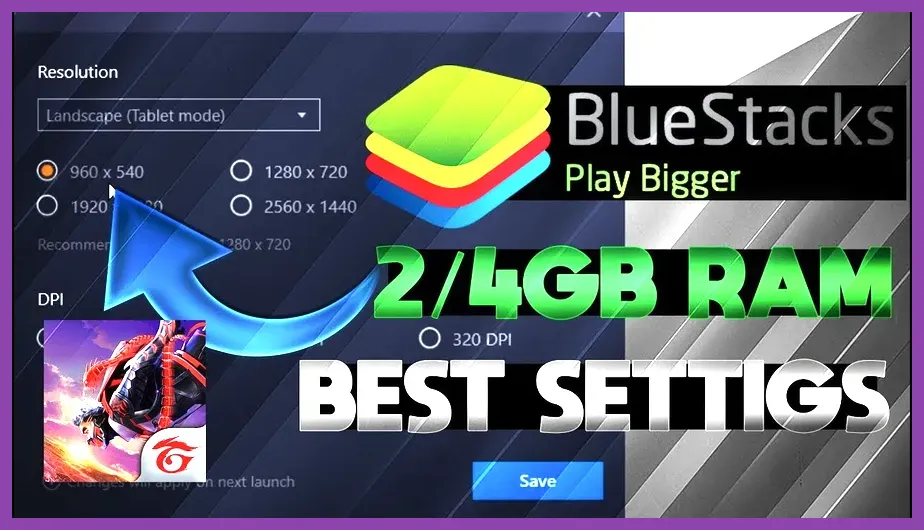
Many popular gacha games—such as Nikke, Blue Archive, and Fate/Grand Order—do not feature native PC clients and must be run through Android emulators like BlueStacks, LDPlayer, or MuMu Player. Running an emulator on a low-end PC requires careful hardware virtualization setup. First, enter your PC BIOS during startup and ensure that Intel VT-x or AMD-V (Virtualization Technology) is enabled.
Next, configure your emulator settings strictly based on your hardware constraints:
- CPU Cores Allocation: Allocate exactly half of your physical CPU cores (e.g., if you have a 4-core CPU, allocate 2 cores; never allocate all cores, as Windows needs breathing room).
- RAM Allocation: Set RAM to 4096MB (4GB) if you have 8GB total system RAM, or 8192MB (8GB) if you possess 16GB.
- Graphics Renderer: Switch from DirectX to OpenGL or Vulkan depending on which API runs more stably on your specific GPU drivers.
- ASTx Texture Support: Enable hardware decoding for compressed texture formats to drastically reduce loading times.
For alternative mobile setups and device performance profiling, reference our guide on PUBG Mobile Best Armor Sets and Where-To-Find Them for emulation tips.
Managing Thermal Throttling and Background Bloatware
Low-end PCs frequently suffer from thermal throttling, where dusty cooling fans or dried thermal paste force components to down-clock themselves to prevent overheating during long grinding sessions. Monitor your temperatures using software like MSI Afterburner. If your CPU or GPU exceeds 85°C, performance will plummet regardless of your graphical settings.
Additionally, eliminate resource hogs before launching your game. Disable startup applications via the Windows Task Manager, turn off Discord hardware acceleration, and close memory-hungry web browsers. Keeping your RAM clean ensures the gacha game has unhindered access to system memory. For users balancing multiple gaming platforms and handheld optimizations, explore our guide on Steam Deck OLED Unlock All Secret Characters for parallel portable optimization methodologies.